> ## Documentation Index
> Fetch the complete documentation index at: https://docs.athelas.com/llms.txt
> Use this file to discover all available pages before exploring further.
# EOB Copilot Upload Guide
## Overview
**EOB Copilot** reads the EOBs you upload on the **EOBs** tab of the **Remittances** page and fills in the checks and claims for you. This guide covers what to upload and which processing mode to pick.
For the basic upload steps, see [The EOBs Page](/insights_biller/general_billing/the_eobs_page).
**Note:** If you are not sure which mode to pick, select **Manual (no AI processing)**. With **Manual** and **Process for Review**, your Athelas team processes any EOB you do not work yourself.
## Quick rules
* Upload **EOBs** and **decision letters**. Other document types are not recommended.
* Upload them as **PDF** files.
* One remittance advice per file works best, but it is not required.
* Use clear, legible scans.
* Keep each PDF at **100 pages or fewer**.
The **Create EOB** panel shows upload guidance in the **What to upload** notice.
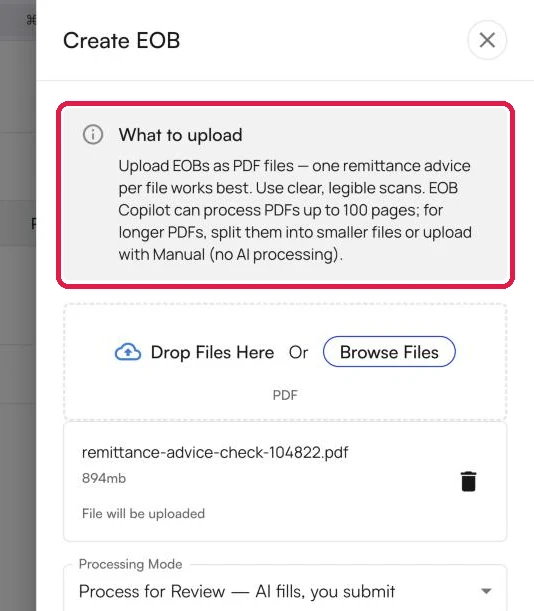 ## What to upload
### One file
Click **Browse Files** and select the PDF. The file appears in the list under the upload area before you save.
## What to upload
### One file
Click **Browse Files** and select the PDF. The file appears in the list under the upload area before you save.
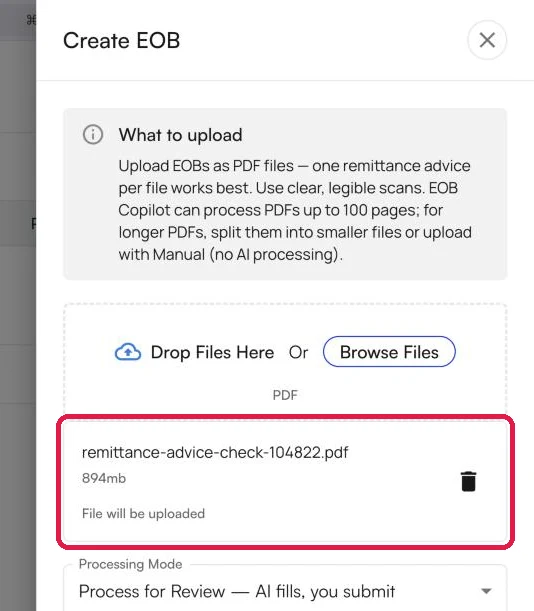 **Tip:** EOB Copilot works best when each file holds one remittance advice. A file with more than one still uploads.
### Several files at once
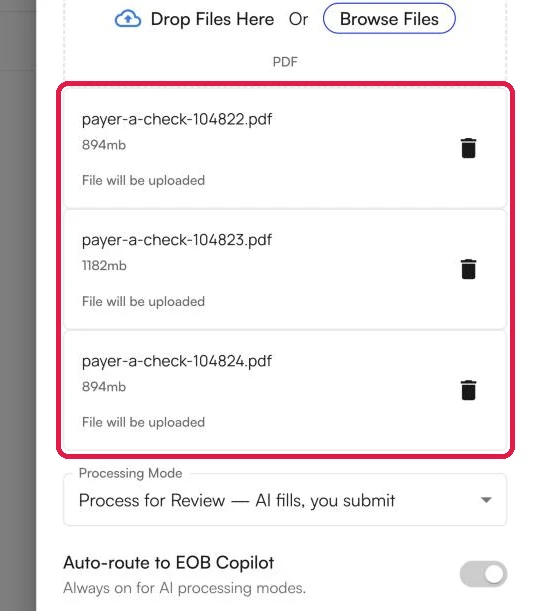
You can select more than one PDF in the same upload. Each file appears in the list.
**Tip:** EOB Copilot works best when each file holds one remittance advice. A file with more than one still uploads.
### Several files at once
You can select more than one PDF in the same upload. Each file appears in the list.
 ## Choose a processing mode
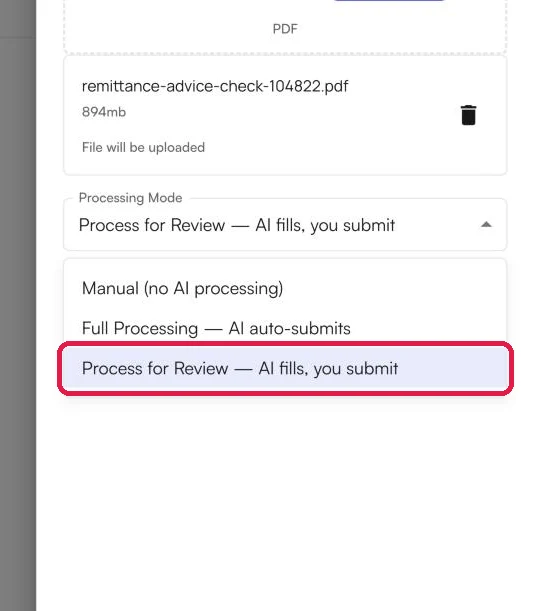
The **Processing Mode** dropdown decides how the upload is handled.
Whichever mode you pick, the EOB gets processed. With **Manual** and **Process for Review**, you can work the EOB yourself if you want to. If you do not, your Athelas team picks it up and processes it for you. You do not need to do anything else.
**Full Processing** is the exception. The AI submits the EOB automatically, so your Athelas team does not review it before it posts.
| **Processing mode** | **What happens** | **Reviewed before posting** |
| :- | :- | :- |
| **Manual (no AI processing)** | No AI mode is applied. You can work the EOB yourself, or leave it for your Athelas team. | Yes |
| **Process for Review — AI fills, you submit** | EOB Copilot fills in the EOB. Nothing posts until it is reviewed and submitted. You can do that yourself, or leave it for your Athelas team. | Yes |
| **Full Processing — AI auto-submits** | EOB Copilot fills in the EOB and posts it automatically. | No |
### Manual
Select **Manual (no AI processing)** when you do not want to use AI, or when you are not sure which mode to pick. You can work the EOB yourself, or leave it and your Athelas team processes it for you.
### Process for Review
Select **Process for Review — AI fills, you submit** to have EOB Copilot fill in the EOB first. Nothing posts until the EOB is reviewed and submitted. You can review and submit it yourself. If you do not, your Athelas team picks it up.
## Choose a processing mode
The **Processing Mode** dropdown decides how the upload is handled.
Whichever mode you pick, the EOB gets processed. With **Manual** and **Process for Review**, you can work the EOB yourself if you want to. If you do not, your Athelas team picks it up and processes it for you. You do not need to do anything else.
**Full Processing** is the exception. The AI submits the EOB automatically, so your Athelas team does not review it before it posts.
| **Processing mode** | **What happens** | **Reviewed before posting** |
| :- | :- | :- |
| **Manual (no AI processing)** | No AI mode is applied. You can work the EOB yourself, or leave it for your Athelas team. | Yes |
| **Process for Review — AI fills, you submit** | EOB Copilot fills in the EOB. Nothing posts until it is reviewed and submitted. You can do that yourself, or leave it for your Athelas team. | Yes |
| **Full Processing — AI auto-submits** | EOB Copilot fills in the EOB and posts it automatically. | No |
### Manual
Select **Manual (no AI processing)** when you do not want to use AI, or when you are not sure which mode to pick. You can work the EOB yourself, or leave it and your Athelas team processes it for you.
### Process for Review
Select **Process for Review — AI fills, you submit** to have EOB Copilot fill in the EOB first. Nothing posts until the EOB is reviewed and submitted. You can review and submit it yourself. If you do not, your Athelas team picks it up.
 ### Full Processing
**Full Processing — AI auto-submits** posts remits automatically. No one reviews the EOB before it posts, including your Athelas team. The panel shows a warning when you select it. Read the warning before you continue.
### Full Processing
**Full Processing — AI auto-submits** posts remits automatically. No one reviews the EOB before it posts, including your Athelas team. The panel shows a warning when you select it. Read the warning before you continue.
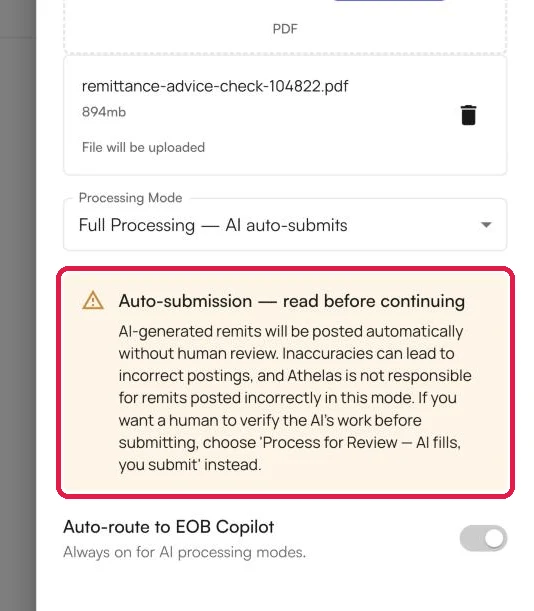 In **Full Processing**, remits are posted without human review. Inaccuracies can lead to incorrect postings. To have the EOB reviewed before it is submitted, select **Manual** or **Process for Review** instead.
## What not to upload
* **Documents other than EOBs and decision letters.** They are not recommended for EOB Copilot.
* **PDFs over 100 pages.** EOB Copilot cannot process them.
### PDFs over 100 pages
When a file is over the limit and an AI processing mode is selected, the panel shows a message under the file name.
In **Full Processing**, remits are posted without human review. Inaccuracies can lead to incorrect postings. To have the EOB reviewed before it is submitted, select **Manual** or **Process for Review** instead.
## What not to upload
* **Documents other than EOBs and decision letters.** They are not recommended for EOB Copilot.
* **PDFs over 100 pages.** EOB Copilot cannot process them.
### PDFs over 100 pages
When a file is over the limit and an AI processing mode is selected, the panel shows a message under the file name.
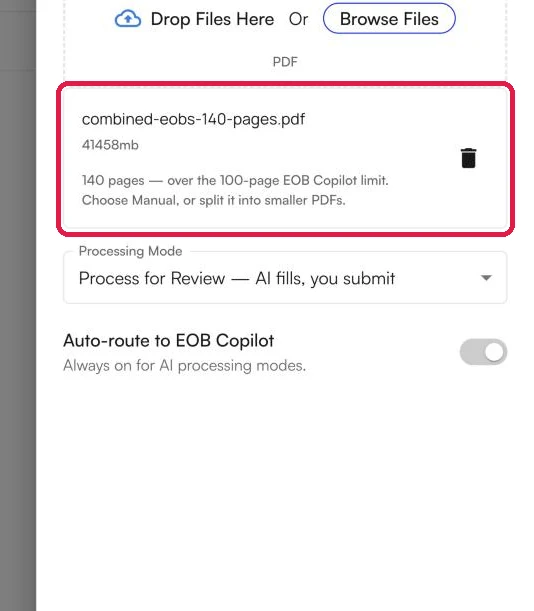 To upload the file, do one of the following:
* Split the PDF into smaller files and upload those.
* Set **Processing Mode** to **Manual (no AI processing)**.
### FAQ
Yes. Select several PDFs in the **Create EOB** panel.
Files must be PDFs.
EOBs and decision letters. Other document types are not recommended.
Split it into smaller PDFs, or upload it with **Processing Mode** set to **Manual (no AI processing)**.
## Related documentation
* [The EOBs Page](/insights_biller/general_billing/the_eobs_page)
* [Remittances](/insights_biller/general_billing/remittances)
This documentation is built and hosted on [Mintlify](https://mintlify.com), a developer documentation platform.
To upload the file, do one of the following:
* Split the PDF into smaller files and upload those.
* Set **Processing Mode** to **Manual (no AI processing)**.
### FAQ
Yes. Select several PDFs in the **Create EOB** panel.
Files must be PDFs.
EOBs and decision letters. Other document types are not recommended.
Split it into smaller PDFs, or upload it with **Processing Mode** set to **Manual (no AI processing)**.
## Related documentation
* [The EOBs Page](/insights_biller/general_billing/the_eobs_page)
* [Remittances](/insights_biller/general_billing/remittances)
This documentation is built and hosted on [Mintlify](https://mintlify.com), a developer documentation platform.