> ## Documentation Index
> Fetch the complete documentation index at: https://docs.athelas.com/llms.txt
> Use this file to discover all available pages before exploring further.
# Working a Claim: Context & Activity Feed
### At a Glance
When you open a claim, everything you need to decide what to do next lives on a single scrollable page — the claim's data, the actions you can take, the full history of submissions and payments, and a running activity feed. This guide explains how a claim is laid out and how to read its context so you can answer "what happened to this claim, and what do I do now?" without leaving the page.
To submit or resubmit once you've reviewed a claim, see [Getting Started with the Claims Page](/insights_biller/claim_details/claim_details_page).
## The Claim Lifecycle
Understanding where a claim sits in its lifecycle makes the rest of the page easier to read.
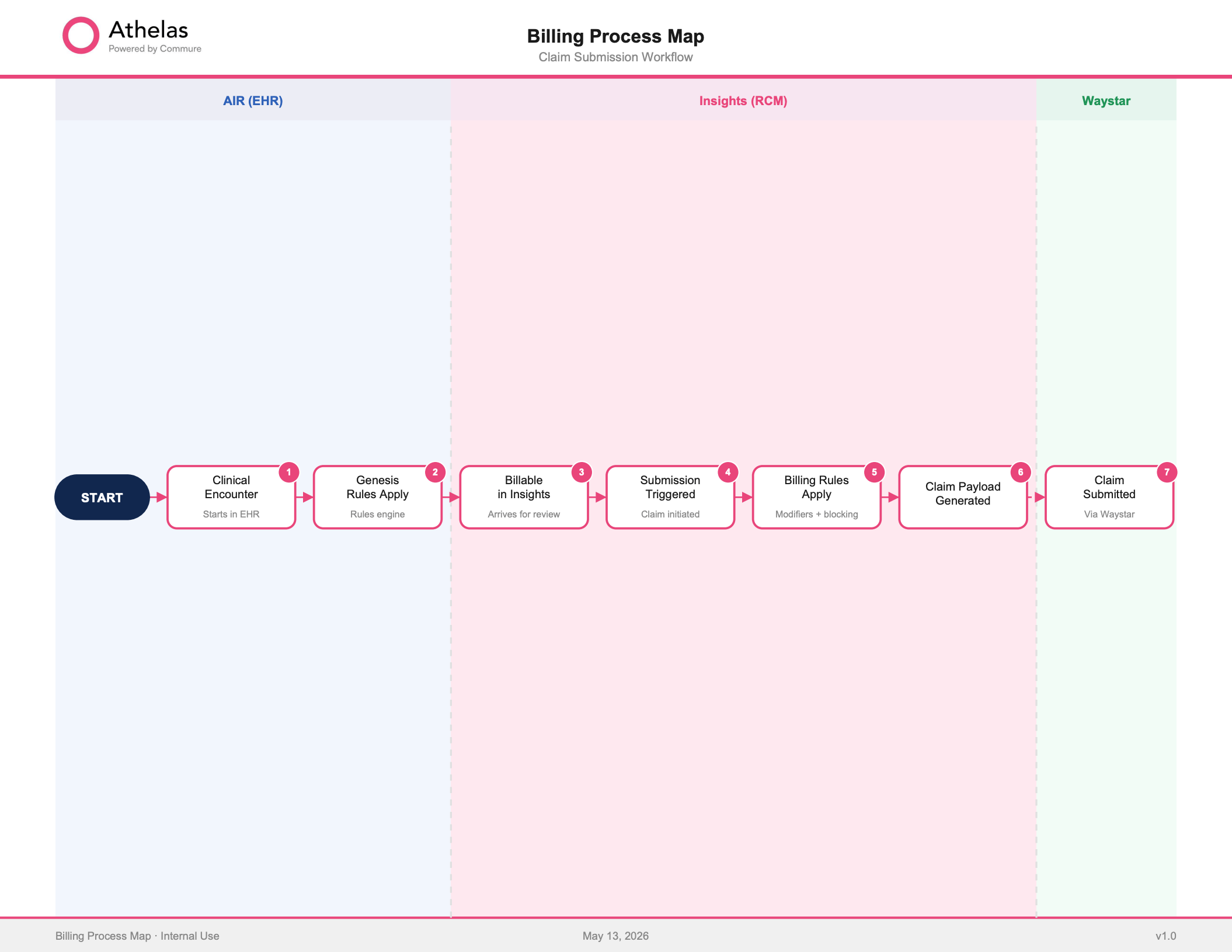 1. **A note is signed.** A provider signs a chart note in your EHR (Air or an external system).
2. **The claim is created.** The encounter is transformed into a claim and appears on the Claims Page.
3. **Billing rules run.** When you preview a submission, the claim runs through the [billing rules engine](/insights_biller/general_billing/the_billing_rules_engine), which cleans it up for the payer.
4. **The claim is submitted** to the payer through the clearinghouse.
5. **Status is tracked.** Submission errors, rejections, denials, and remittances all surface back on the claim.
The Claims Page is designed to be your single source of truth. Everything about a claim — its status, its submissions, how it paid, and what to do next — lives on the claim itself.
## How a Claim Is Laid Out
Opening a claim shows one scrollable page (no clicking through section after section). It has four areas:
* **Controls** — jump to any section of the claim, even when the panel is minimized, and **Review claim** to dry-run it through billing rules before submitting.
* **Claim details** — the same content as the classic encounter details, all on one page: patient, insurance, provider, diagnoses, and procedures. This is where you add or edit claim data.
* **Actions** — the primary **Submit** action sits prominently in blue; every other action (push to PR, adjust, request an appeal, defer, preview submission) lives in a secondary menu.
* **Claim context** — the panel alongside the claim that brings together everything that has happened to the claim.
## Reading Claim Context
The **Claim Context** panel (expandable to full width) is where you diagnose a claim. It has four key sections.
1. **A note is signed.** A provider signs a chart note in your EHR (Air or an external system).
2. **The claim is created.** The encounter is transformed into a claim and appears on the Claims Page.
3. **Billing rules run.** When you preview a submission, the claim runs through the [billing rules engine](/insights_biller/general_billing/the_billing_rules_engine), which cleans it up for the payer.
4. **The claim is submitted** to the payer through the clearinghouse.
5. **Status is tracked.** Submission errors, rejections, denials, and remittances all surface back on the claim.
The Claims Page is designed to be your single source of truth. Everything about a claim — its status, its submissions, how it paid, and what to do next — lives on the claim itself.
## How a Claim Is Laid Out
Opening a claim shows one scrollable page (no clicking through section after section). It has four areas:
* **Controls** — jump to any section of the claim, even when the panel is minimized, and **Review claim** to dry-run it through billing rules before submitting.
* **Claim details** — the same content as the classic encounter details, all on one page: patient, insurance, provider, diagnoses, and procedures. This is where you add or edit claim data.
* **Actions** — the primary **Submit** action sits prominently in blue; every other action (push to PR, adjust, request an appeal, defer, preview submission) lives in a secondary menu.
* **Claim context** — the panel alongside the claim that brings together everything that has happened to the claim.
## Reading Claim Context
The **Claim Context** panel (expandable to full width) is where you diagnose a claim. It has four key sections.
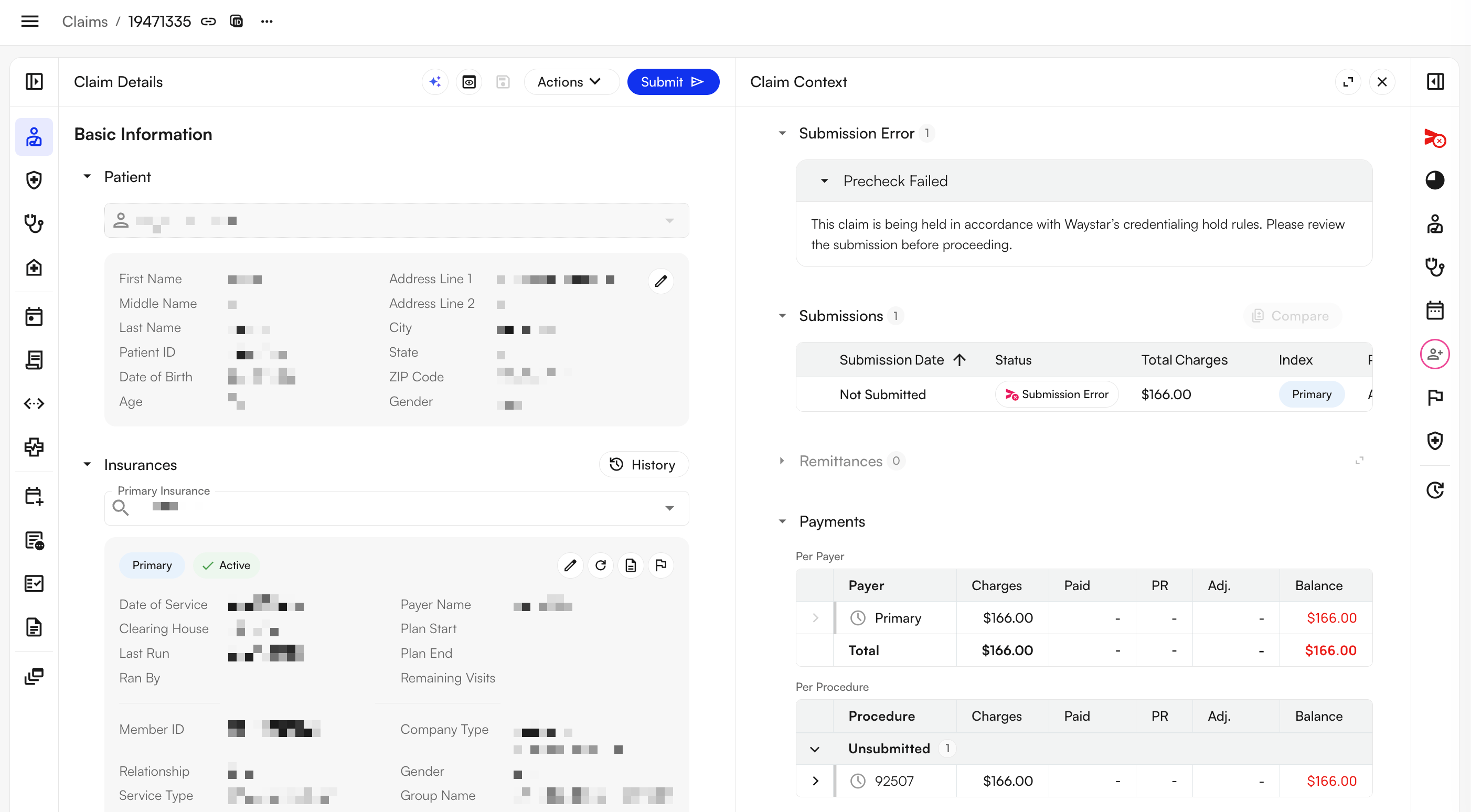 * **Status Reason** — explains *why* a claim is in its current work queue. It shows the denial, rejection, or error code, a plain-language description, the aggregate dollar amount, and a per-procedure breakdown. It updates automatically as the claim's situation changes.
* **Submissions** — the full history of every submission on the claim. Click into any one to see the payload, its metadata, the billing rules that were applied, and the CMS-1500 (or UB-04) PDF for that submission.
* **Remittances** — remittance data with its source and deposit-verification status. You can download the raw **835 (ERA)** file or a PDF.
* **Payments** — every payment on the claim. Group and sort by posted date, check number, submission ID, or procedure, and use **Display Settings** to control which columns appear (including a denied-reasons column). Click any payment for full detail.
When you open a per-payer view and a per-procedure view at the same time, the same payment can appear twice. This is a display quirk, not a duplicate payment — check the payment detail if a total looks off.
### Common Events You'll See
As a claim moves through its lifecycle, these are the events you'll encounter in its history:
| **Event** | **What it means** |
| :--------------------------- | :-------------------------------------------------------------------------------------------------------------------------------------------------------------------- |
| **Claim Submission Created** | A submission was generated for the claim. |
| **Claim Submission Sent** | The submission was sent to the clearinghouse for review before reaching the payer. |
| **Procedure Remittance** | The payer returned a decision (from an ERA or EOB). Approved remittances appear in green, denied in red; open the **Adjustments** dropdown for the reason and amount. |
| **Claim Rejected** | The clearinghouse or payer rejected the claim before adjudication. Open the error message for the specific reason. |
| **Claim Submission Error** | Validation failed on submission. Open the error message for details. |
| **Claim Voided** | A claim with an error that needs special handling is voided entirely, and a new one is created and sent in its place. |
## The Activity Feed
The **Activity Feed** tracks the full chronological story of a claim, from creation to finalization. System-captured events (like "procedure added") and user comments appear together in time order, so you don't need to narrate your own actions — the system already records what you did. Add a comment only when it adds context the system can't capture, such as a payer reference number or the next step you're waiting on.
Responsibility changes, assignments, and deferrals all appear in the feed with their reasons — click **view more** to read the note. Reach the feed quickly using its icon in the claim panel, which scrolls you straight to it.
✨**Smart Tip:** Before you start working a claim, skim the Activity Feed. It tells you what a teammate already tried, what a payer said, and whether the claim is waiting on something — so you don't duplicate work.
## Responsibility and Assignment
Every claim is either your **site's responsibility** or **Athelas' responsibility**.
* When a claim is Athelas' responsibility, site users simply see the **Athelas logo** as the assignee — all you need to know is that Athelas is handling it.
* **Filter by responsible party** to see whether a claim belongs to your site or to Athelas.
* **Reassigning responsibility** in either direction requires a **note**, which is logged to the Activity Feed so the reason is always captured.
You can also assign a claim to a specific teammate so ownership is explicit in the queue. This removes the "I thought you had that one" ambiguity — for example, handing a denial to a senior biller for appeal. Assigned claims surface in that person's **My Claims** view.
## Previewing Billing Rules Before You Submit
Before submitting, use **Review claim** (or **Preview Submission**) to dry-run the claim through billing rules. The left side shows your input; the right side shows the output after rules run — for example, an updated zip code, referring provider, or NPI.
* **Status Reason** — explains *why* a claim is in its current work queue. It shows the denial, rejection, or error code, a plain-language description, the aggregate dollar amount, and a per-procedure breakdown. It updates automatically as the claim's situation changes.
* **Submissions** — the full history of every submission on the claim. Click into any one to see the payload, its metadata, the billing rules that were applied, and the CMS-1500 (or UB-04) PDF for that submission.
* **Remittances** — remittance data with its source and deposit-verification status. You can download the raw **835 (ERA)** file or a PDF.
* **Payments** — every payment on the claim. Group and sort by posted date, check number, submission ID, or procedure, and use **Display Settings** to control which columns appear (including a denied-reasons column). Click any payment for full detail.
When you open a per-payer view and a per-procedure view at the same time, the same payment can appear twice. This is a display quirk, not a duplicate payment — check the payment detail if a total looks off.
### Common Events You'll See
As a claim moves through its lifecycle, these are the events you'll encounter in its history:
| **Event** | **What it means** |
| :--------------------------- | :-------------------------------------------------------------------------------------------------------------------------------------------------------------------- |
| **Claim Submission Created** | A submission was generated for the claim. |
| **Claim Submission Sent** | The submission was sent to the clearinghouse for review before reaching the payer. |
| **Procedure Remittance** | The payer returned a decision (from an ERA or EOB). Approved remittances appear in green, denied in red; open the **Adjustments** dropdown for the reason and amount. |
| **Claim Rejected** | The clearinghouse or payer rejected the claim before adjudication. Open the error message for the specific reason. |
| **Claim Submission Error** | Validation failed on submission. Open the error message for details. |
| **Claim Voided** | A claim with an error that needs special handling is voided entirely, and a new one is created and sent in its place. |
## The Activity Feed
The **Activity Feed** tracks the full chronological story of a claim, from creation to finalization. System-captured events (like "procedure added") and user comments appear together in time order, so you don't need to narrate your own actions — the system already records what you did. Add a comment only when it adds context the system can't capture, such as a payer reference number or the next step you're waiting on.
Responsibility changes, assignments, and deferrals all appear in the feed with their reasons — click **view more** to read the note. Reach the feed quickly using its icon in the claim panel, which scrolls you straight to it.
✨**Smart Tip:** Before you start working a claim, skim the Activity Feed. It tells you what a teammate already tried, what a payer said, and whether the claim is waiting on something — so you don't duplicate work.
## Responsibility and Assignment
Every claim is either your **site's responsibility** or **Athelas' responsibility**.
* When a claim is Athelas' responsibility, site users simply see the **Athelas logo** as the assignee — all you need to know is that Athelas is handling it.
* **Filter by responsible party** to see whether a claim belongs to your site or to Athelas.
* **Reassigning responsibility** in either direction requires a **note**, which is logged to the Activity Feed so the reason is always captured.
You can also assign a claim to a specific teammate so ownership is explicit in the queue. This removes the "I thought you had that one" ambiguity — for example, handing a denial to a senior biller for appeal. Assigned claims surface in that person's **My Claims** view.
## Previewing Billing Rules Before You Submit
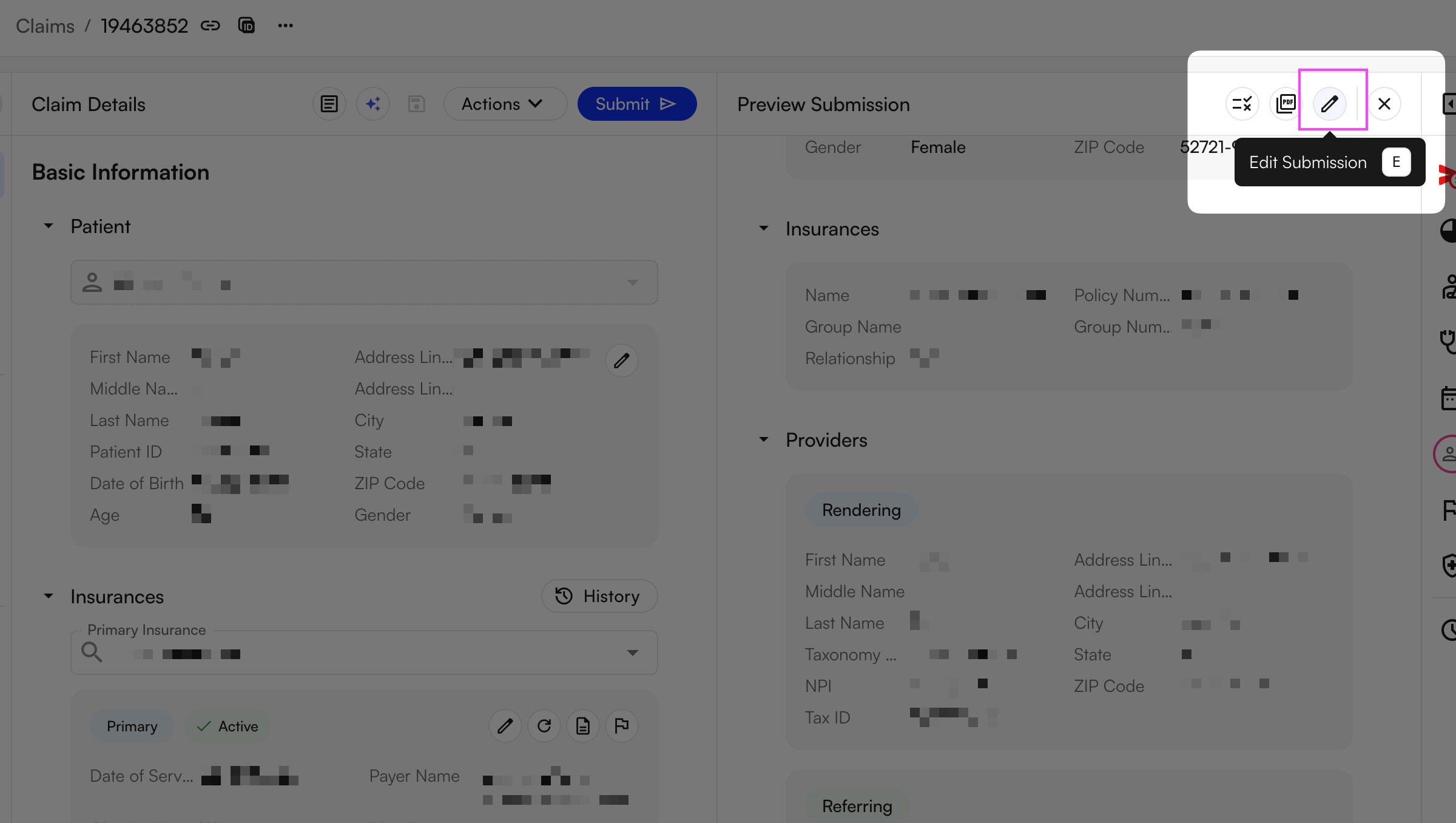
Before submitting, use **Review claim** (or **Preview Submission**) to dry-run the claim through billing rules. The left side shows your input; the right side shows the output after rules run — for example, an updated zip code, referring provider, or NPI.
 * A **star indicator** next to a field means a rule applied and modified that field.
* **View Rules** shows which billing rules fired; you can search within them for a specific field.
* **View PDF** renders the CMS-1500 or UB-04 form. Remove the background to print directly on RED-certified CMS-1500 paper.
The dry run can surface three kinds of results:
| **Outcome** | **What it means** |
| :----------------- | :-------------------------------------------------------------------------------------- |
| **Billing Rules** | Automatic alterations or additions to the claim — an NPI update, a modifier, and so on. |
| **Skippable Rule** | A soft suggestion you can skip and proceed. |
| **Hard Block** | The claim can't be submitted until you resolve the issue. |
You can edit the submission directly after rules run, but those edits bypass the billing rules engine. Treat it as a workaround for a misbehaving rule — for routine changes, edit the **claim** instead so the change is tracked and posts correctly.
### FAQ
It's now the **Activity Feed** inside the claim, combined with the **Submissions** history in Claim Context. Together they show the full chronological life of the claim — submissions sent, payments received, and changes made — in one place, without a separate timeline tab.
No — and that's intentional. When a payer posts a payment, the remittance lives inside **Claim Context** on the claim itself. Open the **Remittances** section to see the ERA/EOB detail, CARC/RARC codes, adjustments, and paid-vs-billed amounts without leaving the claim.
A star means a billing rule applied and changed that field during the dry run — for example, correcting a Place of Service code or adding a modifier. Use **View Rules** to see exactly which rule fired and why.
That claim is Athelas' responsibility, and the Athelas team is handling it. There's no action needed on your side. Use the responsible-party filter to separate Athelas-owned claims from your site's own worklist.
* A **star indicator** next to a field means a rule applied and modified that field.
* **View Rules** shows which billing rules fired; you can search within them for a specific field.
* **View PDF** renders the CMS-1500 or UB-04 form. Remove the background to print directly on RED-certified CMS-1500 paper.
The dry run can surface three kinds of results:
| **Outcome** | **What it means** |
| :----------------- | :-------------------------------------------------------------------------------------- |
| **Billing Rules** | Automatic alterations or additions to the claim — an NPI update, a modifier, and so on. |
| **Skippable Rule** | A soft suggestion you can skip and proceed. |
| **Hard Block** | The claim can't be submitted until you resolve the issue. |
You can edit the submission directly after rules run, but those edits bypass the billing rules engine. Treat it as a workaround for a misbehaving rule — for routine changes, edit the **claim** instead so the change is tracked and posts correctly.
### FAQ
It's now the **Activity Feed** inside the claim, combined with the **Submissions** history in Claim Context. Together they show the full chronological life of the claim — submissions sent, payments received, and changes made — in one place, without a separate timeline tab.
No — and that's intentional. When a payer posts a payment, the remittance lives inside **Claim Context** on the claim itself. Open the **Remittances** section to see the ERA/EOB detail, CARC/RARC codes, adjustments, and paid-vs-billed amounts without leaving the claim.
A star means a billing rule applied and changed that field during the dry run — for example, correcting a Place of Service code or adding a modifier. Use **View Rules** to see exactly which rule fired and why.
That claim is Athelas' responsibility, and the Athelas team is handling it. There's no action needed on your side. Use the responsible-party filter to separate Athelas-owned claims from your site's own worklist.