> ## Documentation Index
> Fetch the complete documentation index at: https://docs.athelas.com/llms.txt
> Use this file to discover all available pages before exploring further.
# Create a Rule
### At a Glance
When your practice keeps correcting the same field on the same kind of claim, that correction belongs in a rule. This guide covers the three ways to build one: describe it in plain language and let Athelas Assistant draft it, clone a rule that is already close to what you need, or build each condition and action yourself.
For how to read, search, edit, and dry run the rules you already have, see [The Rules Tab](/insights_biller/automations/the_rules_tab).
Rule creation is still rolling out. If you do not see **+ New Rule** on the Rules tab yet, contact your account manager for access.
## Open the Rule Builder
Go to **Automations → Rules**, open the rule engine you want to add to, then click **+ New Rule** in the top right.
The engine you start from sets the new rule's **Rule Type**, and that field is fixed once the builder opens. To build a rule of a different type, start from that engine's tab instead.
## Three Ways to Build a Rule
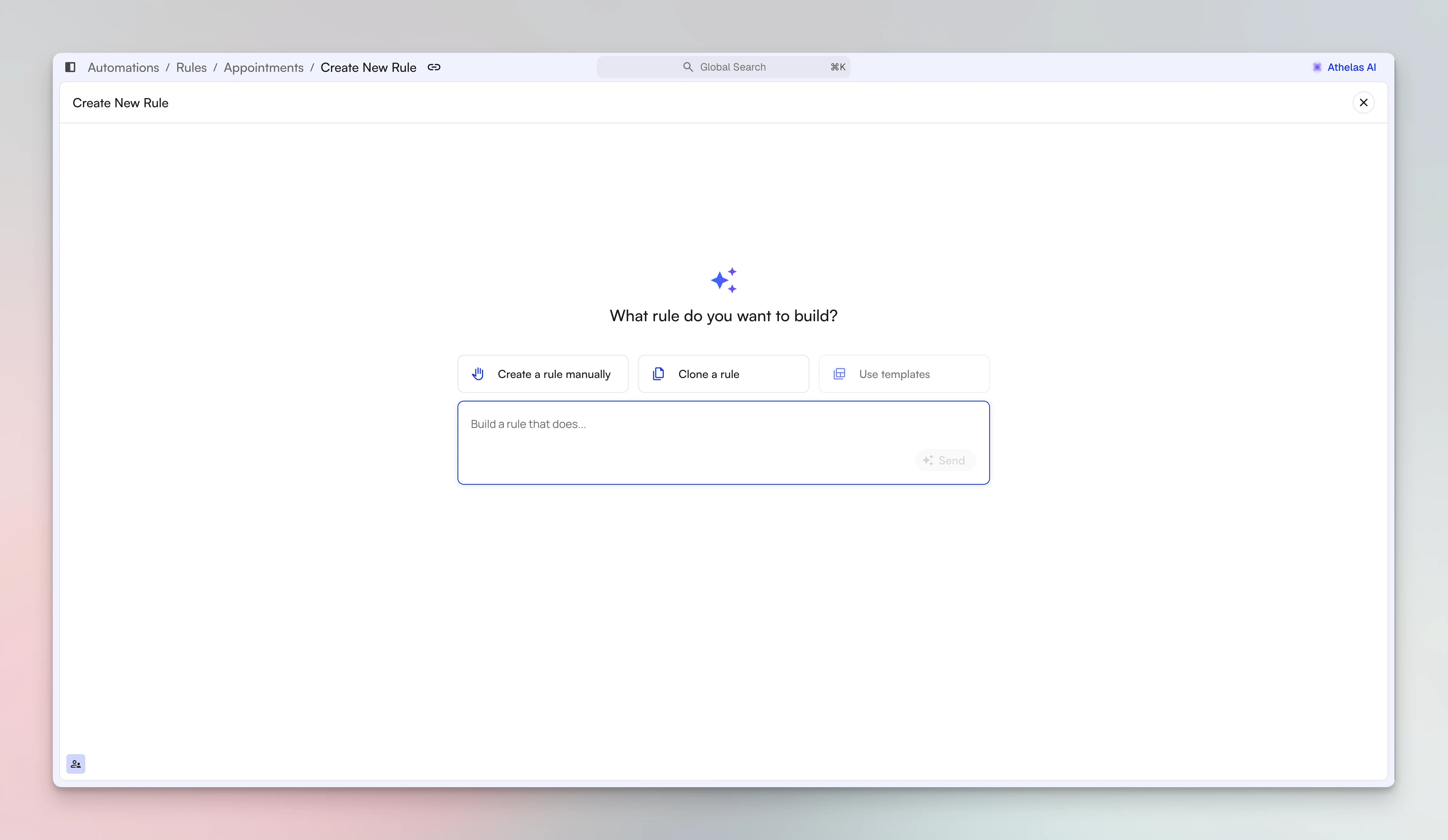
The **Create New Rule** screen asks what you want to build and gives you three routes to the same builder.
| **Approach** | **When to use it** |
| :------------------------- | :------------------------------------------------------------------------------------------------------------------------------------------------------------------------------------------------- |
| **With AI** | Describe the rule in plain language in the prompt box and let Athelas Assistant draft the conditions and actions for you. Best when you know the outcome you want but not which fields express it. |
| **Clone a rule** | Start from an existing rule that is close to what you need, then change what differs. Best when a rule already works for one payer, site, or code set and you need a variant. |
| **Create a rule manually** | Build each condition and action yourself, field by field. Best when you know exactly which fields you want and how they combine. |
## What Every Rule Contains
Whichever route you take, you land in the same builder and fill in the same parts:
| **Section** | **What you set** |
| :-------------- | :------------------------------------------------------------------------------------------------------------------------------------------------------------------------------ |
| **General** | **Rule ID**, **Site**, **Rule Type**, **State**, and **Priority**. New rules start in **Draft**. |
| **Description** | **Reason for rule** and **Explanation of rule**. Both are required, so every rule explains itself to whoever reads it months from now. |
| **Conditions** | What must be true for the rule to fire. Add conditions one at a time or in groups, and set the operator to decide whether **ALL** of them or **ANY** of them must be satisfied. |
| **Actions** | What happens once the conditions are met. One rule can trigger more than one action off the same set of conditions. |
## Build a Rule with AI
Instead of assembling conditions field by field, type what you want into the prompt box and click **Send**.
For example, you could describe:
* "Block claims from submitting if the rendering provider's NPI is missing."
* "Flag any claim over \$5,000 for manual review before it goes out."
* "When a claim is denied for a missing modifier, automatically route it to the Appeals queue."
Your description runs through a few checks before anything reaches the builder:
* **Everything is verified to exist.** Every condition, data point, and action you ask for is checked against what the system actually supports. If something is not available, you are told rather than handed an approximation.
* **Ambiguity gets resolved.** The assistant picks the condition type that matches what you actually mean, for example whether a value simply needs to be present or needs to occur in combination with something else.
* **Scope stays where you put it.** Conditions and actions stay within the object type they belong to, so a rule cannot quietly reach beyond what you asked it to touch.
Review and adjust the draft before you submit it. AI-drafted rules go through the same approval step as rules you build by hand.
## Build a Rule by Cloning
Choose **Clone a rule** to start from something that already works.
You can point at the source rule two ways:
* **By ID.** Find the rule's ID in the top left of the rule you want to copy, then select it from **Select Rule ID**.
* **By URL.** Copy the rule's URL from your browser, or use the link button at the top of the rule, then paste it into **Rule URL**.
Either way, the panel previews the source rule's full **Structure**, its trigger, conditions, and actions, so you can confirm you grabbed the right one. Click **Continue** and the clone opens as a new draft with those conditions and actions already filled in. Give it its own ID and description, change what differs, then save.
## Build a Rule Manually
Choose **Create a rule manually** to work through the builder section by section.
**To build a rule from scratch:**
1. Fill in **General**: give the rule an **ID**, pick the **Site** it applies to, and set a **Priority**. **Rule Type** is already filled in from the engine you started in, and **State** starts as **Draft**.
2. Write the **Description**: the **Reason for rule** and the **Explanation of rule**. Both are required.
3. Add your **Conditions**. Use **+ Condition** for a single test and **+ Group** for a nested set, then set the operator on each level to **ALL** or **ANY** to control how they combine.
4. Add your **Actions** with **+ Action**. Add more than one if the same conditions should produce several outcomes.
5. Click **Save**. The rule is saved as a **Draft**.
✨**Smart Tip:** Click **Athelas AI** in the top right to keep Athelas Assistant open beside the builder. You can ask it what a specific condition does without losing your place, which beats saving a draft and going looking for an example.
**Note:** Prefer to work in code? Click **JSON** to paste conditions and actions in directly instead of setting each field one at a time.
## Before Your Rule Goes Live
Saving a rule does not activate it. Two things happen first, and both are worth using deliberately:
1. **Dry run it.** Replay the rule against real records to see which conditions match and exactly which fields it would change, without touching anything. See [Dry Running a Rule](/insights_biller/automations/the_rules_tab#dry-running-a-rule-before-it-goes-live).
2. **Send it for approval.** Every rule, whether you drafted it with AI or built it by hand, goes through an approval step before it takes effect.
A rule that has passed review can still be switched off. After approval, confirm **Rule Status** reads **Active** and check **Rollout Cap** in the rule's **Properties** panel, because a rule on a phased rollout only touches part of your volume until it reads **Fully Released**.
### FAQ
No. New rules save in **Draft**, and every rule goes through an approval step before it takes effect. Dry run it first so you know what it would do, then send it for approval.
Yes. A single rule can trigger several actions off the same set of conditions. Use **+ Action** to add each one rather than building a separate rule per action, which keeps the conditions in a single place if they ever need to change.
Every condition, data point, and action you describe is checked against what the system actually supports before it reaches the builder. When something is not available, you are told outright instead of being handed a close-enough approximation that would quietly behave differently from what you asked for.
Rephrase using data the rule can see, or clone an existing rule that already tests something similar to find the supported equivalent.
Yes, **Reason for rule** and **Explanation of rule** are both required. The reason captures why the rule exists and the explanation captures what it does in practice. Together they are what makes a rule readable to the next person who opens it, including you in six months.
Yes. Click **JSON** in the builder to enter conditions and actions directly. It is the fastest route when you already have the logic written out, or when you are recreating a rule from another site.
 ## Open the Rule Builder
Go to **Automations → Rules**, open the rule engine you want to add to, then click **+ New Rule** in the top right.
The engine you start from sets the new rule's **Rule Type**, and that field is fixed once the builder opens. To build a rule of a different type, start from that engine's tab instead.
## Three Ways to Build a Rule
The **Create New Rule** screen asks what you want to build and gives you three routes to the same builder.
| **Approach** | **When to use it** |
| :------------------------- | :------------------------------------------------------------------------------------------------------------------------------------------------------------------------------------------------- |
| **With AI** | Describe the rule in plain language in the prompt box and let Athelas Assistant draft the conditions and actions for you. Best when you know the outcome you want but not which fields express it. |
| **Clone a rule** | Start from an existing rule that is close to what you need, then change what differs. Best when a rule already works for one payer, site, or code set and you need a variant. |
| **Create a rule manually** | Build each condition and action yourself, field by field. Best when you know exactly which fields you want and how they combine. |
## What Every Rule Contains
Whichever route you take, you land in the same builder and fill in the same parts:
| **Section** | **What you set** |
| :-------------- | :------------------------------------------------------------------------------------------------------------------------------------------------------------------------------ |
| **General** | **Rule ID**, **Site**, **Rule Type**, **State**, and **Priority**. New rules start in **Draft**. |
| **Description** | **Reason for rule** and **Explanation of rule**. Both are required, so every rule explains itself to whoever reads it months from now. |
| **Conditions** | What must be true for the rule to fire. Add conditions one at a time or in groups, and set the operator to decide whether **ALL** of them or **ANY** of them must be satisfied. |
| **Actions** | What happens once the conditions are met. One rule can trigger more than one action off the same set of conditions. |
## Build a Rule with AI
Instead of assembling conditions field by field, type what you want into the prompt box and click **Send**.
For example, you could describe:
* "Block claims from submitting if the rendering provider's NPI is missing."
* "Flag any claim over \$5,000 for manual review before it goes out."
* "When a claim is denied for a missing modifier, automatically route it to the Appeals queue."
Your description runs through a few checks before anything reaches the builder:
* **Everything is verified to exist.** Every condition, data point, and action you ask for is checked against what the system actually supports. If something is not available, you are told rather than handed an approximation.
* **Ambiguity gets resolved.** The assistant picks the condition type that matches what you actually mean, for example whether a value simply needs to be present or needs to occur in combination with something else.
* **Scope stays where you put it.** Conditions and actions stay within the object type they belong to, so a rule cannot quietly reach beyond what you asked it to touch.
Review and adjust the draft before you submit it. AI-drafted rules go through the same approval step as rules you build by hand.
## Build a Rule by Cloning
Choose **Clone a rule** to start from something that already works.
## Open the Rule Builder
Go to **Automations → Rules**, open the rule engine you want to add to, then click **+ New Rule** in the top right.
The engine you start from sets the new rule's **Rule Type**, and that field is fixed once the builder opens. To build a rule of a different type, start from that engine's tab instead.
## Three Ways to Build a Rule
The **Create New Rule** screen asks what you want to build and gives you three routes to the same builder.
| **Approach** | **When to use it** |
| :------------------------- | :------------------------------------------------------------------------------------------------------------------------------------------------------------------------------------------------- |
| **With AI** | Describe the rule in plain language in the prompt box and let Athelas Assistant draft the conditions and actions for you. Best when you know the outcome you want but not which fields express it. |
| **Clone a rule** | Start from an existing rule that is close to what you need, then change what differs. Best when a rule already works for one payer, site, or code set and you need a variant. |
| **Create a rule manually** | Build each condition and action yourself, field by field. Best when you know exactly which fields you want and how they combine. |
## What Every Rule Contains
Whichever route you take, you land in the same builder and fill in the same parts:
| **Section** | **What you set** |
| :-------------- | :------------------------------------------------------------------------------------------------------------------------------------------------------------------------------ |
| **General** | **Rule ID**, **Site**, **Rule Type**, **State**, and **Priority**. New rules start in **Draft**. |
| **Description** | **Reason for rule** and **Explanation of rule**. Both are required, so every rule explains itself to whoever reads it months from now. |
| **Conditions** | What must be true for the rule to fire. Add conditions one at a time or in groups, and set the operator to decide whether **ALL** of them or **ANY** of them must be satisfied. |
| **Actions** | What happens once the conditions are met. One rule can trigger more than one action off the same set of conditions. |
## Build a Rule with AI
Instead of assembling conditions field by field, type what you want into the prompt box and click **Send**.
For example, you could describe:
* "Block claims from submitting if the rendering provider's NPI is missing."
* "Flag any claim over \$5,000 for manual review before it goes out."
* "When a claim is denied for a missing modifier, automatically route it to the Appeals queue."
Your description runs through a few checks before anything reaches the builder:
* **Everything is verified to exist.** Every condition, data point, and action you ask for is checked against what the system actually supports. If something is not available, you are told rather than handed an approximation.
* **Ambiguity gets resolved.** The assistant picks the condition type that matches what you actually mean, for example whether a value simply needs to be present or needs to occur in combination with something else.
* **Scope stays where you put it.** Conditions and actions stay within the object type they belong to, so a rule cannot quietly reach beyond what you asked it to touch.
Review and adjust the draft before you submit it. AI-drafted rules go through the same approval step as rules you build by hand.
## Build a Rule by Cloning
Choose **Clone a rule** to start from something that already works.
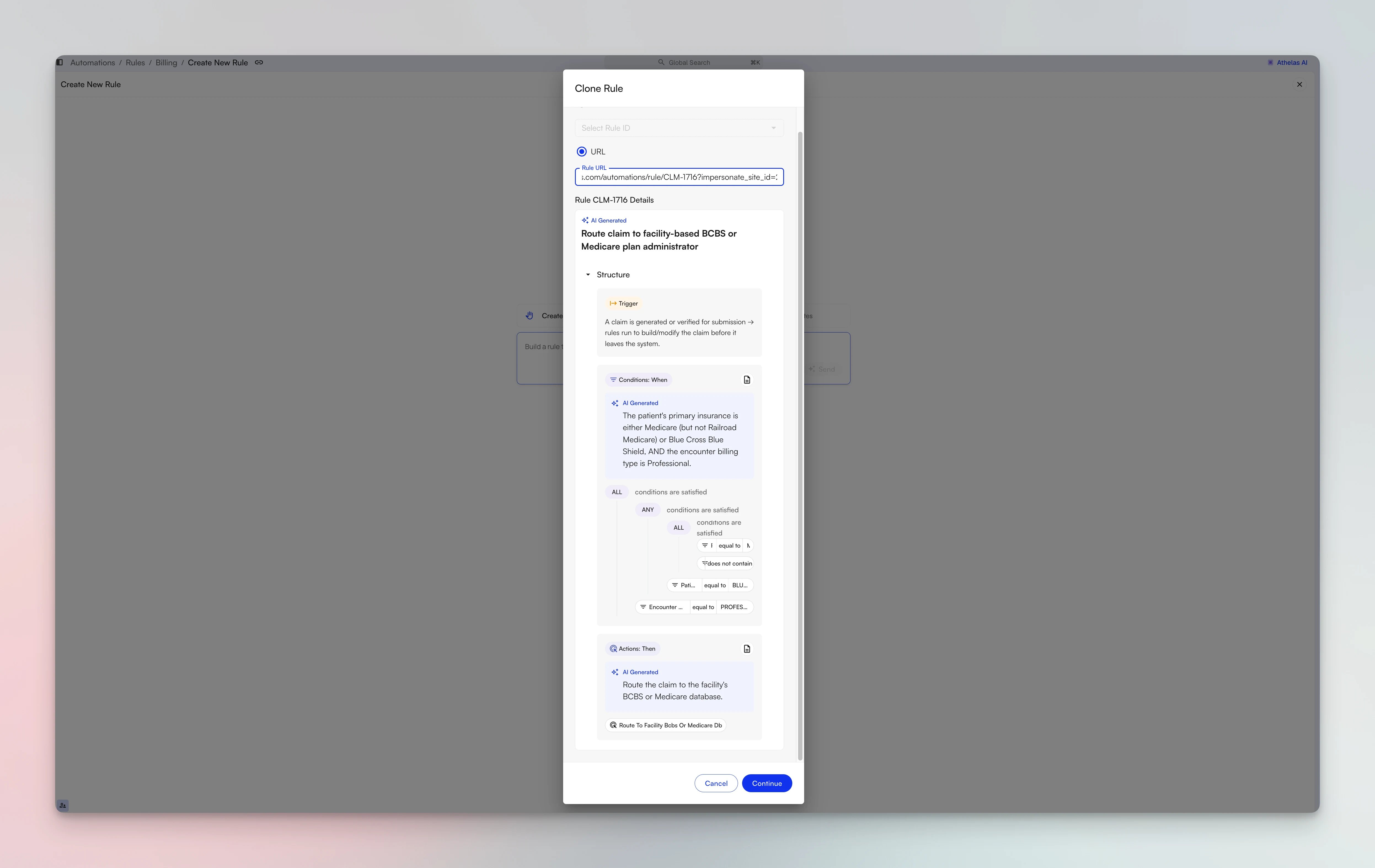 You can point at the source rule two ways:
* **By ID.** Find the rule's ID in the top left of the rule you want to copy, then select it from **Select Rule ID**.
* **By URL.** Copy the rule's URL from your browser, or use the link button at the top of the rule, then paste it into **Rule URL**.
Either way, the panel previews the source rule's full **Structure**, its trigger, conditions, and actions, so you can confirm you grabbed the right one. Click **Continue** and the clone opens as a new draft with those conditions and actions already filled in. Give it its own ID and description, change what differs, then save.
## Build a Rule Manually
Choose **Create a rule manually** to work through the builder section by section.
You can point at the source rule two ways:
* **By ID.** Find the rule's ID in the top left of the rule you want to copy, then select it from **Select Rule ID**.
* **By URL.** Copy the rule's URL from your browser, or use the link button at the top of the rule, then paste it into **Rule URL**.
Either way, the panel previews the source rule's full **Structure**, its trigger, conditions, and actions, so you can confirm you grabbed the right one. Click **Continue** and the clone opens as a new draft with those conditions and actions already filled in. Give it its own ID and description, change what differs, then save.
## Build a Rule Manually
Choose **Create a rule manually** to work through the builder section by section.
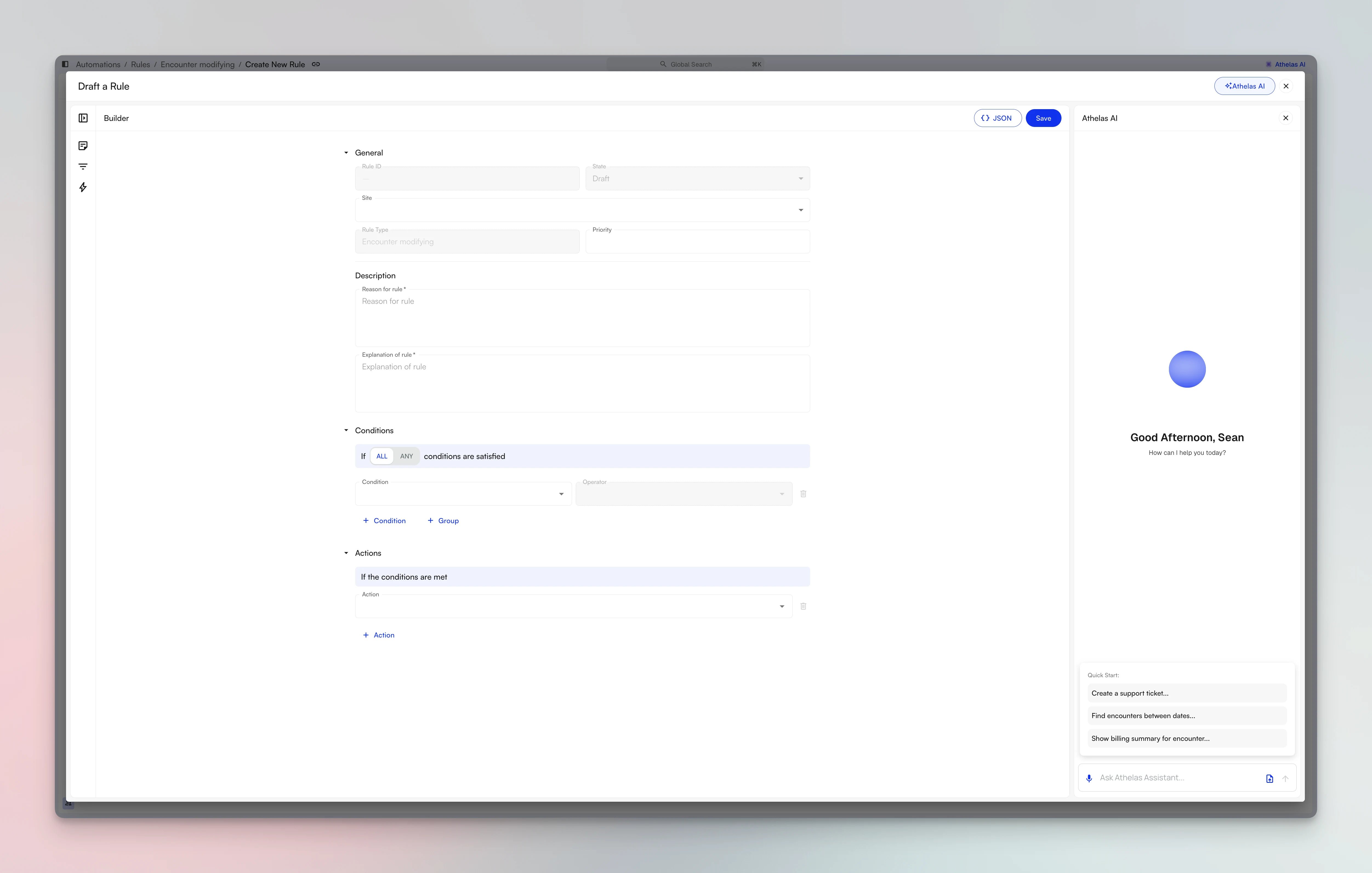 **To build a rule from scratch:**
1. Fill in **General**: give the rule an **ID**, pick the **Site** it applies to, and set a **Priority**. **Rule Type** is already filled in from the engine you started in, and **State** starts as **Draft**.
2. Write the **Description**: the **Reason for rule** and the **Explanation of rule**. Both are required.
3. Add your **Conditions**. Use **+ Condition** for a single test and **+ Group** for a nested set, then set the operator on each level to **ALL** or **ANY** to control how they combine.
4. Add your **Actions** with **+ Action**. Add more than one if the same conditions should produce several outcomes.
5. Click **Save**. The rule is saved as a **Draft**.
**To build a rule from scratch:**
1. Fill in **General**: give the rule an **ID**, pick the **Site** it applies to, and set a **Priority**. **Rule Type** is already filled in from the engine you started in, and **State** starts as **Draft**.
2. Write the **Description**: the **Reason for rule** and the **Explanation of rule**. Both are required.
3. Add your **Conditions**. Use **+ Condition** for a single test and **+ Group** for a nested set, then set the operator on each level to **ALL** or **ANY** to control how they combine.
4. Add your **Actions** with **+ Action**. Add more than one if the same conditions should produce several outcomes.
5. Click **Save**. The rule is saved as a **Draft**.