> ## Documentation Index
> Fetch the complete documentation index at: https://docs.athelas.com/llms.txt
> Use this file to discover all available pages before exploring further.
# Clone Rules Across Sites
### At a Glance
When your organization runs several sites, the rules that work at one location usually belong at the others too. Instead of rebuilding them one site at a time, select the rules on the Rules tab, clone them to your other sites in one step, fix anything that does not carry over, and then submit the new drafts together.
This guide is for teams that manage their sites from a parent site. To build a single rule from scratch, see [Create a Rule](/insights_biller/automations/create_a_rule).
Cloning and submitting rules take write access to rules. You can clone rules to the sites linked to the site you are working from, such as the child sites under your parent site.
## Selecting Rules
Open a rule type on the Rules tab and select the checkbox beside each rule you want. To select a run of rules, select the first one, then hold **Shift** and select the last.
As soon as you select a rule, the **Bulk Actions** bar appears at the bottom of the table with a count of your selection and two actions:
| **Action** | **What it does** |
| :- | :- |
| **Clone** | Copies the selected rules to one or more of your other sites, as new drafts. |
| **Promote** | Submits the selected drafts together. It is available only for drafts. |
## Cloning Rules to Other Sites
**To clone rules:**
1. Select the rules and click **Clone** in the **Bulk Actions** bar.
2. Under **Clone into**, choose one or more of your sites.
3. Click **Clone**.
A progress panel in the bottom right tracks the job, for example "1 of 3 cloned (2 failed)". A rule that cloned shows its original ID beside the ID of its new draft, such as `BIL-674872 → BIL-D654`, and rules that could not clone are listed first so you can deal with them.
Every clone arrives at its site as a **Draft**, so nothing goes into effect until it is submitted. The original rule is not changed.
## Fixing a Rule That Did Not Clone
A rule fails to clone when it points at something the target site does not have, such as a provider, payer, or patient that exists only at the original site. Fix the rule instead of rebuilding it:
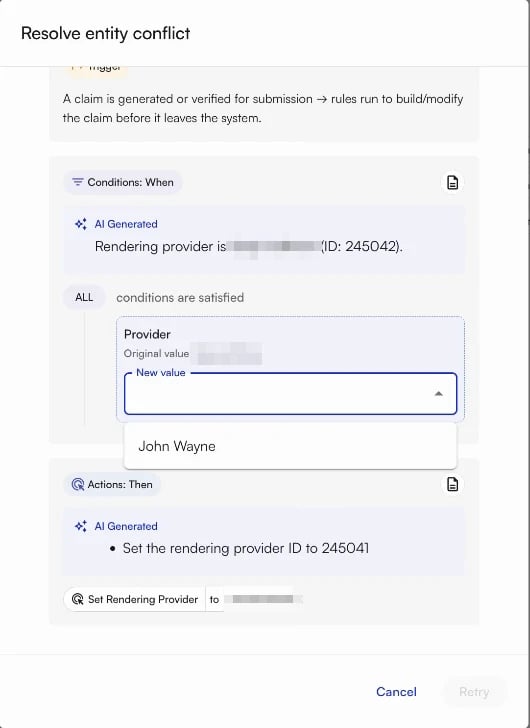
1. In the progress panel, choose the fix option beside the rule. **Resolve entity conflict** opens with a preview of the rule.
2. The field that caused the problem shows its **Original value**. Choose a **New value** from the target site, for example the rendering provider who does the same work there.
3. Click **Retry**.
If a rule does not belong at the target site after all, choose skip instead. The rule is not copied to that site, and the rest of the clone carries on unaffected.
## Submitting Drafts Together
Cloning leaves a draft at every site you cloned to. To submit a batch of drafts in one step:
1. Open the **Drafts** tab and select the drafts you want to submit.
2. Click **Promote** in the **Bulk Actions** bar.
A message confirms how many rules you are submitting, with an **Undo** link in case you picked the wrong ones, and a progress panel tracks each rule. From there, each draft follows the same path as a rule you submit on its own: it either goes to review or becomes active. See [Submit Your Rule for Review](/insights_biller/automations/create_a_rule#submit-your-rule-for-review).
✨**Smart Tip:** Dry run a cloned draft at its new site before you promote it, especially one where you fixed a conflict. The provider or payer you substituted is the part most worth checking. See [Dry Running a Rule](/insights_biller/automations/the_rules_tab#dry-running-a-rule-before-it-goes-live).
### FAQ
The sites linked to the site you are working from, such as the child sites under your parent site. If a site you expect is missing from **Clone into**, contact your account manager.
No. The original stays exactly as it is. Each clone is a new, separate draft at its site with its own ID, so editing a clone never changes the rule it came from.
A rule fails when it references a provider, payer, or patient that does not exist at the target site. Fix the rule from the progress panel by choosing a replacement at that site, or skip it.
No. They arrive as drafts. Promote them together, or submit them one at a time, to put them into effect.
 If a rule does not belong at the target site after all, choose skip instead. The rule is not copied to that site, and the rest of the clone carries on unaffected.
## Submitting Drafts Together
Cloning leaves a draft at every site you cloned to. To submit a batch of drafts in one step:
1. Open the **Drafts** tab and select the drafts you want to submit.
2. Click **Promote** in the **Bulk Actions** bar.
A message confirms how many rules you are submitting, with an **Undo** link in case you picked the wrong ones, and a progress panel tracks each rule. From there, each draft follows the same path as a rule you submit on its own: it either goes to review or becomes active. See [Submit Your Rule for Review](/insights_biller/automations/create_a_rule#submit-your-rule-for-review).
If a rule does not belong at the target site after all, choose skip instead. The rule is not copied to that site, and the rest of the clone carries on unaffected.
## Submitting Drafts Together
Cloning leaves a draft at every site you cloned to. To submit a batch of drafts in one step:
1. Open the **Drafts** tab and select the drafts you want to submit.
2. Click **Promote** in the **Bulk Actions** bar.
A message confirms how many rules you are submitting, with an **Undo** link in case you picked the wrong ones, and a progress panel tracks each rule. From there, each draft follows the same path as a rule you submit on its own: it either goes to review or becomes active. See [Submit Your Rule for Review](/insights_biller/automations/create_a_rule#submit-your-rule-for-review).