> ## Documentation Index
> Fetch the complete documentation index at: https://docs.athelas.com/llms.txt
> Use this file to discover all available pages before exploring further.
# Eligibility Self-Service Setup Guide
**Athelas Insights** verifies patient eligibility prior to appointments and calculates estimated patient responsibility (copays, deductibles, coinsurance, and self-pay). This guide explains how eligibility data flows into Insights, how to read the results, and how to configure the rules that power your Patient Responsibility (PR) recommendations.
* **Automated Checks** — Automated checks run **7 days before** the scheduled appointment for insurances supported through the Waystar, Availity, and UHC clearinghouses.
* **EHR Data Flow (AIR-Billing Only)** — Insights uses a **one-way extraction** to pull appointments, patient demographics, and insurance data from your EHR.
Changes made in AIR-Billing will **not** update your EHR. All demographic and insurance updates must be entered directly in your EHR system.
* **Live Checks** — For patients without a scheduled appointment, use the **Live Eligibility Check** button to verify coverage in real time.
## Reading the eligibility status
Each insurance shown on an appointment displays a badge indicating the result of its eligibility check:
*  The patient has active insurance coverage with this payer.
*
The patient has active insurance coverage with this payer.
*  The patient does **NOT** have active insurance coverage with this payer.
*
The patient does **NOT** have active insurance coverage with this payer.
*  We were unable to get an active or inactive response from the payer.
*
We were unable to get an active or inactive response from the payer.
*  We were unable to retrieve an active or inactive response from the payer. This is called an **Inconclusive** result and is usually caused by incorrect patient information, such as the name, date of birth, or member ID.
Hover over the icon to see what needs to be corrected before running the eligibility check again. The table below lists the most common inconclusive responses and next steps.
| **Response** | **Next Steps** |
| :----------------------------------- | :------------------------------------------------------------------------------------------------- |
| Patient data mismatch | Compare the insurance card to the EHR; correct legal name, DOB, gender, or Member ID, then Re-Run. |
| Member ID format rejected | Verify the most recent card, especially for Medicare or Medicaid, correct the EHR, and Re-Run. |
| Appointment added recently | Wait for the automated run or use Re-Run when the answer is needed immediately. |
| Coverage / subscriber not found | Confirm current insurance with the patient, update the EHR, and Re-Run. |
| Provider or payer enrollment message | Flag the appointment for Athelas eligibility review. |
## Types of eligibility rules
To generate an accurate Patient Responsibility suggestion, Insights first parses a patient's insurance benefits, such as copays, deductibles, and coinsurance. This information comes from Waystar, Availity, and UHC.
Patients often have multiple benefits, but not all are relevant to the PR calculation. After parsing the data, Insights applies rules to identify and use only the benefits needed.
Before configuring eligibility rules, it's important to understand the three rule types used by the eligibility engine:
* **Appointment Rules**
* **Eligibility Parser Rules**
* **Suggested PR Rules**
Each rule type serves a different purpose. The following sections explain how each one works.
### Appointment Rules
Appointment Rules map appointment types to the correct **Service Type** used in the eligibility inquiry.
A Service Type identifies the healthcare service being provided and determines which benefits the payer returns. Common service types include Physical Therapy (PT), Physical Medicine (AE), and Professional Office Visit (98).
For most sites, all appointment types are mapped to the site's specialty. For example, a Physical Therapy practice maps all appointment types, such as Initial Evaluation and Follow-up, to PT. For more complex practices, appointment types are mapped individually based on the services provided.
Appointment Rules can also apply payer-specific exceptions, such as using a different Service Type or Rendering/Group NPI for certain payers.
| **Specialty** | **Mappings** |
| :---------------- | :------------------------------------------------------------------------------- |
| Internal Medicine | Primary Care |
| Family Medicine | Primary Care |
| Physical Therapy | PT, AE, Occupational Therapy |
| Surgical | 98 and 30 (for deductible inquiries unless a surgical Service Type is specified) |
| Pediatrics | 98 |
| Dermatology | DG and 98 |
#### Accessing Appointment Rules
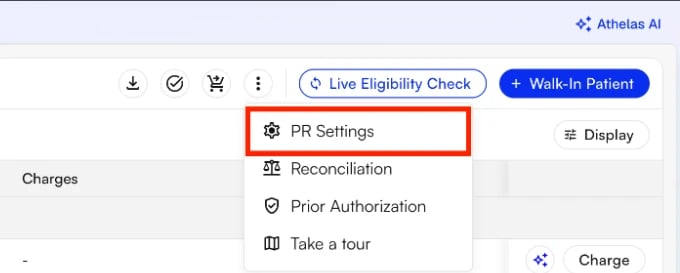
**Step 1:** From the Appointments page, open the three-dot menu and select **PR Settings**.
We were unable to retrieve an active or inactive response from the payer. This is called an **Inconclusive** result and is usually caused by incorrect patient information, such as the name, date of birth, or member ID.
Hover over the icon to see what needs to be corrected before running the eligibility check again. The table below lists the most common inconclusive responses and next steps.
| **Response** | **Next Steps** |
| :----------------------------------- | :------------------------------------------------------------------------------------------------- |
| Patient data mismatch | Compare the insurance card to the EHR; correct legal name, DOB, gender, or Member ID, then Re-Run. |
| Member ID format rejected | Verify the most recent card, especially for Medicare or Medicaid, correct the EHR, and Re-Run. |
| Appointment added recently | Wait for the automated run or use Re-Run when the answer is needed immediately. |
| Coverage / subscriber not found | Confirm current insurance with the patient, update the EHR, and Re-Run. |
| Provider or payer enrollment message | Flag the appointment for Athelas eligibility review. |
## Types of eligibility rules
To generate an accurate Patient Responsibility suggestion, Insights first parses a patient's insurance benefits, such as copays, deductibles, and coinsurance. This information comes from Waystar, Availity, and UHC.
Patients often have multiple benefits, but not all are relevant to the PR calculation. After parsing the data, Insights applies rules to identify and use only the benefits needed.
Before configuring eligibility rules, it's important to understand the three rule types used by the eligibility engine:
* **Appointment Rules**
* **Eligibility Parser Rules**
* **Suggested PR Rules**
Each rule type serves a different purpose. The following sections explain how each one works.
### Appointment Rules
Appointment Rules map appointment types to the correct **Service Type** used in the eligibility inquiry.
A Service Type identifies the healthcare service being provided and determines which benefits the payer returns. Common service types include Physical Therapy (PT), Physical Medicine (AE), and Professional Office Visit (98).
For most sites, all appointment types are mapped to the site's specialty. For example, a Physical Therapy practice maps all appointment types, such as Initial Evaluation and Follow-up, to PT. For more complex practices, appointment types are mapped individually based on the services provided.
Appointment Rules can also apply payer-specific exceptions, such as using a different Service Type or Rendering/Group NPI for certain payers.
| **Specialty** | **Mappings** |
| :---------------- | :------------------------------------------------------------------------------- |
| Internal Medicine | Primary Care |
| Family Medicine | Primary Care |
| Physical Therapy | PT, AE, Occupational Therapy |
| Surgical | 98 and 30 (for deductible inquiries unless a surgical Service Type is specified) |
| Pediatrics | 98 |
| Dermatology | DG and 98 |
#### Accessing Appointment Rules
**Step 1:** From the Appointments page, open the three-dot menu and select **PR Settings**.
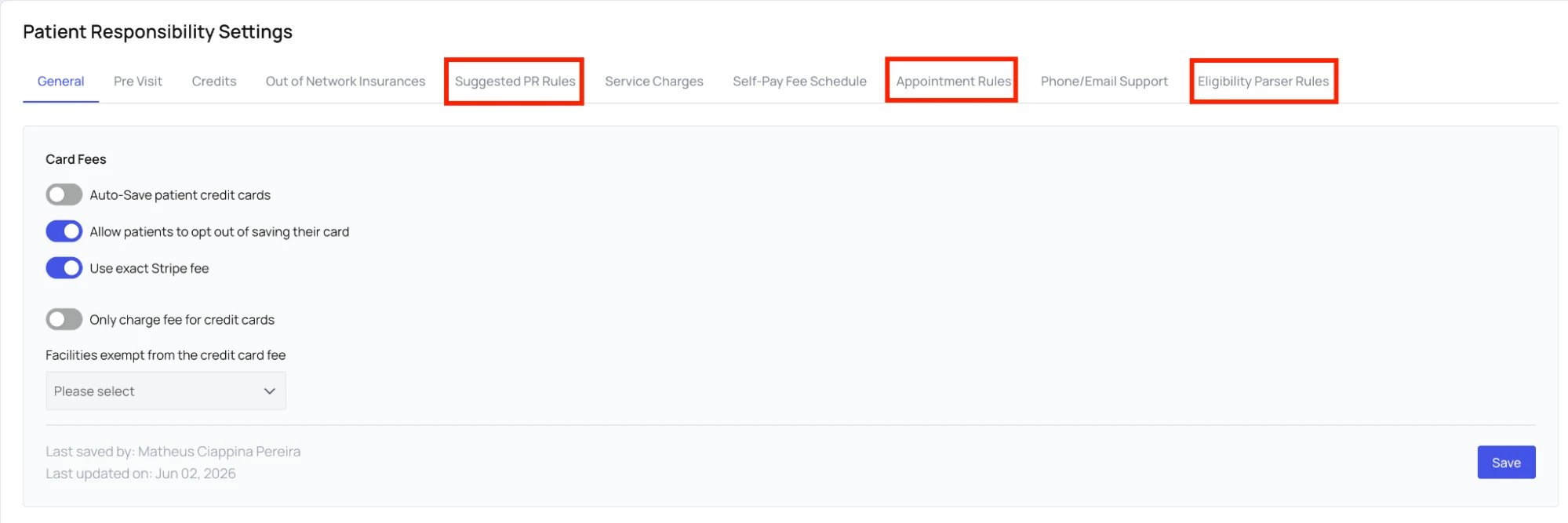
 **Step 2:** On the **Patient Responsibility Settings** page, select the tab for the type of eligibility rule you need to configure. We will first set up our Appointment Rules.
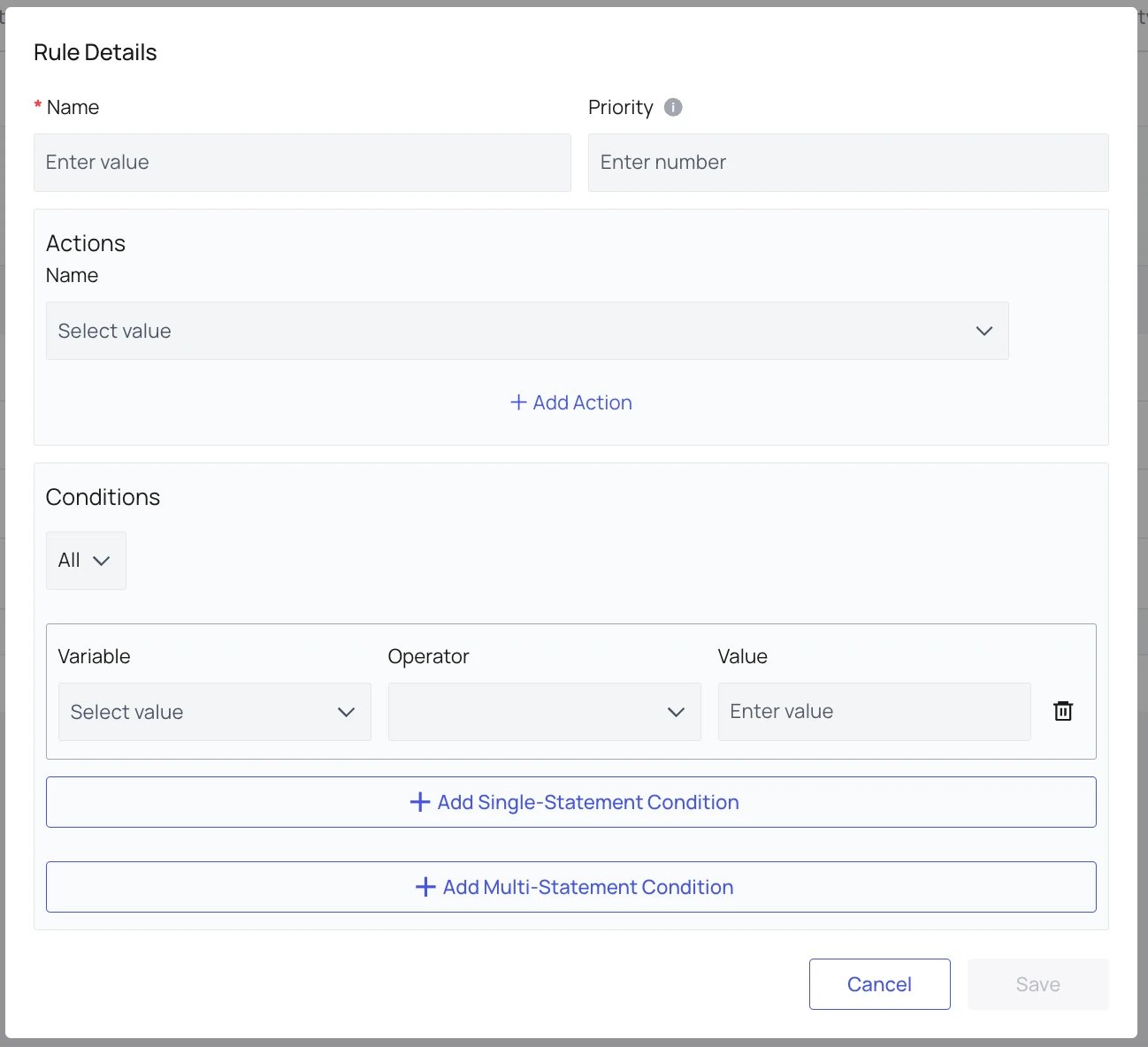
 **Step 3:** Click **Add Rule** and this will pop up:
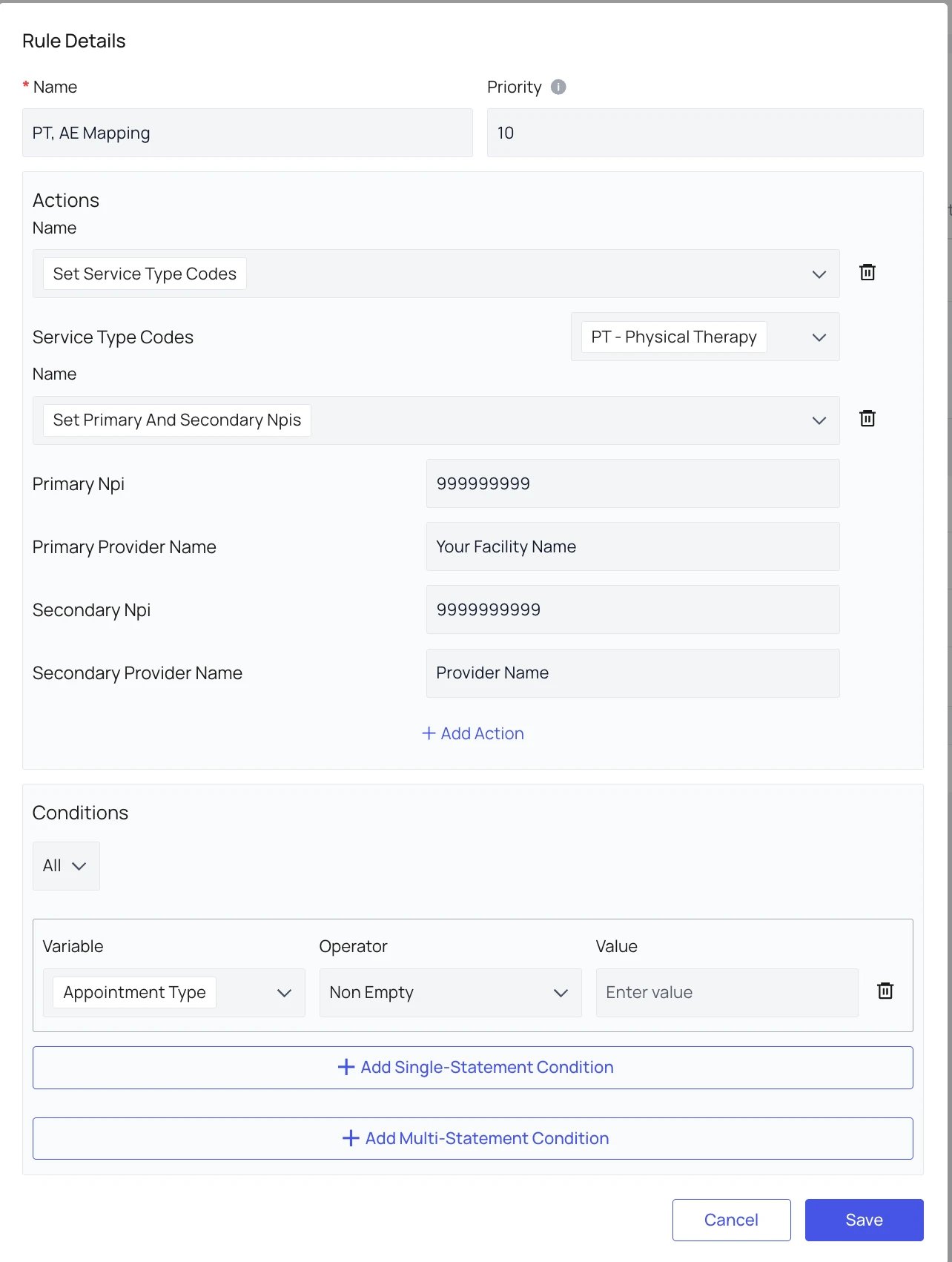
 **Step 4:** Creating an Appointment Rule
* **Name the rule** — The rule name is for your reference only and can be named anything.
* **Set the priority** — Assign a priority value, such as 10, to determine the rule order.
* **Set the Service Type Code** — Select **Set Service Type Codes** and choose your facility's appropriate Service Type.
* **Add NPI details** — Click **Add Action** and enter the Primary and Secondary NPIs for your site. We recommend setting the Group NPI as the Primary NPI and a provider's NPI as the Secondary NPI.
* **Select appointment types** — Choose which appointment types the rule should apply to. If the rule applies to all appointments, add a fail-safe condition and save the rule.
**Step 4:** Creating an Appointment Rule
* **Name the rule** — The rule name is for your reference only and can be named anything.
* **Set the priority** — Assign a priority value, such as 10, to determine the rule order.
* **Set the Service Type Code** — Select **Set Service Type Codes** and choose your facility's appropriate Service Type.
* **Add NPI details** — Click **Add Action** and enter the Primary and Secondary NPIs for your site. We recommend setting the Group NPI as the Primary NPI and a provider's NPI as the Secondary NPI.
* **Select appointment types** — Choose which appointment types the rule should apply to. If the rule applies to all appointments, add a fail-safe condition and save the rule.
 ### Eligibility Parser Rules
Eligibility Parser Rules control how benefits returned by Waystar are prioritized when multiple valid benefits are available. Refer to the images above to access **PR Settings** and **Eligibility Parser Rules**.
The most common use case is ranking one benefit higher than another. For example, if a site wants to recommend the Specialist copay, you can assign additional ranking points to benefits with a payer note containing "Specialist." If both Specialist and Non-Specialist copays are returned, the system will prefer the Specialist copay.
In most cases, ranking is preferred over excluding benefits. If the Specialist copay is unavailable, the system can still fall back to the Non-Specialist copay instead of returning no recommendation.
Use Parser Rules only when the eligibility response contains multiple valid benefits and the wrong one is consistently selected. First confirm that the appointment Service Type and payer mapping are configured correctly — a number of rules have likely already been created for your benefit.
| **Benefit** | **Code** |
| :-------------------- | :------- |
| Copay | B |
| Coinsurance | A |
| Deductible | C |
| Out-of-Pocket Maximum | Y |
| Limitations | G |
| Benefit Description | D |
Common actions to experiment with: **Add Ranking Points** (usually to parse a specific type of co-pay), **Display Benefit on Insights**, **Exclude**, **Include**.
Common variables to experiment with: **Appointment Type**, **Eligibility or Benefit Information Code**, **General Plan Coverage Description**, **Payer Note**.
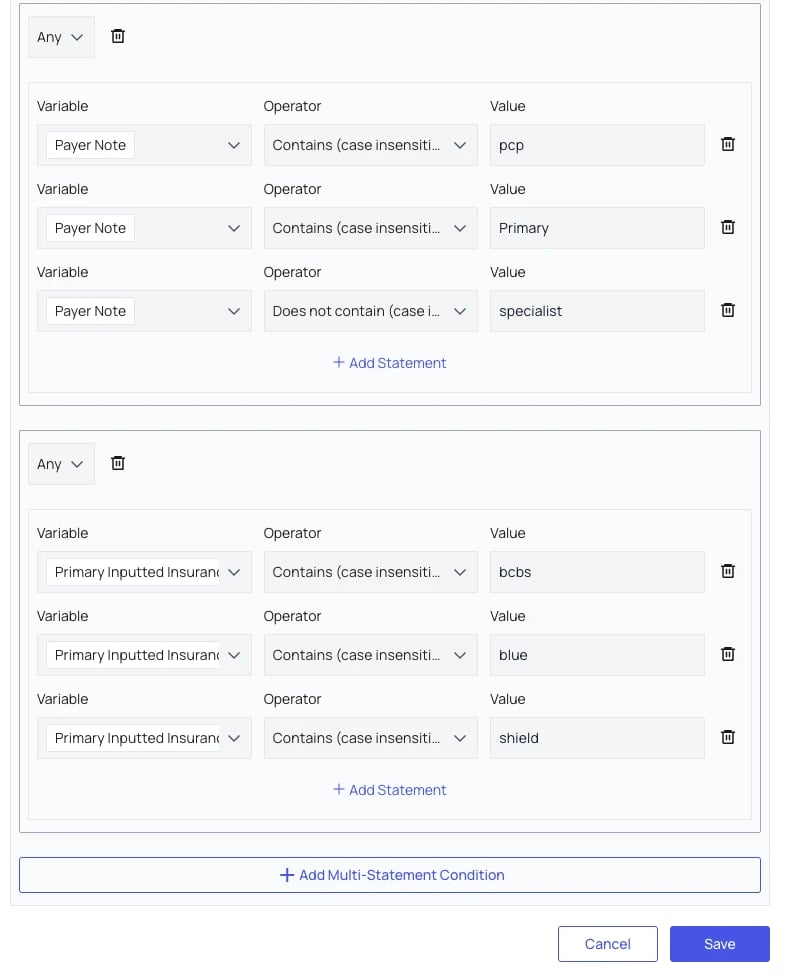
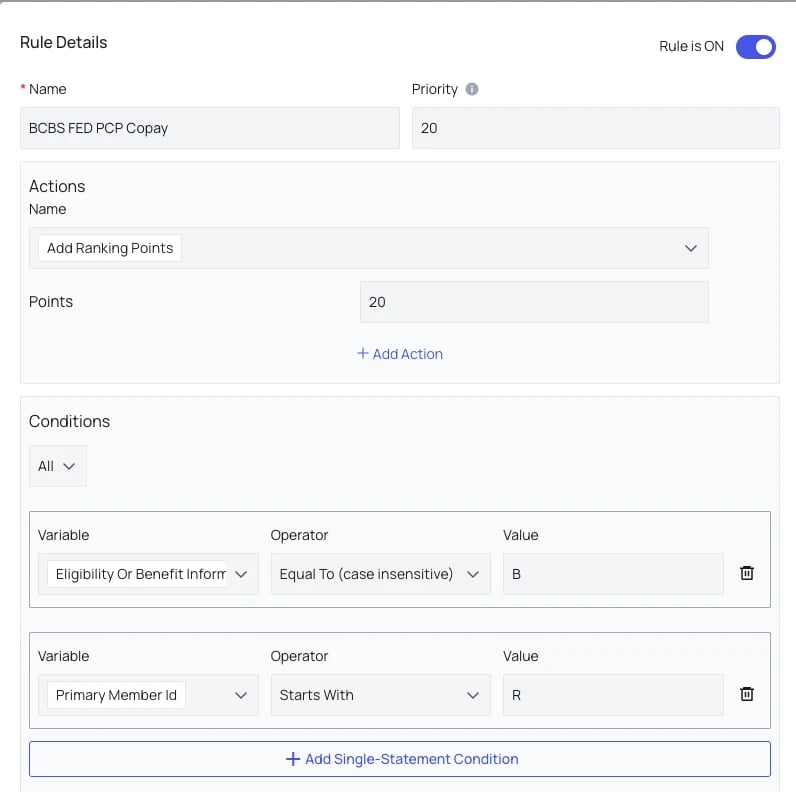
The example below recommends the primary copay for all BCBS member IDs that start with "R" — first the parser rule's conditions, then its actions:
### Eligibility Parser Rules
Eligibility Parser Rules control how benefits returned by Waystar are prioritized when multiple valid benefits are available. Refer to the images above to access **PR Settings** and **Eligibility Parser Rules**.
The most common use case is ranking one benefit higher than another. For example, if a site wants to recommend the Specialist copay, you can assign additional ranking points to benefits with a payer note containing "Specialist." If both Specialist and Non-Specialist copays are returned, the system will prefer the Specialist copay.
In most cases, ranking is preferred over excluding benefits. If the Specialist copay is unavailable, the system can still fall back to the Non-Specialist copay instead of returning no recommendation.
Use Parser Rules only when the eligibility response contains multiple valid benefits and the wrong one is consistently selected. First confirm that the appointment Service Type and payer mapping are configured correctly — a number of rules have likely already been created for your benefit.
| **Benefit** | **Code** |
| :-------------------- | :------- |
| Copay | B |
| Coinsurance | A |
| Deductible | C |
| Out-of-Pocket Maximum | Y |
| Limitations | G |
| Benefit Description | D |
Common actions to experiment with: **Add Ranking Points** (usually to parse a specific type of co-pay), **Display Benefit on Insights**, **Exclude**, **Include**.
Common variables to experiment with: **Appointment Type**, **Eligibility or Benefit Information Code**, **General Plan Coverage Description**, **Payer Note**.
The example below recommends the primary copay for all BCBS member IDs that start with "R" — first the parser rule's conditions, then its actions:
 ### Suggested PR Rules
Once eligibility parser rules have been developed, it's time to set the PR rules. You can use PR rules to set payer-specific PR recommendations, prioritize copays over others, and set coinsurance as a percentage of the fixed amount which you can set manually. Refer to the images above to access **PR Settings** and **Suggested PR Rules**.
All Suggested PR Rules should be entered in **cents**, not dollars.
#### Creating Suggested PR Rules
Once you click **Add rule**, this will pop up:
### Suggested PR Rules
Once eligibility parser rules have been developed, it's time to set the PR rules. You can use PR rules to set payer-specific PR recommendations, prioritize copays over others, and set coinsurance as a percentage of the fixed amount which you can set manually. Refer to the images above to access **PR Settings** and **Suggested PR Rules**.
All Suggested PR Rules should be entered in **cents**, not dollars.
#### Creating Suggested PR Rules
Once you click **Add rule**, this will pop up:
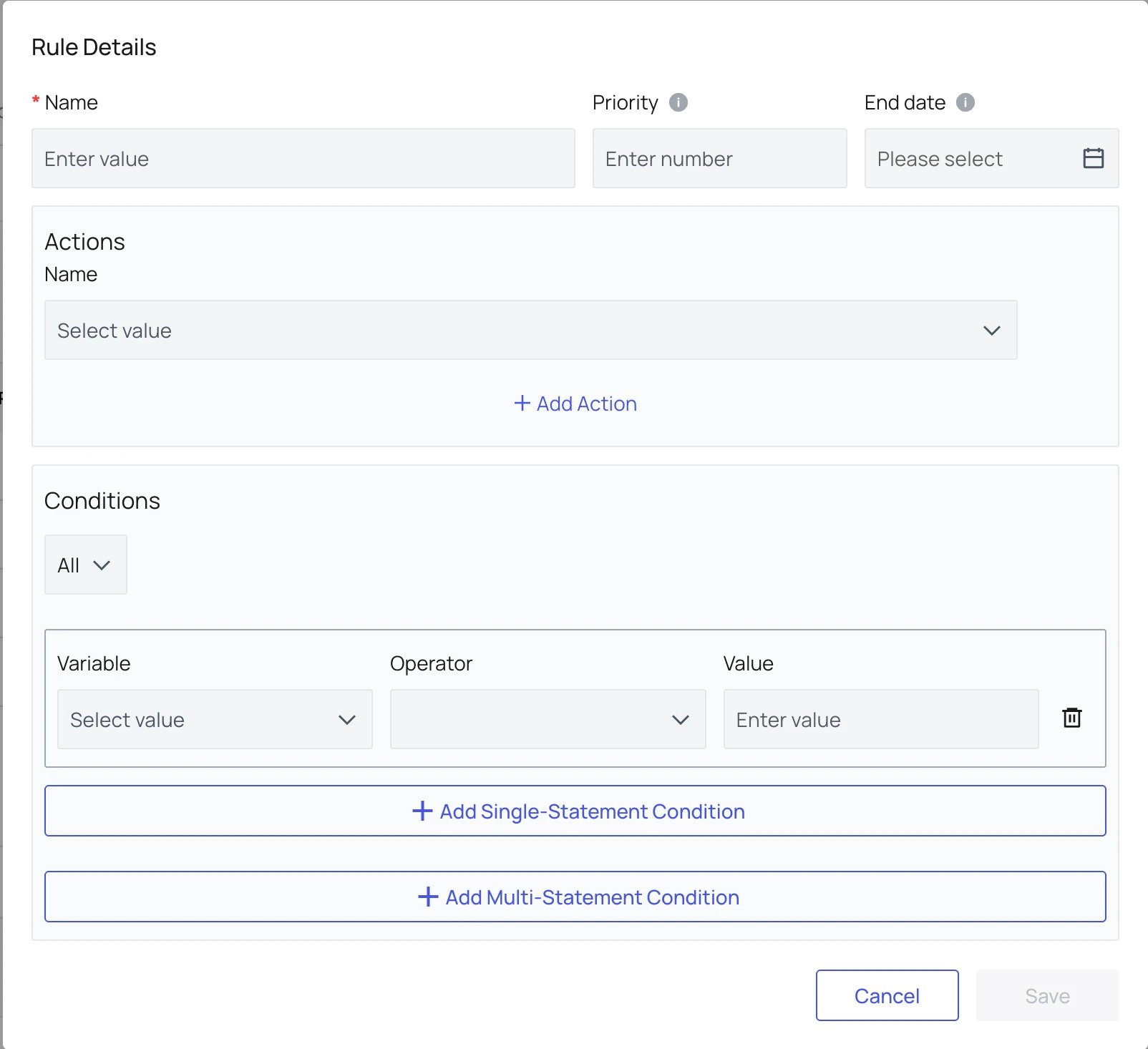 * **Rule details** — Use a descriptive label for the **Name** (e.g., "UHC Deductible Rule"), assign a **priority** where higher numbers win when multiple rules match, and use the **End date** toggle for temporary or inactive rules.
* **Rule logic** — **Actions** define what the rule does (set an amount, prioritize a benefit, set service type, set NPI, or notify), while **Conditions** determine when the rule applies (payer, appointment type, facility, age, provider, or benefit values). You can choose between **All** (requires every condition) or **Any** (requires one condition).
#### Configure Patient Responsibility Rules
Create four core PR rules. Their relative priority determines which recommendation wins when more than one rule matches the appointment.
| **Rule** | **Starting priority** | **Primary action** | **When it should win** |
| :--------------- | :-------------------- | :-------------------------------------------------------------- | :----------------------------------------------------- |
| Deductible | 20 | Set Deductible Amount | Deductible remains and no higher-priority rule applies |
| Coinsurance | 30 | Set fixed fee; set deductible to \$0 | Deductible is met and coinsurance is present |
| Prioritize Copay | 40 (recommended) | Prioritize Copay From Benefits; zero deductible and coinsurance | A valid copay is returned |
| Out-of-Pocket | 60 (recommended) | Set copay and deductible to \$0; notify | Out-of-pocket remaining is \$0 |
Rule type: **Suggested PR Rule**.
✨**Smart Tip:** How do priorities work? A higher number means higher priority. The Out-of-Pocket rule must outrank Copay; Copay should outrank Coinsurance and Deductible.
#### Overriding a Suggested Recommendation
If the suggested patient responsibility is not correct once your rules are configured, you can override the recommended amount for an individual patient.
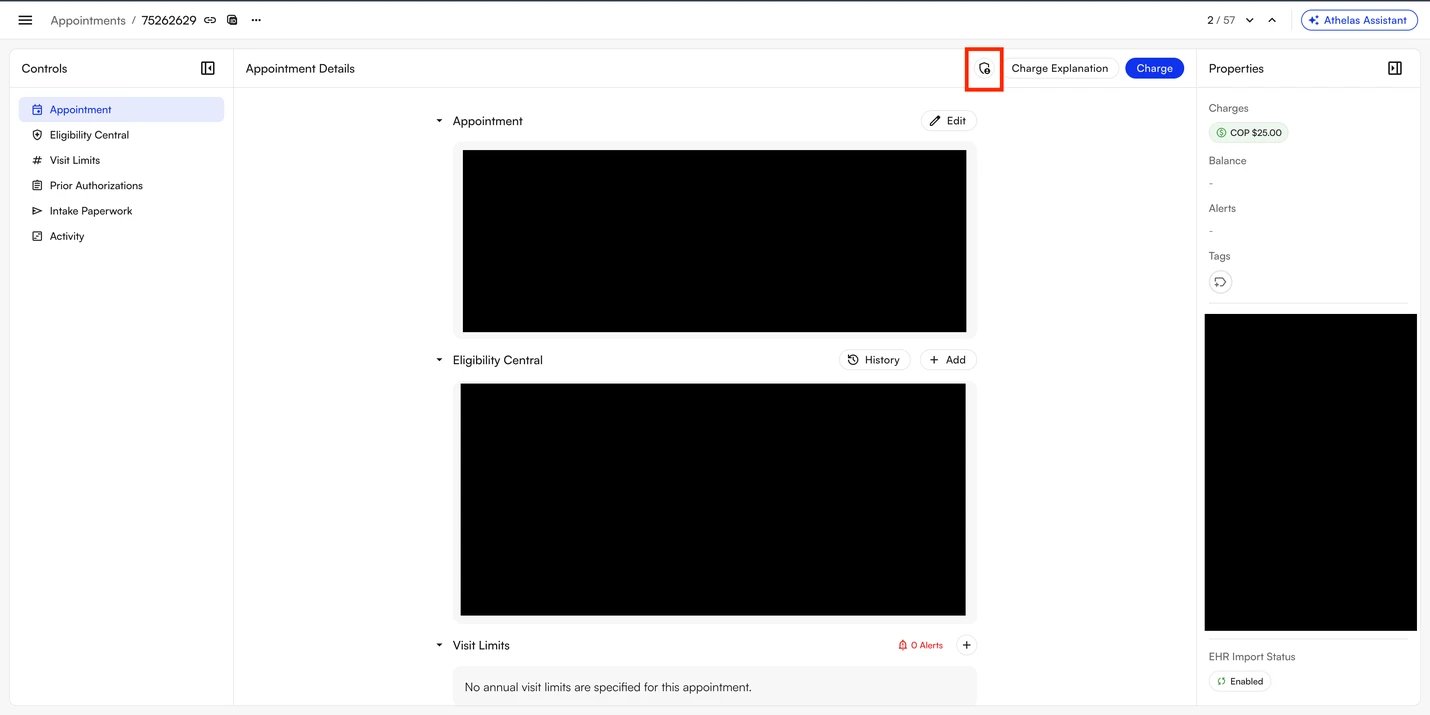
**Step 1:** On the Appointments page, click the gray area of the appointment row. Do not click the patient name or the insurance name, as those open different views.
* **Rule details** — Use a descriptive label for the **Name** (e.g., "UHC Deductible Rule"), assign a **priority** where higher numbers win when multiple rules match, and use the **End date** toggle for temporary or inactive rules.
* **Rule logic** — **Actions** define what the rule does (set an amount, prioritize a benefit, set service type, set NPI, or notify), while **Conditions** determine when the rule applies (payer, appointment type, facility, age, provider, or benefit values). You can choose between **All** (requires every condition) or **Any** (requires one condition).
#### Configure Patient Responsibility Rules
Create four core PR rules. Their relative priority determines which recommendation wins when more than one rule matches the appointment.
| **Rule** | **Starting priority** | **Primary action** | **When it should win** |
| :--------------- | :-------------------- | :-------------------------------------------------------------- | :----------------------------------------------------- |
| Deductible | 20 | Set Deductible Amount | Deductible remains and no higher-priority rule applies |
| Coinsurance | 30 | Set fixed fee; set deductible to \$0 | Deductible is met and coinsurance is present |
| Prioritize Copay | 40 (recommended) | Prioritize Copay From Benefits; zero deductible and coinsurance | A valid copay is returned |
| Out-of-Pocket | 60 (recommended) | Set copay and deductible to \$0; notify | Out-of-pocket remaining is \$0 |
Rule type: **Suggested PR Rule**.
✨**Smart Tip:** How do priorities work? A higher number means higher priority. The Out-of-Pocket rule must outrank Copay; Copay should outrank Coinsurance and Deductible.
#### Overriding a Suggested Recommendation
If the suggested patient responsibility is not correct once your rules are configured, you can override the recommended amount for an individual patient.
**Step 1:** On the Appointments page, click the gray area of the appointment row. Do not click the patient name or the insurance name, as those open different views.
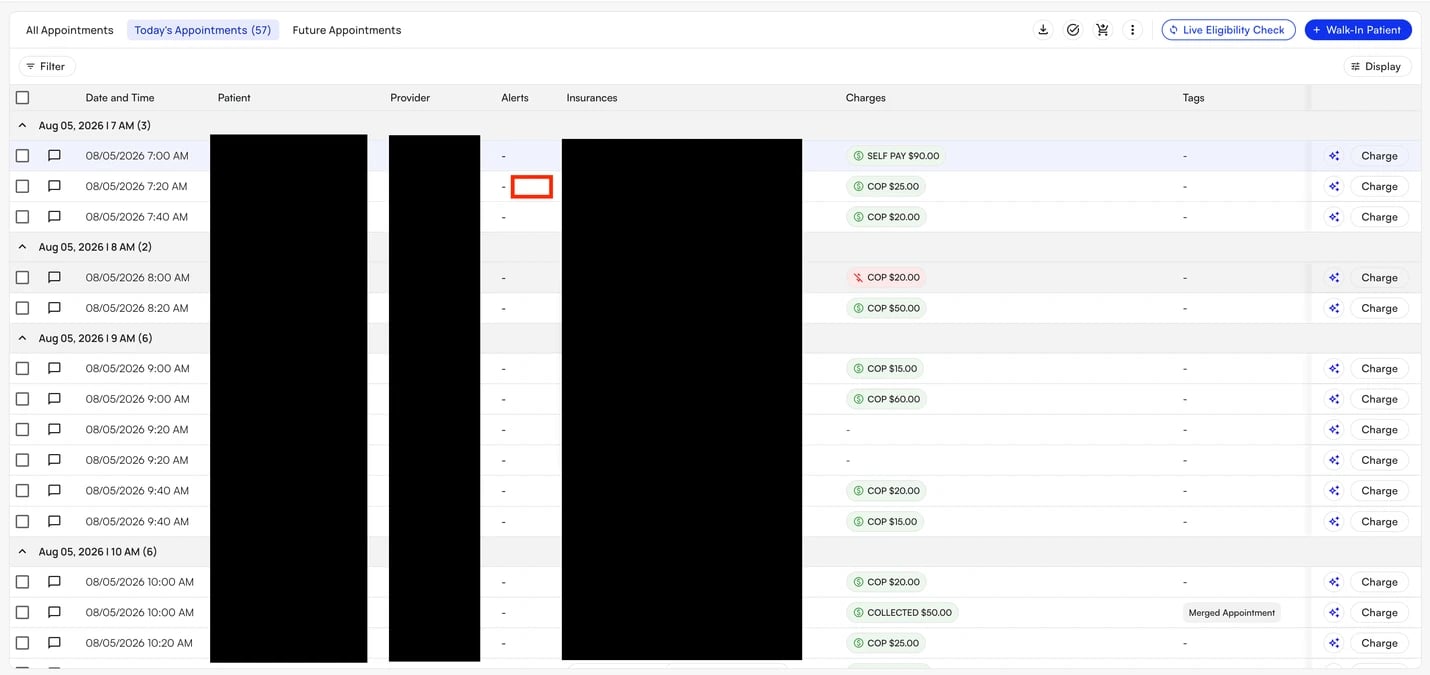 **Step 2:** In the expanded appointment view, select the shield icon in the upper right.
 **Step 3:** In the Charge Override window, enter the amount you want to apply, leave the remaining fields as they are, and select **Submit**.
All Charge Override amounts are in **cents**, not dollars. To override the recommendation to a \$10 copay, enter `1000` in the copay field.
**Step 3:** In the Charge Override window, enter the amount you want to apply, leave the remaining fields as they are, and select **Submit**.
All Charge Override amounts are in **cents**, not dollars. To override the recommendation to a \$10 copay, enter `1000` in the copay field.
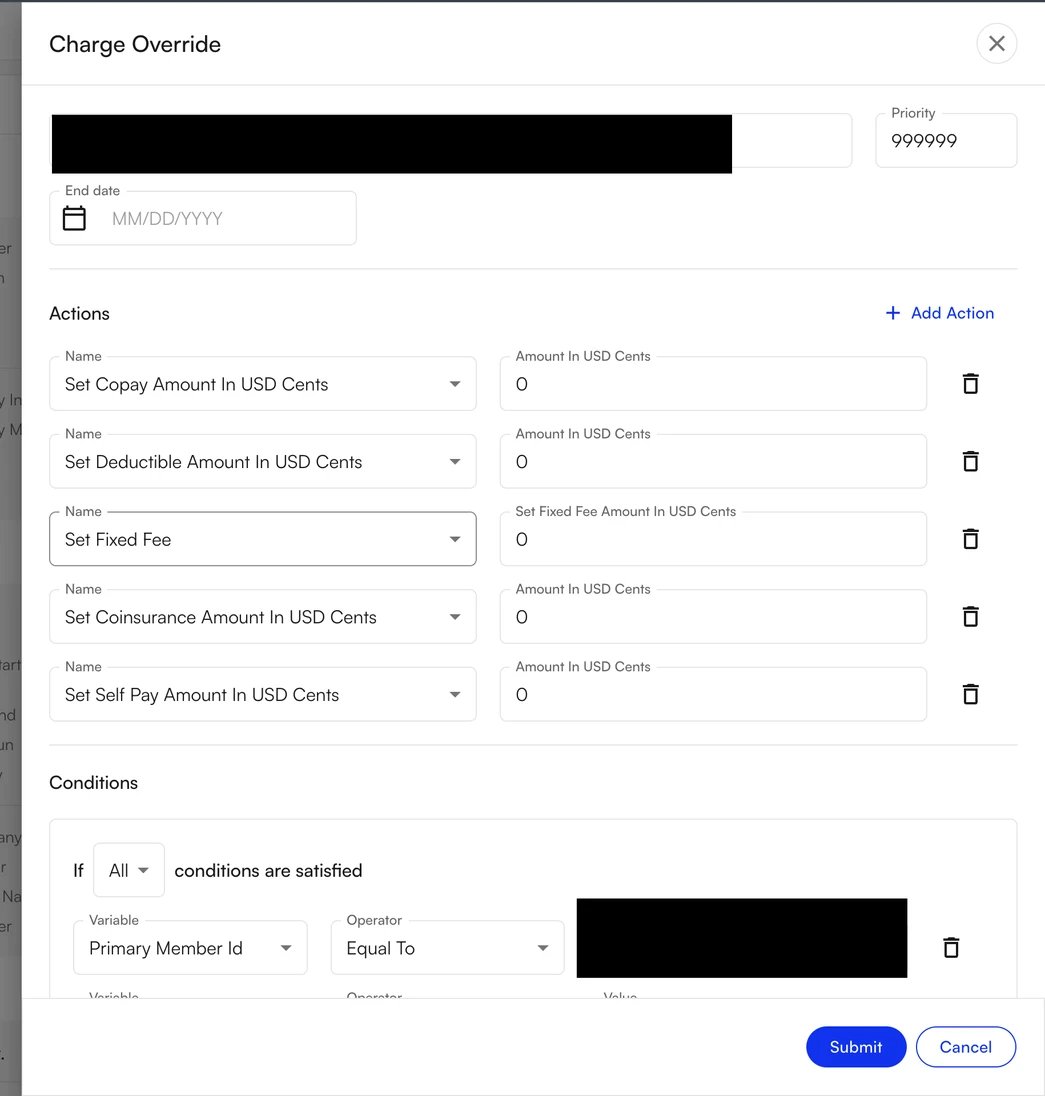 From that point forward, the recommendation for that patient and appointment type will be the amount you entered.
## Rules already configured for your site
Some rules are already set up for your site by default, so you do not need to create them. Review them so you understand how they interact with the rules you configure yourself, since their priorities determine which recommendation wins when more than one rule matches an appointment.
**Prioritize Copay**, the **Out-of-Pocket** rule, and the **Secondary Insurance** rule are Suggested PR Rules, and the **PT mapping** rule is an Appointment Rule. All four are already configured for your site.
### Prioritize Copay
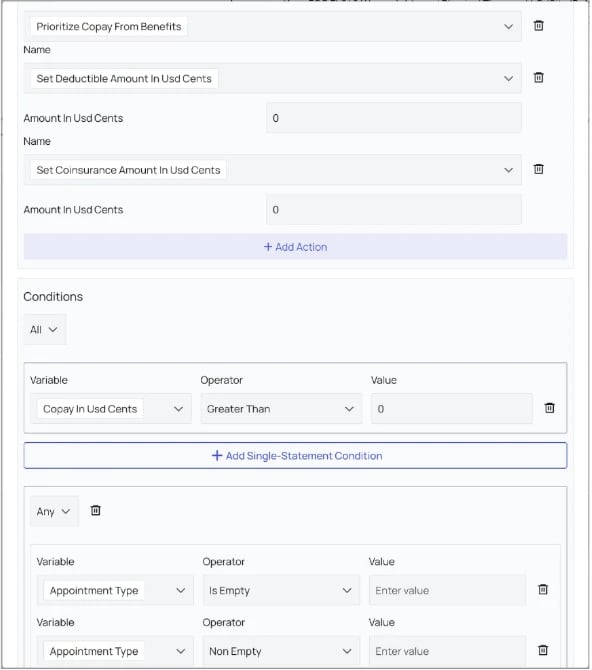
* **Actions:** Prioritize Copay From Benefits; set deductible and coinsurance amounts to \$0.
* **Conditions:** Copay greater than \$0. An appointment-type condition applies only when copay workflows differ by specialty.
* **Priority:** Set above deductible and coinsurance, but below the OOP rule.
From that point forward, the recommendation for that patient and appointment type will be the amount you entered.
## Rules already configured for your site
Some rules are already set up for your site by default, so you do not need to create them. Review them so you understand how they interact with the rules you configure yourself, since their priorities determine which recommendation wins when more than one rule matches an appointment.
**Prioritize Copay**, the **Out-of-Pocket** rule, and the **Secondary Insurance** rule are Suggested PR Rules, and the **PT mapping** rule is an Appointment Rule. All four are already configured for your site.
### Prioritize Copay
* **Actions:** Prioritize Copay From Benefits; set deductible and coinsurance amounts to \$0.
* **Conditions:** Copay greater than \$0. An appointment-type condition applies only when copay workflows differ by specialty.
* **Priority:** Set above deductible and coinsurance, but below the OOP rule.
 ### Out-of-Pocket rule
Rule type: **Suggested PR Rule**.
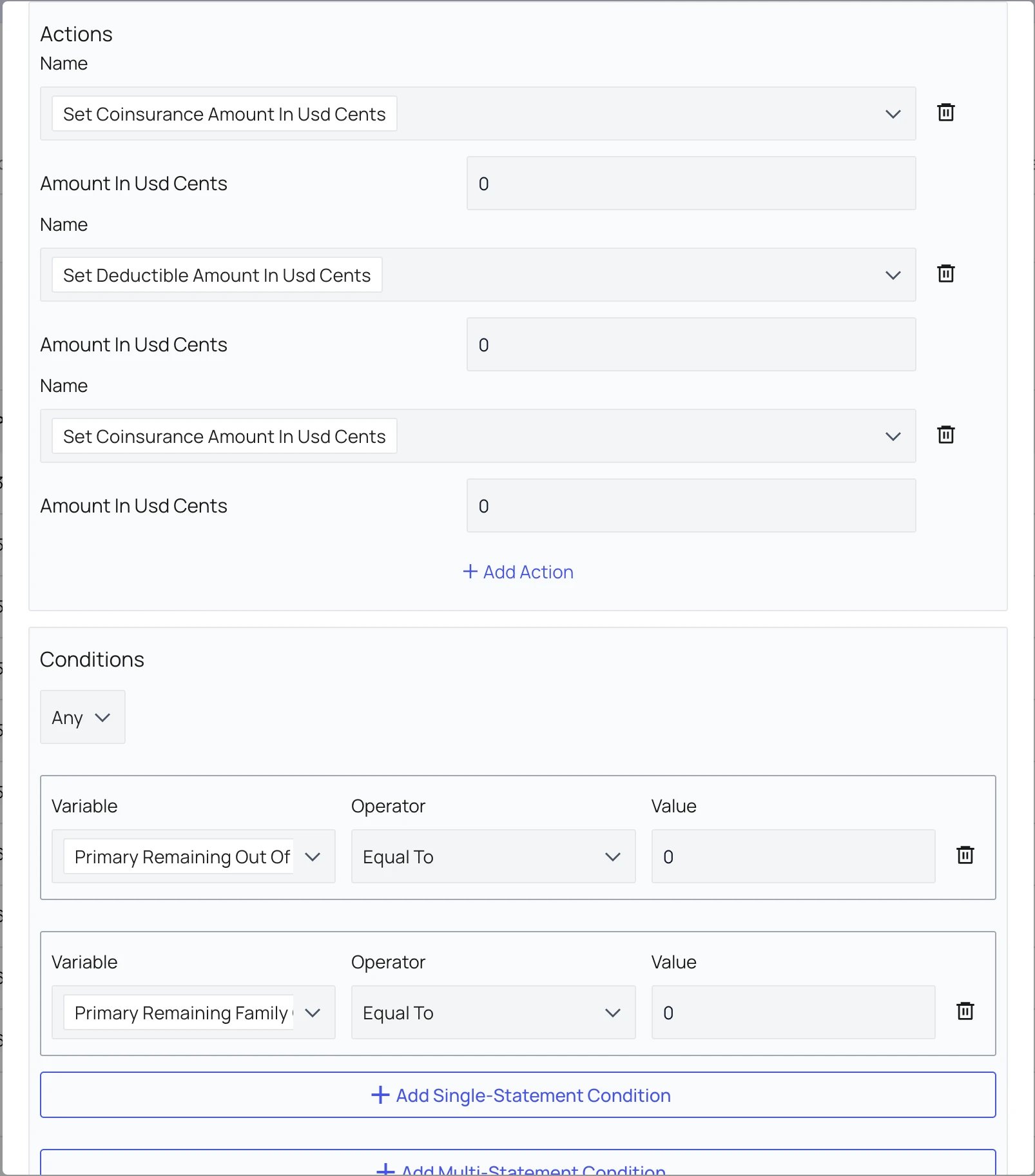
* **Actions:** Set Copay Amount and Deductible Amount to \$0, then add a notification that the patient has met out-of-pocket.
* **Conditions:** Individual or family out-of-pocket remaining equals \$0.
* **Priority:** Highest of the four PR rules so it suppresses any collection recommendation.
* **Result:** When OOP remaining is \$0, the appointment should show no suggested charge and a notification that the patient has met out-of-pocket.
### Out-of-Pocket rule
Rule type: **Suggested PR Rule**.
* **Actions:** Set Copay Amount and Deductible Amount to \$0, then add a notification that the patient has met out-of-pocket.
* **Conditions:** Individual or family out-of-pocket remaining equals \$0.
* **Priority:** Highest of the four PR rules so it suppresses any collection recommendation.
* **Result:** When OOP remaining is \$0, the appointment should show no suggested charge and a notification that the patient has met out-of-pocket.
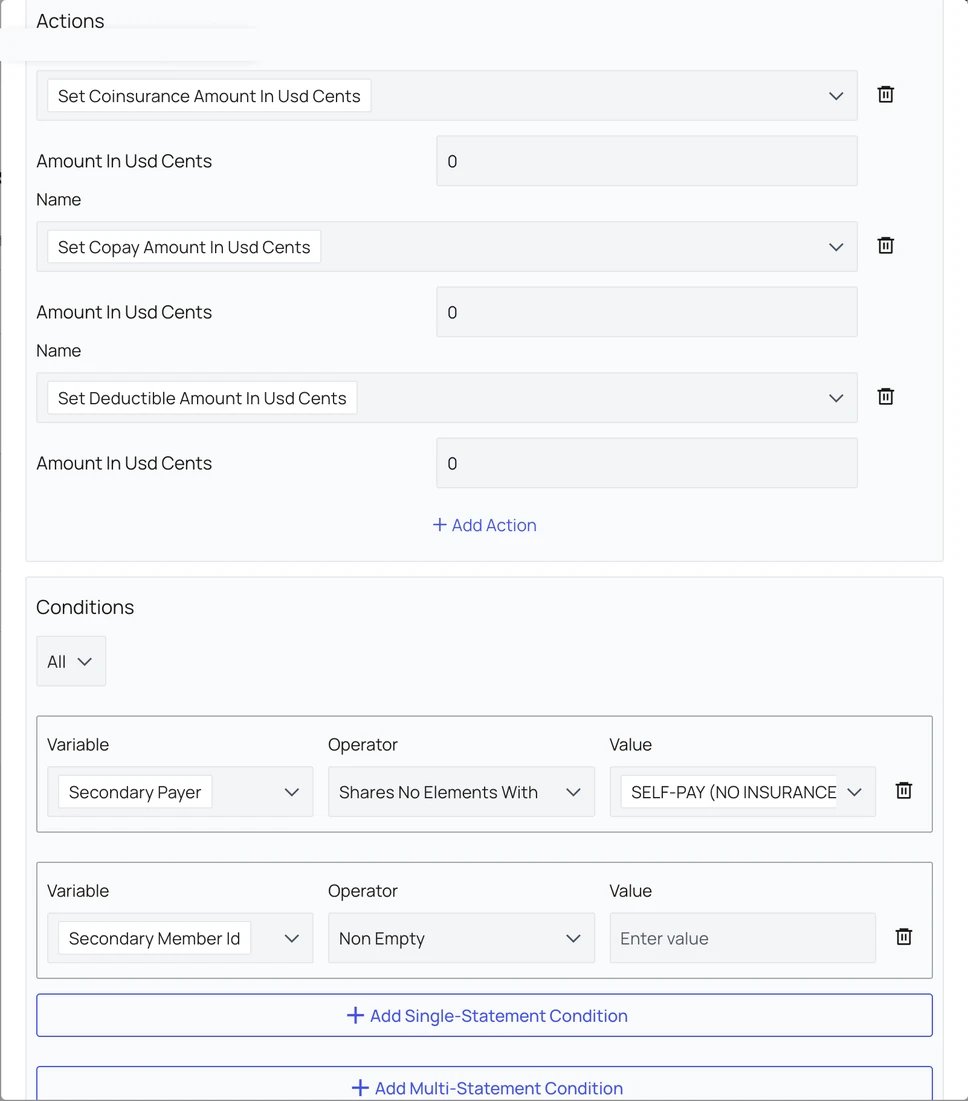
 ### Secondary Insurance rule
Rule type: **Suggested PR Rule**.
* **Actions:** Set Copay Amount, Coinsurance Amount, and Deductible Amount to \$0.
* **Conditions:** Secondary Payer shares no elements with SELF-PAY (NO INSURANCE); Secondary Member Id is not empty.
* **Priority:** The same as the Out-of-Pocket rule, so it outranks Prioritize Copay and suppresses the copay recommendation.
* **Why:** When a patient has both primary and secondary insurance, the patient responsibility passed by the primary payer is usually covered by the secondary payer, so no amount is recommended for upfront collection.
### Secondary Insurance rule
Rule type: **Suggested PR Rule**.
* **Actions:** Set Copay Amount, Coinsurance Amount, and Deductible Amount to \$0.
* **Conditions:** Secondary Payer shares no elements with SELF-PAY (NO INSURANCE); Secondary Member Id is not empty.
* **Priority:** The same as the Out-of-Pocket rule, so it outranks Prioritize Copay and suppresses the copay recommendation.
* **Why:** When a patient has both primary and secondary insurance, the patient responsibility passed by the primary payer is usually covered by the secondary payer, so no amount is recommended for upfront collection.
 ### PT mapping rule
Rule type: **Appointment Rule**.
* **Actions:** Set Service Type Codes to PT – Physical Therapy.
* **Conditions:** Set to "Any," with Appointment Type Is Empty and Appointment Type Non Empty. Together these act as a fail-safe so the rule applies to every appointment type.
* **Priority:** 50.
* **Why:** The practice is a Physical Therapy site, so eligibility checks prioritize Physical Therapy benefits, which are the most relevant benefits returned for these appointments.
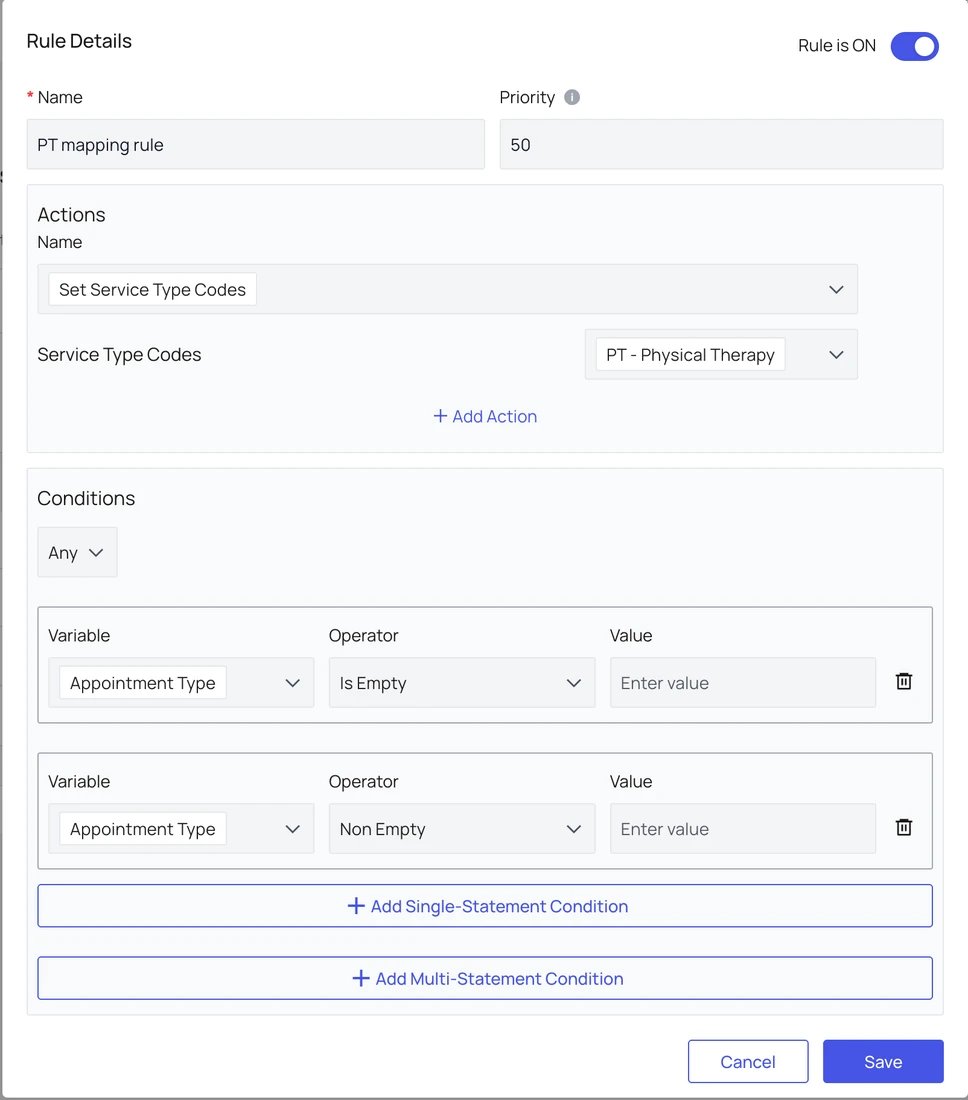
### PT mapping rule
Rule type: **Appointment Rule**.
* **Actions:** Set Service Type Codes to PT – Physical Therapy.
* **Conditions:** Set to "Any," with Appointment Type Is Empty and Appointment Type Non Empty. Together these act as a fail-safe so the rule applies to every appointment type.
* **Priority:** 50.
* **Why:** The practice is a Physical Therapy site, so eligibility checks prioritize Physical Therapy benefits, which are the most relevant benefits returned for these appointments.
 ## Adding more PR rules to improve upfront collection
Beyond the rules already configured for your site, you can add more Suggested PR Rules to improve how much patient responsibility is collected upfront. Refer to the images earlier in this guide to access **PR Settings** and **Suggested PR Rules**.
✨**Smart Tip:** Not set up by default — the Deductible rule and the Coinsurance rule are not configured for your site. The two rules below show how to create each one.
### Deductible rule
* **Action:** Select **Set Deductible Amount** and enter the approved upfront amount in cents.
* **Conditions:** Scope by payer and/or appointment type. Use an "Any" group when either individual or family remaining deductible can trigger the rule.
* **Example:** For UHC, if either remaining deductible is greater than \$55, recommend \$55 (5,500 cents).
## Adding more PR rules to improve upfront collection
Beyond the rules already configured for your site, you can add more Suggested PR Rules to improve how much patient responsibility is collected upfront. Refer to the images earlier in this guide to access **PR Settings** and **Suggested PR Rules**.
✨**Smart Tip:** Not set up by default — the Deductible rule and the Coinsurance rule are not configured for your site. The two rules below show how to create each one.
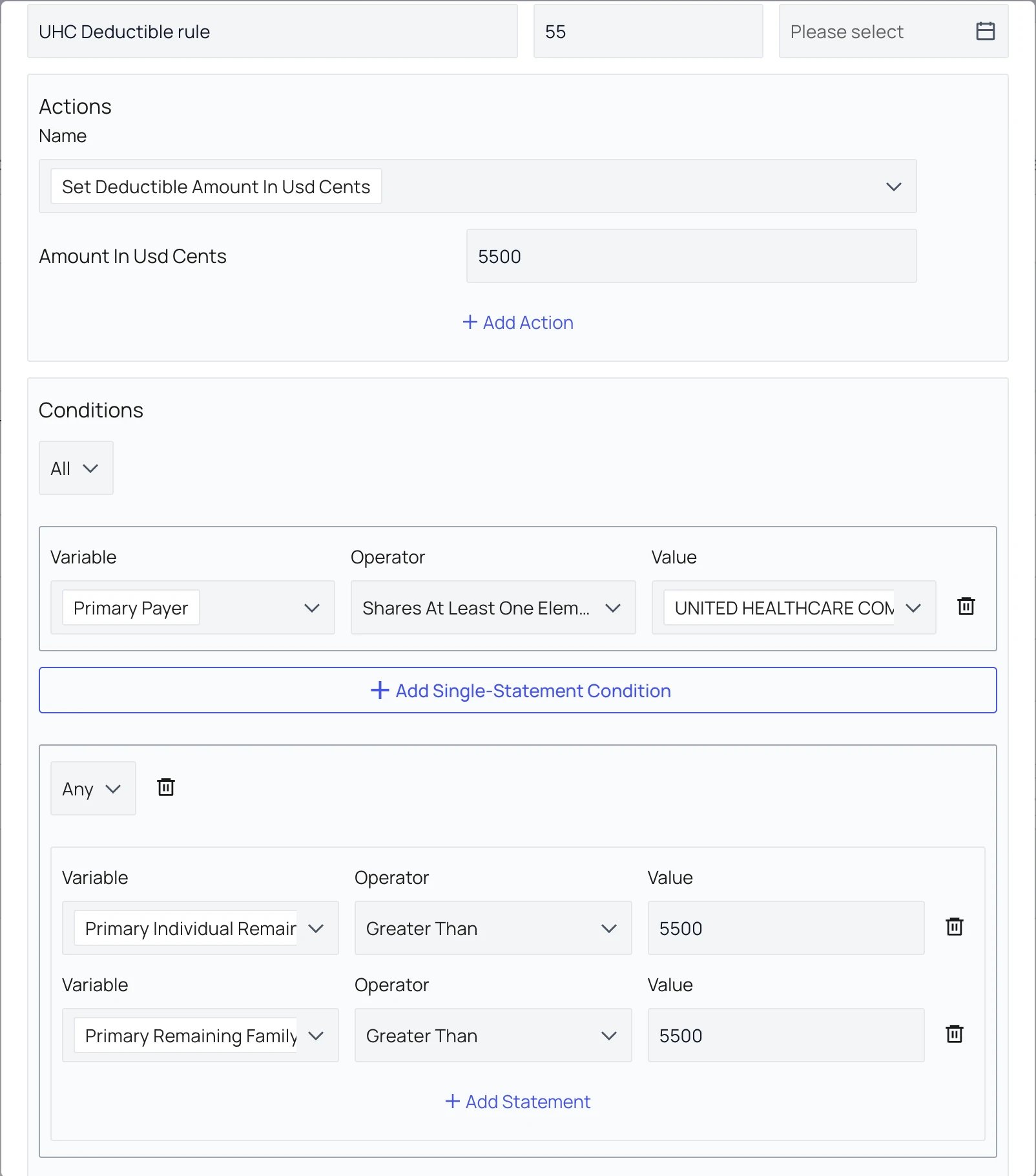
### Deductible rule
* **Action:** Select **Set Deductible Amount** and enter the approved upfront amount in cents.
* **Conditions:** Scope by payer and/or appointment type. Use an "Any" group when either individual or family remaining deductible can trigger the rule.
* **Example:** For UHC, if either remaining deductible is greater than \$55, recommend \$55 (5,500 cents).
 ### Coinsurance rule
* **Actions:** Set Deductible Amount to \$0 and Set Fixed Fee to the approved base fee.
* **Conditions:** Payer matches; coinsurance percentage is greater than \$0; at least one remaining/calendar-year deductible value equals \$0.
* **Why priority 30:** It should override the deductible rule when the deductible is met.
✨**Smart Tip:** Build pattern — use a fixed payer condition plus an "Any" group for individual or family remaining deductible. This keeps the rule readable and avoids duplicate payer rules.
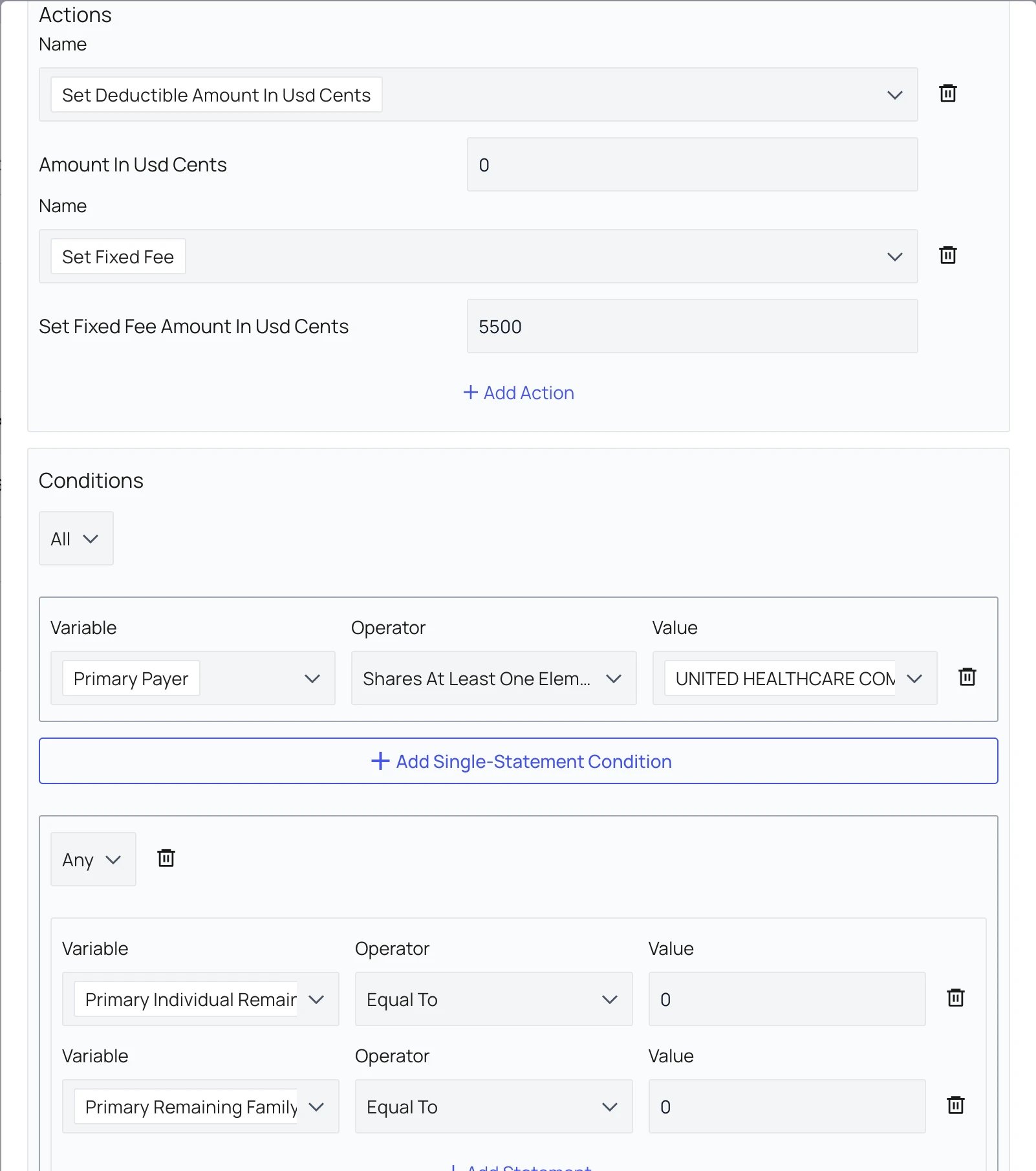
### Coinsurance rule
* **Actions:** Set Deductible Amount to \$0 and Set Fixed Fee to the approved base fee.
* **Conditions:** Payer matches; coinsurance percentage is greater than \$0; at least one remaining/calendar-year deductible value equals \$0.
* **Why priority 30:** It should override the deductible rule when the deductible is met.
✨**Smart Tip:** Build pattern — use a fixed payer condition plus an "Any" group for individual or family remaining deductible. This keeps the rule readable and avoids duplicate payer rules.
 ## Out-of-Network (OON) insurances
For insurance plans where you want to retrieve Out-of-Network benefits instead of In-Network benefits, you need to map those plans accordingly. From **PR Settings**, click **Out of Network Insurances**.
## Out-of-Network (OON) insurances
For insurance plans where you want to retrieve Out-of-Network benefits instead of In-Network benefits, you need to map those plans accordingly. From **PR Settings**, click **Out of Network Insurances**.
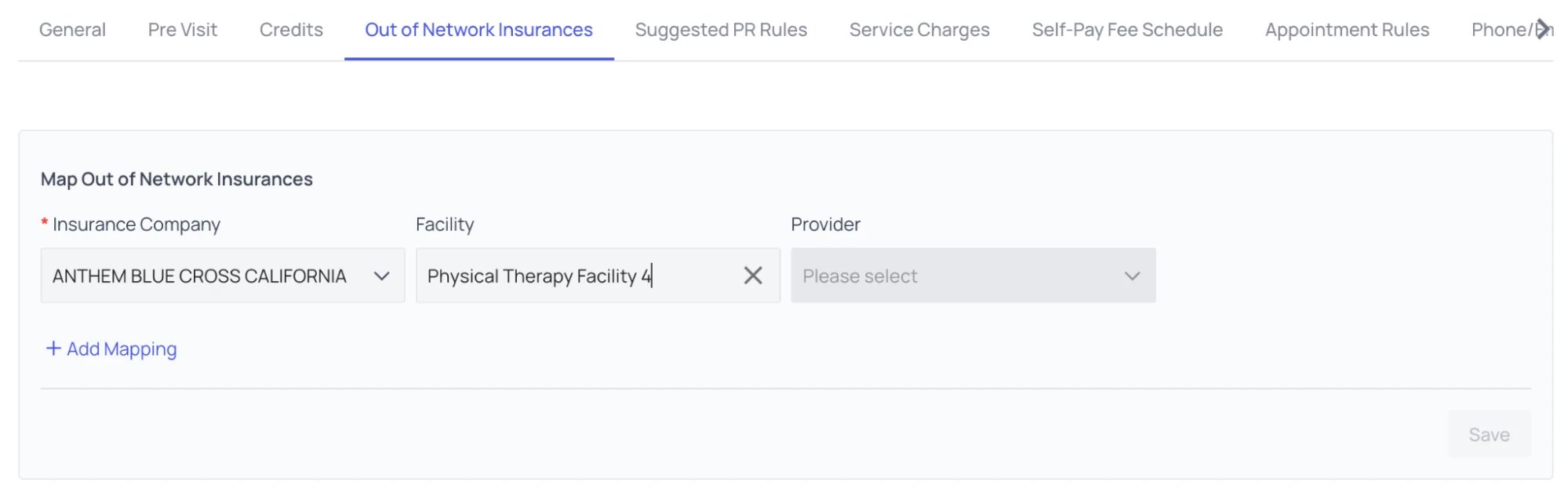 Select the insurance plans that are out of network (OON) for you. If an insurance plan is out of network only for specific facilities, select those facilities accordingly. To add multiple out-of-network insurance mappings, click **Add Mapping** for each additional entry. When you have finished, click **Save**.
## Configure custom payment types
Use custom line items for charges outside copay, coinsurance, and deductible. After configuration, the line items are available in the appointment payment collection workflow.
### Choose the correct type
| **Type** | **Use it for** | **System behavior** |
| :---------- | :---------------------------------------------------------------------------------- | :--------------------------------------------------------------------------------------------------------- |
| Standard | A separate service or charge manually added to a specific appointment | Recorded as a payment; does not reconcile against a claim and does not automatically apply to encounters |
| Self Pay | A line item intended to reconcile to patient responsibility for the date of service | Automatically applies to all encounters, including insured encounters, and reconciles against encounter PR |
| Add Credits | Money that should become patient account credit | Adds a corresponding credit; staff can choose flexible credit or tie it to a date of service |
A **Self Pay** line item applies to **ALL** encounters, not only self-pay patients. Use **Standard** instead when the charge should be manually added and remain separate from claim reconciliation.
### Create a custom payment type
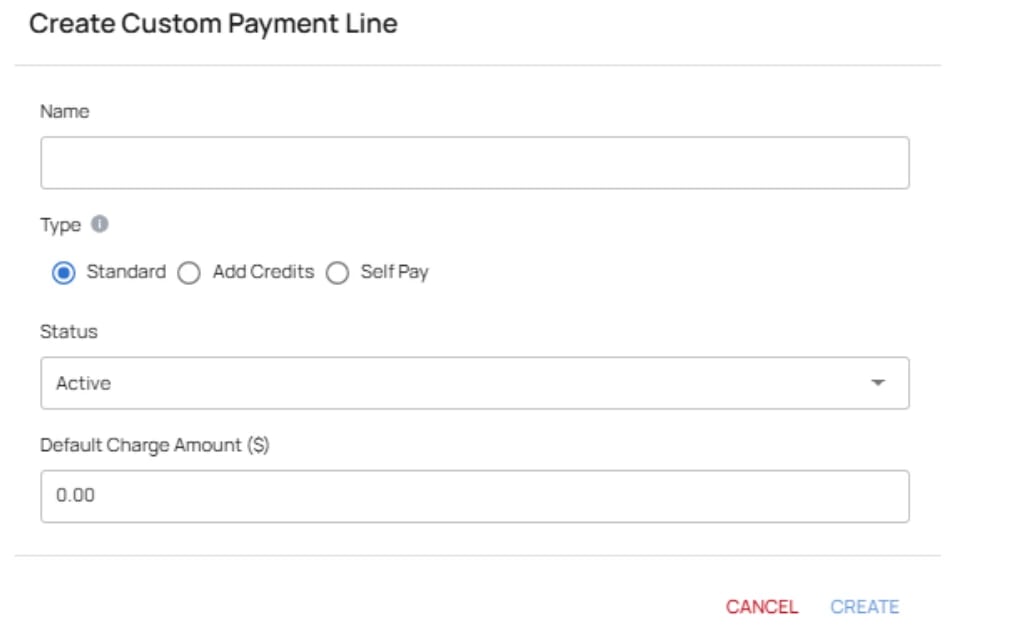
1. Open **PR Settings** and scroll to **Custom Payment Types**.
2. Select the plus icon in the upper-right corner.
3. Enter the **Name**, choose **Type**, set **Status**, and enter the **Default Charge Amount** in dollars.
4. Leave the default amount blank when staff should enter the amount at collection time.
5. Select **Create**.
Select the insurance plans that are out of network (OON) for you. If an insurance plan is out of network only for specific facilities, select those facilities accordingly. To add multiple out-of-network insurance mappings, click **Add Mapping** for each additional entry. When you have finished, click **Save**.
## Configure custom payment types
Use custom line items for charges outside copay, coinsurance, and deductible. After configuration, the line items are available in the appointment payment collection workflow.
### Choose the correct type
| **Type** | **Use it for** | **System behavior** |
| :---------- | :---------------------------------------------------------------------------------- | :--------------------------------------------------------------------------------------------------------- |
| Standard | A separate service or charge manually added to a specific appointment | Recorded as a payment; does not reconcile against a claim and does not automatically apply to encounters |
| Self Pay | A line item intended to reconcile to patient responsibility for the date of service | Automatically applies to all encounters, including insured encounters, and reconciles against encounter PR |
| Add Credits | Money that should become patient account credit | Adds a corresponding credit; staff can choose flexible credit or tie it to a date of service |
A **Self Pay** line item applies to **ALL** encounters, not only self-pay patients. Use **Standard** instead when the charge should be manually added and remain separate from claim reconciliation.
### Create a custom payment type
1. Open **PR Settings** and scroll to **Custom Payment Types**.
2. Select the plus icon in the upper-right corner.
3. Enter the **Name**, choose **Type**, set **Status**, and enter the **Default Charge Amount** in dollars.
4. Leave the default amount blank when staff should enter the amount at collection time.
5. Select **Create**.
 ### Use custom line items during collection
**Add the line item to an appointment:**
1. Open the appointment payment collection flow.
2. Open the **Type** dropdown or search for the line item by name.
3. Select the line item. Its configured default amount appears automatically.
4. Adjust the amount or quantity when the workflow permits multiple units.
5. Choose the payment method and complete collection.
### Use custom line items during collection
**Add the line item to an appointment:**
1. Open the appointment payment collection flow.
2. Open the **Type** dropdown or search for the line item by name.
3. Select the line item. Its configured default amount appears automatically.
4. Adjust the amount or quantity when the workflow permits multiple units.
5. Choose the payment method and complete collection.
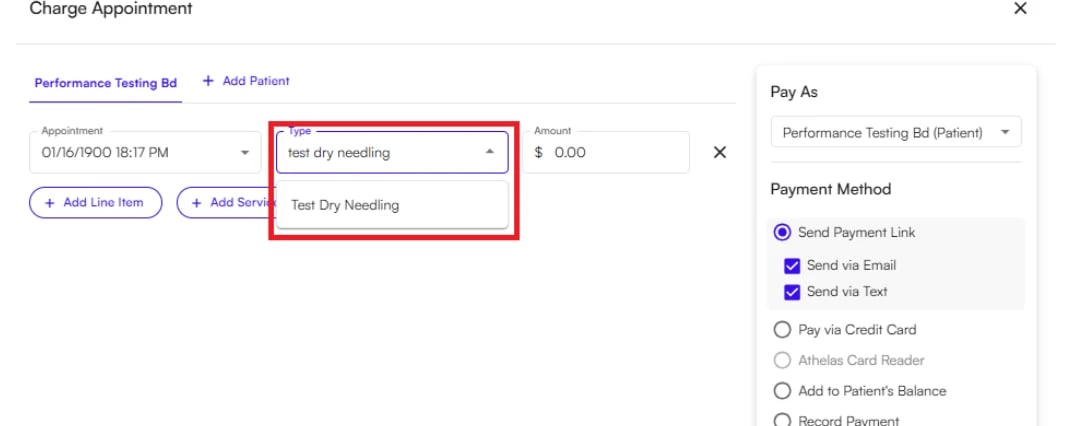
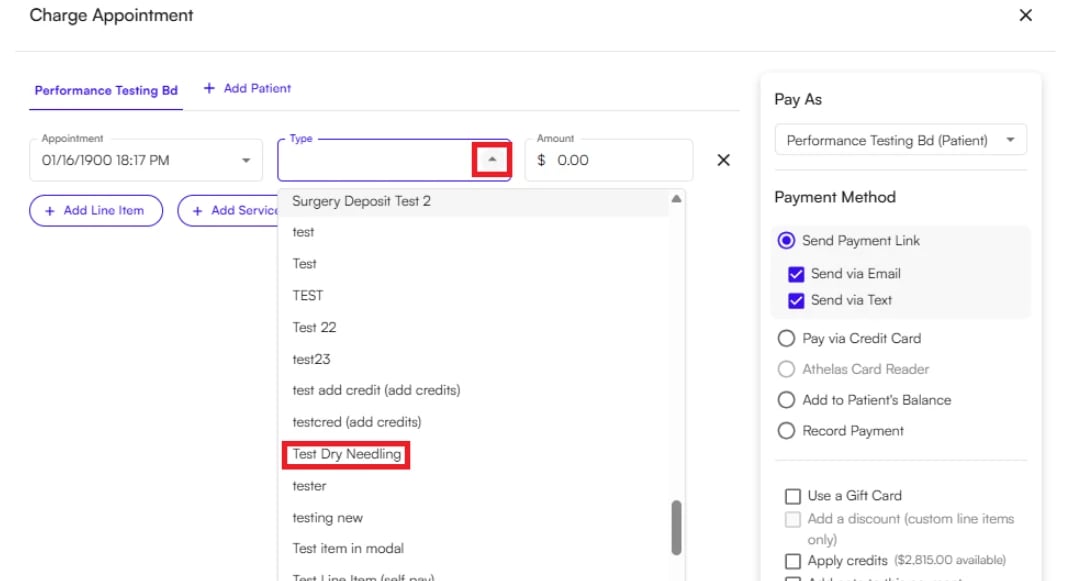 You can also find the line item by typing its name directly into the **Type** field to search for it.
 **Note:** When the same line item has multiple units, update the quantity before confirming the payment.
### Edit, disable, or replace a custom line item
**To edit an existing item:**
1. Return to **PR Settings → Custom Payment Types**.
2. Search for the line item and select the pencil icon.
**Note:** When the same line item has multiple units, update the quantity before confirming the payment.
### Edit, disable, or replace a custom line item
**To edit an existing item:**
1. Return to **PR Settings → Custom Payment Types**.
2. Search for the line item and select the pencil icon.
 3. Update the **Name**, **Default Charge Amount**, or **Status**.
4. Select **Disabled** to hide the item from the payment collection menu.
5. Select **Update** to save the changes.
3. Update the **Name**, **Default Charge Amount**, or **Status**.
4. Select **Disabled** to hide the item from the payment collection menu.
5. Select **Update** to save the changes.
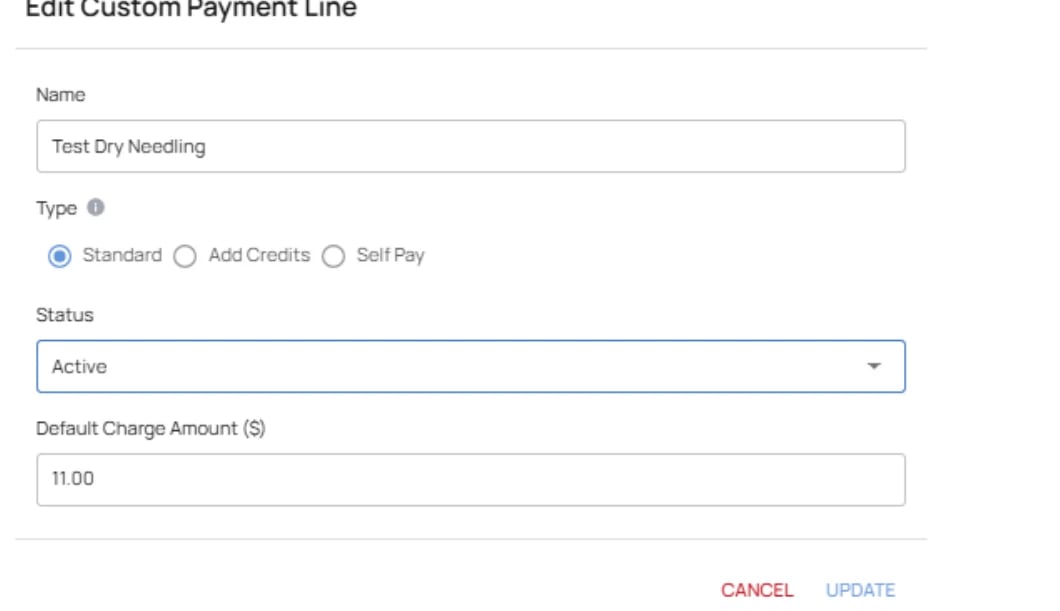 ✨**Smart Tip:** Type cannot be edited. To change a line item from Standard, Self Pay, or Add Credits to a different type, disable the existing line item and create a new one with the correct type.
### Confirm the intended accounting behavior
| **Type** | **What you should see after collection** |
| :---------- | :--------------------------------------------------------------------------------------------------------------------------------------- |
| Standard | A separate charge for the custom item; it may have no encounter ID and remains separate from the copay or other encounter-linked charge. |
| Self Pay | The collected line item reconciles against final encounter patient responsibility after remittance. |
| Add Credits | The payment appears as locked or flexible patient credit based on the option selected during collection. |
### FAQ
Yes. Open the appointment's expanded view, select the shield icon, and use **Charge Override** to set a specific copay, deductible, coinsurance, fixed fee, or self-pay amount. Enter the amount in cents (for example, `1000` for \$10). From that point forward, the override applies to that patient and appointment type going forward.
The rules engine and the Charge Override window both store amounts in cents to avoid rounding errors. Entering a dollar amount instead (for example, `10` instead of `1000`) will apply a recommendation for \$0.10, not \$10.
The Secondary Insurance rule, already configured for your site, sets Copay, Coinsurance, and Deductible amounts to \$0 whenever a secondary payer and secondary member ID are on file. This is because the patient responsibility passed by the primary payer is usually covered by the secondary payer, so no amount is recommended for upfront collection.
**Standard** records a separate charge that stays independent of claim reconciliation. **Self Pay** automatically applies to all encounters (insured or not) and reconciles against the encounter's final patient responsibility. **Add Credits** adds patient account credit instead of a charge. The type cannot be changed after creation — disable the item and create a new one with the correct type instead.
Confirm the rule's priority relative to the other rules that could match the same appointment; the highest-priority matching rule wins. As a starting point, the Out-of-Pocket rule should outrank Prioritize Copay, which should outrank Coinsurance and Deductible. Also confirm the appointment's Service Type and payer mapping under Appointment Rules are correct, since a mismatch there can prevent the right benefits from being evaluated in the first place.
See [How to Run an Eligibility Check](/insights_front_desk/appointments/how_to_run_an_eligibility_check) for the day-to-day workflow, and the [Patient Eligibility Report](/insights_biller/reports/patient_eligibility_report) to track eligibility results across all patients.
✨**Smart Tip:** Type cannot be edited. To change a line item from Standard, Self Pay, or Add Credits to a different type, disable the existing line item and create a new one with the correct type.
### Confirm the intended accounting behavior
| **Type** | **What you should see after collection** |
| :---------- | :--------------------------------------------------------------------------------------------------------------------------------------- |
| Standard | A separate charge for the custom item; it may have no encounter ID and remains separate from the copay or other encounter-linked charge. |
| Self Pay | The collected line item reconciles against final encounter patient responsibility after remittance. |
| Add Credits | The payment appears as locked or flexible patient credit based on the option selected during collection. |
### FAQ
Yes. Open the appointment's expanded view, select the shield icon, and use **Charge Override** to set a specific copay, deductible, coinsurance, fixed fee, or self-pay amount. Enter the amount in cents (for example, `1000` for \$10). From that point forward, the override applies to that patient and appointment type going forward.
The rules engine and the Charge Override window both store amounts in cents to avoid rounding errors. Entering a dollar amount instead (for example, `10` instead of `1000`) will apply a recommendation for \$0.10, not \$10.
The Secondary Insurance rule, already configured for your site, sets Copay, Coinsurance, and Deductible amounts to \$0 whenever a secondary payer and secondary member ID are on file. This is because the patient responsibility passed by the primary payer is usually covered by the secondary payer, so no amount is recommended for upfront collection.
**Standard** records a separate charge that stays independent of claim reconciliation. **Self Pay** automatically applies to all encounters (insured or not) and reconciles against the encounter's final patient responsibility. **Add Credits** adds patient account credit instead of a charge. The type cannot be changed after creation — disable the item and create a new one with the correct type instead.
Confirm the rule's priority relative to the other rules that could match the same appointment; the highest-priority matching rule wins. As a starting point, the Out-of-Pocket rule should outrank Prioritize Copay, which should outrank Coinsurance and Deductible. Also confirm the appointment's Service Type and payer mapping under Appointment Rules are correct, since a mismatch there can prevent the right benefits from being evaluated in the first place.
See [How to Run an Eligibility Check](/insights_front_desk/appointments/how_to_run_an_eligibility_check) for the day-to-day workflow, and the [Patient Eligibility Report](/insights_biller/reports/patient_eligibility_report) to track eligibility results across all patients.