> ## Documentation Index
> Fetch the complete documentation index at: https://docs.athelas.com/llms.txt
> Use this file to discover all available pages before exploring further.
# Care Notes
Care Notes let care teams document clinically relevant, non-visit patient interactions, including phone calls, caregiver messages, physician-to-physician communication, faxes, and other correspondence, directly on the patient's timeline alongside visit notes.
## Care Notes General Guide
To access Care Notes, navigate to a patient's **Visits & Notes** tab.
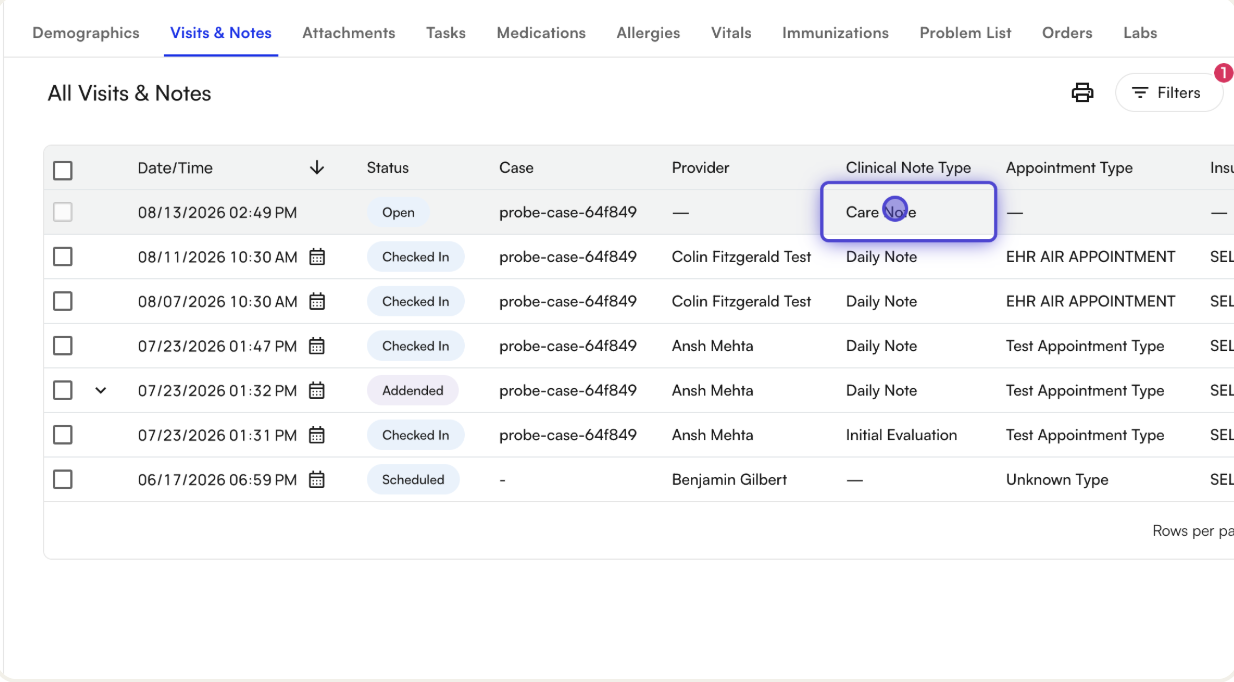
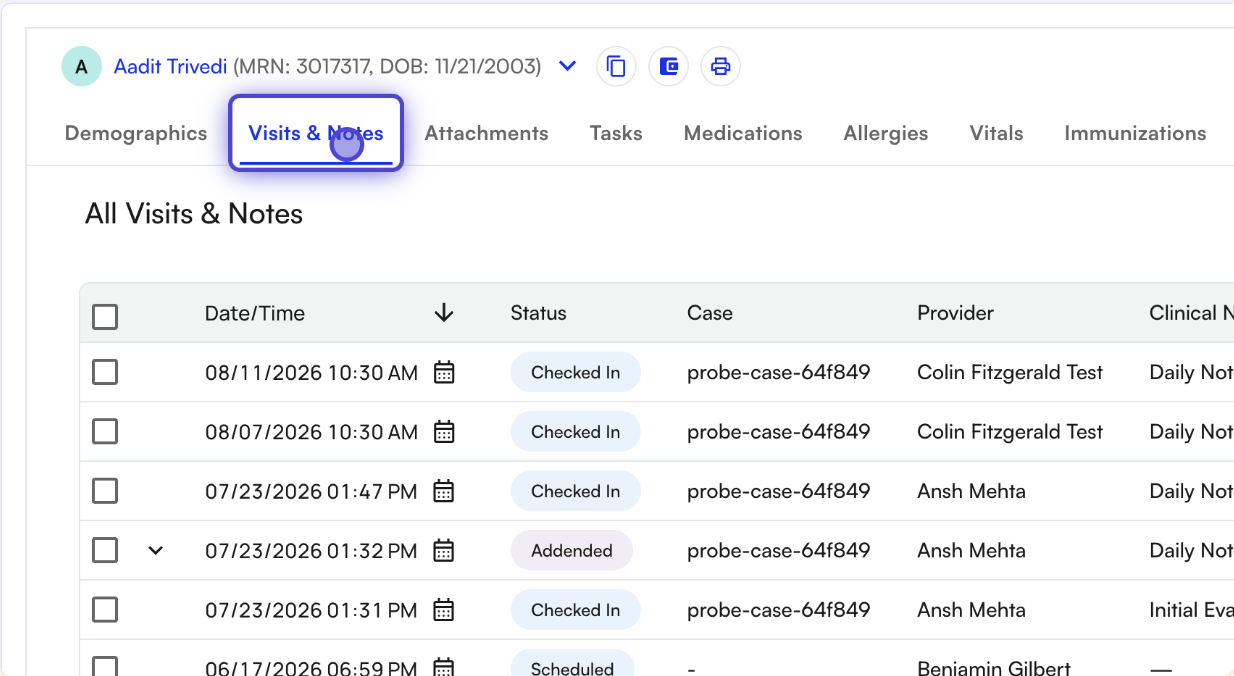 Care note rows appear merged into the same timeline as visit rows, distinguished by the **Clinical Note Type** column showing **"Care Note"**.
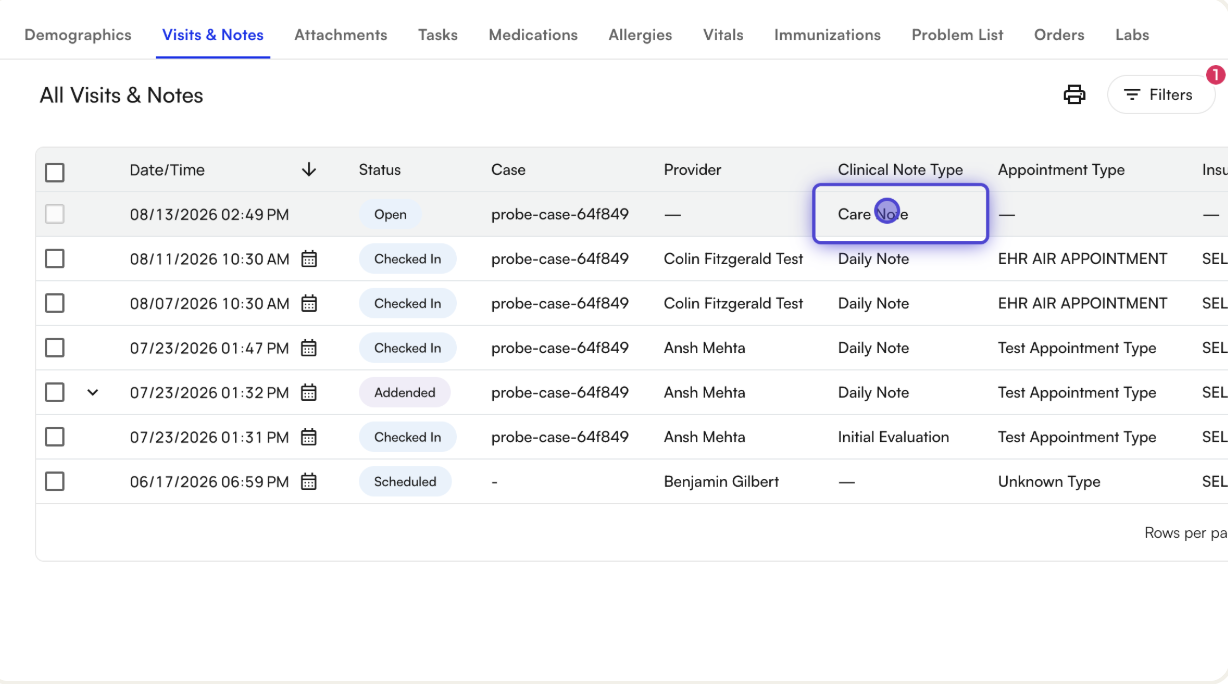 ### Care Note statuses
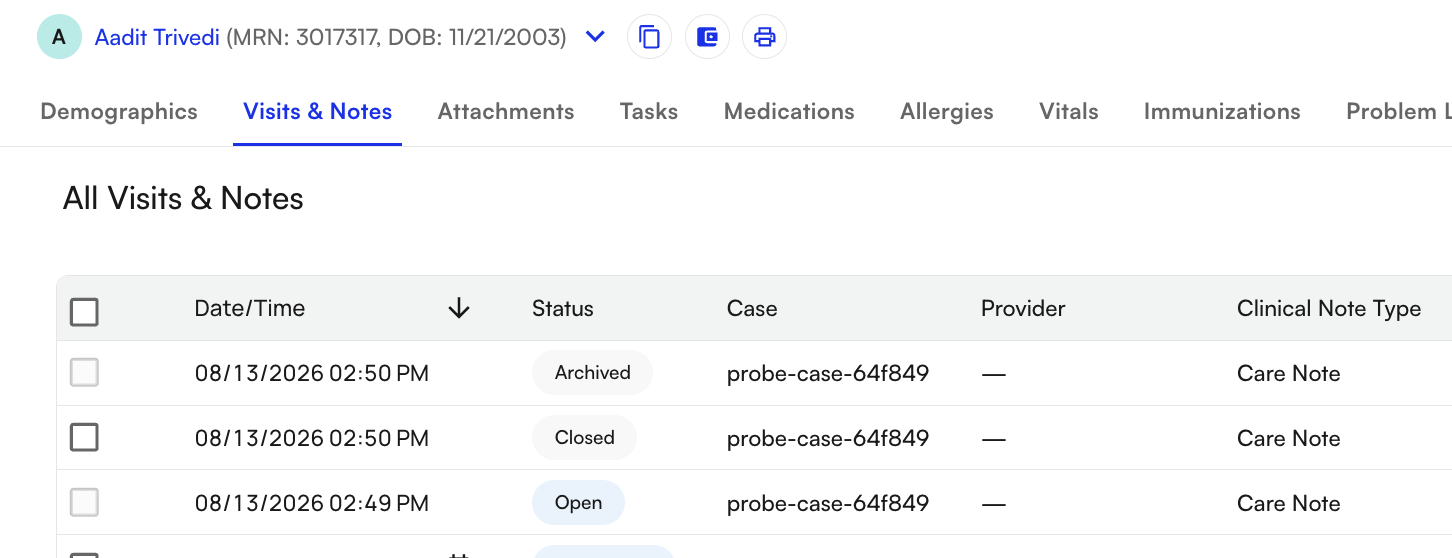
Each care note has one of three statuses:
* **Open** (blue): editable, can receive new entries
* **Closed** (grey): read-only, exportable
* **Archived**: hidden from the default view
### Care Note statuses
Each care note has one of three statuses:
* **Open** (blue): editable, can receive new entries
* **Closed** (grey): read-only, exportable
* **Archived**: hidden from the default view
 ### Creating a Care Note
Click the **Care Note** button in the page header to open the creation drawer.
### Creating a Care Note
Click the **Care Note** button in the page header to open the creation drawer.
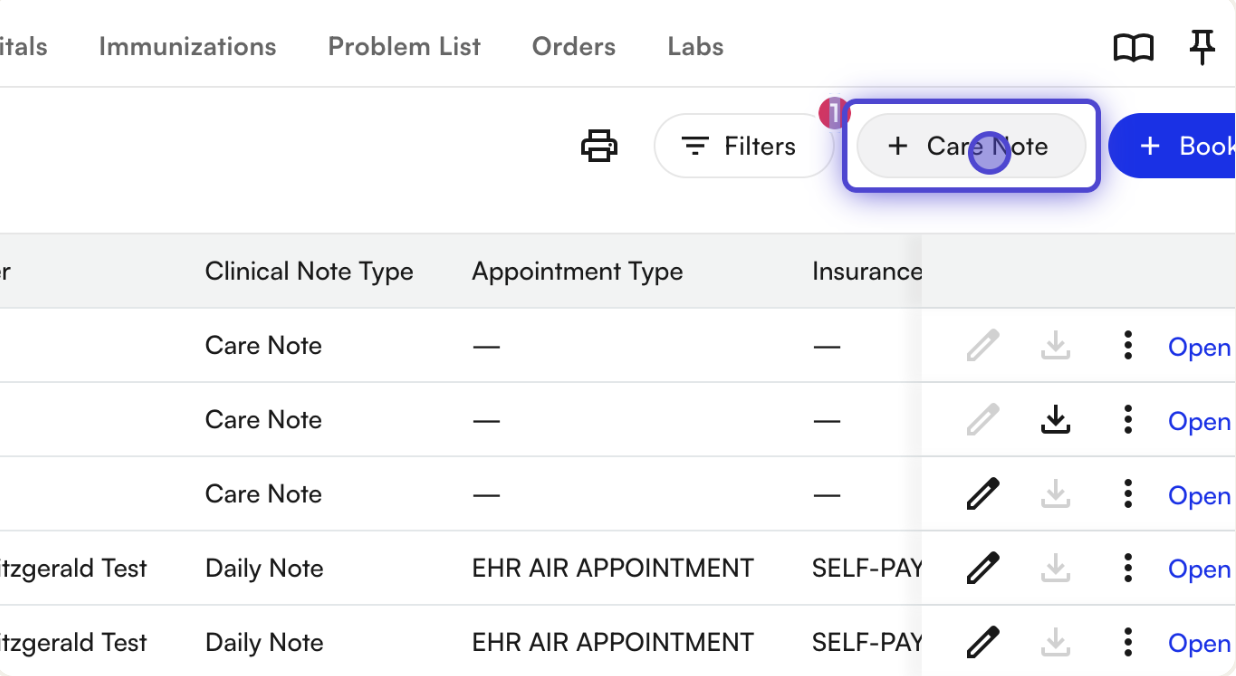 The creation form includes:
* **Note** (required): the free-text entry, written in a rich-text composer
* **Case** (optional)
* **Source** (optional): who provided the information for this note (Patient, PCP / Physician, Hospital, Fax, etc.)
* **Attachment** (optional): one existing patient attachment
* **Assign member as task** (optional): creates a task for a teammate, linked back to this note
The creation form includes:
* **Note** (required): the free-text entry, written in a rich-text composer
* **Case** (optional)
* **Source** (optional): who provided the information for this note (Patient, PCP / Physician, Hospital, Fax, etc.)
* **Attachment** (optional): one existing patient attachment
* **Assign member as task** (optional): creates a task for a teammate, linked back to this note
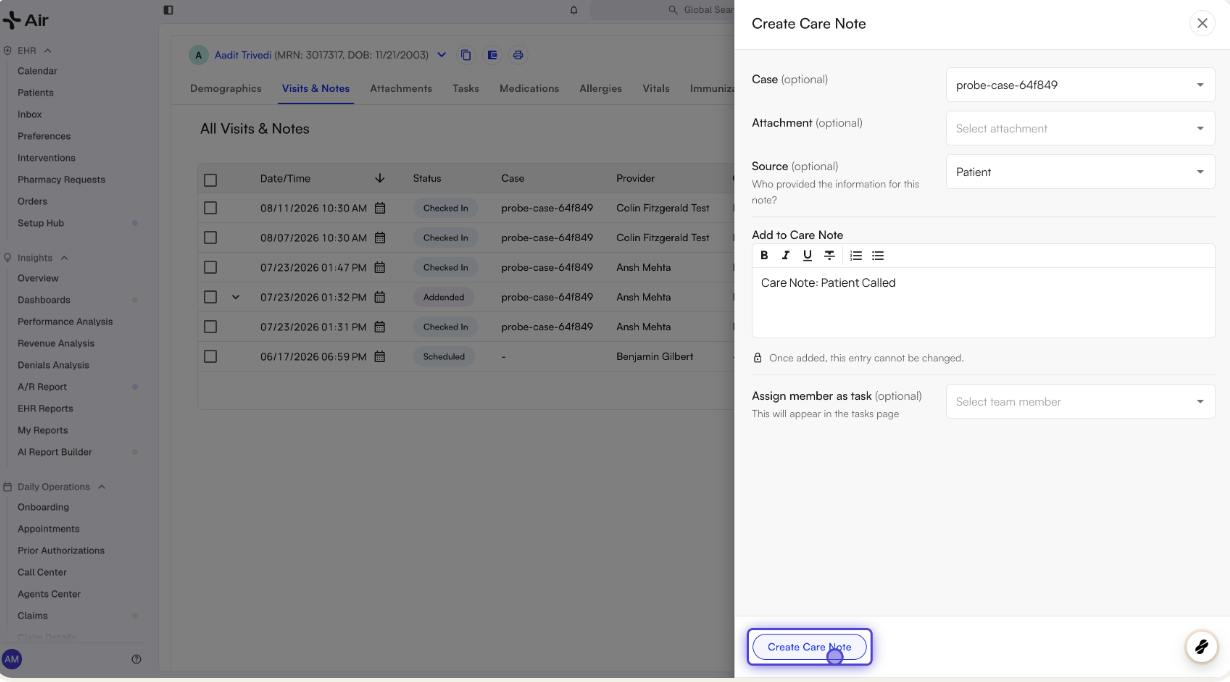 Click **Create Care Note** to save. The drawer switches into edit/view mode, and the note appears as a new **Open** row in the table.
 ### The Activity thread
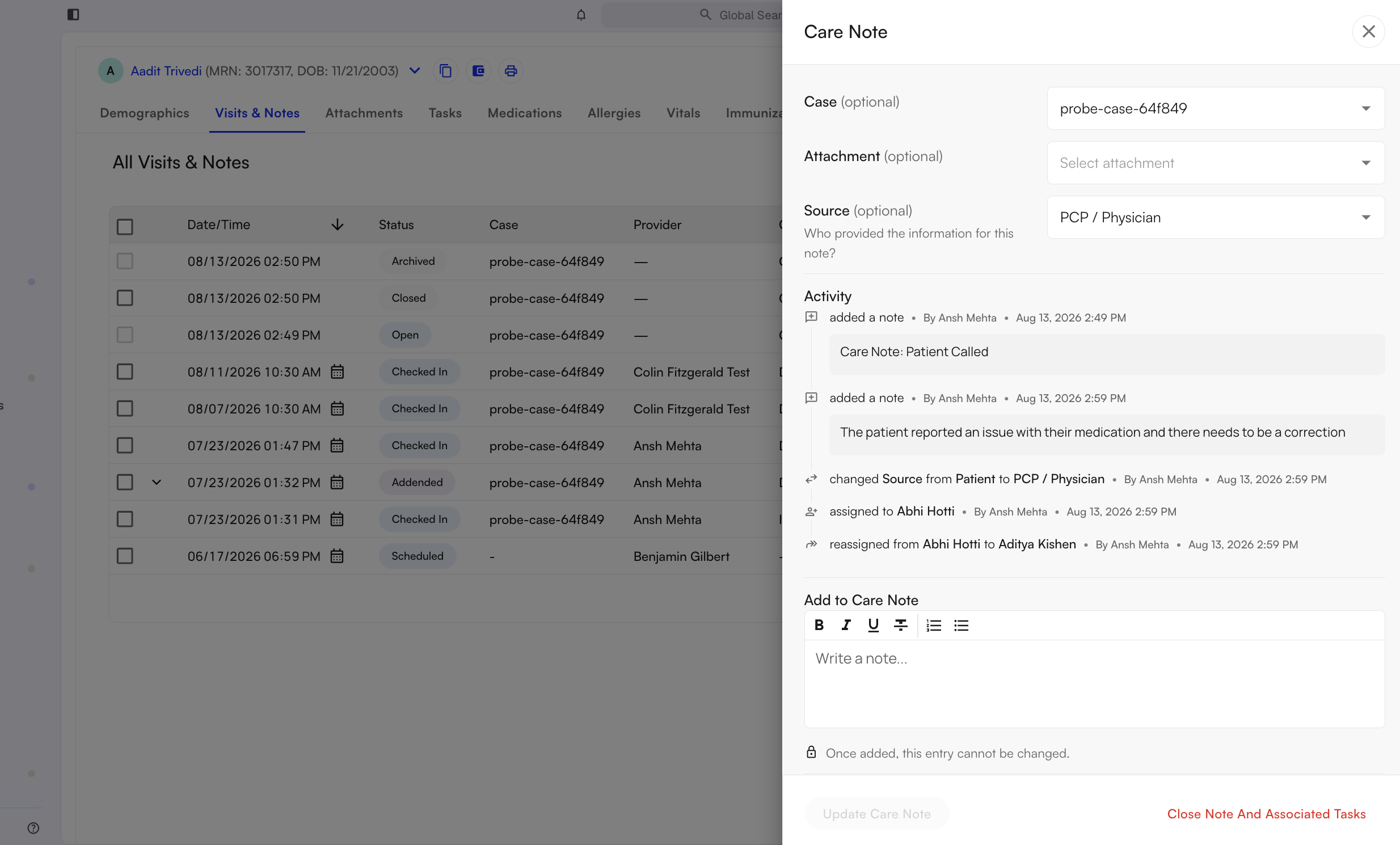
Once a note is created, all updates render as an append-only, immutable thread in the **Activity** section of the drawer. New note entries, metadata changes, assignments, closures, exports, and faxes are all logged with the actor and timestamp.
### The Activity thread
Once a note is created, all updates render as an append-only, immutable thread in the **Activity** section of the drawer. New note entries, metadata changes, assignments, closures, exports, and faxes are all logged with the actor and timestamp.
 ### Filtering the timeline
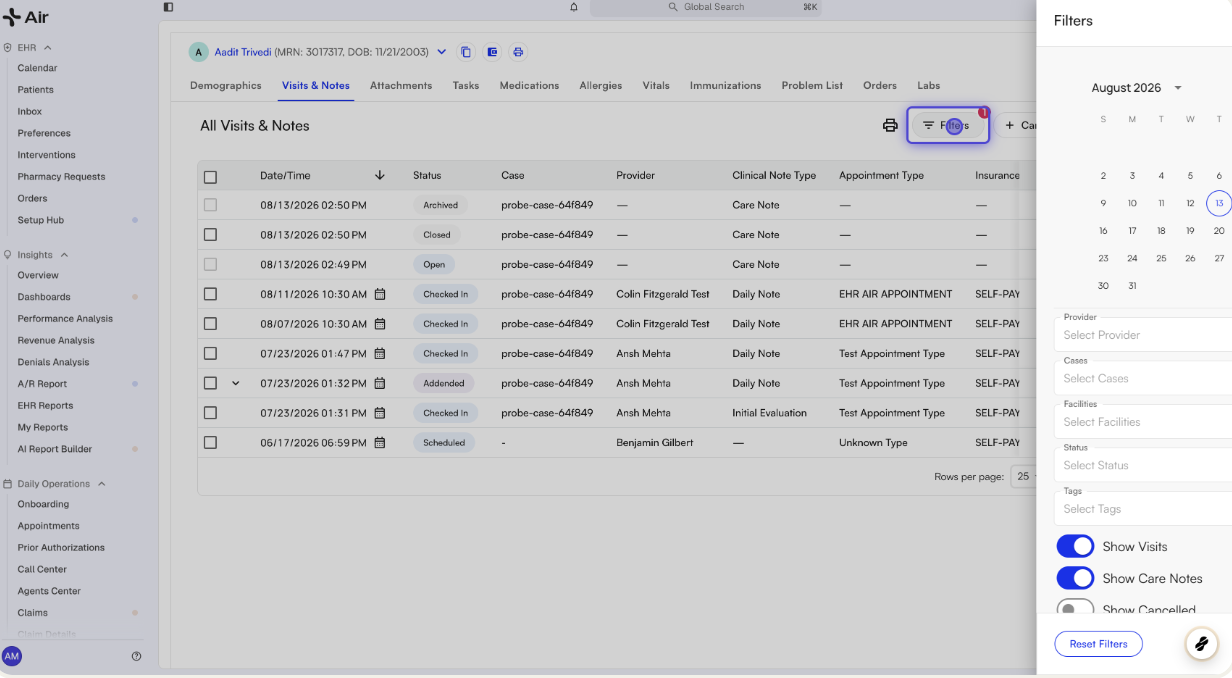
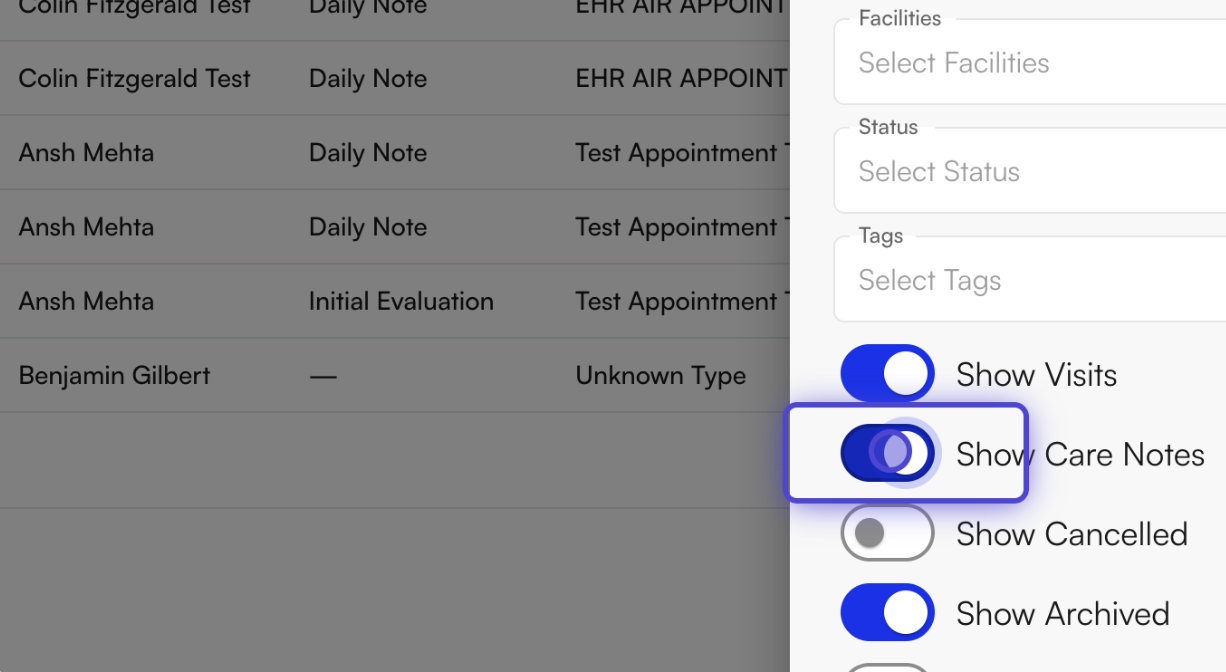
Use the **Filters** drawer to toggle **Show Visits** / **Show Care Notes**, filter by date range or case, and toggle **Show Archived** to reveal archived notes.
### Filtering the timeline
Use the **Filters** drawer to toggle **Show Visits** / **Show Care Notes**, filter by date range or case, and toggle **Show Archived** to reveal archived notes.
 ## Example Workflows
### Document a non-visit patient interaction
**Steps:**
1. From the patient's Visits & Notes page, click **Care Note**.
2. Enter the note body describing the interaction (e.g. a phone call summary).
3. Select a **Source** describing who provided the information.
4. Optionally select a **Case** if the note is related to an active case.
5. Click **Create Care Note**.
### Add supporting documentation to a Care Note
**Steps:**
1. Open an existing Care Note, or start creating a new one.
2. In the **Attachment** field, select an existing patient attachment.
3. Save (**Create Care Note** or **Update Care Note**).
4. Once the note is closed, export it as a PDF. The attachment is appended after the note content.
### Hand off follow-up as a task
**Steps:**
1. Open a Care Note.
2. In **Assign member as task**, select a teammate.
3. Click **Update Care Note** (or **Create Care Note**, if new).
4. Navigate to the **Tasks** page to find the generated task, titled "Care journey note: \{patient name}".
5. From the task, click **Open care note** to return to the note.
### Continue and reassign a Care Note
**Steps:**
1. Open an existing Open care note.
2. Add a new entry in the composer.
3. Change the assignee to a different teammate.
4. Click **Update Care Note**.
5. Review the Activity feed for the "added a new entry" and "reassigned from X to Y" events.
### Close a resolved Care Note
**Steps:**
1. Open the note.
2. Click **Close note and Associated Tasks** in the drawer footer.
3. Confirm with **Close Out**.
## Example Workflows
### Document a non-visit patient interaction
**Steps:**
1. From the patient's Visits & Notes page, click **Care Note**.
2. Enter the note body describing the interaction (e.g. a phone call summary).
3. Select a **Source** describing who provided the information.
4. Optionally select a **Case** if the note is related to an active case.
5. Click **Create Care Note**.
### Add supporting documentation to a Care Note
**Steps:**
1. Open an existing Care Note, or start creating a new one.
2. In the **Attachment** field, select an existing patient attachment.
3. Save (**Create Care Note** or **Update Care Note**).
4. Once the note is closed, export it as a PDF. The attachment is appended after the note content.
### Hand off follow-up as a task
**Steps:**
1. Open a Care Note.
2. In **Assign member as task**, select a teammate.
3. Click **Update Care Note** (or **Create Care Note**, if new).
4. Navigate to the **Tasks** page to find the generated task, titled "Care journey note: \{patient name}".
5. From the task, click **Open care note** to return to the note.
### Continue and reassign a Care Note
**Steps:**
1. Open an existing Open care note.
2. Add a new entry in the composer.
3. Change the assignee to a different teammate.
4. Click **Update Care Note**.
5. Review the Activity feed for the "added a new entry" and "reassigned from X to Y" events.
### Close a resolved Care Note
**Steps:**
1. Open the note.
2. Click **Close note and Associated Tasks** in the drawer footer.
3. Confirm with **Close Out**.
ℹ️ Any unsaved text in the composer is auto-saved before the note closes.
### Reopen a Care Note
**Steps:**
1. Open a Closed note.
2. Click **Reopen** in the drawer footer.
3. Confirm.
⚠️Reopening clears the assignee. A new task is not automatically created, so reassign manually if follow-up is still needed.
### Export a single closed Care Note
**Steps:**
1. Locate a Closed care note row.
2. Click the **Download** icon.
3. Review the PDF preview.
### Bulk download or fax Care Notes
**Steps:**
1. Select up to 25 closed care note rows using the checkboxes.
2. Click **Download PDF** or **Fax PDF** in the bulk action bar.
3. Complete the fax form if faxing.
### Archive and restore a Care Note
**Steps:**
1. On a Closed care note row, open **More (⋮)** then **Archive Care Note**.
2. Confirm.
3. Enable **Show Archived** in Filters to find it again.
4. Open **More (⋮)** then **Unarchive Care Note** to restore it.
## Important Behavior & Limitations
* A note entry is required to create a Care Note; all other fields are optional.
* Submitted entries are immutable. Once added, an entry cannot be edited.
* Only one existing patient attachment can be selected per note.
* Notes must be **Closed** before they can be exported or faxed.
* Dismissing the drawer with **X** or clicking the backdrop discards unsaved text. Use **Update Care Note**, or the footer's close action, to save first.
* Care Notes cannot be backdated or deleted. Closed notes can be archived instead, with a full audit trail.
* Bulk export/fax is capped at 25 notes at a time.
This documentation is built and hosted on [Mintlify](https://mintlify.com), a developer documentation platform.