> ## Documentation Index
> Fetch the complete documentation index at: https://docs.athelas.com/llms.txt
> Use this file to discover all available pages before exploring further.
# Faxing
Air's faxing module gives your front desk a single place to receive, process, send, and track every fax — no external fax portal needed. This guide covers everything from managing your inbound queue to sending documents straight from a patient's chart.
**Note:** For the quick, task-focused version of this workflow, see [Send & Receive Faxes](/air_front_desk/manage_your_tasks/faxes).
## Navigating to faxes
There are two ways to open the Faxing page:
* Click **Utilities → Faxing** in the left sidebar.
* Press **⌘K** (Mac) or **Ctrl+K** (Windows), type *Faxes*, and press **Enter**.
## Outbound faxes
The **Outbound** tab shows every fax your organization has sent, along with its current delivery status. Faxes sent from chart notes and from the Attachments tab both appear here, correctly attributed to the sending facility and provider.
| **Status** | **What it means** |
| :-------------- | :--------------------------------- |
| ✅ **Delivered** | Fax was received successfully. |
| ⏳ **Pending** | Fax is in transit. |
| ❌ **Failed** | Delivery failed — action required. |
Use the filter panel to narrow by **Patient**, **Facility**, **Created By**, or **Document Type**.
### Resend a failed fax
If a fax fails, you don't need to start over:
1. Find the failed fax in the **Outbound** tab.
2. Click **Resend**.
3. Confirm or modify the recipient, fax number, or attachments in the Send Fax Drawer, then send.
The original and resent fax records are linked, giving you a complete audit trail.
### Automatic failure tasks
When a fax fails to deliver, Air automatically creates a task in your **Tasks** queue so nothing gets missed. The task includes a reference to the original fax.
### Track documents sent via email and text
Documents sent from Patient Attachments via email or text message also appear in the **Outbound** tab. You can see the delivery status, timestamp, and recipient for each — no manual follow-up needed to confirm receipt.
## Inbound faxes
### Your inbox
The **Inbound** tab is split into two sub-tabs:
* **Unprocessed** — faxes that haven't been acted on yet.
* **Processed** — faxes you've reviewed and handled. A fax moves here automatically once you manually assign a patient and document type.
Use the filter panel to narrow the list by **Patient**, **Document Type**, **Facility**, or **Created By**. Filters work across both sub-tabs.
Air automatically routes each inbound fax to the correct facility by scanning the PDF for a facility name. If no facility is found, it falls back to the patient's most recently associated facility. For new patients with no prior visits (e.g., inbound referrals), no facility is assumed — preventing incorrect routing.
### Process an inbound fax
When you open a fax from the **Unprocessed** queue, the PDF loads **side-by-side with the edit panel** so you can read and categorize at the same time — no more switching views.
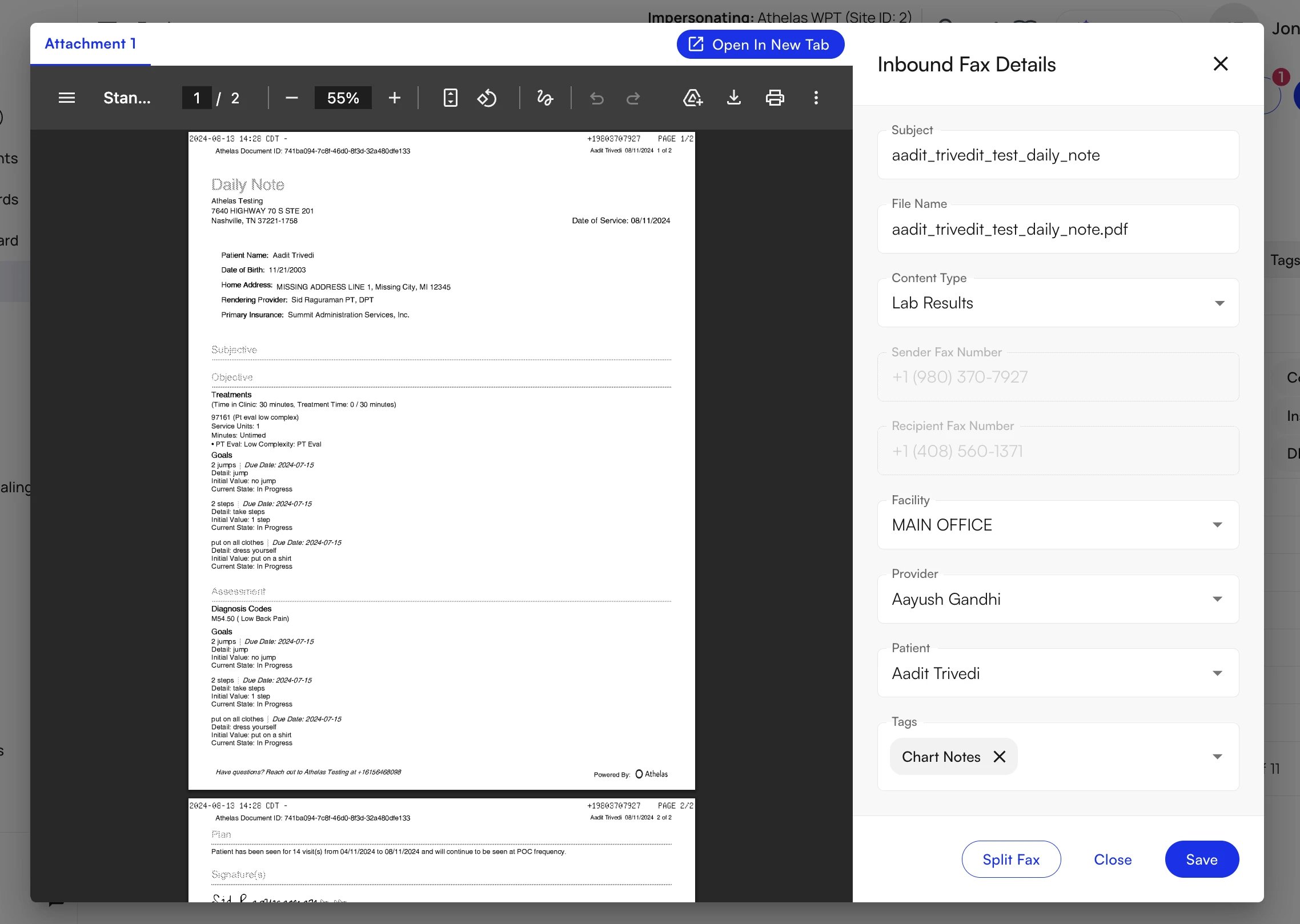 From the detail view you can:
* **Link to a patient** — Search by name (including preferred name) to associate the fax with a patient's chart. Once linked, the fax appears in that patient's record.
* **Assign a document type** — Select a content category (e.g., "Prior Authorization", "Insurance Card", "Referral"). Admins can create and manage available types — see [Fax settings](#fax-settings).
* **Add tags** — Apply tags to organize the fax. Tags sync with Patient Attachments, so anything you apply here carries over automatically when the fax is linked to a patient record.
* **Split the fax** — Break a compound document into multiple fax entries that can be separately assigned patients, document types, and tags.
### Create a lead from an inbound fax
When an inbound fax is a referral, you can create a patient lead directly from the fax detail view — no need to leave the faxing workflow.
1. Open the fax from the **Inbound** tab.
2. Click **Create Lead** in the action panel.
3. The Lead Creation drawer opens alongside the fax — fill in referral type, patient details, and any notes.
4. **Save** — the lead appears in Lead Tracker, and a reference is stored on the fax record.
Faxes that have already generated a lead are marked with a **Leads** indicator in the Inbound list, so your team can see at a glance which faxes have been converted.
### Split a combined fax
Providers sometimes send one fax containing records for multiple patients. You can split it into separate documents:
1. Open the fax and select **Split Fax**.
2. Define the page ranges for each individual fax (e.g., pages 1–4 for Patient A, pages 5–9 for Patient B).
3. Set a subject, patient, and document type for each segment before saving.
4. Each segment is saved as its own independent fax and can be linked to the appropriate patient separately.
## Sending a fax
### From the Send Fax Drawer
The Send Fax Drawer is available any time you initiate a fax — from the queue, from a patient's chart, or from an order. Key features:
* **Multiple documents** — Add as many files as needed. Air validates file type and size before sending to prevent delivery failures.
* **Reorder by dragging** — Drag documents into the order you want them to appear. The final fax PDF reflects the order you set.
* **Address book** — Start typing a name or fax number in the recipient field to search saved contacts. Some organizations maintain a read-only contact list for standardized workflows.
* **Cover sheet** — Choose from your saved templates, use the system default, or skip the cover sheet (see [Cover sheets](#cover-sheets)). When enabled on the cover sheet, you can also add free-text notes with context or instructions (e.g., "Medical records request — received 06/15"), which appear on the cover sheet.
### Cover sheets
Every fax can include a cover sheet. Air provides a system default, and admins can build fully custom templates from **Utilities → Faxing → Settings → Fax coversheet templates**.
From the detail view you can:
* **Link to a patient** — Search by name (including preferred name) to associate the fax with a patient's chart. Once linked, the fax appears in that patient's record.
* **Assign a document type** — Select a content category (e.g., "Prior Authorization", "Insurance Card", "Referral"). Admins can create and manage available types — see [Fax settings](#fax-settings).
* **Add tags** — Apply tags to organize the fax. Tags sync with Patient Attachments, so anything you apply here carries over automatically when the fax is linked to a patient record.
* **Split the fax** — Break a compound document into multiple fax entries that can be separately assigned patients, document types, and tags.
### Create a lead from an inbound fax
When an inbound fax is a referral, you can create a patient lead directly from the fax detail view — no need to leave the faxing workflow.
1. Open the fax from the **Inbound** tab.
2. Click **Create Lead** in the action panel.
3. The Lead Creation drawer opens alongside the fax — fill in referral type, patient details, and any notes.
4. **Save** — the lead appears in Lead Tracker, and a reference is stored on the fax record.
Faxes that have already generated a lead are marked with a **Leads** indicator in the Inbound list, so your team can see at a glance which faxes have been converted.
### Split a combined fax
Providers sometimes send one fax containing records for multiple patients. You can split it into separate documents:
1. Open the fax and select **Split Fax**.
2. Define the page ranges for each individual fax (e.g., pages 1–4 for Patient A, pages 5–9 for Patient B).
3. Set a subject, patient, and document type for each segment before saving.
4. Each segment is saved as its own independent fax and can be linked to the appropriate patient separately.
## Sending a fax
### From the Send Fax Drawer
The Send Fax Drawer is available any time you initiate a fax — from the queue, from a patient's chart, or from an order. Key features:
* **Multiple documents** — Add as many files as needed. Air validates file type and size before sending to prevent delivery failures.
* **Reorder by dragging** — Drag documents into the order you want them to appear. The final fax PDF reflects the order you set.
* **Address book** — Start typing a name or fax number in the recipient field to search saved contacts. Some organizations maintain a read-only contact list for standardized workflows.
* **Cover sheet** — Choose from your saved templates, use the system default, or skip the cover sheet (see [Cover sheets](#cover-sheets)). When enabled on the cover sheet, you can also add free-text notes with context or instructions (e.g., "Medical records request — received 06/15"), which appear on the cover sheet.
### Cover sheets
Every fax can include a cover sheet. Air provides a system default, and admins can build fully custom templates from **Utilities → Faxing → Settings → Fax coversheet templates**.
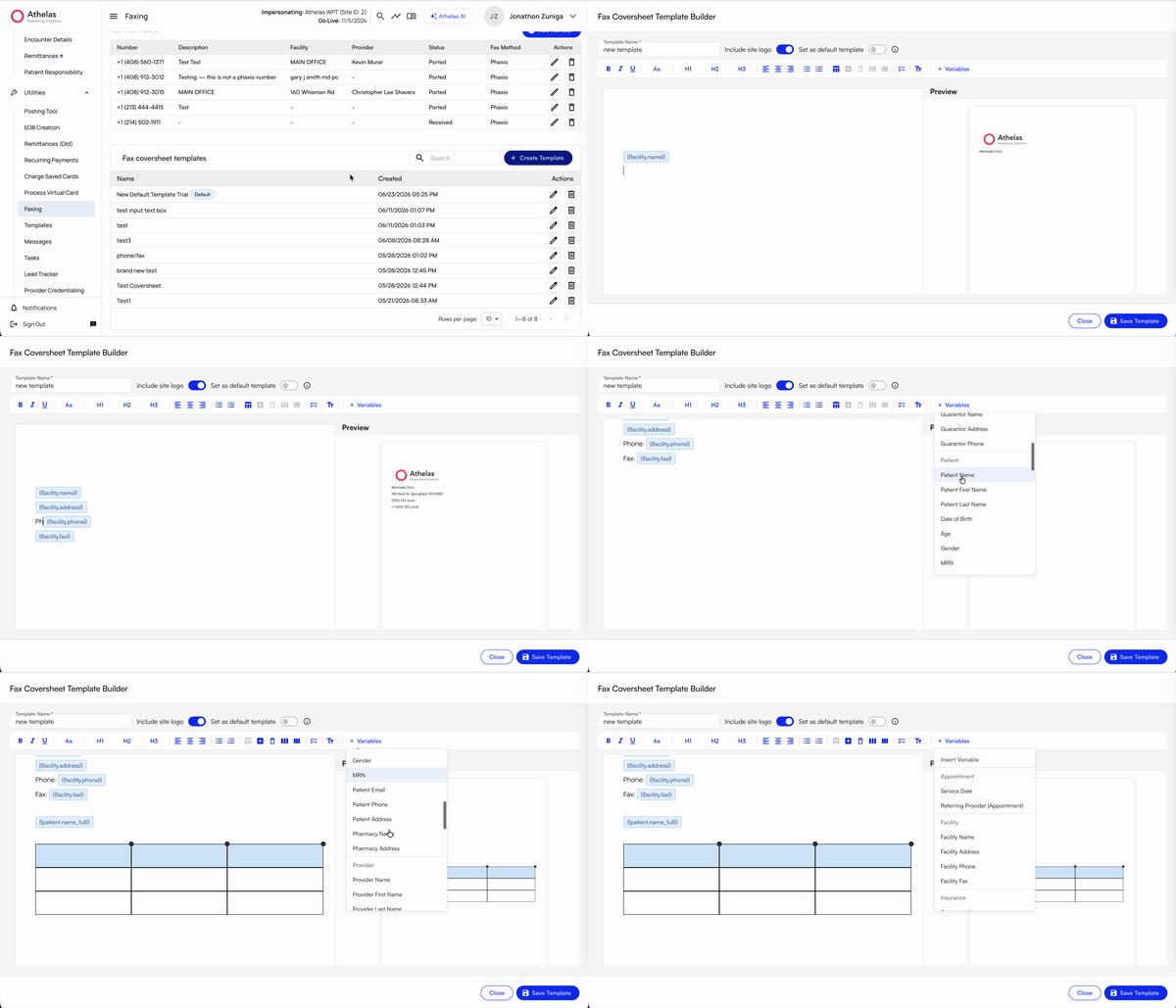 **Select a cover sheet at send time.** Use the **Cover Sheet** dropdown in the Send Fax Drawer to choose a custom template (any saved template your admin created, with your organization's branding, logo, and layout) or **No cover sheet** to skip it. After you select a template, a preview renders inline so you can confirm it looks right before sending.
**Editable text boxes.** Practices can add **editable text box fields** to a template, which staff fill in right before hitting **Send**. This is useful for context that can't be auto-populated — things like *reason for referral*, *notes to the receiving provider*, or *urgency and follow-up instructions*. When you select a template with text boxes, the fields appear in the Send Fax Drawer directly below the cover sheet preview. Type into them and the cover sheet updates live.
**Select a cover sheet at send time.** Use the **Cover Sheet** dropdown in the Send Fax Drawer to choose a custom template (any saved template your admin created, with your organization's branding, logo, and layout) or **No cover sheet** to skip it. After you select a template, a preview renders inline so you can confirm it looks right before sending.
**Editable text boxes.** Practices can add **editable text box fields** to a template, which staff fill in right before hitting **Send**. This is useful for context that can't be auto-populated — things like *reason for referral*, *notes to the receiving provider*, or *urgency and follow-up instructions*. When you select a template with text boxes, the fields appear in the Send Fax Drawer directly below the cover sheet preview. Type into them and the cover sheet updates live.
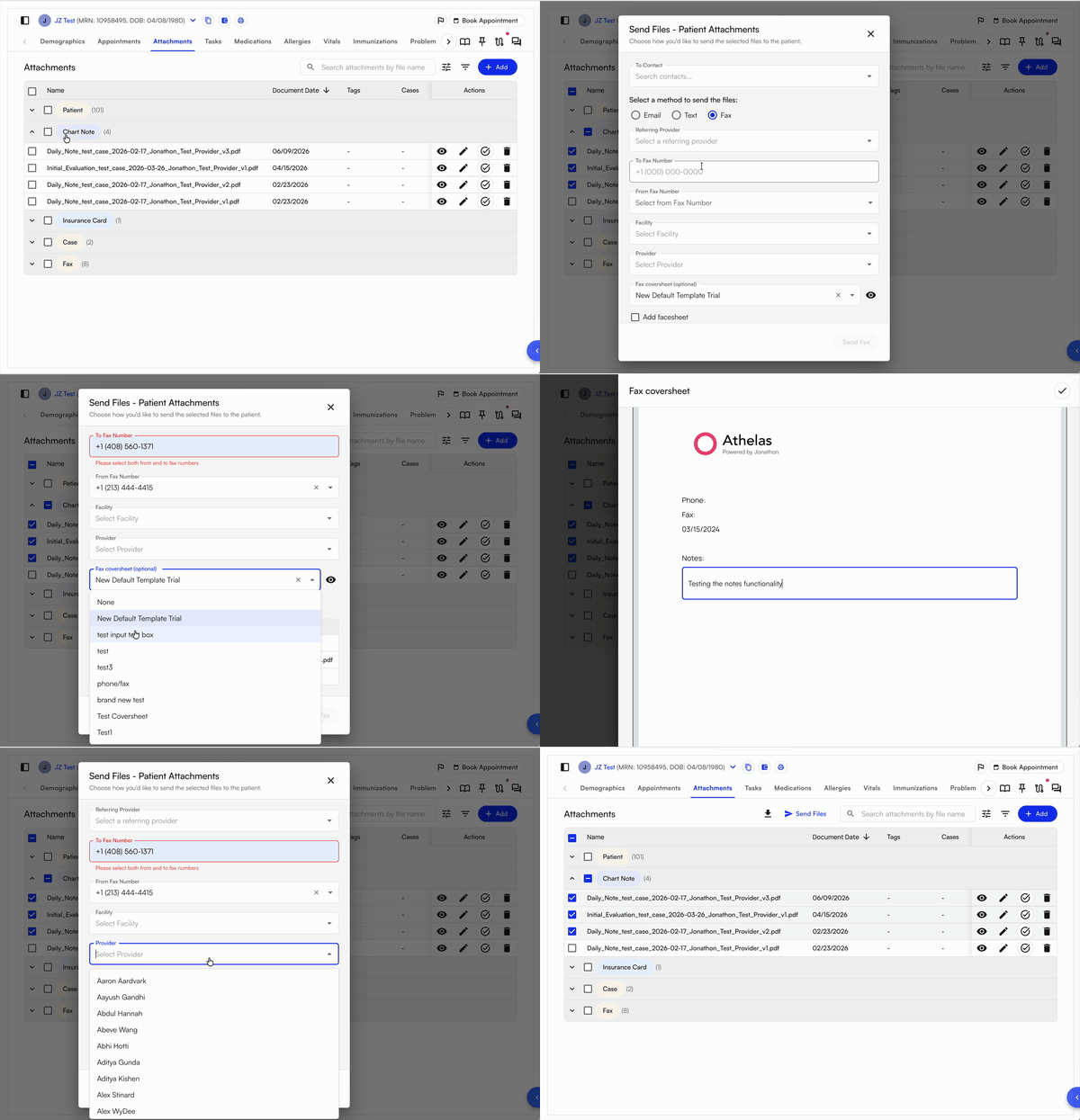 **Dynamic variables.** Beyond text boxes, templates automatically populate context from the fax — `{{patient.name}}`, `{{provider.npi}}`, `{{facility.fax}}`, `{{document.page_count}}`, and more. Staff don't have to fill these in; Air resolves them at send time.
**Set a default cover sheet.** Admins can designate one template as the **site default**. Air attaches the default automatically whenever a fax is sent without a manual selection — most importantly when **auto-faxing fires** (e.g., a provider signs a chart note and Air automatically sends it to the referring provider).
Because auto-faxing runs without a human reviewing the Send Fax Drawer, the default cover sheet **cannot contain editable text box fields** — only dynamic variables and fixed content are supported. If you try to set a template with text boxes as the default, Air prompts you to remove those fields first. Templates with text boxes can still be selected manually at send time.
### From within a patient workflow
Faxing is integrated throughout Air so you can send without leaving what you're doing:
* **Chart note** — When a provider signs a note, Air can automatically queue it for the referring provider (see [Fax settings](#fax-settings) to configure this).
* **Patient Attachments** — Open a patient → **Attachments** → click **Send as Fax** on any document.
* **Imaging or Referral Orders** — The order modal includes a fax send step with the referring provider's number pre-filled.
## Fax settings
Open **Faxing → Settings** to configure fax behavior for your organization:
* **Fax numbers** — Your organization's fax numbers are tied to specific facilities. Contact your Athelas account team to add, change, or deactivate a number.
* **Cover sheets** — Build and manage custom cover sheet templates. Use rich text formatting, insert dynamic variables (patient, provider, facility, recipient, document metadata), add your organization's logo, and set a site-wide default template. Staff can choose or override the template at send time.
* **Fax contacts** — View and search the address book. Admins can manage the contact list from this tab.
Additional settings live under **EHR Preferences**:
* **General → Auto-faxing on chart note sign** — Enable or disable automatic queueing when providers sign chart notes, configurable by note type (initial eval, progress note, discharge) and by facility. When on, Air defaults to the patient's referring provider as the recipient.
* **Faxing → Content types** — Create, rename, and delete the document type categories used when tagging faxes (e.g., "Prior Authorization", "Insurance Card", "Referral"). Add or remove categories any time.
* **Tags** — Manage the shared tag taxonomy used across both the Faxing page and Patient Attachments. Tags are unified — a tag applied while processing an inbound fax carries over to the patient's attachment record automatically.
## Troubleshooting
| **Issue** | **What to try** |
| :------------------------------------------------------ | :---------------------------------------------------------------------------------------------------------------------------------------------------------------------------- |
| Fax shows **Delivered** but recipient didn't receive it | Confirm the fax number is correct. Ask the recipient to check that their machine was online and had paper. Contact Athelas support with the fax ID. |
| Fax stuck in **Pending** | If still pending after 30 minutes, use **Resend**. Check that the recipient's line is active. |
| Failed fax — **Resend** option not visible | You may not have the required permission. Ask your admin. |
| Not receiving inbound faxes | Verify your fax number is active under **Settings**. Contact Athelas support if the number looks correct. |
| Inbound fax routed to the wrong facility | Air uses OCR to assign the facility automatically. If routing is consistently incorrect, contact Athelas support to review the facility assignment logic for your fax number. |
| Cover sheet template missing at send time | Templates are managed in **Settings → EHR Preferences → Faxing → Cover Sheets**. Ask your admin to verify the template is saved and active. |
### FAQ
All outbound faxes — including those sent from chart notes and from Patient Attachments — appear in the **Outbound** tab with their delivery status, timestamp, and recipient, attributed to the sending facility and provider.
Air automatically creates a task in your **Tasks** queue referencing the original fax, so the failure isn't missed. You can click **Resend** on the failed fax to try again — the original and resent records stay linked for a full audit trail.
Air scans the incoming PDF for a facility name. If none is found, it falls back to the patient's most recently associated facility. For new patients with no prior visits, no facility is assumed, which prevents incorrect routing.
Yes. Use **Split Fax** to divide a combined document into separate faxes by page range, then assign each segment its own subject, patient, and document type. Each segment becomes an independent fax.
A default cover sheet is used during auto-faxing, which runs without a person reviewing the send. Because of that, defaults can't contain editable text box fields — only dynamic variables and fixed content. Remove the text box fields, or select that template manually at send time instead.
**Dynamic variables.** Beyond text boxes, templates automatically populate context from the fax — `{{patient.name}}`, `{{provider.npi}}`, `{{facility.fax}}`, `{{document.page_count}}`, and more. Staff don't have to fill these in; Air resolves them at send time.
**Set a default cover sheet.** Admins can designate one template as the **site default**. Air attaches the default automatically whenever a fax is sent without a manual selection — most importantly when **auto-faxing fires** (e.g., a provider signs a chart note and Air automatically sends it to the referring provider).
Because auto-faxing runs without a human reviewing the Send Fax Drawer, the default cover sheet **cannot contain editable text box fields** — only dynamic variables and fixed content are supported. If you try to set a template with text boxes as the default, Air prompts you to remove those fields first. Templates with text boxes can still be selected manually at send time.
### From within a patient workflow
Faxing is integrated throughout Air so you can send without leaving what you're doing:
* **Chart note** — When a provider signs a note, Air can automatically queue it for the referring provider (see [Fax settings](#fax-settings) to configure this).
* **Patient Attachments** — Open a patient → **Attachments** → click **Send as Fax** on any document.
* **Imaging or Referral Orders** — The order modal includes a fax send step with the referring provider's number pre-filled.
## Fax settings
Open **Faxing → Settings** to configure fax behavior for your organization:
* **Fax numbers** — Your organization's fax numbers are tied to specific facilities. Contact your Athelas account team to add, change, or deactivate a number.
* **Cover sheets** — Build and manage custom cover sheet templates. Use rich text formatting, insert dynamic variables (patient, provider, facility, recipient, document metadata), add your organization's logo, and set a site-wide default template. Staff can choose or override the template at send time.
* **Fax contacts** — View and search the address book. Admins can manage the contact list from this tab.
Additional settings live under **EHR Preferences**:
* **General → Auto-faxing on chart note sign** — Enable or disable automatic queueing when providers sign chart notes, configurable by note type (initial eval, progress note, discharge) and by facility. When on, Air defaults to the patient's referring provider as the recipient.
* **Faxing → Content types** — Create, rename, and delete the document type categories used when tagging faxes (e.g., "Prior Authorization", "Insurance Card", "Referral"). Add or remove categories any time.
* **Tags** — Manage the shared tag taxonomy used across both the Faxing page and Patient Attachments. Tags are unified — a tag applied while processing an inbound fax carries over to the patient's attachment record automatically.
## Troubleshooting
| **Issue** | **What to try** |
| :------------------------------------------------------ | :---------------------------------------------------------------------------------------------------------------------------------------------------------------------------- |
| Fax shows **Delivered** but recipient didn't receive it | Confirm the fax number is correct. Ask the recipient to check that their machine was online and had paper. Contact Athelas support with the fax ID. |
| Fax stuck in **Pending** | If still pending after 30 minutes, use **Resend**. Check that the recipient's line is active. |
| Failed fax — **Resend** option not visible | You may not have the required permission. Ask your admin. |
| Not receiving inbound faxes | Verify your fax number is active under **Settings**. Contact Athelas support if the number looks correct. |
| Inbound fax routed to the wrong facility | Air uses OCR to assign the facility automatically. If routing is consistently incorrect, contact Athelas support to review the facility assignment logic for your fax number. |
| Cover sheet template missing at send time | Templates are managed in **Settings → EHR Preferences → Faxing → Cover Sheets**. Ask your admin to verify the template is saved and active. |
### FAQ
All outbound faxes — including those sent from chart notes and from Patient Attachments — appear in the **Outbound** tab with their delivery status, timestamp, and recipient, attributed to the sending facility and provider.
Air automatically creates a task in your **Tasks** queue referencing the original fax, so the failure isn't missed. You can click **Resend** on the failed fax to try again — the original and resent records stay linked for a full audit trail.
Air scans the incoming PDF for a facility name. If none is found, it falls back to the patient's most recently associated facility. For new patients with no prior visits, no facility is assumed, which prevents incorrect routing.
Yes. Use **Split Fax** to divide a combined document into separate faxes by page range, then assign each segment its own subject, patient, and document type. Each segment becomes an independent fax.
A default cover sheet is used during auto-faxing, which runs without a person reviewing the send. Because of that, defaults can't contain editable text box fields — only dynamic variables and fixed content. Remove the text box fields, or select that template manually at send time instead.