> ## Documentation Index
> Fetch the complete documentation index at: https://docs.athelas.com/llms.txt
> Use this file to discover all available pages before exploring further.
# Smart Charge Capture
> Document a procedure once and add its charges, orders, and diagnoses to the visit note in the same step.
Smart Charge Capture lets you document an in-office procedure once and bill for it in the same step. A provider records an injection, an aspiration, or a DME fitting in the visit note, and the matching CPT/HCPCS codes land in the note's [Services](/air_provider/fill_a_chart_note/services) section, along with any orders and ICD-10 codes the procedure calls for.
Without Smart Charge Capture, a procedure-heavy practice — orthopedics, sports medicine, wound care, dermatology, podiatry, or DME fitting — enters the same procedure up to three times. The provider documents it in the note, someone re-enters the CPT code in **Services**, and a staff member enters it again as an order. Every extra entry is a chance to miss a charge or to bill a code the note doesn't support, and every provider has to remember the right codes and modifiers.
Smart Charge Capture is in beta. Order Sets, [dynamic text snippets](/insights_provider/chart_notes/dynamic_text_snippets) for Air Scribe, and Smart Charge Capture must all be enabled for your site, and you need permission to edit chart notes. If you don't see **Text Snippets** or **Order Sets** in **Preferences**, contact your account manager for access.
## How it works
An admin builds each procedure once as a **Smart Charge Capture snippet**: a text snippet that carries the procedure's codes and orders along with its documentation. A snippet can include:
| **Part** | **What it holds** |
| :------------------------ | :-------------------------------------------------------------------------------------------------------------------------------------------- |
| **Phrase / Trigger Word** | The name a provider says or types to insert the snippet, such as "insert large joint injection methylprednisolone". |
| **Documentation** | The procedure text, with dropdowns for the details that change from visit to visit, such as the joint. |
| **Orders & Order Sets** | Optional orders from your site's [order sets](/air_provider/fill_a_chart_note/order_sets). |
| **Services** | The CPT/HCPCS codes to bill, such as 20610, 20611, or L4361, each with its ICD-10 codes, units, and optional modifiers such as RT, LT, or 50. |
| **Optional Features** | Which providers can use the snippet, and whether Air Scribe can insert it. |
When a provider inserts the snippet, either by saying its name while Air Scribe records or by typing it, the documentation goes into the note, the codes go into **Services**, and the orders are added as drafts.
## Set up a Smart Charge Capture snippet
Admins set up each snippet once in **Preferences**.
1. Open **Preferences** from the **EHR** menu, choose **Text Snippets** under **Clinical**, and click **Add Text Snippet**.
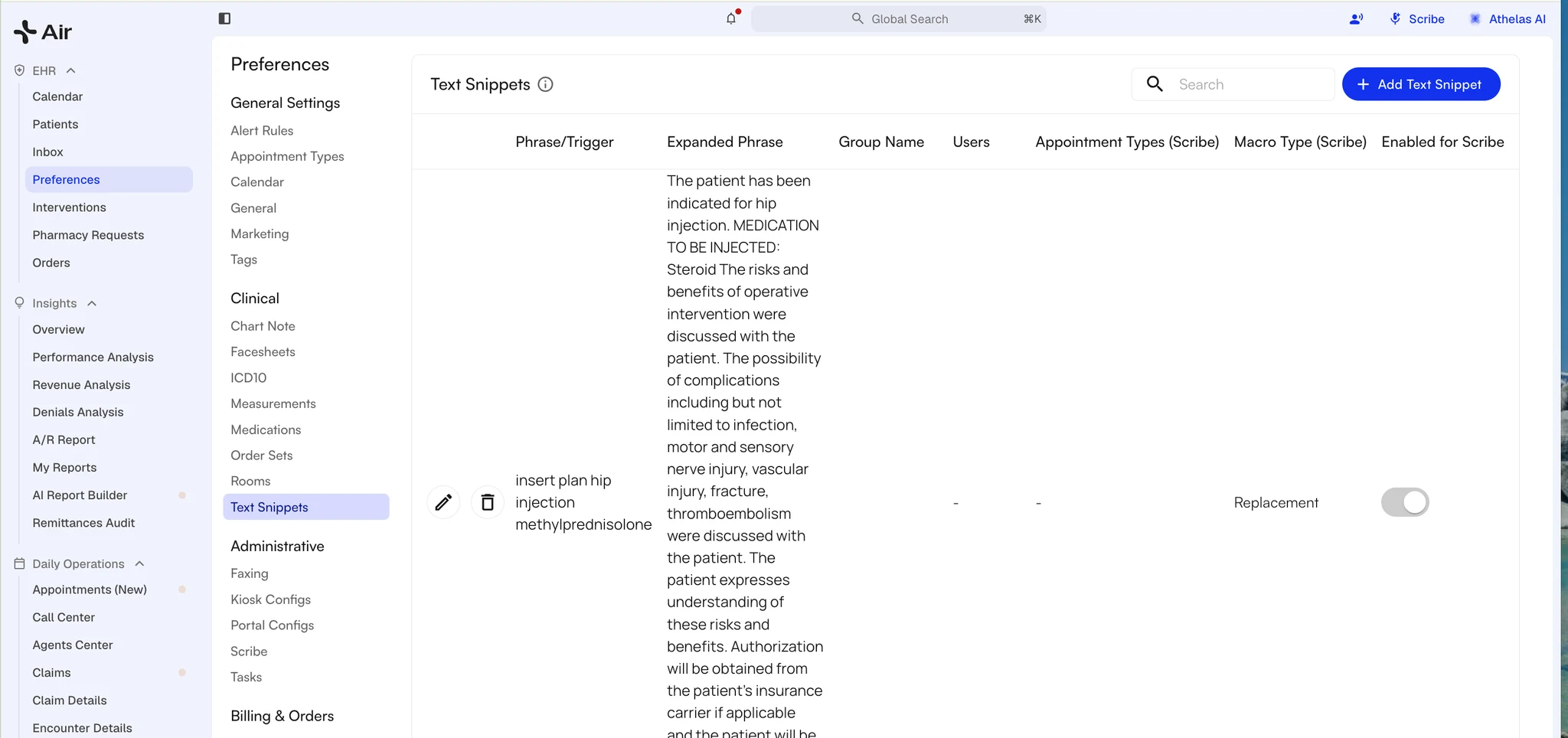 2. In **Phrase / Trigger Word**, enter the name providers will say or type to insert the snippet. To limit the snippet to certain parts of the note, choose them in **Available Sections of Visit Note**.
✨**Smart Tip:** Pick a name that is easy to remember, easy to say, and unlikely to come up in normal conversation, so Air Scribe doesn't insert the snippet by accident. "Insert large joint injection methylprednisolone" works well. "Methylprednisolone injection" is too likely to be said in passing.
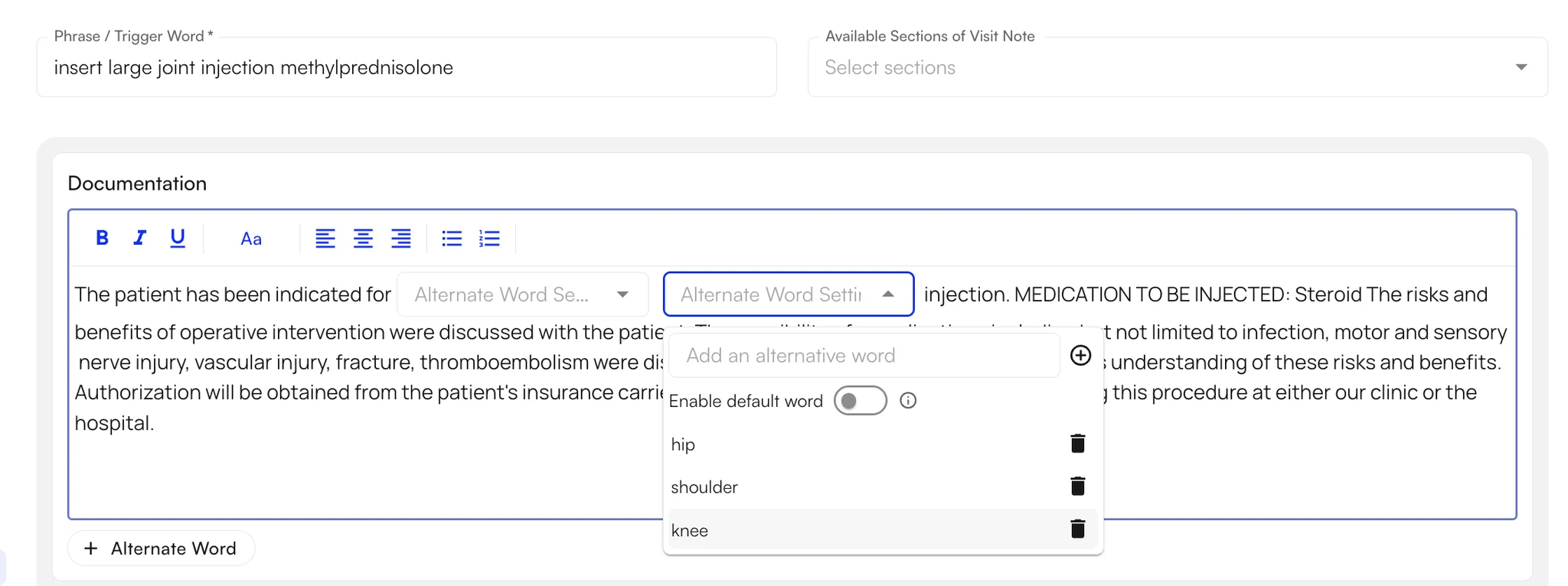
3. Under **Documentation**, write the procedure text. For each detail that changes from visit to visit, click **Alternate Word** to add a dropdown and list its options, such as hip, shoulder, and knee. Air Scribe fills each dropdown from the visit transcript, and providers can also pick an option by hand. See [Alternate Word Dropdowns](/insights_provider/chart_notes/dynamic_text_snippets#alternate-word-dropdowns).
2. In **Phrase / Trigger Word**, enter the name providers will say or type to insert the snippet. To limit the snippet to certain parts of the note, choose them in **Available Sections of Visit Note**.
✨**Smart Tip:** Pick a name that is easy to remember, easy to say, and unlikely to come up in normal conversation, so Air Scribe doesn't insert the snippet by accident. "Insert large joint injection methylprednisolone" works well. "Methylprednisolone injection" is too likely to be said in passing.
3. Under **Documentation**, write the procedure text. For each detail that changes from visit to visit, click **Alternate Word** to add a dropdown and list its options, such as hip, shoulder, and knee. Air Scribe fills each dropdown from the visit transcript, and providers can also pick an option by hand. See [Alternate Word Dropdowns](/insights_provider/chart_notes/dynamic_text_snippets#alternate-word-dropdowns).
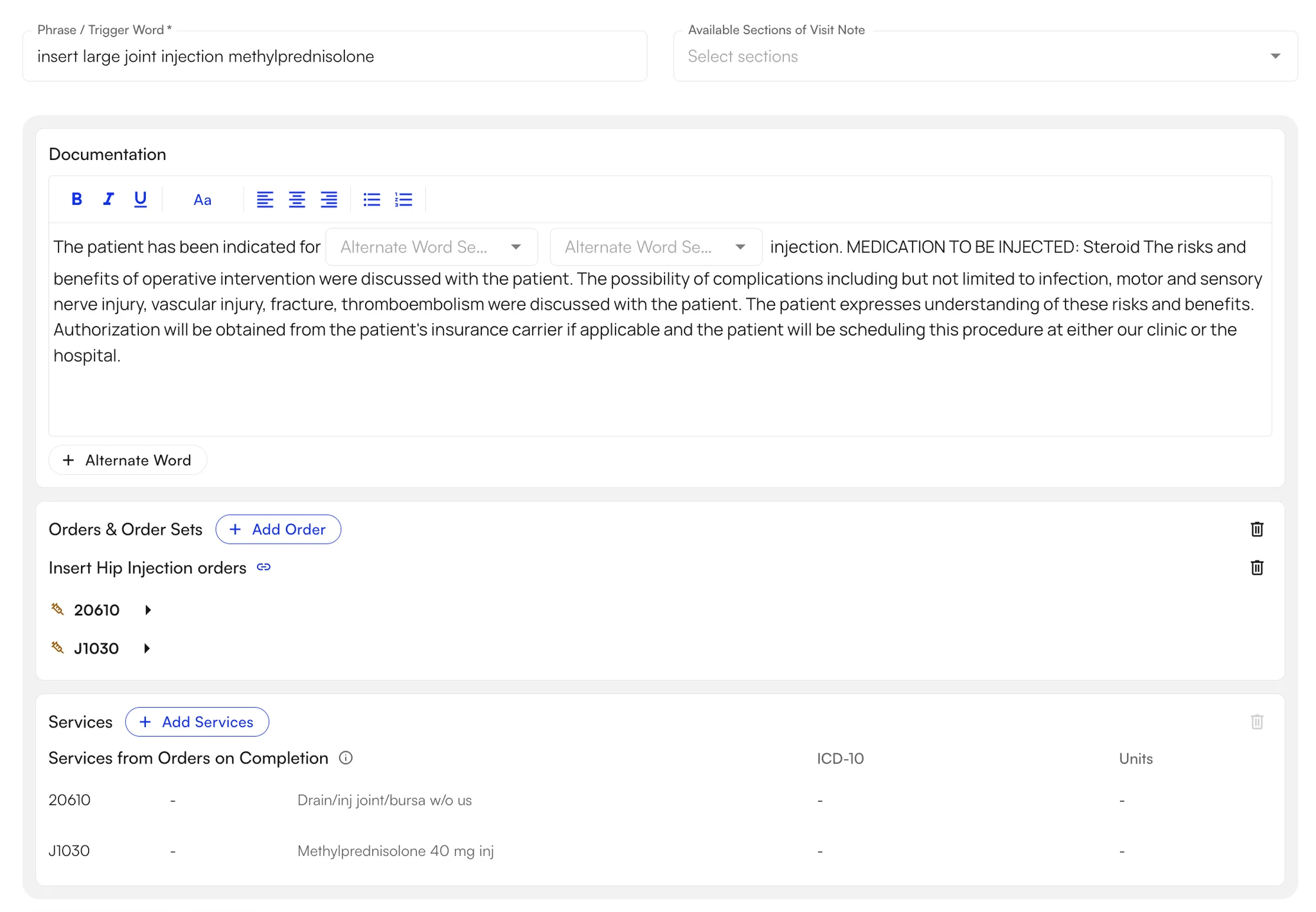
 4. Under **Orders & Order Sets**, click **Add Order** to attach an order set. Under **Services**, click **Add Services** to add each CPT/HCPCS code with its ICD-10 codes and units. Codes that come from the attached orders are listed separately, under **Services from Orders on Completion**: they are added to the note only when the order is completed.
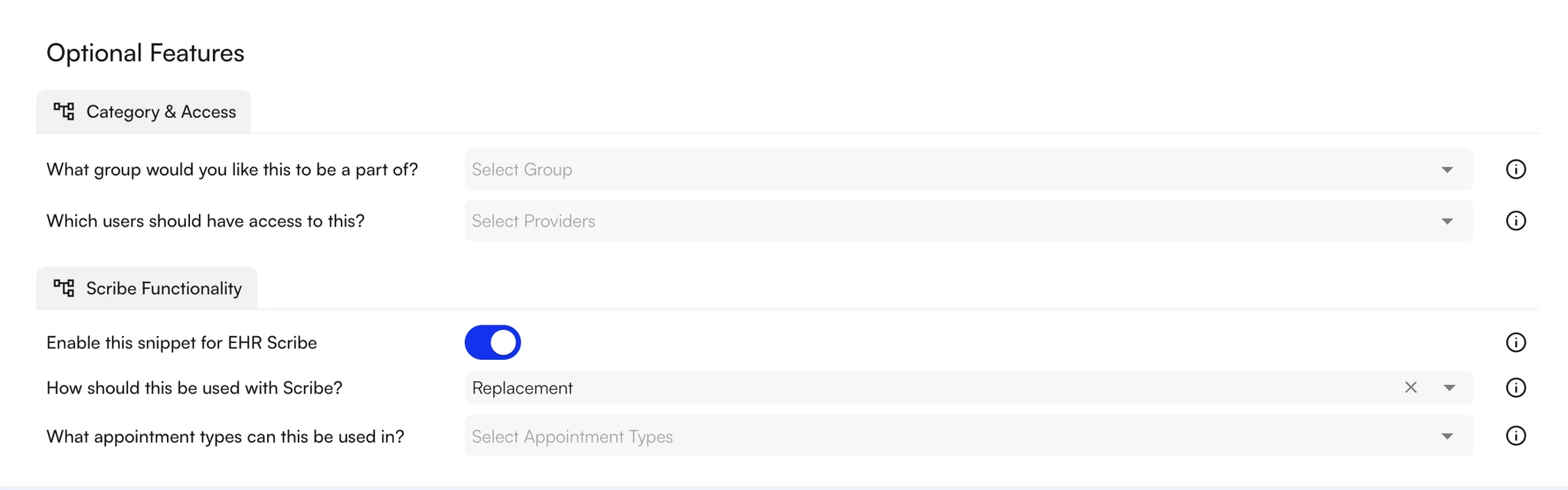
 5. Under **Optional Features**, set who can use the snippet and how Air Scribe treats it:
* **Category & Access:** add the snippet to a group and choose the providers who can use it in **Which users should have access to this?** Leave that field empty to share the snippet with everyone on the site.
* **Scribe Functionality:** turn on **Enable this snippet for EHR Scribe** so providers can insert the snippet by saying its name. **How should this be used with Scribe?** sets the macro type (see [Understanding Macro Types](/air_provider/fill_a_chart_note/scribe_text_snippets#understanding-macro-types)), and **What appointment types can this be used in?** limits the snippet to the appointment types you choose.
5. Under **Optional Features**, set who can use the snippet and how Air Scribe treats it:
* **Category & Access:** add the snippet to a group and choose the providers who can use it in **Which users should have access to this?** Leave that field empty to share the snippet with everyone on the site.
* **Scribe Functionality:** turn on **Enable this snippet for EHR Scribe** so providers can insert the snippet by saying its name. **How should this be used with Scribe?** sets the macro type (see [Understanding Macro Types](/air_provider/fill_a_chart_note/scribe_text_snippets#understanding-macro-types)), and **What appointment types can this be used in?** limits the snippet to the appointment types you choose.
 6. Click **Save Text Snippet**, or click **Save & Create Another** to start the next snippet.
You can edit or delete a snippet at any time from the **Text Snippets** list.
## Add a procedure during a visit
There are two ways to insert a snippet into the visit note.
### With Air Scribe (recommended)
1. While Air Scribe is recording, say the snippet's trigger phrase.
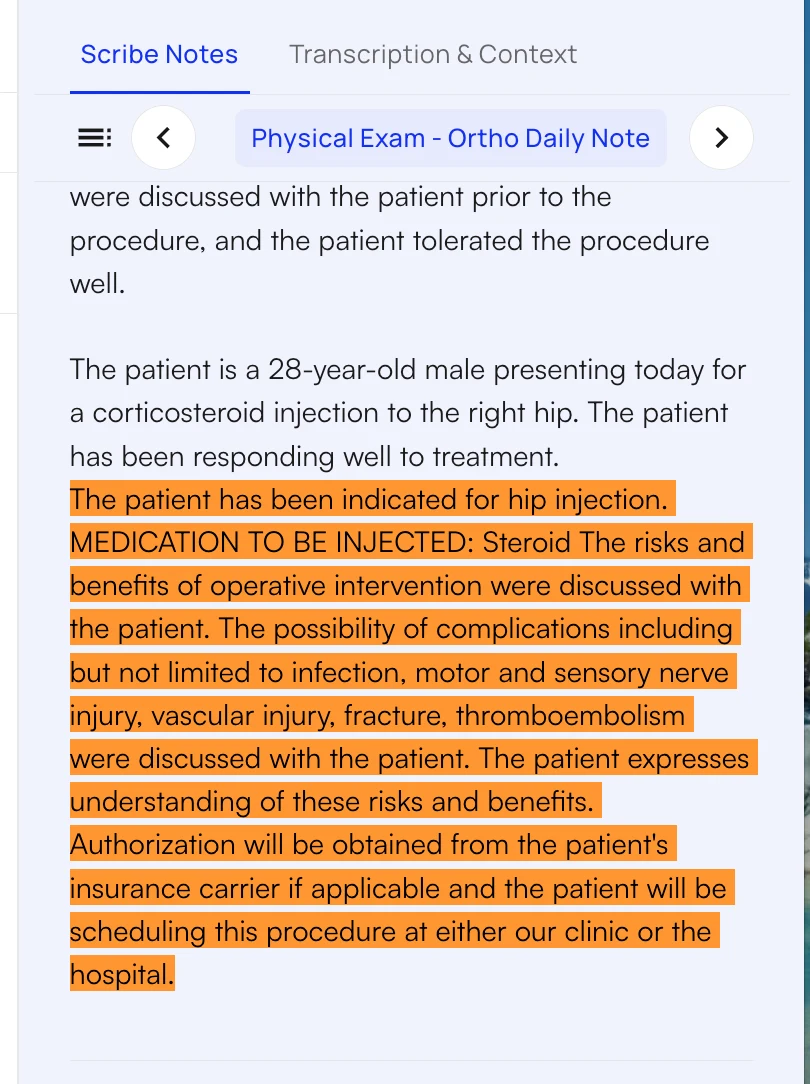
2. On the Scribe Application Page, review what Air Scribe added from the snippet.
The procedure documentation is highlighted in its note section.
6. Click **Save Text Snippet**, or click **Save & Create Another** to start the next snippet.
You can edit or delete a snippet at any time from the **Text Snippets** list.
## Add a procedure during a visit
There are two ways to insert a snippet into the visit note.
### With Air Scribe (recommended)
1. While Air Scribe is recording, say the snippet's trigger phrase.
2. On the Scribe Application Page, review what Air Scribe added from the snippet.
The procedure documentation is highlighted in its note section.
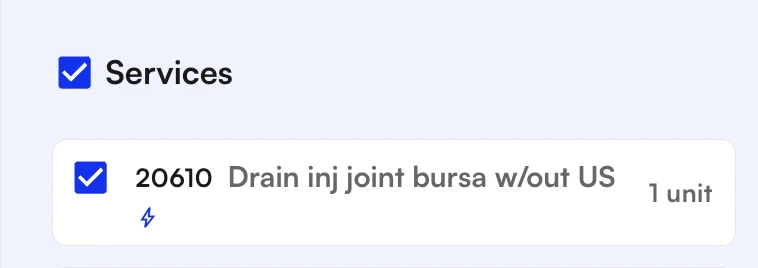
 The codes appear under **Services**.
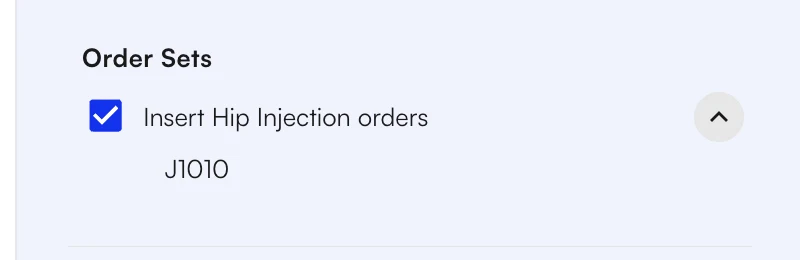
 The orders appear under **Order Sets**.
 3. Check the parts you want to keep and click **Apply Scribe**. See [Apply Scribe](/air_provider/fill_a_chart_note/ai_scribe_chart_notes#apply-scribe).
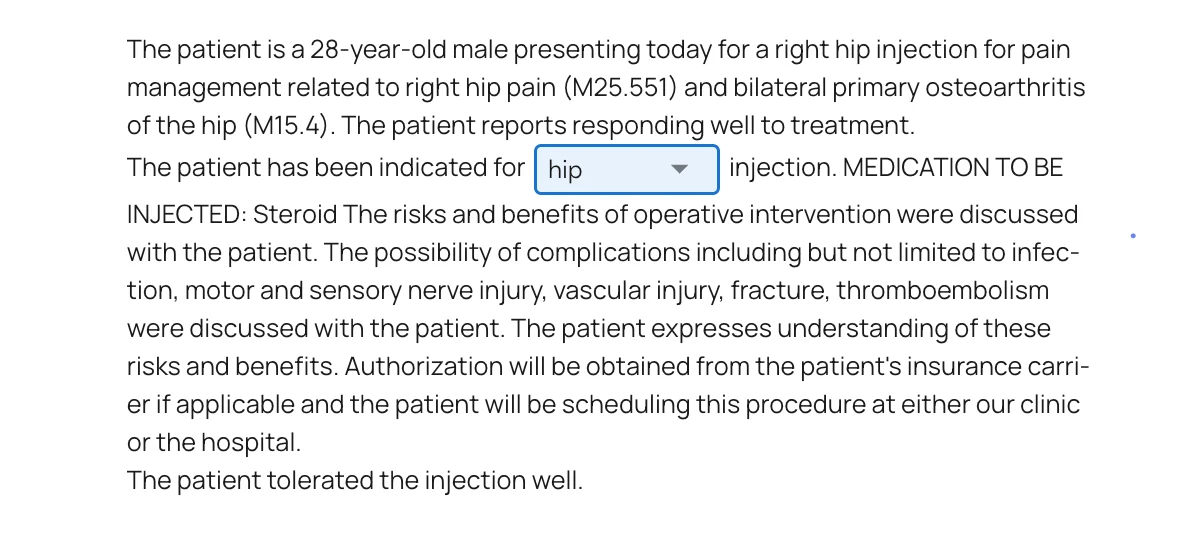
The procedure documentation goes into the visit note. Here the provider said the injection was for the hip, so Air Scribe chose **hip** in the alternate word dropdown.
3. Check the parts you want to keep and click **Apply Scribe**. See [Apply Scribe](/air_provider/fill_a_chart_note/ai_scribe_chart_notes#apply-scribe).
The procedure documentation goes into the visit note. Here the provider said the injection was for the hip, so Air Scribe chose **hip** in the alternate word dropdown.
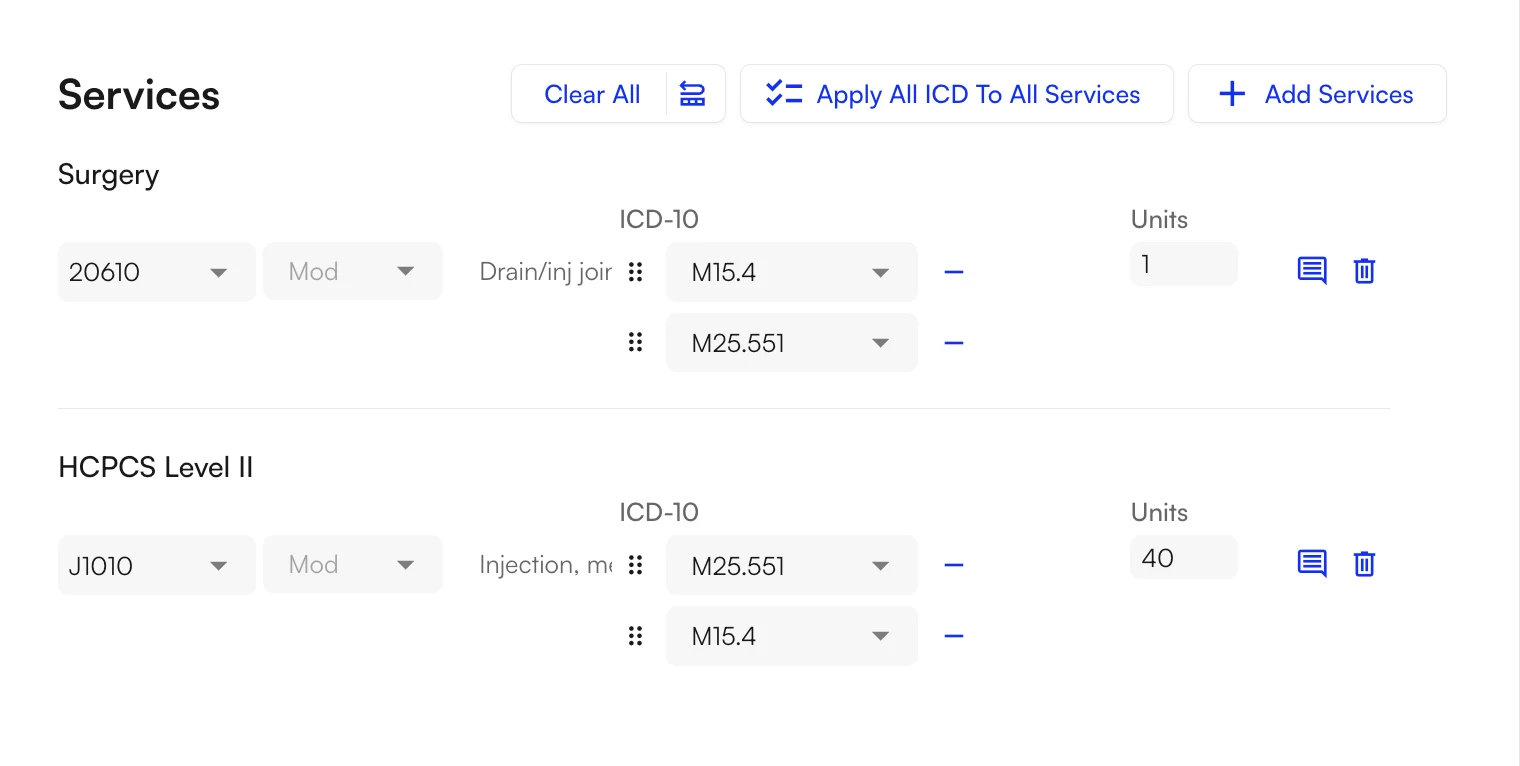
 The codes go into **Services** with their ICD-10 codes and units.
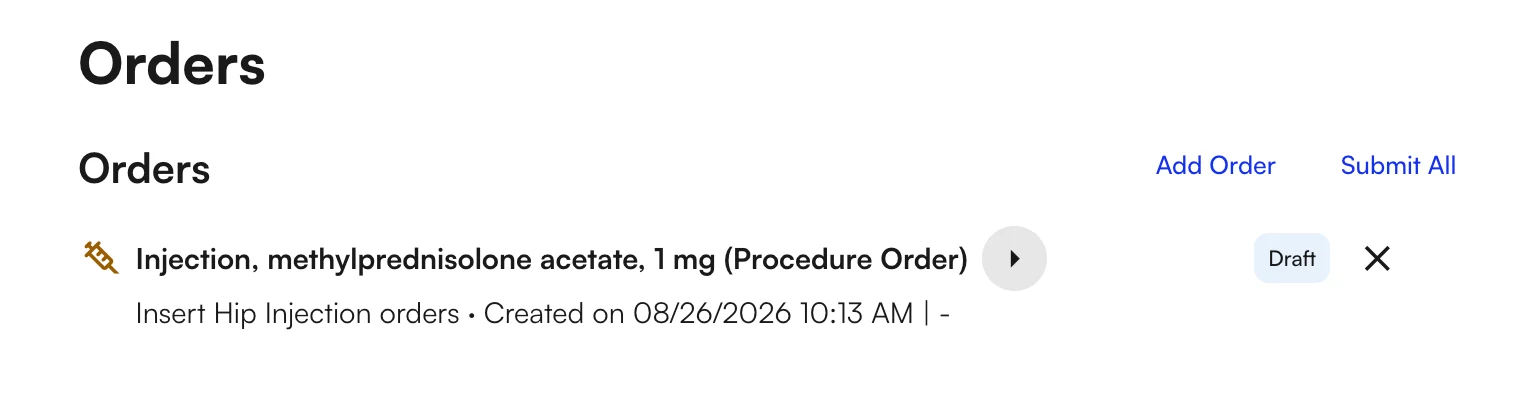
 The orders are added to **Orders** as drafts, ready for you to review and submit.
 ### By typing the trigger
1. In any note section where the snippet is available, type your trigger character followed by part of the snippet's name, such as `.insert plan`. You choose the trigger character in **Profile → Preferences → General** (see [Set Your Trigger Character](/insights_provider/chart_notes/dynamic_text_snippets#set-your-trigger-character)).
2. Press **Enter** or click the snippet in the search results.
### By typing the trigger
1. In any note section where the snippet is available, type your trigger character followed by part of the snippet's name, such as `.insert plan`. You choose the trigger character in **Profile → Preferences → General** (see [Set Your Trigger Character](/insights_provider/chart_notes/dynamic_text_snippets#set-your-trigger-character)).
2. Press **Enter** or click the snippet in the search results.
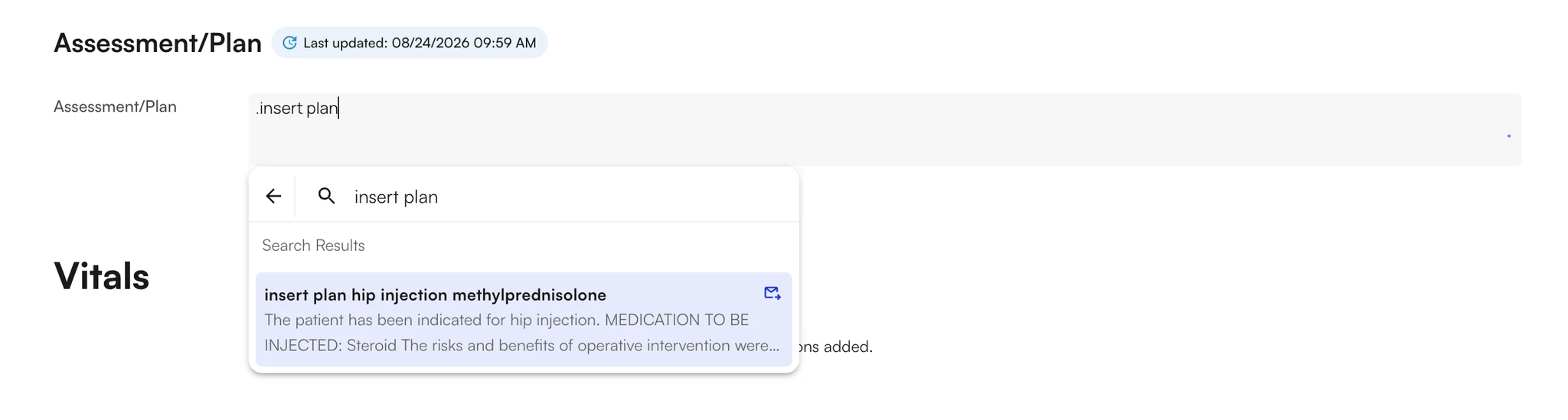 The procedure documentation goes into the section you typed in.
 The codes go into **Services**, with any modifiers the snippet includes.
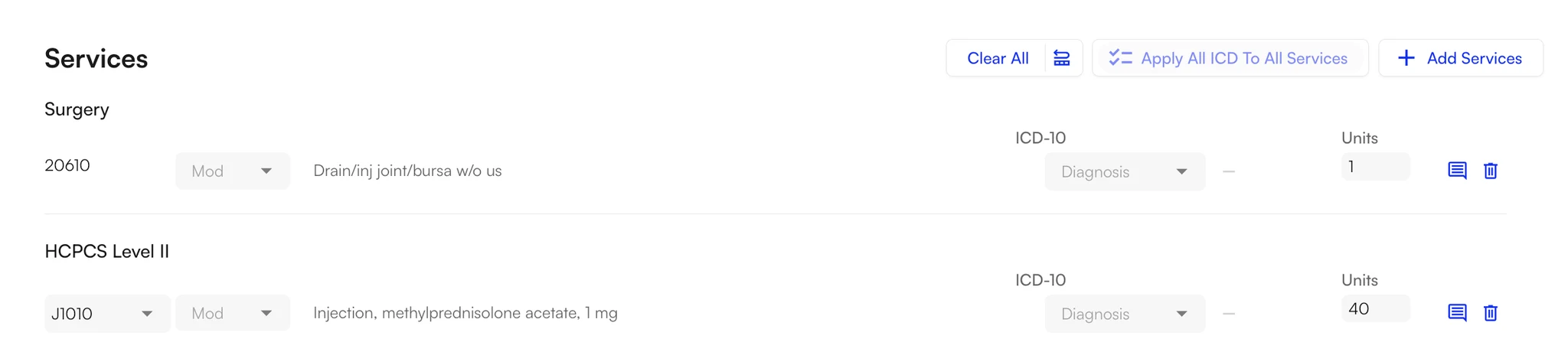 If the snippet includes orders, they go into **Orders** and show as **Sent** once you submit them. If it includes ICD-10 codes, those are added as well.
 ### Finish the details
A snippet can't know everything about a visit in advance, so complete what it leaves open:
* The order details, such as the lot number, NDC, and procedure location.
* More specific ICD-10 codes.
* Any [modifiers](/air_provider/fill_a_chart_note/services#modifiers) the snippet doesn't include.
Then submit the orders. See [Sign and Submit](/air_provider/fill_a_chart_note/order_sets#step-4-sign-and-submit).
### FAQ
Nothing is duplicated. Applying a snippet again skips the procedures and order lines already on the note. ICD-10 codes are only added, never removed, so new codes join the ones already there. To change a code, edit it directly in **Services**.
A code that comes from an order is added to **Services** only once the order is completed, so draft orders don't fill **Services** with codes you may not bill. Codes attached directly to the snippet appear as soon as you insert it.
Yes. Delete the row in **Services**, and the procedure documentation stays in the note.
An order item whose CPT code isn't in your site's treatments list is left out of **Services** instead of causing an error. To bill the code, add it in **Settings → My Practice → Treatments**. See [Treatments](/air_admin/manage_your_practice/practice_settings#treatments).
No. Your changes apply the next time the snippet is inserted.
Want a snippet built for your specialty? Contact your account manager.
### Finish the details
A snippet can't know everything about a visit in advance, so complete what it leaves open:
* The order details, such as the lot number, NDC, and procedure location.
* More specific ICD-10 codes.
* Any [modifiers](/air_provider/fill_a_chart_note/services#modifiers) the snippet doesn't include.
Then submit the orders. See [Sign and Submit](/air_provider/fill_a_chart_note/order_sets#step-4-sign-and-submit).
### FAQ
Nothing is duplicated. Applying a snippet again skips the procedures and order lines already on the note. ICD-10 codes are only added, never removed, so new codes join the ones already there. To change a code, edit it directly in **Services**.
A code that comes from an order is added to **Services** only once the order is completed, so draft orders don't fill **Services** with codes you may not bill. Codes attached directly to the snippet appear as soon as you insert it.
Yes. Delete the row in **Services**, and the procedure documentation stays in the note.
An order item whose CPT code isn't in your site's treatments list is left out of **Services** instead of causing an error. To bill the code, add it in **Settings → My Practice → Treatments**. See [Treatments](/air_admin/manage_your_practice/practice_settings#treatments).
No. Your changes apply the next time the snippet is inserted.
Want a snippet built for your specialty? Contact your account manager.