> ## Documentation Index
> Fetch the complete documentation index at: https://docs.athelas.com/llms.txt
> Use this file to discover all available pages before exploring further.
# Services
> Capture billable services on a visit note with CPT codes, diagnoses, units, and modifiers.
The **Services** section of a visit note captures the billable work you performed. It is built around the four things a payer actually requires — so there are fewer fields to fill in and fewer ways for a claim to come back.
* **CPT / HCPCS code** — the specific service you performed.
* **ICD-10 diagnosis** — the medical necessity behind it.
* **Units** — how much of the service was delivered.
* **Modifiers** — optional context for special billing circumstances, like laterality.
Services also works with the **Air Scribe**, which can populate the section straight from your visit conversation instead of you typing it in.
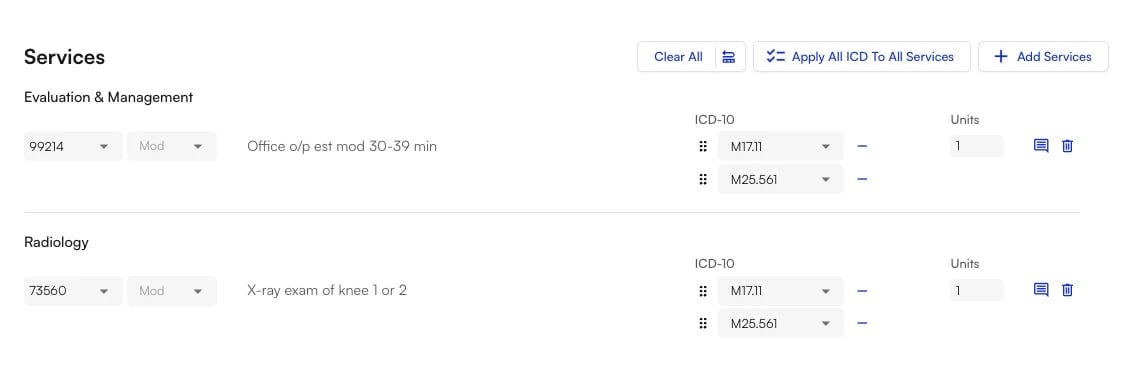 **Services** replaces the older **Treatments** section of the visit note at enabled sites.
## What counts as a service
Think of a service as a single billing line item. Every service you add is the same simple building block:
**A service = CPT code + modifiers + ICD-10 code(s) + units**
| **Field** | **Required?** | **What it captures** |
| :------------------- | :---------------------- | :------------------------------------------------------------------ |
| **CPT / HCPCS code** | Required | The service you performed. |
| **ICD-10 diagnosis** | Required — at least one | The medical necessity for that service. |
| **Units** | Required | How much of the service was delivered. |
| **Modifiers** | Optional | Special billing circumstances (laterality, distinct service, etc.). |
| **Comments** | Optional | Free-text context, tucked into a flyout on each service. |
Everything else is optional context.
## Adding a service
Open a visit note and scroll to the **Services** section. Before you add anything, the section reads **No Services**. Three controls sit in the section header: **Clear All**, **Apply All ICD To All Services**, and **+ Add Services**.
**Services** replaces the older **Treatments** section of the visit note at enabled sites.
## What counts as a service
Think of a service as a single billing line item. Every service you add is the same simple building block:
**A service = CPT code + modifiers + ICD-10 code(s) + units**
| **Field** | **Required?** | **What it captures** |
| :------------------- | :---------------------- | :------------------------------------------------------------------ |
| **CPT / HCPCS code** | Required | The service you performed. |
| **ICD-10 diagnosis** | Required — at least one | The medical necessity for that service. |
| **Units** | Required | How much of the service was delivered. |
| **Modifiers** | Optional | Special billing circumstances (laterality, distinct service, etc.). |
| **Comments** | Optional | Free-text context, tucked into a flyout on each service. |
Everything else is optional context.
## Adding a service
Open a visit note and scroll to the **Services** section. Before you add anything, the section reads **No Services**. Three controls sit in the section header: **Clear All**, **Apply All ICD To All Services**, and **+ Add Services**.
 **To add a service:**
1. **Click** **+ Add Services** to open the service picker.
**To add a service:**
1. **Click** **+ Add Services** to open the service picker.
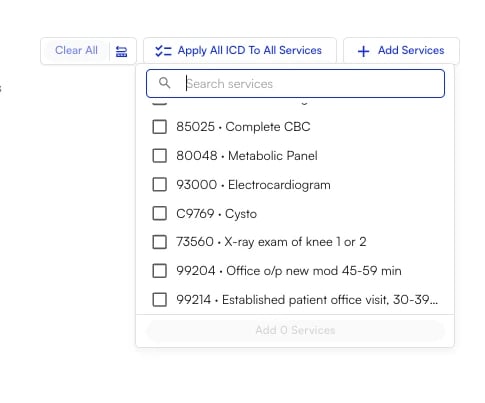 2. **Search for what you did.** Type the **CPT code** directly (e.g., `73560`), or free-text the **name** from your site's list (e.g., "X-ray exam of knee") — the name resolves to the right CPT code for you.
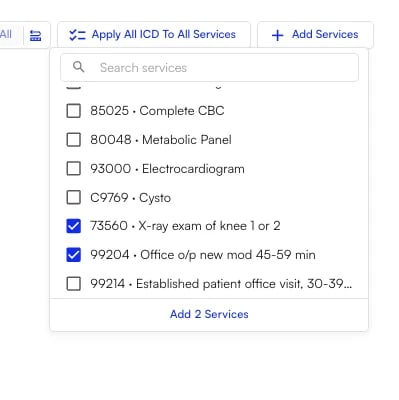
3. **Check every service** you want to add. The picker is multi-select, and the confirm button counts your selection — **Add 2 Services**, for example. **Click** it to add them all at once.
2. **Search for what you did.** Type the **CPT code** directly (e.g., `73560`), or free-text the **name** from your site's list (e.g., "X-ray exam of knee") — the name resolves to the right CPT code for you.
3. **Check every service** you want to add. The picker is multi-select, and the confirm button counts your selection — **Add 2 Services**, for example. **Click** it to add them all at once.
 4. **Review the details.** Diagnosis codes are auto-applied from the **Diagnosis Codes** section above, and units default to `1`. Adjust the **Mod**, **ICD-10**, and **Units** fields on any row as needed.
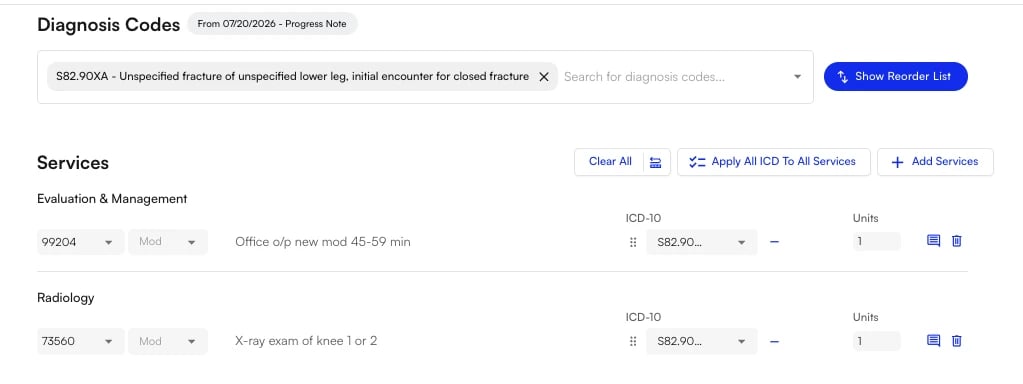 ✨**Smart Tip:** Enter your diagnosis codes in the **Diagnosis Codes** section *before* you add services. Every service you add then arrives with the right ICD-10 codes already attached, and you rarely have to touch the ICD-10 column at all.
**Services auto-saves.** Refresh the page or come back later and your services, units, modifiers, ICD-10 links, and category grouping all reload exactly as you left them.
### Editing and removing services
* **Edit any service inline** — change the units, swap the CPT code, or adjust the linked diagnoses directly on the row.
* **Add a comment** with the comment icon at the end of a row to open the optional Comments flyout.
* **Delete a single service** with the trash icon at the end of its row.
* **Clear All** removes every service at once when you want to start fresh.
You cannot add the same CPT code twice unless the second instance carries a different modifier. This is deliberate — it prevents accidental double-billing.
## Automatic categories
You never have to categorize a service manually. Services reads the CPT code and files it under the right billing section for you, so your entries organize themselves into labeled groups as you add them.
| **Category** | **Code range** | **What lands here** |
| :-------------------------- | :------------- | :---------------------------------------------------------- |
| **Evaluation & Management** | 99202–99499 | Office visits and E\&M codes. |
| **Procedures** | 10004–69990 | Surgery and procedure codes. |
| **Radiology** | 70010–79999 | Imaging and radiology. |
| **Pathology & Lab** | 80047–89398 | Lab work and diagnostics. |
| **Medicine** | 90281–99607 | Medicine services, injections, and infusions. |
| **Anesthesia** | 00100–01999 | Anesthesia codes. |
| **Other** | — | HCPCS Level II codes and anything outside the ranges above. |
Because codes are mapped by range, new CPT codes released each year automatically slot into the correct group.
## Linking diagnoses (ICD-10)
Every service needs at least one diagnosis to justify it. Services pulls from the diagnoses already on your chart note, so you can attach them quickly.
### Apply All ICD To All Services
This is the headline shortcut. One click links **every diagnosis on the note to every service**, in chart-note order — instead of linking the same codes over and over, line by line.
### Per-service control
* **Fine-tune diagnoses on any individual service** using the **ICD-10** dropdowns on its row. Use the `–` control to remove a diagnosis from that service.
* **You can only attach ICD-10 codes that are already on the chart note.** Codes that aren't on the note are rejected, which keeps claims clean.
* **Most specialties link two to three diagnoses per service.** The system supports more when you need them.
The CMS claim form allows up to **12 diagnoses per appointment** and **4 diagnosis pointers per service line**. Staying inside those limits ensures nothing gets dropped downstream.
## Modifiers
Modifiers tell the payer about special circumstances — which side of the body, whether a service was distinct, whether an E\&M was separately identifiable. They are optional, and the **Mod** dropdown on each service row is where you set them.
| **Modifier** | **When to use it** |
| :------------------------- | :---------------------------------------------------------------------------------------------------------- |
| **LT / RT** | Left or right side. Critical for paired structures — a missing laterality modifier is a top denial cause. |
| **50** | A bilateral procedure. |
| **25** | A separately identifiable E\&M on the same day as a procedure (e.g., an evaluation plus a joint injection). |
| **59 / XS / XE / XP / XU** | A distinct procedural service. |
**Note:** A CPT code can appear more than once on the same note as long as each instance carries a different modifier.
## Air Scribe auto-fill
Services was built to work hand-in-hand with the **Air Scribe**. Instead of typing services in yourself, the scribe can populate them from your visit conversation.
**How it works:**
* The scribe listens to the encounter and infers the likely **CPT code, ICD-10 code(s), units, and modifiers**.
* Open the **Scribe** panel and choose **Apply** to accept everything, or apply individual services and ICD-10 codes one at a time.
* **Already-added services are de-duplicated automatically** — matched on CPT plus modifier — so applying the scribe won't create doubles.
* The scribe shows a short **justification** for why a code was or wasn't suggested, which makes for a quick sanity check.
✨**Smart Tip:** Say the service or CPT code out loud during the visit. Spoken services are captured far more accurately, and modifiers in particular perform best when you state them explicitly.
**You are always the final reviewer.** Scribe-suggested services are a starting point, not the last word. Review them, tweak diagnoses, adjust units, and confirm what belongs on the claim — the provider remains responsible for the signed note.
### FAQ
No. The billing pipeline downstream is unchanged — Services feeds it through the same path. You are simply entering the data through a cleaner front door.
They were removed, because none of them are required for billing.
* **Medical necessity** is established by the visit note itself and the ICD-10 link.
* **The rendering provider** comes from the encounter.
If you need to add context to a specific service, use the optional **Comments** flyout on that row.
Yes. A **Comments** flyout is available on every service row. It's optional and tucked away so it doesn't clutter the section.
It lands under **Other**. Genuine billing codes are mapped by code range, so anything outside the standard ranges — including HCPCS Level II codes — is grouped there rather than being left uncategorized.
Yes. Orders configured with a CPT code, and orders configured in Smart Charge Capture, flow into the **Services** section automatically — so there's no duplicate entry.
✨**Smart Tip:** Enter your diagnosis codes in the **Diagnosis Codes** section *before* you add services. Every service you add then arrives with the right ICD-10 codes already attached, and you rarely have to touch the ICD-10 column at all.
**Services auto-saves.** Refresh the page or come back later and your services, units, modifiers, ICD-10 links, and category grouping all reload exactly as you left them.
### Editing and removing services
* **Edit any service inline** — change the units, swap the CPT code, or adjust the linked diagnoses directly on the row.
* **Add a comment** with the comment icon at the end of a row to open the optional Comments flyout.
* **Delete a single service** with the trash icon at the end of its row.
* **Clear All** removes every service at once when you want to start fresh.
You cannot add the same CPT code twice unless the second instance carries a different modifier. This is deliberate — it prevents accidental double-billing.
## Automatic categories
You never have to categorize a service manually. Services reads the CPT code and files it under the right billing section for you, so your entries organize themselves into labeled groups as you add them.
| **Category** | **Code range** | **What lands here** |
| :-------------------------- | :------------- | :---------------------------------------------------------- |
| **Evaluation & Management** | 99202–99499 | Office visits and E\&M codes. |
| **Procedures** | 10004–69990 | Surgery and procedure codes. |
| **Radiology** | 70010–79999 | Imaging and radiology. |
| **Pathology & Lab** | 80047–89398 | Lab work and diagnostics. |
| **Medicine** | 90281–99607 | Medicine services, injections, and infusions. |
| **Anesthesia** | 00100–01999 | Anesthesia codes. |
| **Other** | — | HCPCS Level II codes and anything outside the ranges above. |
Because codes are mapped by range, new CPT codes released each year automatically slot into the correct group.
## Linking diagnoses (ICD-10)
Every service needs at least one diagnosis to justify it. Services pulls from the diagnoses already on your chart note, so you can attach them quickly.
### Apply All ICD To All Services
This is the headline shortcut. One click links **every diagnosis on the note to every service**, in chart-note order — instead of linking the same codes over and over, line by line.
### Per-service control
* **Fine-tune diagnoses on any individual service** using the **ICD-10** dropdowns on its row. Use the `–` control to remove a diagnosis from that service.
* **You can only attach ICD-10 codes that are already on the chart note.** Codes that aren't on the note are rejected, which keeps claims clean.
* **Most specialties link two to three diagnoses per service.** The system supports more when you need them.
The CMS claim form allows up to **12 diagnoses per appointment** and **4 diagnosis pointers per service line**. Staying inside those limits ensures nothing gets dropped downstream.
## Modifiers
Modifiers tell the payer about special circumstances — which side of the body, whether a service was distinct, whether an E\&M was separately identifiable. They are optional, and the **Mod** dropdown on each service row is where you set them.
| **Modifier** | **When to use it** |
| :------------------------- | :---------------------------------------------------------------------------------------------------------- |
| **LT / RT** | Left or right side. Critical for paired structures — a missing laterality modifier is a top denial cause. |
| **50** | A bilateral procedure. |
| **25** | A separately identifiable E\&M on the same day as a procedure (e.g., an evaluation plus a joint injection). |
| **59 / XS / XE / XP / XU** | A distinct procedural service. |
**Note:** A CPT code can appear more than once on the same note as long as each instance carries a different modifier.
## Air Scribe auto-fill
Services was built to work hand-in-hand with the **Air Scribe**. Instead of typing services in yourself, the scribe can populate them from your visit conversation.
**How it works:**
* The scribe listens to the encounter and infers the likely **CPT code, ICD-10 code(s), units, and modifiers**.
* Open the **Scribe** panel and choose **Apply** to accept everything, or apply individual services and ICD-10 codes one at a time.
* **Already-added services are de-duplicated automatically** — matched on CPT plus modifier — so applying the scribe won't create doubles.
* The scribe shows a short **justification** for why a code was or wasn't suggested, which makes for a quick sanity check.
✨**Smart Tip:** Say the service or CPT code out loud during the visit. Spoken services are captured far more accurately, and modifiers in particular perform best when you state them explicitly.
**You are always the final reviewer.** Scribe-suggested services are a starting point, not the last word. Review them, tweak diagnoses, adjust units, and confirm what belongs on the claim — the provider remains responsible for the signed note.
### FAQ
No. The billing pipeline downstream is unchanged — Services feeds it through the same path. You are simply entering the data through a cleaner front door.
They were removed, because none of them are required for billing.
* **Medical necessity** is established by the visit note itself and the ICD-10 link.
* **The rendering provider** comes from the encounter.
If you need to add context to a specific service, use the optional **Comments** flyout on that row.
Yes. A **Comments** flyout is available on every service row. It's optional and tucked away so it doesn't clutter the section.
It lands under **Other**. Genuine billing codes are mapped by code range, so anything outside the standard ranges — including HCPCS Level II codes — is grouped there rather than being left uncategorized.
Yes. Orders configured with a CPT code, and orders configured in Smart Charge Capture, flow into the **Services** section automatically — so there's no duplicate entry.