> ## Documentation Index
> Fetch the complete documentation index at: https://docs.athelas.com/llms.txt
> Use this file to discover all available pages before exploring further.
# Scribe Text Snippets & Macros
**Text Snippets & Macros for EHR Scribe** let you create reusable phrases (dot phrases) that shape how **AI Scribe** writes your Chart Notes. Instead of editing the same wording after every visit, you define a snippet once and Scribe applies it automatically while generating the note.
## Why enable Text Snippets for Scribe
When a snippet is enabled for Scribe, the AI uses it as it turns your transcription into a finished note. This helps you:
* **Standardize documentation** so common phrases and clinical patterns read the same way every time.
* **Improve consistency** across providers and appointment types.
* **Save time** by removing repetitive edits and re-typing.
You control how each snippet behaves through its **macro type**:
| **Macro type** | **What it does** | **Affects transcription?** |
| :-------------- | :----------------------------------------------------------------------------- | :---------------------------- |
| **Replacement** | Replaces a trigger phrase with exact expanded text in the transcription. | Yes — before note generation. |
| **Context** | Gives the AI extra clinical context to guide how the note is written. | No — guidance only. |
| **Format** | Controls output structure and conciseness (e.g., bullets, brief vs. detailed). | No — formatting only. |
If you don't enable a snippet for Scribe, it will not affect AI note generation — even if it exists in your Text Snippets list.
## Accessing the feature
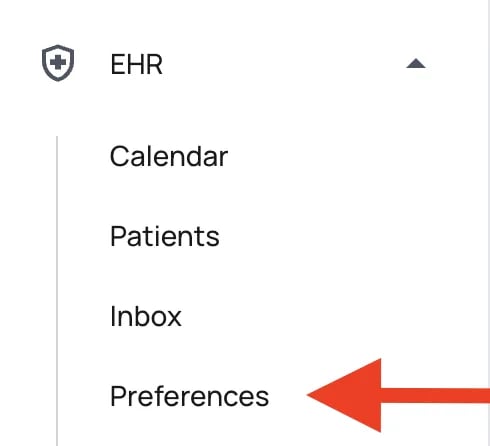
Text Snippets live in your EHR **Preferences**.
1. Open **Preferences** within the EHR.
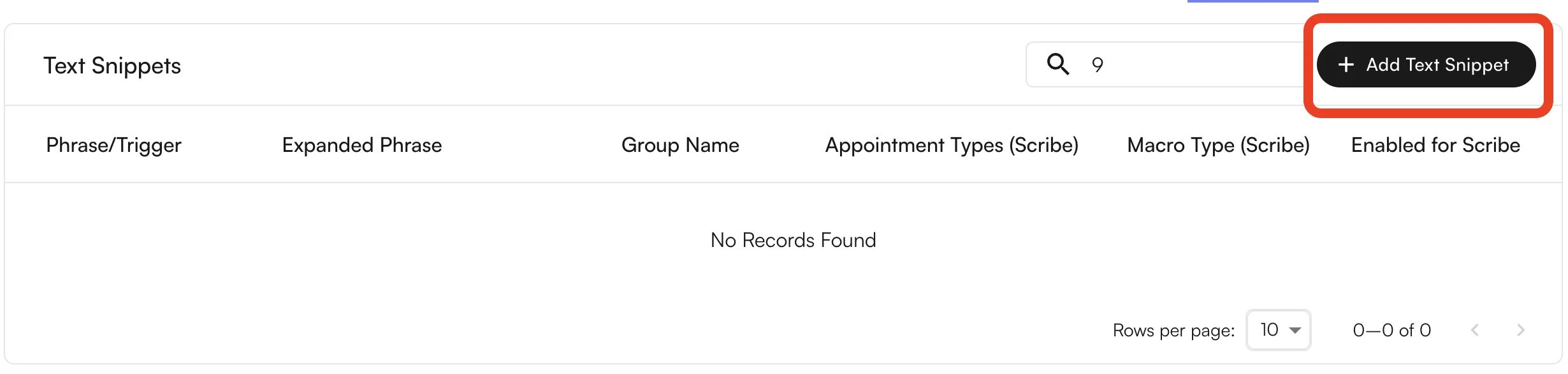
2. Click the **Text Snippets** section. The **Text Snippets Settings** page lists all existing snippets.
3. Click **Add Text Snippet** to create a new one.
 ## Understanding macro types
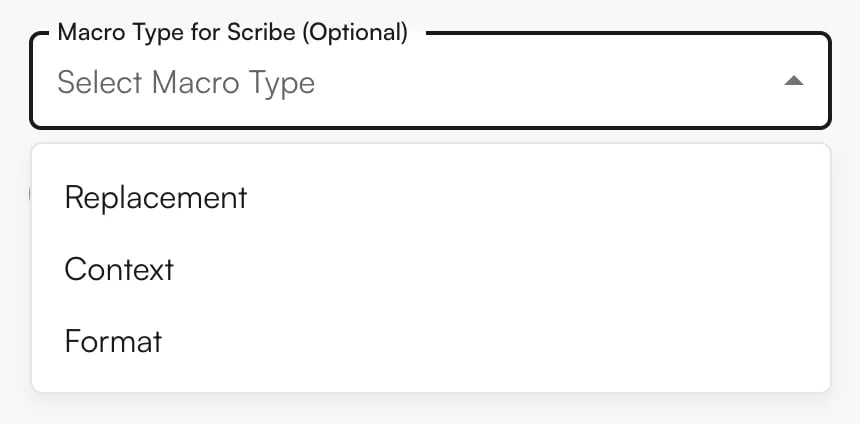
Choose a macro type based on what you want the snippet to do. You set this in the **Macro Type for Scribe** field when creating or editing a snippet.
## Understanding macro types
Choose a macro type based on what you want the snippet to do. You set this in the **Macro Type for Scribe** field when creating or editing a snippet.
 ### Replacement macros
**Use when** you want to replace a trigger phrase with exact expanded text and standardize common phrasing.
* The AI finds matching phrases in the transcription (exact or semantic matches).
* The trigger phrase is replaced with the exact snippet value, **before** note generation.
**Example**
* **Trigger:** "no chest pain"
* **Value:** "Patient denies chest pain, shortness of breath, or palpitations"
* **Result:** Whenever "no chest pain" appears in the transcription, it's replaced with the full expanded phrase.
### Context macros
**Use when** you want to give the AI additional clinical context or guide its reasoning without directly changing the transcription.
* Context snippets are passed to the AI during note generation.
* They influence how the AI paraphrases and structures the note.
* They do **not** replace text in the transcription.
**Example**
* **Trigger:** "diabetes protocol"
* **Value:** "Follow standard diabetes management protocol: check A1C every 3 months, monitor for complications, emphasize diet and exercise"
* **Result:** The AI uses this context when generating notes for diabetic patients, ensuring more comprehensive documentation.
### Format macros
**Use when** you want to control formatting or conciseness in the final note.
* Format snippets guide the AI's output structure.
* They influence how information is presented.
* They do **not** modify the transcription content.
**Example**
* **Trigger:** "brief format"
* **Value:** "Use concise bullet points. Limit each section to 2-3 key points. Avoid lengthy descriptions."
* **Result:** The AI generates more concise, bulleted documentation when this format is applied.
## Creating a macro for Scribe
**To create a snippet:**
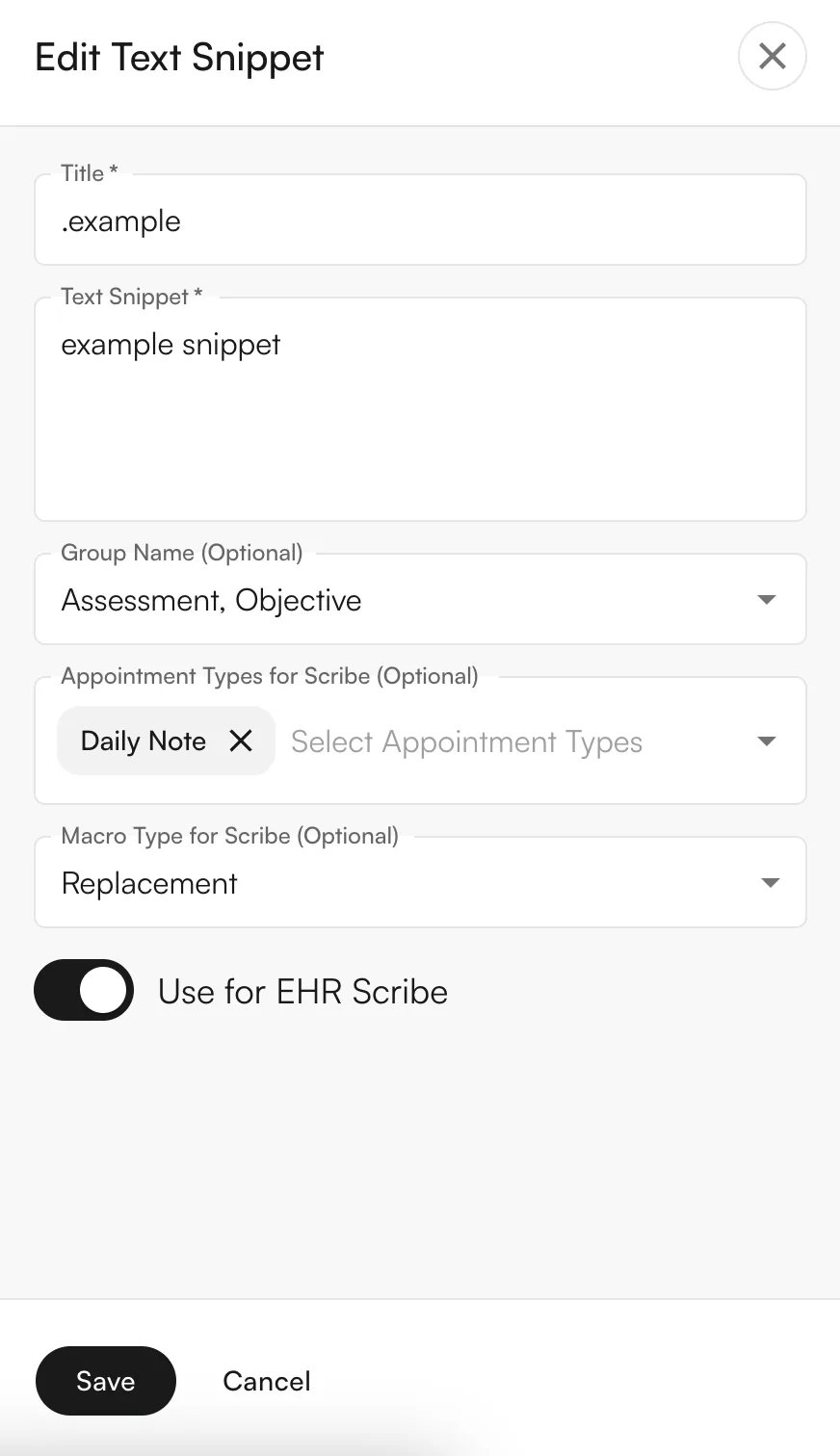
1. Click **Add Text Snippet** in the **Text Snippets Settings** page.
2. Fill in the required fields: **Title** (trigger phrase) and **Text Snippet** (expanded phrase).
3. Set the optional fields as needed (see the table below), including **Macro Type for Scribe** and the **Use for EHR Scribe** toggle.
4. Click **Save**.
### Replacement macros
**Use when** you want to replace a trigger phrase with exact expanded text and standardize common phrasing.
* The AI finds matching phrases in the transcription (exact or semantic matches).
* The trigger phrase is replaced with the exact snippet value, **before** note generation.
**Example**
* **Trigger:** "no chest pain"
* **Value:** "Patient denies chest pain, shortness of breath, or palpitations"
* **Result:** Whenever "no chest pain" appears in the transcription, it's replaced with the full expanded phrase.
### Context macros
**Use when** you want to give the AI additional clinical context or guide its reasoning without directly changing the transcription.
* Context snippets are passed to the AI during note generation.
* They influence how the AI paraphrases and structures the note.
* They do **not** replace text in the transcription.
**Example**
* **Trigger:** "diabetes protocol"
* **Value:** "Follow standard diabetes management protocol: check A1C every 3 months, monitor for complications, emphasize diet and exercise"
* **Result:** The AI uses this context when generating notes for diabetic patients, ensuring more comprehensive documentation.
### Format macros
**Use when** you want to control formatting or conciseness in the final note.
* Format snippets guide the AI's output structure.
* They influence how information is presented.
* They do **not** modify the transcription content.
**Example**
* **Trigger:** "brief format"
* **Value:** "Use concise bullet points. Limit each section to 2-3 key points. Avoid lengthy descriptions."
* **Result:** The AI generates more concise, bulleted documentation when this format is applied.
## Creating a macro for Scribe
**To create a snippet:**
1. Click **Add Text Snippet** in the **Text Snippets Settings** page.
2. Fill in the required fields: **Title** (trigger phrase) and **Text Snippet** (expanded phrase).
3. Set the optional fields as needed (see the table below), including **Macro Type for Scribe** and the **Use for EHR Scribe** toggle.
4. Click **Save**.
 | **Field** | **Required?** | **Description** |
| :--------------------------------- | :------------ | :-------------------------------------------------------------------------------------------------------------------------------- |
| **Title (Trigger Phrase)** | Required | The phrase matched in the transcription (exact or semantic). No consecutive spaces or colons (`:`); at least 1 character. |
| **Text Snippet (Expanded Phrase)** | Required | The text that's used — replaces the trigger (Replacement), provides context (Context), or specifies formatting (Format). |
| **Group Name** | Optional | Organizes snippets into groups (e.g., Objective, Subjective). Type a new name to create a group. No consecutive spaces or colons. |
| **Appointment Types for Scribe** | Optional | Restricts the snippet to specific appointment types. If none are selected, it applies to all appointment types. |
| **Macro Type for Scribe** | Optional | Choose **Replacement**, **Context**, or **Format**. |
| **Use for EHR Scribe** | Optional | Toggle that makes the snippet available during Scribe processing. |
If no macro type is selected, the snippet **defaults to Replacement** during processing.
**Use for EHR Scribe** must be enabled for a snippet to be used by Scribe. If it's off, the snippet won't affect AI note generation.
## Managing snippets
**To edit a snippet:**
1. Go to **Text Snippets Settings**.
2. Find the snippet in the table and click the **Edit** icon (pencil) in the Actions column.
3. Modify any fields in the drawer and click **Save**.
| **Field** | **Required?** | **Description** |
| :--------------------------------- | :------------ | :-------------------------------------------------------------------------------------------------------------------------------- |
| **Title (Trigger Phrase)** | Required | The phrase matched in the transcription (exact or semantic). No consecutive spaces or colons (`:`); at least 1 character. |
| **Text Snippet (Expanded Phrase)** | Required | The text that's used — replaces the trigger (Replacement), provides context (Context), or specifies formatting (Format). |
| **Group Name** | Optional | Organizes snippets into groups (e.g., Objective, Subjective). Type a new name to create a group. No consecutive spaces or colons. |
| **Appointment Types for Scribe** | Optional | Restricts the snippet to specific appointment types. If none are selected, it applies to all appointment types. |
| **Macro Type for Scribe** | Optional | Choose **Replacement**, **Context**, or **Format**. |
| **Use for EHR Scribe** | Optional | Toggle that makes the snippet available during Scribe processing. |
If no macro type is selected, the snippet **defaults to Replacement** during processing.
**Use for EHR Scribe** must be enabled for a snippet to be used by Scribe. If it's off, the snippet won't affect AI note generation.
## Managing snippets
**To edit a snippet:**
1. Go to **Text Snippets Settings**.
2. Find the snippet in the table and click the **Edit** icon (pencil) in the Actions column.
3. Modify any fields in the drawer and click **Save**.
 **Quick edits** can be made directly in the table — these save automatically:
* **Macro Type** — use the dropdown in the **Macro Type (Scribe)** column.
* **Use for EHR Scribe** — toggle the switch in the **Enabled for Scribe** column.
**To delete a snippet,** click the **Delete** icon (trash) in the Actions column and confirm. Deletion is permanent.
✨**Smart Tip:** If you only want to stop using a snippet in Scribe temporarily, turn off the **Use for EHR Scribe** toggle instead of deleting it.
**How Scribe selects snippets:** when a Scribe note is processed, snippets are automatically applied based on:
1. **Enabled for Scribe** — only snippets with **Use for EHR Scribe** turned on.
2. **Appointment type matching** — snippets tied to the appointment type, plus global snippets (no appointment types selected).
## Best practices
✨**Smart Tip:** Be specific with trigger phrases — ideally include a punctuation cue like `/`, `.`, or `-` — and avoid generic triggers that might match unintended text.
* **Replacement:** use exact clinical terminology and test semantic matching to confirm correct replacements.
* **Context:** provide clear, actionable guidance and update it as protocols change.
* **Format:** be explicit about structure and conciseness; consider creating multiple options (brief, detailed).
* **Organize with groups** and use **appointment types** to keep snippets relevant.
* **Start small,** then expand as you confirm snippets behave as expected.
## Troubleshooting
| **Symptom** | **Likely cause** | **Fix** |
| :----------------------------------- | :--------------------------------------------------------------- | :------------------------------------------------------------------------------------ |
| Snippet not used during Scribe | **Use for EHR Scribe** is off, or appointment type doesn't match | Enable the toggle; confirm the appointment type (or leave it global). |
| Snippet not used during Scribe | No macro type set, or wrong site | Set a macro type; confirm you're on the correct site (snippets are site-specific). |
| Replacement not replacing the phrase | Trigger doesn't match the transcription closely enough | Adjust the trigger to match what's said; review the transcription and semantic match. |
| Context / Format has no effect | Macro type is set to Replacement, or guidance is vague | Set the type to **Context** or **Format**; make the value clear and actionable. |
**Quick edits** can be made directly in the table — these save automatically:
* **Macro Type** — use the dropdown in the **Macro Type (Scribe)** column.
* **Use for EHR Scribe** — toggle the switch in the **Enabled for Scribe** column.
**To delete a snippet,** click the **Delete** icon (trash) in the Actions column and confirm. Deletion is permanent.
✨**Smart Tip:** If you only want to stop using a snippet in Scribe temporarily, turn off the **Use for EHR Scribe** toggle instead of deleting it.
**How Scribe selects snippets:** when a Scribe note is processed, snippets are automatically applied based on:
1. **Enabled for Scribe** — only snippets with **Use for EHR Scribe** turned on.
2. **Appointment type matching** — snippets tied to the appointment type, plus global snippets (no appointment types selected).
## Best practices
✨**Smart Tip:** Be specific with trigger phrases — ideally include a punctuation cue like `/`, `.`, or `-` — and avoid generic triggers that might match unintended text.
* **Replacement:** use exact clinical terminology and test semantic matching to confirm correct replacements.
* **Context:** provide clear, actionable guidance and update it as protocols change.
* **Format:** be explicit about structure and conciseness; consider creating multiple options (brief, detailed).
* **Organize with groups** and use **appointment types** to keep snippets relevant.
* **Start small,** then expand as you confirm snippets behave as expected.
## Troubleshooting
| **Symptom** | **Likely cause** | **Fix** |
| :----------------------------------- | :--------------------------------------------------------------- | :------------------------------------------------------------------------------------ |
| Snippet not used during Scribe | **Use for EHR Scribe** is off, or appointment type doesn't match | Enable the toggle; confirm the appointment type (or leave it global). |
| Snippet not used during Scribe | No macro type set, or wrong site | Set a macro type; confirm you're on the correct site (snippets are site-specific). |
| Replacement not replacing the phrase | Trigger doesn't match the transcription closely enough | Adjust the trigger to match what's said; review the transcription and semantic match. |
| Context / Format has no effect | Macro type is set to Replacement, or guidance is vague | Set the type to **Context** or **Format**; make the value clear and actionable. |