> ## Documentation Index
> Fetch the complete documentation index at: https://docs.athelas.com/llms.txt
> Use this file to discover all available pages before exploring further.
# Order Sets
Order Sets are reusable templates for common clinical orders — medications, labs, imaging, DME, and referrals — that help you order faster and keep care consistent across your practice.
## What are order sets?
An **order set** is a reusable clinical order template. You save a group of orders with default values once, then apply that set with a single action when ordering for a patient. The system fills in every field, and you can still adjust any value for a specific patient before submitting.
Order sets support the following order types:
* **Medications** — Prescription medications with SIG, duration, quantity, and refills.
* **Labs** — Laboratory tests with priority and specimen details.
* **Imaging** — Radiology orders (X-rays, MRIs, CTs, etc.) with priority settings.
* **DME (Durable Medical Equipment)** — Equipment orders with quantity and diagnosis linking.
* **Referrals** — Specialist referrals with clinical reason and notes.
### Benefits
* **Save time** — No need to re-enter the same order details every time you see a common condition.
* **Reduce errors** — Pre-set values reduce manual entry mistakes.
* **Consistency** — Common protocols (e.g., knee pain, back pain, post-op care) stay consistent across providers.
* **Faster onboarding** — New clinicians can use shared order sets from day one.
Order sets are **site-specific**: they exist only for your current clinic site and are shared among all providers at that site.
**Note:** For medication-specific ordering workflows — such as applying a set from **Patient Profile → Medications** or importing one into the medication drawer — see the [Medication Order Set](/air_provider/fill_a_chart_note/medication_order_set) guide.
## Where to find order sets
You can access order sets in two places:
1. **Manage order sets (create, edit, archive):** Go to **Preferences → Order Sets** in the left sidebar.
2. **Use order sets when ordering:** Open a patient's visit note, navigate to the **Orders** section, and click **Add Order Set** to apply an existing set.
## Create an order set
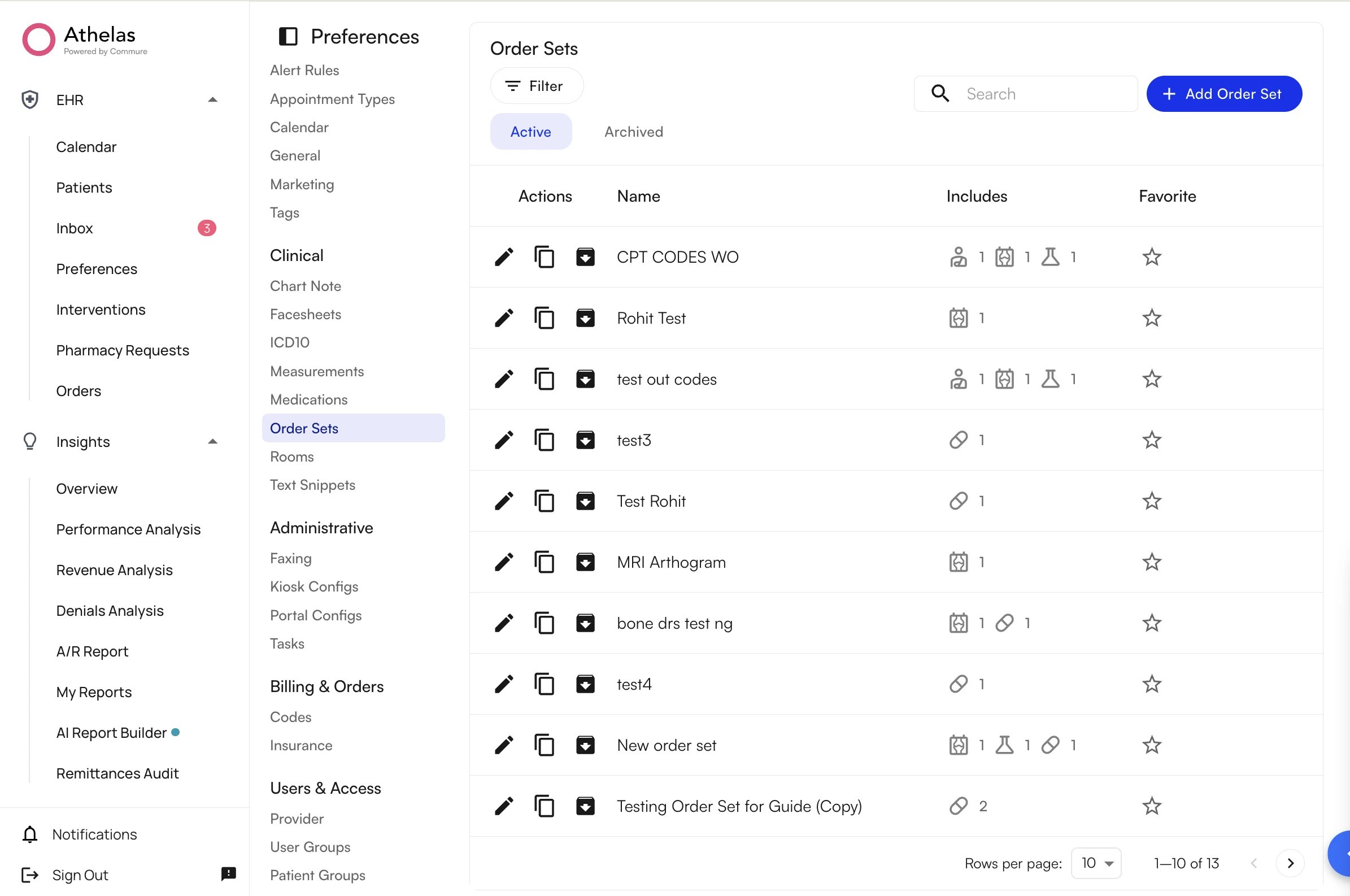 ### Step 1: Open the Order Sets page
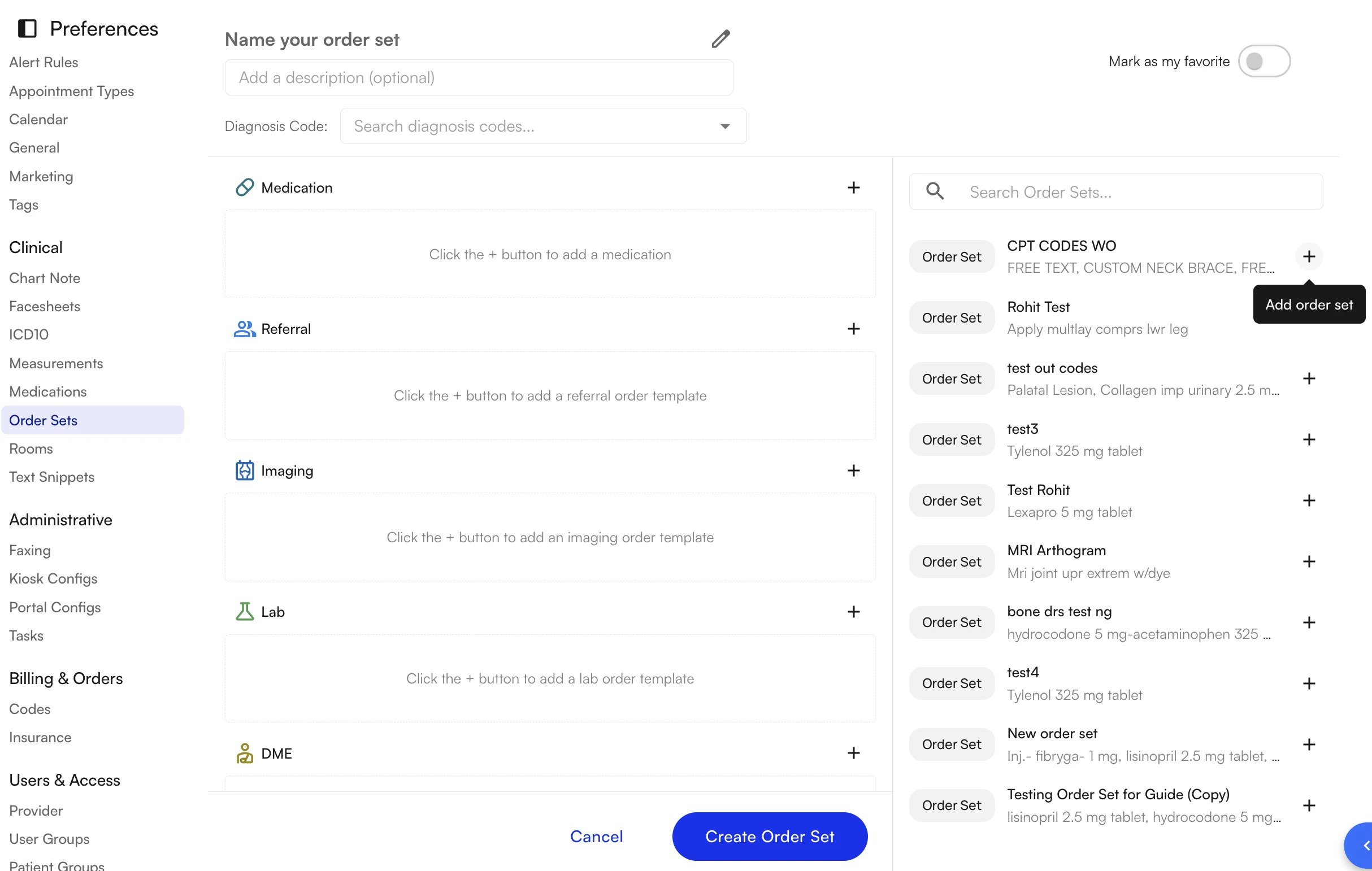
1. Go to **Preferences** in the left sidebar.
2. Click the **Order Sets** tab.
3. Click the blue **Add Order Set** button (top right).
### Step 2: Name your order set
1. Click the pencil icon next to **Name your order set** (or click the text directly).
2. Type a clear, descriptive name — for example, `Knee Pain – NSAID Protocol`, `Post-Op Labs Panel`, or `Diabetes Annual Screening`.
**Note:** Each name must be unique within your site.
### Step 3: Add a description (optional)
In the **Add a description** field, enter any context that helps other providers understand when to use this set (e.g., "Use for patients with acute low back pain without radiculopathy").
### Step 4: Link diagnosis codes (optional)
1. In the **Diagnosis Code** field, search for ICD-10 codes or condition names.
2. Select one or more codes from the dropdown; they appear as removable tags.
Linked diagnoses help auto-match order sets to patient conditions and auto-populate on orders when the set is applied. You can leave this blank if you only plan to select the order set manually.
### Step 5: Add orders
Click the **+** button or **Add Item** to add order rows to your set. You can mix multiple order types — medications, labs, imaging, DME, and referrals — in a single order set. The fields available in each row depend on the order type you choose (see [Order types and their fields](#order-types-and-their-fields) below).
### Step 1: Open the Order Sets page
1. Go to **Preferences** in the left sidebar.
2. Click the **Order Sets** tab.
3. Click the blue **Add Order Set** button (top right).
### Step 2: Name your order set
1. Click the pencil icon next to **Name your order set** (or click the text directly).
2. Type a clear, descriptive name — for example, `Knee Pain – NSAID Protocol`, `Post-Op Labs Panel`, or `Diabetes Annual Screening`.
**Note:** Each name must be unique within your site.
### Step 3: Add a description (optional)
In the **Add a description** field, enter any context that helps other providers understand when to use this set (e.g., "Use for patients with acute low back pain without radiculopathy").
### Step 4: Link diagnosis codes (optional)
1. In the **Diagnosis Code** field, search for ICD-10 codes or condition names.
2. Select one or more codes from the dropdown; they appear as removable tags.
Linked diagnoses help auto-match order sets to patient conditions and auto-populate on orders when the set is applied. You can leave this blank if you only plan to select the order set manually.
### Step 5: Add orders
Click the **+** button or **Add Item** to add order rows to your set. You can mix multiple order types — medications, labs, imaging, DME, and referrals — in a single order set. The fields available in each row depend on the order type you choose (see [Order types and their fields](#order-types-and-their-fields) below).
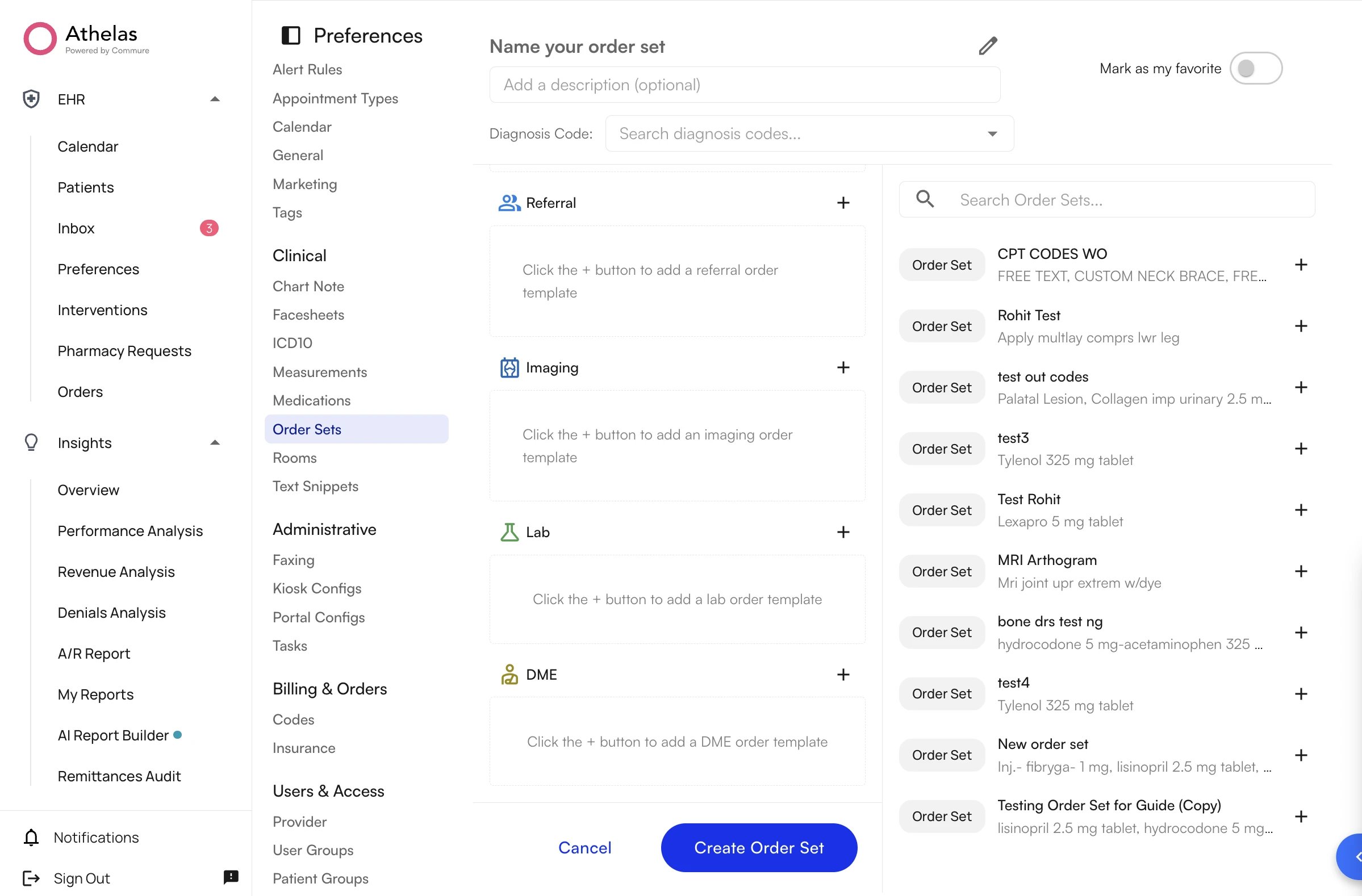 ### Step 6: Save your order set
Click **Create Order Set** at the bottom of the page. The new order set appears in the **Active** list and is immediately available for use.
You can create an order set with only a name (no orders) and add items later by editing it. However, if you add any order row, that row must have a valid item selected before you can save.
### Mark an order set as a favorite
Toggle **Mark as my favorite** in the header when creating or editing an order set. Favorited sets appear under a **Favorites** section for quick access when ordering.
**Note:** Favorites are per provider — only you see your favorites.
### Step 6: Save your order set
Click **Create Order Set** at the bottom of the page. The new order set appears in the **Active** list and is immediately available for use.
You can create an order set with only a name (no orders) and add items later by editing it. However, if you add any order row, that row must have a valid item selected before you can save.
### Mark an order set as a favorite
Toggle **Mark as my favorite** in the header when creating or editing an order set. Favorited sets appear under a **Favorites** section for quick access when ordering.
**Note:** Favorites are per provider — only you see your favorites.
 ## Order types and their fields
You can add any combination of the following order types to a single set. Each order type has its own set of fields, and the values you enter become the defaults that pre-fill when the set is applied — providers can adjust them per patient at the time of ordering.
### Medications
## Order types and their fields
You can add any combination of the following order types to a single set. Each order type has its own set of fields, and the values you enter become the defaults that pre-fill when the set is applied — providers can adjust them per patient at the time of ordering.
### Medications
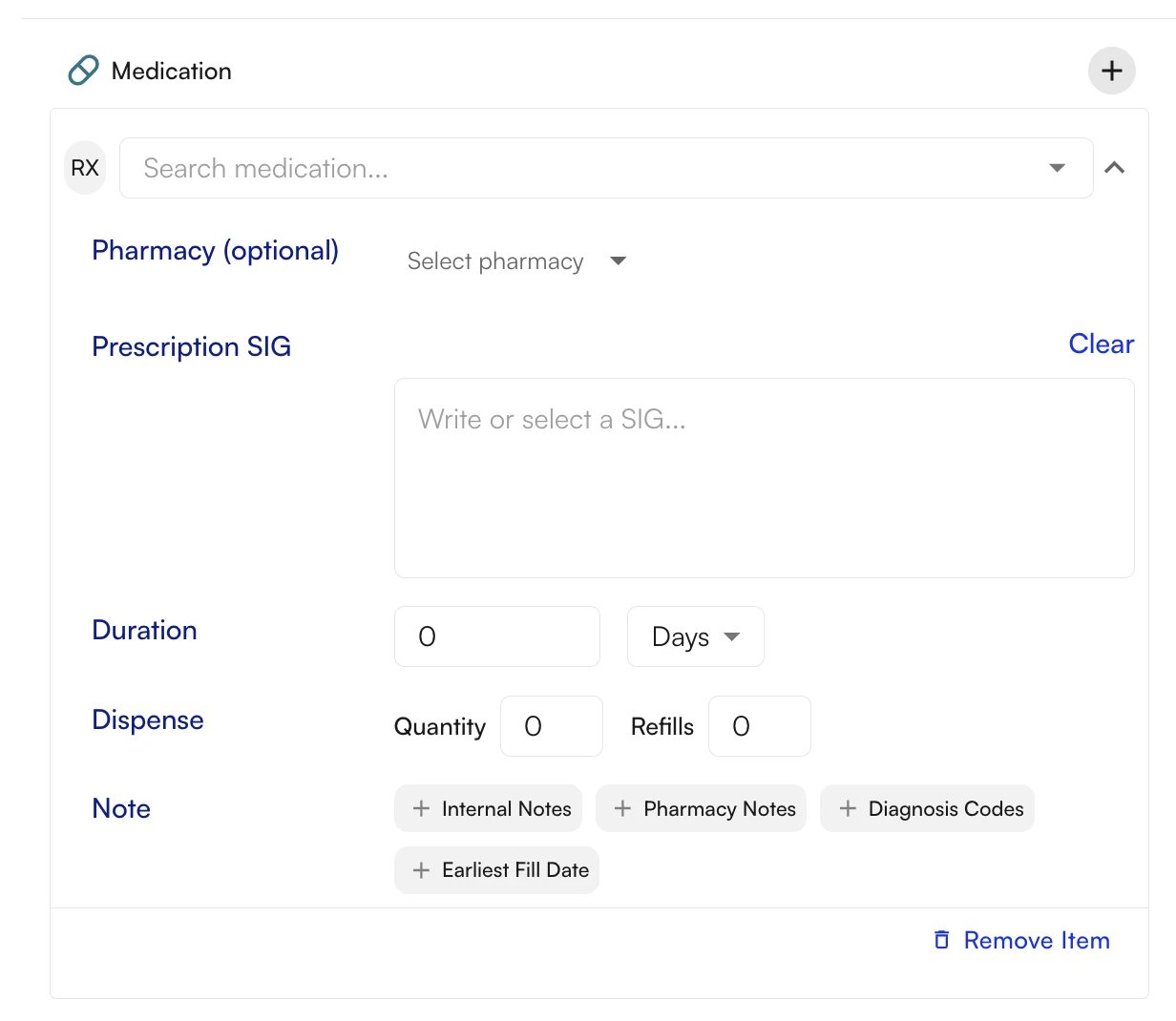 1. Select **Medication** as the order type.
2. Search by medication name and select the correct formulation (e.g., hydrocodone 5 mg–acetaminophen 325 mg tablet).
3. For each medication, fill in **SIG (directions)**, **Duration**, **Quantity**, **Refills**, and **Pharmacy** (optional).
### Labs
1. Select **Medication** as the order type.
2. Search by medication name and select the correct formulation (e.g., hydrocodone 5 mg–acetaminophen 325 mg tablet).
3. For each medication, fill in **SIG (directions)**, **Duration**, **Quantity**, **Refills**, and **Pharmacy** (optional).
### Labs
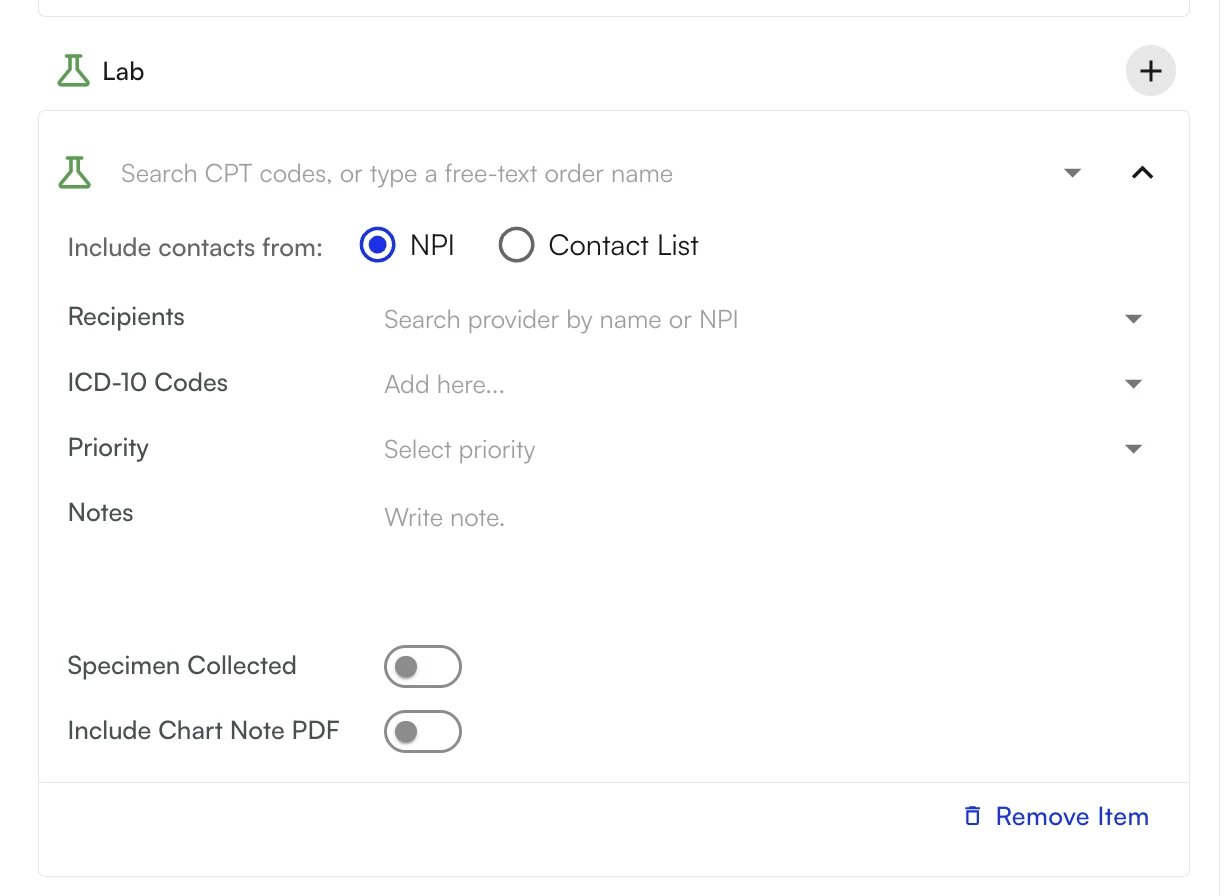 1. Select **Lab** as the order type.
2. Search for a lab test by name or CPT code (e.g., "CBC", "BMP", "Lipid Panel").
3. Set the available fields: **CPT code**, **Priority** (Routine/Urgent), **Specimen Collected** (toggle), and **Notes**.
You can add multiple labs to a single order set — each appears as a separate row.
**Note:** Lab order sets are not integrated with external labs, but they can be set up to be faxed to your Contact List entities.
### Imaging
1. Select **Lab** as the order type.
2. Search for a lab test by name or CPT code (e.g., "CBC", "BMP", "Lipid Panel").
3. Set the available fields: **CPT code**, **Priority** (Routine/Urgent), **Specimen Collected** (toggle), and **Notes**.
You can add multiple labs to a single order set — each appears as a separate row.
**Note:** Lab order sets are not integrated with external labs, but they can be set up to be faxed to your Contact List entities.
### Imaging
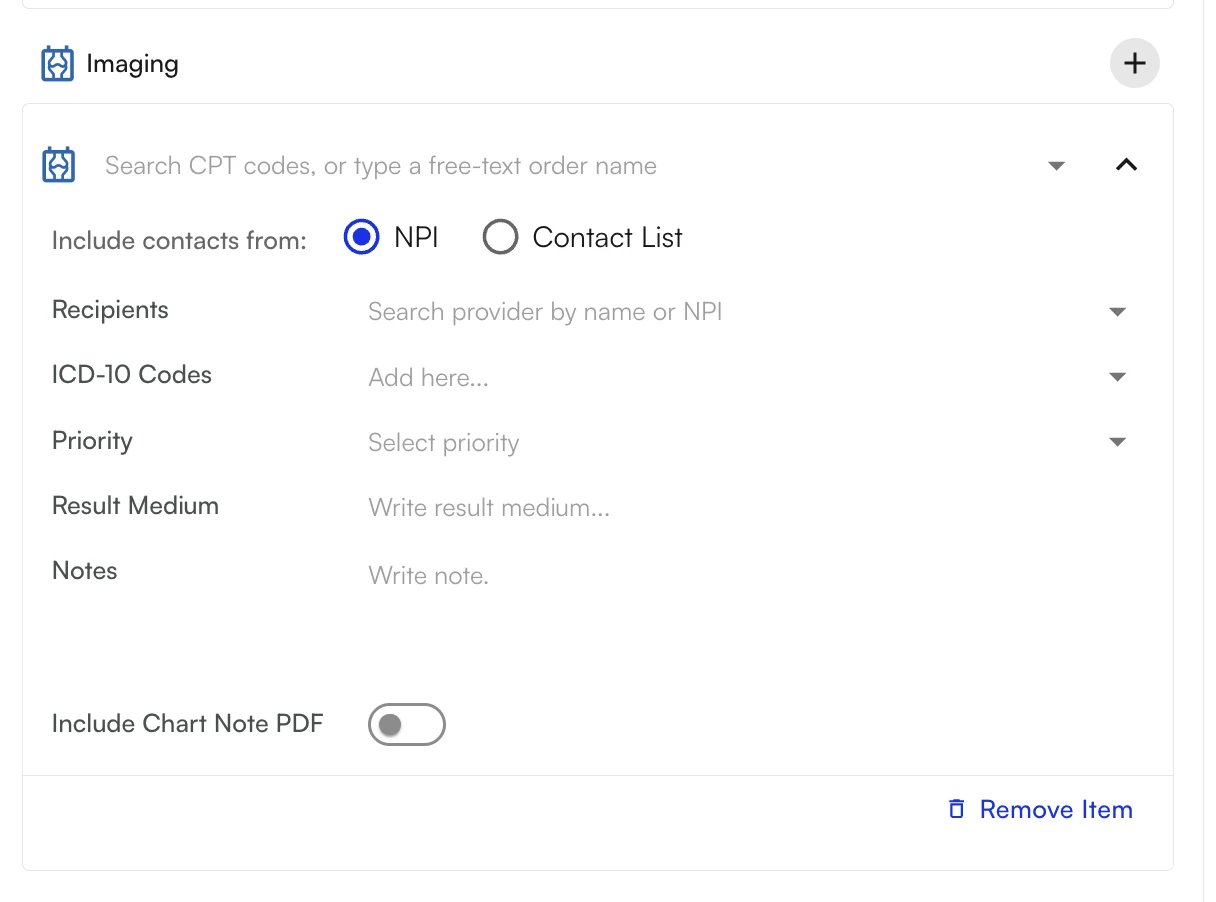 1. Select **Imaging** as the order type.
2. Search for imaging orders by name (e.g., "X-ray", "MRI Knee", "CT Abdomen").
3. Set the available fields: **Order name**, **Priority** (Routine/Urgent), and **Notes**.
You can add multiple imaging orders (e.g., X-ray + MRI) to the same order set.
### DME (Durable Medical Equipment)
1. Select **Imaging** as the order type.
2. Search for imaging orders by name (e.g., "X-ray", "MRI Knee", "CT Abdomen").
3. Set the available fields: **Order name**, **Priority** (Routine/Urgent), and **Notes**.
You can add multiple imaging orders (e.g., X-ray + MRI) to the same order set.
### DME (Durable Medical Equipment)
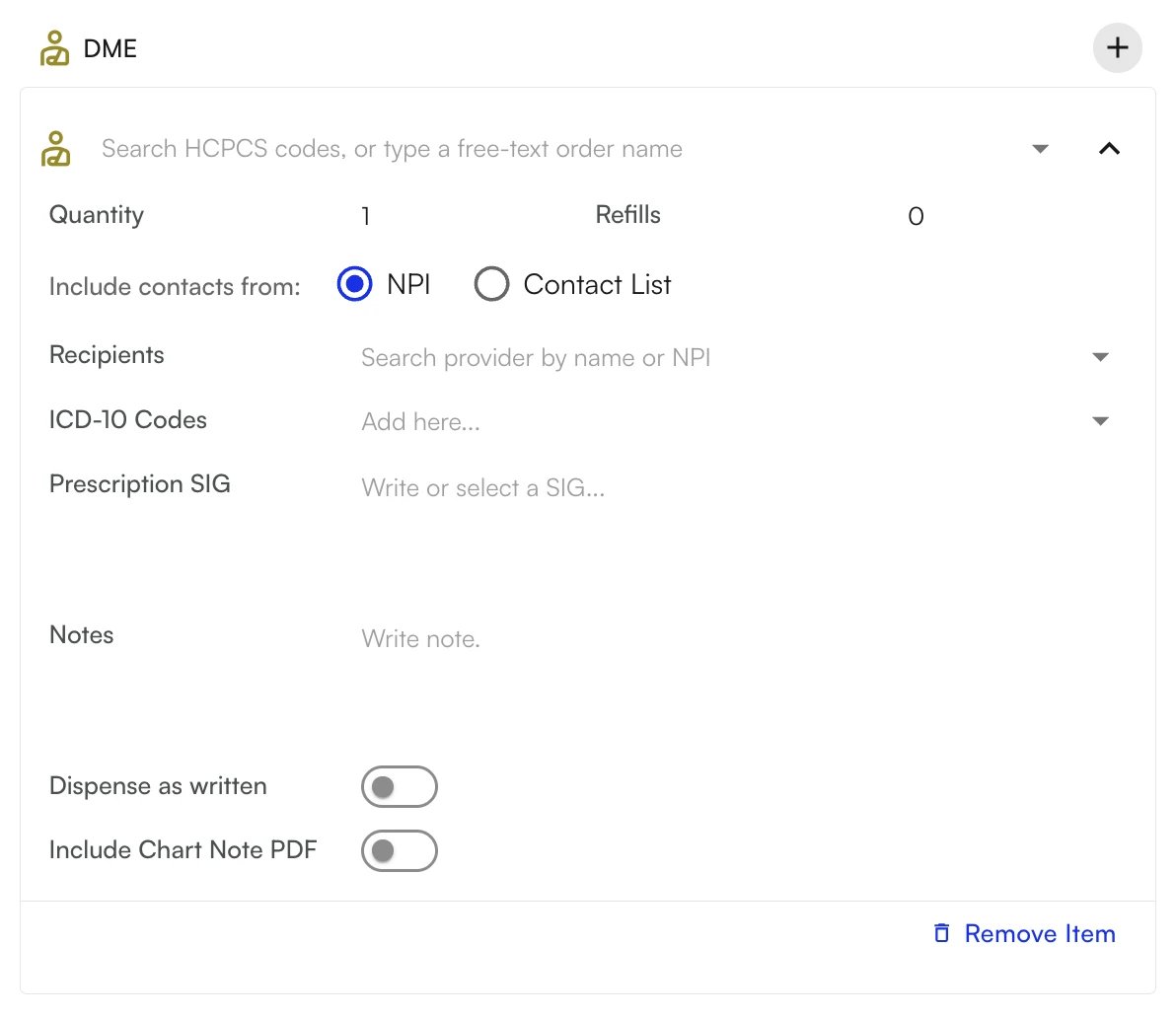 1. Select **DME** as the order type.
2. Search for DME items by name (e.g., "Knee brace", "Crutches", "CPAP").
3. Set the available fields: **Item name**, **Quantity**, **ICD-10 diagnosis linking**, and **Notes/Justification**.
**Note:** Linking a diagnosis code to DME items supports insurance authorization requirements.
### Referrals
1. Select **DME** as the order type.
2. Search for DME items by name (e.g., "Knee brace", "Crutches", "CPAP").
3. Set the available fields: **Item name**, **Quantity**, **ICD-10 diagnosis linking**, and **Notes/Justification**.
**Note:** Linking a diagnosis code to DME items supports insurance authorization requirements.
### Referrals
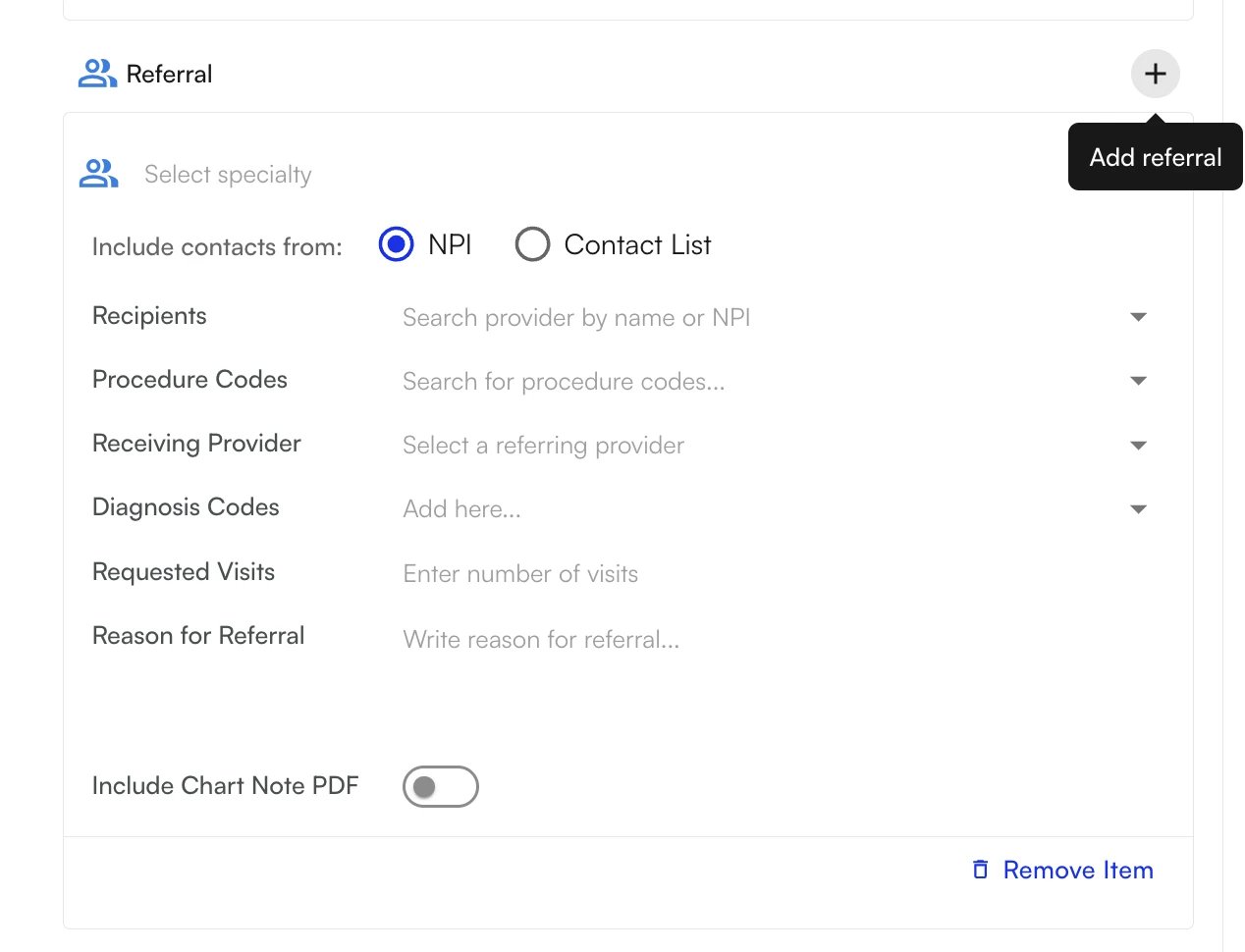 1. Select **Referral** as the order type.
2. Search for the referral specialty (e.g., "Physical Therapy", "Orthopedic Surgery", "Cardiology").
3. Set the available fields: **Specialty**, **Clinical reason/notes**, and **Diagnosis linking**.
**Note:** Adding a clinical reason helps the receiving specialist understand why the patient was referred.
## Combine order types in one set
One of the most powerful features of order sets is combining multiple order types into a single set. For example, a **Knee Pain – Full Workup** order set could include:
* **Labs:** CBC, CRP (inflammation marker)
* **Imaging:** X-ray Knee
* **DME:** Knee brace
* **Referral:** Physical Therapy
When applied, all orders populate simultaneously, and each routes to the correct system when signed — eliminating the need to place each order type separately.
## Manage your order sets
From the Order Sets page (**Preferences → Order Sets**), you can manage all of your site's order sets.
### Active and Archived tabs
* **Active** — Order sets currently available for use when ordering.
* **Archived** — Order sets you have archived. They are hidden from search and the ordering popover but can be restored at any time.
### Search
Use the **Search** field at the top to filter the list by order set name or linked diagnosis code.
### Row actions
* **Edit (pencil icon)** — Open the order set to change its name, description, diagnosis codes, or orders. Click **Update Order Set** to save your changes.
* **Duplicate (copy icon)** — Create a new order set with the same orders. The copy is automatically named *Original name (Copy)* to stay unique, and you can then edit it as needed.
* **Archive (archive icon)** — Move the order set to the Archived tab. You will be asked to confirm. Archived sets cannot be used for ordering until restored.
* **Restore (from the Archived tab)** — Bring an archived order set back to Active so it can be used again.
### Copy from another order set
When creating or editing an order set, use the right-hand panel (**Search Order Sets...**) to find another existing order set and click **Add** to copy all of its items into your current set. The items are appended to your existing list.
1. Select **Referral** as the order type.
2. Search for the referral specialty (e.g., "Physical Therapy", "Orthopedic Surgery", "Cardiology").
3. Set the available fields: **Specialty**, **Clinical reason/notes**, and **Diagnosis linking**.
**Note:** Adding a clinical reason helps the receiving specialist understand why the patient was referred.
## Combine order types in one set
One of the most powerful features of order sets is combining multiple order types into a single set. For example, a **Knee Pain – Full Workup** order set could include:
* **Labs:** CBC, CRP (inflammation marker)
* **Imaging:** X-ray Knee
* **DME:** Knee brace
* **Referral:** Physical Therapy
When applied, all orders populate simultaneously, and each routes to the correct system when signed — eliminating the need to place each order type separately.
## Manage your order sets
From the Order Sets page (**Preferences → Order Sets**), you can manage all of your site's order sets.
### Active and Archived tabs
* **Active** — Order sets currently available for use when ordering.
* **Archived** — Order sets you have archived. They are hidden from search and the ordering popover but can be restored at any time.
### Search
Use the **Search** field at the top to filter the list by order set name or linked diagnosis code.
### Row actions
* **Edit (pencil icon)** — Open the order set to change its name, description, diagnosis codes, or orders. Click **Update Order Set** to save your changes.
* **Duplicate (copy icon)** — Create a new order set with the same orders. The copy is automatically named *Original name (Copy)* to stay unique, and you can then edit it as needed.
* **Archive (archive icon)** — Move the order set to the Archived tab. You will be asked to confirm. Archived sets cannot be used for ordering until restored.
* **Restore (from the Archived tab)** — Bring an archived order set back to Active so it can be used again.
### Copy from another order set
When creating or editing an order set, use the right-hand panel (**Search Order Sets...**) to find another existing order set and click **Add** to copy all of its items into your current set. The items are appended to your existing list.
 ## Use an order set during a visit
Order sets are designed to speed up ordering from within a patient's visit note.
### Step 1: Open the visit note
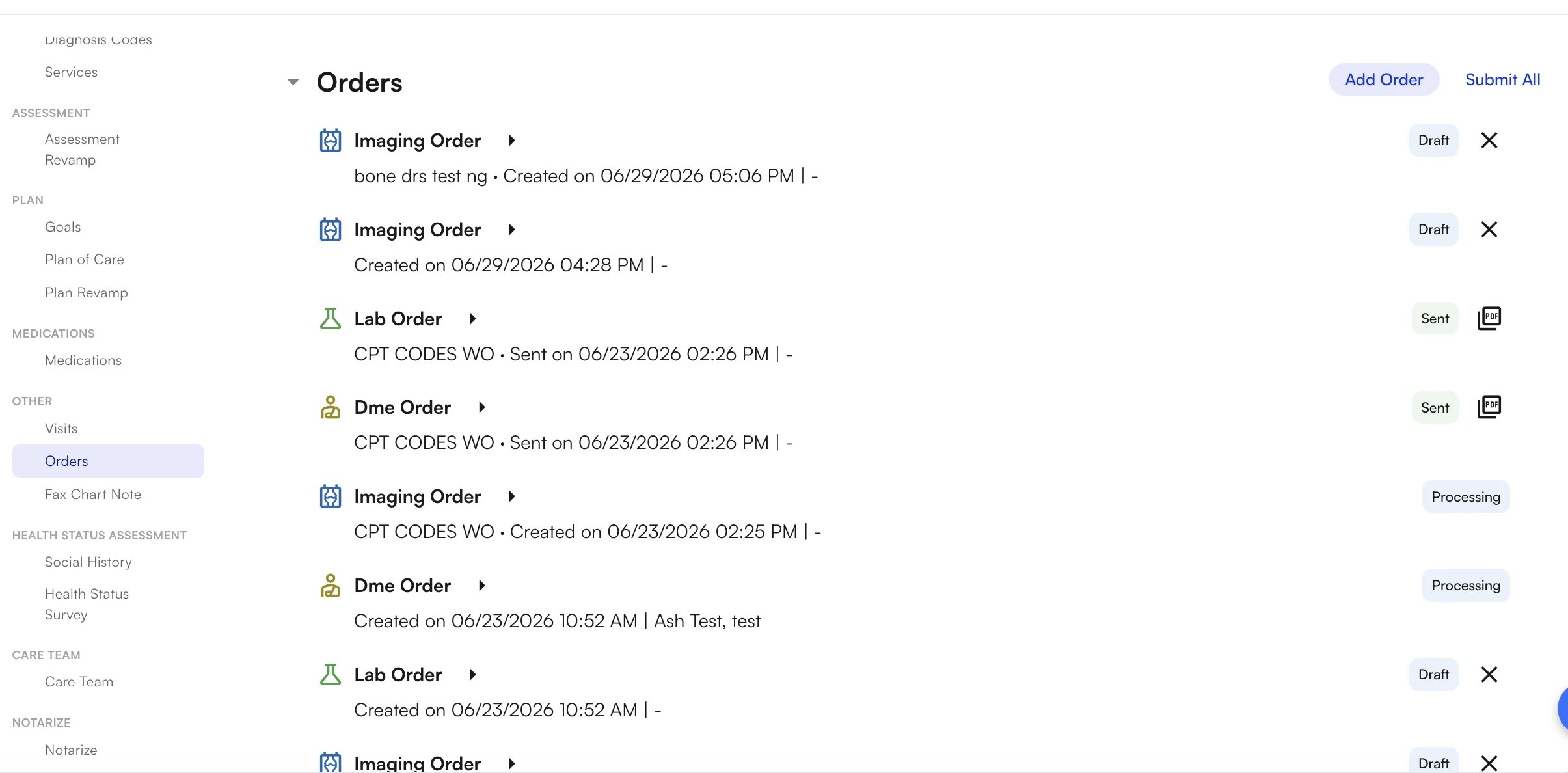
1. Open the patient's chart and navigate to the current visit note.
2. Go to the **Orders** section.
## Use an order set during a visit
Order sets are designed to speed up ordering from within a patient's visit note.
### Step 1: Open the visit note
1. Open the patient's chart and navigate to the current visit note.
2. Go to the **Orders** section.
 ### Step 2: Insert an order set
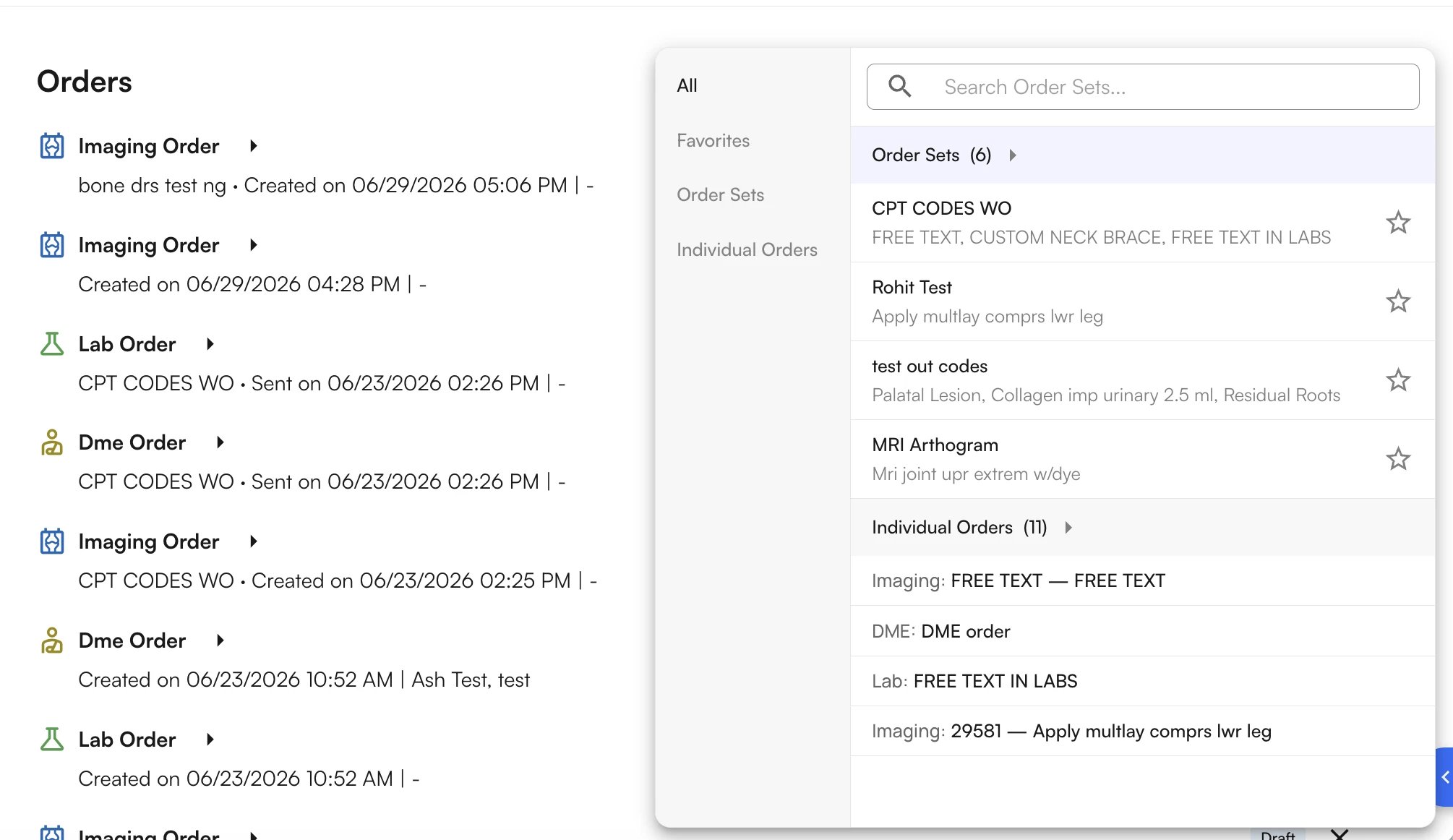
1. Click **Add Order Set**.
2. Search for the order set by name, or browse your favorites in the modal.
3. Select the order set — all of its orders appear in the Orders section with their default values pre-filled.
### Step 2: Insert an order set
1. Click **Add Order Set**.
2. Search for the order set by name, or browse your favorites in the modal.
3. Select the order set — all of its orders appear in the Orders section with their default values pre-filled.
 ### Step 3: Review and adjust
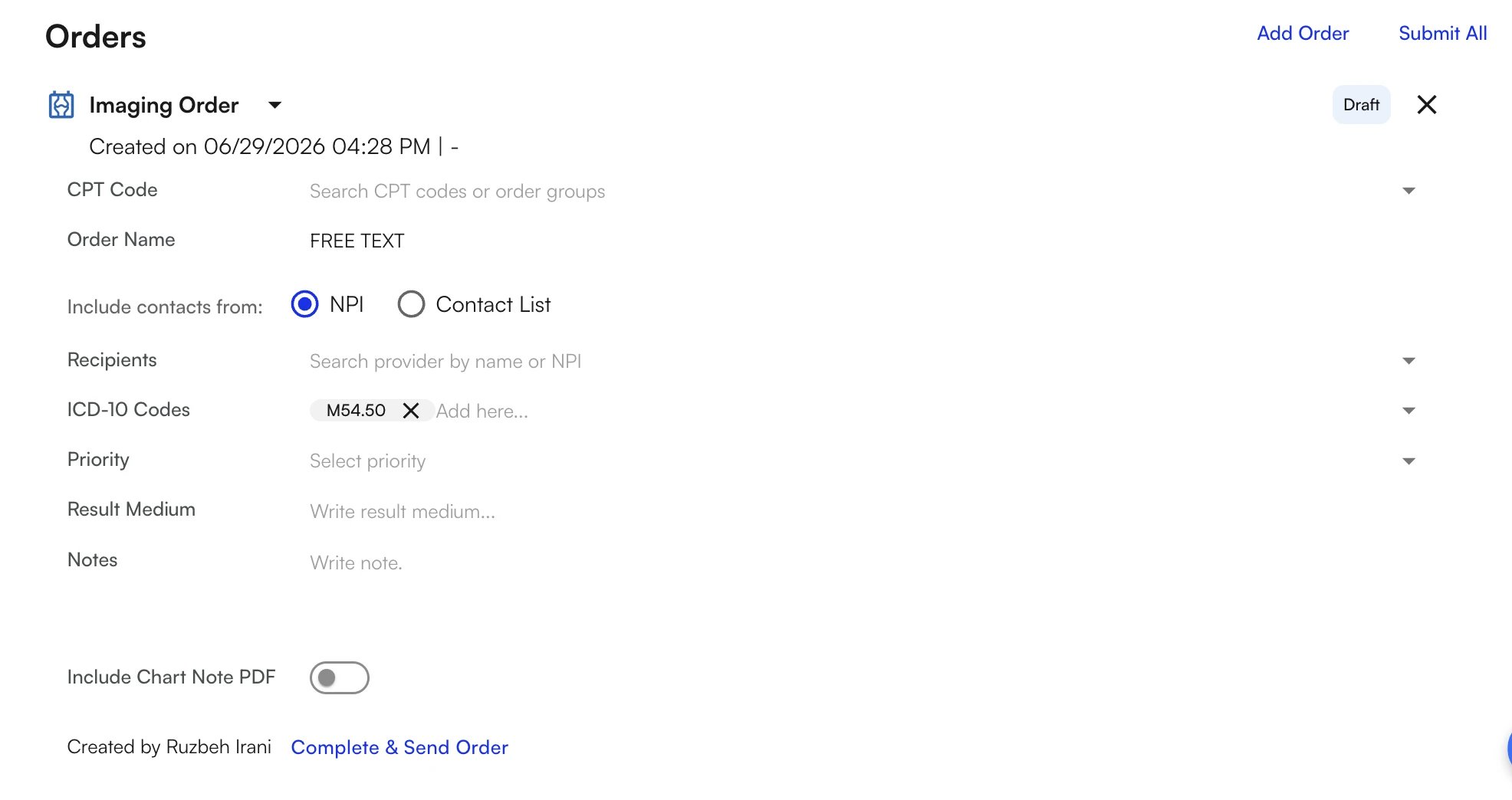
* **Review all inserted orders** — Each order appears with its default values from the template.
* **Edit any order** — Change quantities, priorities, durations, or any other field to customize it for this patient.
* **Remove individual orders** — If a particular order doesn't apply to this patient, remove it without affecting the others.
* **Diagnosis auto-linking** — If the order set has linked diagnosis codes, they automatically populate on the inserted orders.
* **CPT/HCPCS auto-linking** — If the order set has a CPT or HCPCS code linked, it automatically populates in the Services section.
### Step 3: Review and adjust
* **Review all inserted orders** — Each order appears with its default values from the template.
* **Edit any order** — Change quantities, priorities, durations, or any other field to customize it for this patient.
* **Remove individual orders** — If a particular order doesn't apply to this patient, remove it without affecting the others.
* **Diagnosis auto-linking** — If the order set has linked diagnosis codes, they automatically populate on the inserted orders.
* **CPT/HCPCS auto-linking** — If the order set has a CPT or HCPCS code linked, it automatically populates in the Services section.
 ### Step 4: Sign and submit
Once you have reviewed and adjusted all orders, submit them all at once or submit each individually.
### Step 4: Sign and submit
Once you have reviewed and adjusted all orders, submit them all at once or submit each individually.
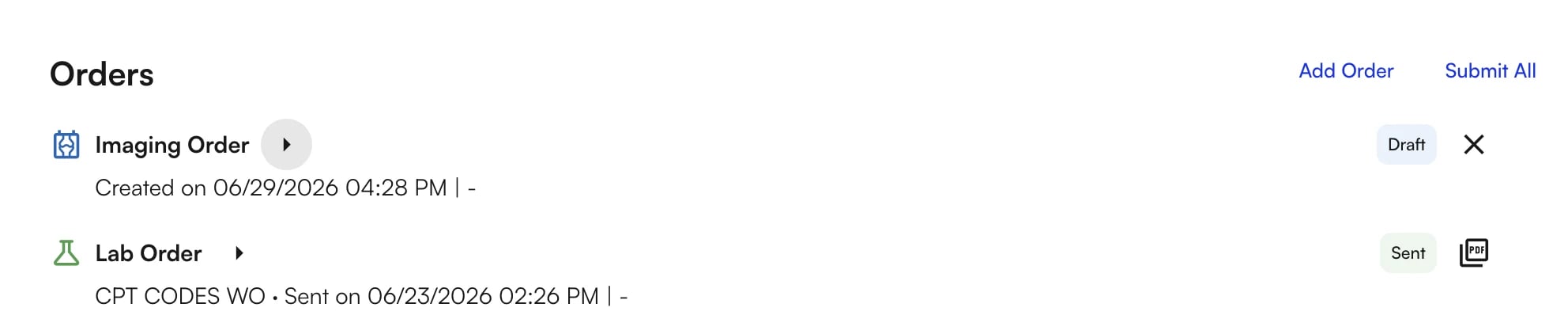
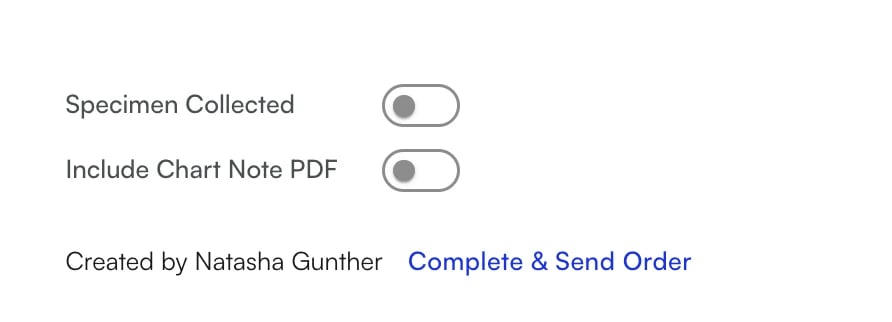 Each order routes to its appropriate module — labs to the lab module, imaging to radiology, medications to the pharmacy, DME to equipment fulfillment, and referrals to the referral management system.
Changes you make when applying an order set to a patient only affect that patient's orders — they do **not** modify the original order set template. To change the defaults for future use, edit the order set from **Preferences → Order Sets**.
## Tips and best practices
### Naming conventions
* Use descriptive names that include the condition and key treatment approach (e.g., "Back Pain – Hydrocodone", "Diabetes Annual Screening Labs").
* Keep names concise but distinguishable — other providers at your site will see and use these sets.
* Consider prefixing with the condition or specialty area for easier searching.
### When to use order sets
* **Frequent conditions** — Create order sets for conditions you see regularly (e.g., UTI, acute sinusitis, knee pain).
* **Multi-step protocols** — Use them for conditions requiring multiple order types (labs + imaging + meds + referral).
* **Standardized care** — When your practice wants consistent treatment for specific conditions across all providers.
* **New provider onboarding** — Pre-built order sets help new clinicians follow established protocols from day one.
### Maintenance tips
* Periodically review your active order sets to ensure they reflect current clinical guidelines.
* Archive order sets that are no longer in use rather than leaving them in the active list.
* Use the **Duplicate** feature to create variations of an existing set (e.g., "Knee Pain – Conservative" vs. "Knee Pain – Aggressive").
* Link diagnosis codes to help order sets surface automatically when those diagnoses appear in the patient's assessment and plan.
## Troubleshooting
**I can't save my order set.**
* Ensure the order set has a unique name — duplicate names are not allowed at the same site.
* If you added an order row, make sure a valid item is selected in that row. Empty rows with no selection will block the save.
* Check that all required fields are filled (medication rows need at minimum the medication selected).
**I can't find my order set when ordering.**
* Make sure the order set is in the **Active** tab, not **Archived**.
* Try searching by name — the order set must match the site you are currently logged into.
* Check your **Favorites** filter. If you are only viewing favorites, non-favorited sets won't appear.
**The order set didn't pre-fill my expected values.**
* Edit the order set (**Preferences → Order Sets →** pencil icon) and verify the default values are set correctly.
* Remember that only fields you explicitly set in the template will auto-fill. Optional fields left blank remain blank.
## Quick reference
| **Action** | **Where** |
| :----------------------------------------------- | :--------------------------------------------------- |
| **Create / edit / archive / restore order sets** | **Preferences → Order Sets** |
| **Apply an order set to a patient** | **Visit Note → Orders section → Add Order Set** |
| **Mark or unmark a favorite** | **Edit an order set → toggle "Mark as my favorite"** |
| **Duplicate an order set** | **Order Sets list → copy icon on the row** |
**Need help?** Contact your site administrator or the Athelas support team for assistance with order set configuration.
### FAQ
No. Order sets are site-specific — they exist only for your current clinic site and are shared among all providers at that site.
Yes. You can mix medications, labs, imaging, DME, and referrals in a single order set. When applied, every order populates at once and each routes to the correct system when signed.
No. Adjustments you make when applying an order set only affect that patient's orders. To change the defaults for future use, edit the order set from **Preferences → Order Sets**.
No. Favorites are per provider. Marking a set as a favorite only affects your own view when ordering.
Archived order sets are hidden from search and the ordering popover, so they can't be used for ordering. You can restore them from the **Archived** tab at any time.
Each order routes to its appropriate module — labs to the lab module, imaging to radiology, medications to the pharmacy, DME to equipment fulfillment, and referrals to the referral management system.
Changes you make when applying an order set to a patient only affect that patient's orders — they do **not** modify the original order set template. To change the defaults for future use, edit the order set from **Preferences → Order Sets**.
## Tips and best practices
### Naming conventions
* Use descriptive names that include the condition and key treatment approach (e.g., "Back Pain – Hydrocodone", "Diabetes Annual Screening Labs").
* Keep names concise but distinguishable — other providers at your site will see and use these sets.
* Consider prefixing with the condition or specialty area for easier searching.
### When to use order sets
* **Frequent conditions** — Create order sets for conditions you see regularly (e.g., UTI, acute sinusitis, knee pain).
* **Multi-step protocols** — Use them for conditions requiring multiple order types (labs + imaging + meds + referral).
* **Standardized care** — When your practice wants consistent treatment for specific conditions across all providers.
* **New provider onboarding** — Pre-built order sets help new clinicians follow established protocols from day one.
### Maintenance tips
* Periodically review your active order sets to ensure they reflect current clinical guidelines.
* Archive order sets that are no longer in use rather than leaving them in the active list.
* Use the **Duplicate** feature to create variations of an existing set (e.g., "Knee Pain – Conservative" vs. "Knee Pain – Aggressive").
* Link diagnosis codes to help order sets surface automatically when those diagnoses appear in the patient's assessment and plan.
## Troubleshooting
**I can't save my order set.**
* Ensure the order set has a unique name — duplicate names are not allowed at the same site.
* If you added an order row, make sure a valid item is selected in that row. Empty rows with no selection will block the save.
* Check that all required fields are filled (medication rows need at minimum the medication selected).
**I can't find my order set when ordering.**
* Make sure the order set is in the **Active** tab, not **Archived**.
* Try searching by name — the order set must match the site you are currently logged into.
* Check your **Favorites** filter. If you are only viewing favorites, non-favorited sets won't appear.
**The order set didn't pre-fill my expected values.**
* Edit the order set (**Preferences → Order Sets →** pencil icon) and verify the default values are set correctly.
* Remember that only fields you explicitly set in the template will auto-fill. Optional fields left blank remain blank.
## Quick reference
| **Action** | **Where** |
| :----------------------------------------------- | :--------------------------------------------------- |
| **Create / edit / archive / restore order sets** | **Preferences → Order Sets** |
| **Apply an order set to a patient** | **Visit Note → Orders section → Add Order Set** |
| **Mark or unmark a favorite** | **Edit an order set → toggle "Mark as my favorite"** |
| **Duplicate an order set** | **Order Sets list → copy icon on the row** |
**Need help?** Contact your site administrator or the Athelas support team for assistance with order set configuration.
### FAQ
No. Order sets are site-specific — they exist only for your current clinic site and are shared among all providers at that site.
Yes. You can mix medications, labs, imaging, DME, and referrals in a single order set. When applied, every order populates at once and each routes to the correct system when signed.
No. Adjustments you make when applying an order set only affect that patient's orders. To change the defaults for future use, edit the order set from **Preferences → Order Sets**.
No. Favorites are per provider. Marking a set as a favorite only affects your own view when ordering.
Archived order sets are hidden from search and the ordering popover, so they can't be used for ordering. You can restore them from the **Archived** tab at any time.