> ## Documentation Index
> Fetch the complete documentation index at: https://docs.athelas.com/llms.txt
> Use this file to discover all available pages before exploring further.
# Medications
> Learn how to prescribe medications, review medication history, manage custom SIGs, and handle pharmacy requests in Air.
### Add New Medications
For reusable templates, see [**Medication Order Set**](/air_provider/fill_a_chart_note/medication_order_set).
From Patient's Profile > Medications you can:
* View Historic Medications
* View Prescribed Medications
* Add / Edit Prescribed Medications
You can search for the drug name and filter the medications by date, activity, type, pharmacy status *(sent, pending, received, unknown, failed)*
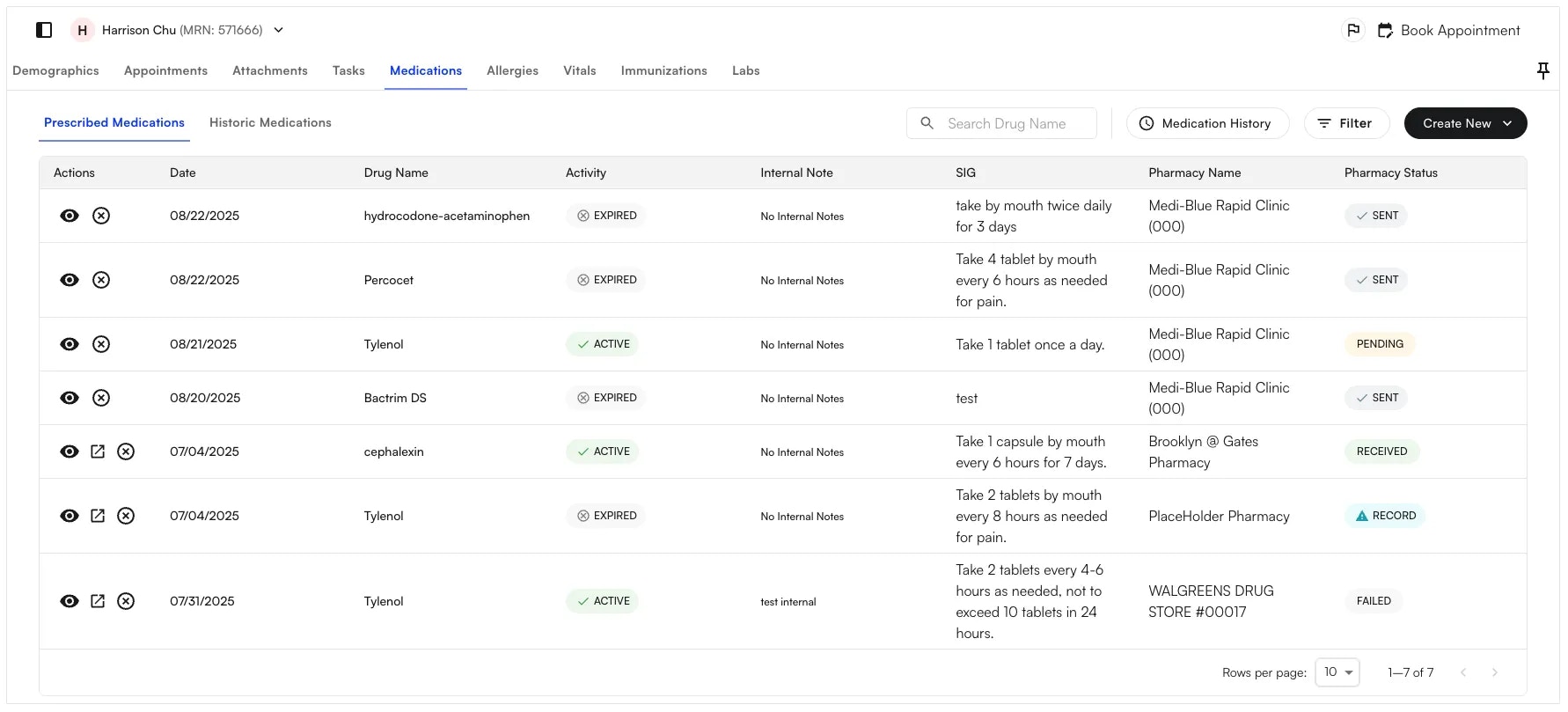 **To Add a new Medication:**
* Click **New** and select **Pharmacy Order**, **Internal Record**, or **Historic Record**.
* Review the **Associated Appointment**. Air selects the most recent **Checked In** or **Completed** appointment by default. If neither is available, Air selects the most recent eligible appointment. You can select a different appointment when needed.
* Select the \*\*+ icon \*\*to the right to select a Pharmacy (if a favorite pharmacy is selected it will auto-populate)
**To Add a new Medication:**
* Click **New** and select **Pharmacy Order**, **Internal Record**, or **Historic Record**.
* Review the **Associated Appointment**. Air selects the most recent **Checked In** or **Completed** appointment by default. If neither is available, Air selects the most recent eligible appointment. You can select a different appointment when needed.
* Select the \*\*+ icon \*\*to the right to select a Pharmacy (if a favorite pharmacy is selected it will auto-populate)
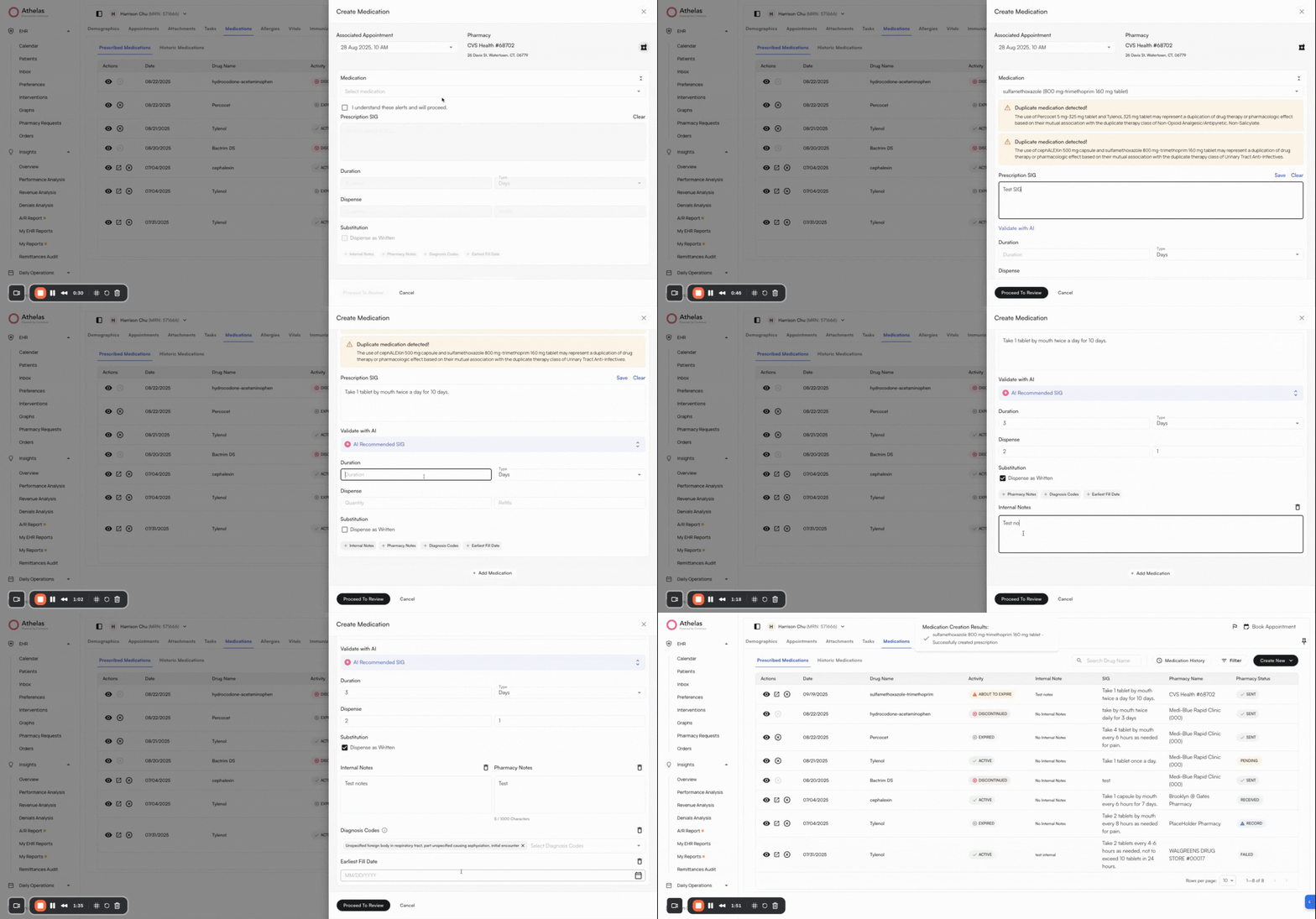 * Search for a pharmacy by typing the name, pin code, distance radius, pharmacy type (Retail, Mail Order)
* Star a pharmacy to **mark it as favorite** or preferred
* After you update preferred pharmacies and click **Save**, the dialog closes. Air keeps the current pharmacy if it is still in the saved list. If you removed it and at least one preferred pharmacy remains, Air selects the first saved pharmacy.
* Select a medication. Before you type, Air suggests medications from your recent prescribing history. Type three or more characters to search by medication name.
**✨Smart Tip:** If a Generic alternate is available - you can choose to update the medication selected.
* Check the box: I understand these alerts and will proceed
* Enter the prescription SIG or select from the saved SIGs
**✨Smart** \*\*Tip: \*\*Click Check with AI to get a well worded SIG statement. You can choose to accept or delete the suggestion.
* Add the duration, dispense quantity, refills
* Select **Dispense as Written i**f you would like the pharmacy to dispense the medication as written in the prescription order
* Add internal notes, pharmacy notes, diagnosis codes from the appointment, earliest fill date
* Click **Proceed to Review** to save the medication
\*\*Note: \*\*You can also add medication into the Chart Note as an additional section.
### View Medication History
You can view medication history two ways:
1. Manually add historic medications from \*\*Create New \*\*and view in the Historic Medications Tab
2. View Medication History on SureScripts by selecting \*\*Medication History \*\*on the top right. Select time range, acknowledge patient's consent and click Submit
### Create Custom SIGs
View Saved SIGs on Preferences Tab > Medications. You can search by Drug Name or Active / Inactive status
Select the pencil icon to update a SIG and select the toggle icon to mark a SIG as inactive.
To create a new SIG:
* Click **+add SIG**
* Select the drug name
* Add a label, SIG text and mark state as Active
* Click Save SIG
### Manage Pharmacy Requests
Navigate to the Pharmacy Requests Tab on the left. From here you can do 2 things:
1. Manage Unrecognized Patients
* Click Review for a Request
* Select an existing patient to link to the Request
* Click Map to Patient below
* This will move the request from the Unrecognized Patients Tab to the Requests Tab
2. Manage Existing Requests
* Click Review for a Request
* Review details and mark Approve, Replace or Deny
### FAQ
Air selects the most recent **Checked In** or **Completed** appointment. If neither is available, Air selects the most recent eligible appointment.
Yes. Review the **Associated Appointment** and select a different eligible appointment before you continue.
* Search for a pharmacy by typing the name, pin code, distance radius, pharmacy type (Retail, Mail Order)
* Star a pharmacy to **mark it as favorite** or preferred
* After you update preferred pharmacies and click **Save**, the dialog closes. Air keeps the current pharmacy if it is still in the saved list. If you removed it and at least one preferred pharmacy remains, Air selects the first saved pharmacy.
* Select a medication. Before you type, Air suggests medications from your recent prescribing history. Type three or more characters to search by medication name.
**✨Smart Tip:** If a Generic alternate is available - you can choose to update the medication selected.
* Check the box: I understand these alerts and will proceed
* Enter the prescription SIG or select from the saved SIGs
**✨Smart** \*\*Tip: \*\*Click Check with AI to get a well worded SIG statement. You can choose to accept or delete the suggestion.
* Add the duration, dispense quantity, refills
* Select **Dispense as Written i**f you would like the pharmacy to dispense the medication as written in the prescription order
* Add internal notes, pharmacy notes, diagnosis codes from the appointment, earliest fill date
* Click **Proceed to Review** to save the medication
\*\*Note: \*\*You can also add medication into the Chart Note as an additional section.
### View Medication History
You can view medication history two ways:
1. Manually add historic medications from \*\*Create New \*\*and view in the Historic Medications Tab
2. View Medication History on SureScripts by selecting \*\*Medication History \*\*on the top right. Select time range, acknowledge patient's consent and click Submit
### Create Custom SIGs
View Saved SIGs on Preferences Tab > Medications. You can search by Drug Name or Active / Inactive status
Select the pencil icon to update a SIG and select the toggle icon to mark a SIG as inactive.
To create a new SIG:
* Click **+add SIG**
* Select the drug name
* Add a label, SIG text and mark state as Active
* Click Save SIG
### Manage Pharmacy Requests
Navigate to the Pharmacy Requests Tab on the left. From here you can do 2 things:
1. Manage Unrecognized Patients
* Click Review for a Request
* Select an existing patient to link to the Request
* Click Map to Patient below
* This will move the request from the Unrecognized Patients Tab to the Requests Tab
2. Manage Existing Requests
* Click Review for a Request
* Review details and mark Approve, Replace or Deny
### FAQ
Air selects the most recent **Checked In** or **Completed** appointment. If neither is available, Air selects the most recent eligible appointment.
Yes. Review the **Associated Appointment** and select a different eligible appointment before you continue.