> ## Documentation Index
> Fetch the complete documentation index at: https://docs.athelas.com/llms.txt
> Use this file to discover all available pages before exploring further.
# Measurements
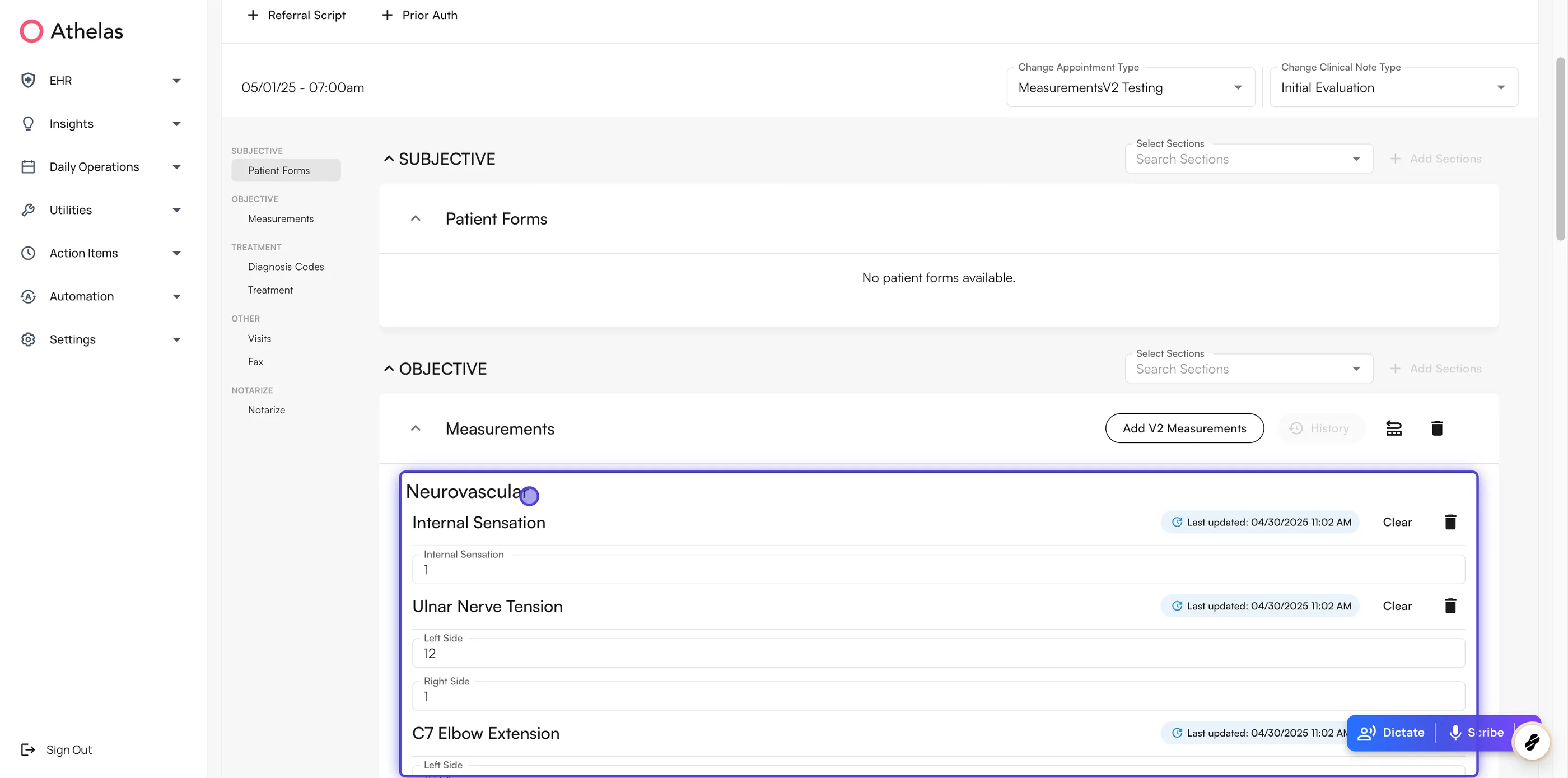
Measurements give you a standard, organized way to document physical therapy assessments in the chart note. Every site starts from the same library of **standard measurements** — Knee Extension, Hip Flexion, and the rest — and your practice can add custom measurements on top of them. Because the fields stay consistent from visit to visit, values carry forward, compare cleanly across a case, and support goal tracking.
Measurements reach the chart note as **groups** rather than as one flat list, so you document **Knee ROM** or **Shoulder Strength** as a block instead of hunting for individual fields.
 ## What measurements give you
| **Capability** | **What it does** |
| :---------------------------- | :---------------------------------------------------------------------------------------------------------------------------------------------------------------------------------------------------------- |
| **Standard measurements** | Predefined assessments common to every PT practice (e.g., Knee Extension, Hip Flexion). They are read-only, so a measurement means the same thing at every site. |
| **Custom measurements** | Measurements your practice builds in **Preferences**, with the response fields you define and an optional table layout for bilateral values. |
| **Measurement groups** | Named collections such as **Knee ROM** or **Shoulder Strength** that appear in the chart note as one block. |
| **Categories and body parts** | Every measurement carries a category (**Range of Motion**, **Strength**, **Inspection**) and, optionally, a body part (**Knee**, **Shoulder**, **Ankle And Foot**), so you can filter instead of scrolling. |
## Key concepts
| **Term** | **Meaning** |
| :----------------------- | :------------------------------------------------------------------------------------------------------------------------------- |
| **Measurement** | An individual field such as *Knee Extension* or *Hip Abduction*. It can be standard (predefined) or custom (built by your site). |
| **Measurement group** | A named collection of measurements, for example *Knee ROM*. Groups are what you see in the chart note. |
| **Category** | A clinical classification such as **Observation**, **Inspection**, **Range of Motion**, or **Strength**. |
| **Body part** | The area the measurement refers to, such as **Shoulder** or **Ankle And Foot**. |
| **Standard measurement** | System-defined and identical across every site on Air. |
| **Custom measurement** | Created by your site to capture additional or specialized fields. |
| **Default group** | A system-defined grouping of related measurements. Your site can add groups of its own alongside the default ones. |
## How measurements are organized
Each measurement sits in three overlapping structures, and you can browse from whichever one fits how you think:
1. **By category** — Range of Motion, Strength, Inspection, and the other clinical classifications.
2. **By body part** — Knee, Ankle And Foot, Shoulder, and so on.
3. **By group** — default groups plus the custom groups your site builds, such as *Knee ROM*.
Search and filtering work off the same structure. Anywhere you pick measurements, you can find them by:
* **Name** — for example, *Hip Flexion*
* **Category** — for example, Range of Motion
* **Body part** — for example, Knee
* **Group** — for example, *Knee Strength*
## Documenting measurements in a chart note
**To add measurements to a note:**
1. Open the **Measurements** section of the chart note — it sits under **Objective** in the left rail.
2. **Click** **Add V2 Measurements** to open the picker.
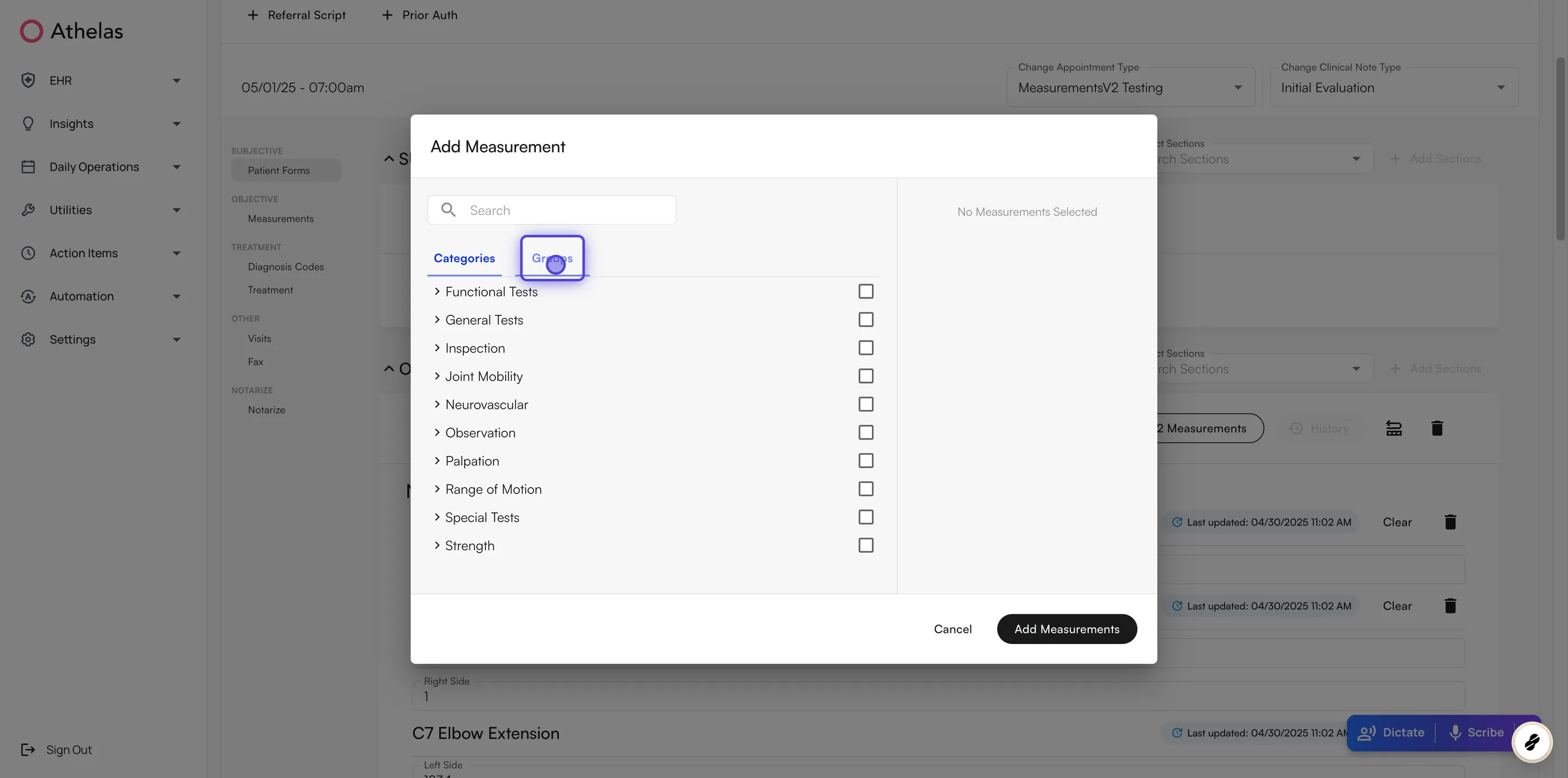
3. Browse the **Categories** or **Groups** tab, or search by name, and check what you need.
4. **Click** **Add Measurements**. Your selection lands in the note, grouped and ready for values.
5. Fill in each field — a number, a text field, a dropdown, or a table of left and right values.
## What measurements give you
| **Capability** | **What it does** |
| :---------------------------- | :---------------------------------------------------------------------------------------------------------------------------------------------------------------------------------------------------------- |
| **Standard measurements** | Predefined assessments common to every PT practice (e.g., Knee Extension, Hip Flexion). They are read-only, so a measurement means the same thing at every site. |
| **Custom measurements** | Measurements your practice builds in **Preferences**, with the response fields you define and an optional table layout for bilateral values. |
| **Measurement groups** | Named collections such as **Knee ROM** or **Shoulder Strength** that appear in the chart note as one block. |
| **Categories and body parts** | Every measurement carries a category (**Range of Motion**, **Strength**, **Inspection**) and, optionally, a body part (**Knee**, **Shoulder**, **Ankle And Foot**), so you can filter instead of scrolling. |
## Key concepts
| **Term** | **Meaning** |
| :----------------------- | :------------------------------------------------------------------------------------------------------------------------------- |
| **Measurement** | An individual field such as *Knee Extension* or *Hip Abduction*. It can be standard (predefined) or custom (built by your site). |
| **Measurement group** | A named collection of measurements, for example *Knee ROM*. Groups are what you see in the chart note. |
| **Category** | A clinical classification such as **Observation**, **Inspection**, **Range of Motion**, or **Strength**. |
| **Body part** | The area the measurement refers to, such as **Shoulder** or **Ankle And Foot**. |
| **Standard measurement** | System-defined and identical across every site on Air. |
| **Custom measurement** | Created by your site to capture additional or specialized fields. |
| **Default group** | A system-defined grouping of related measurements. Your site can add groups of its own alongside the default ones. |
## How measurements are organized
Each measurement sits in three overlapping structures, and you can browse from whichever one fits how you think:
1. **By category** — Range of Motion, Strength, Inspection, and the other clinical classifications.
2. **By body part** — Knee, Ankle And Foot, Shoulder, and so on.
3. **By group** — default groups plus the custom groups your site builds, such as *Knee ROM*.
Search and filtering work off the same structure. Anywhere you pick measurements, you can find them by:
* **Name** — for example, *Hip Flexion*
* **Category** — for example, Range of Motion
* **Body part** — for example, Knee
* **Group** — for example, *Knee Strength*
## Documenting measurements in a chart note
**To add measurements to a note:**
1. Open the **Measurements** section of the chart note — it sits under **Objective** in the left rail.
2. **Click** **Add V2 Measurements** to open the picker.
3. Browse the **Categories** or **Groups** tab, or search by name, and check what you need.
4. **Click** **Add Measurements**. Your selection lands in the note, grouped and ready for values.
5. Fill in each field — a number, a text field, a dropdown, or a table of left and right values.
 The section header also lets you reuse earlier data:
* **History** — review the patient's earlier values for the measurements on the note.
* Pull the values documented at the previous visit into this note, when a previous note exists.
Measurements documented on the initial evaluation carry forward automatically to follow-up notes in the same case, so a daily note opens with the previous values already in place.
Select your measurement groups **before** you start an [Air Scribe](/air_provider/fill_a_chart_note/ai_scribe_chart_notes) recording. Air Scribe fills values into the measurements already on the note, and cannot add a new measurement group on your behalf.
## Setting up measurements on an appointment type
Attach measurements to an appointment type so every visit of that type opens with the right blocks in place. Attaching measurements is admin setup, done once per appointment type in [**Preferences → Appointment Types**](/air_admin/manage_your_practice/appointment_types).
**To set default measurements for an appointment type:**
1. Go to **Preferences → Appointment Types**, then create a new appointment type or edit an existing one.
2. In **Select and Order Sections**, search for **Measurements** and select it.
The section header also lets you reuse earlier data:
* **History** — review the patient's earlier values for the measurements on the note.
* Pull the values documented at the previous visit into this note, when a previous note exists.
Measurements documented on the initial evaluation carry forward automatically to follow-up notes in the same case, so a daily note opens with the previous values already in place.
Select your measurement groups **before** you start an [Air Scribe](/air_provider/fill_a_chart_note/ai_scribe_chart_notes) recording. Air Scribe fills values into the measurements already on the note, and cannot add a new measurement group on your behalf.
## Setting up measurements on an appointment type
Attach measurements to an appointment type so every visit of that type opens with the right blocks in place. Attaching measurements is admin setup, done once per appointment type in [**Preferences → Appointment Types**](/air_admin/manage_your_practice/appointment_types).
**To set default measurements for an appointment type:**
1. Go to **Preferences → Appointment Types**, then create a new appointment type or edit an existing one.
2. In **Select and Order Sections**, search for **Measurements** and select it.
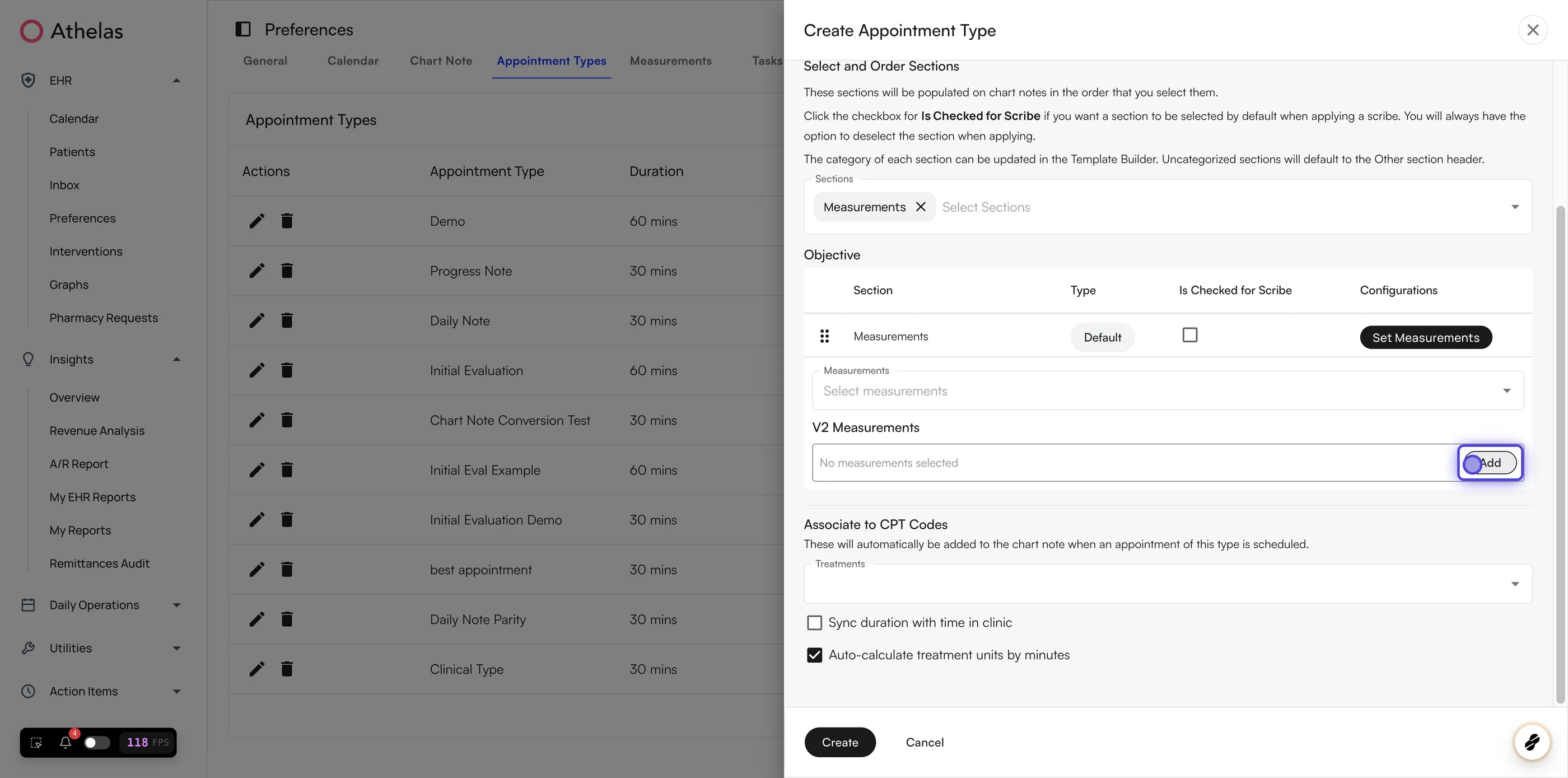
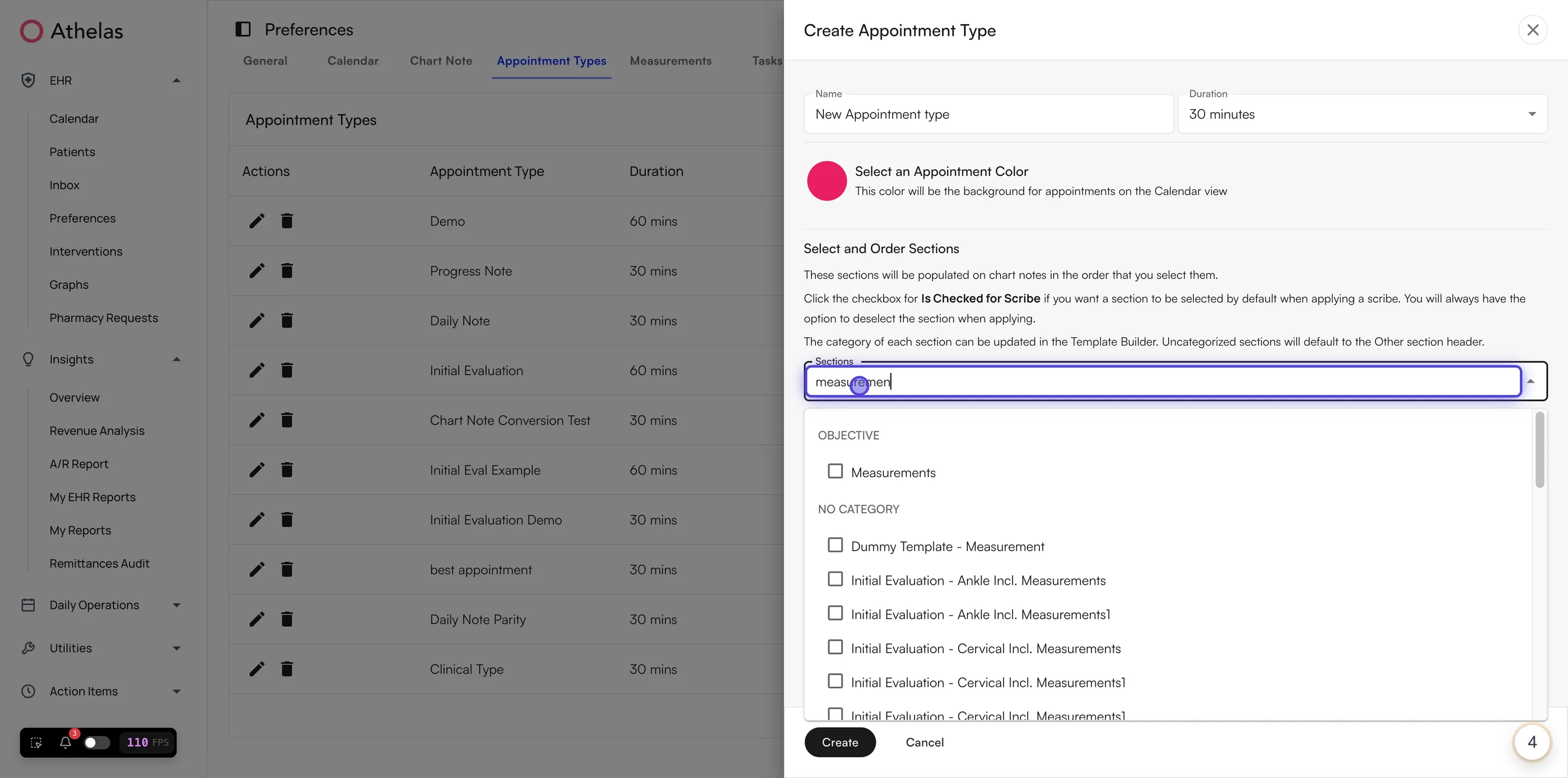 3. Find the **Measurements** row under **Objective** and **click** **Set Measurements**.
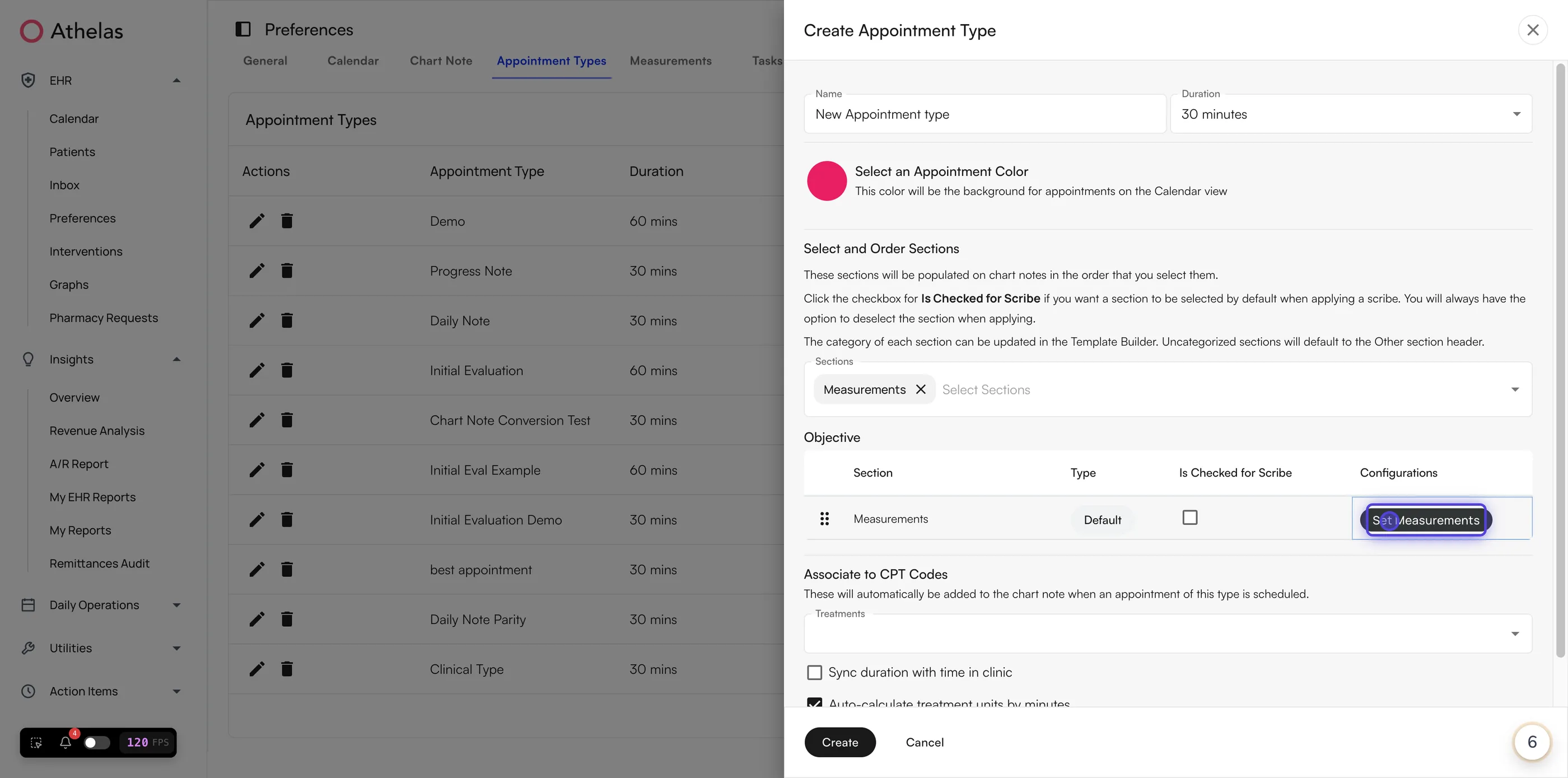 4. **Click** **Add** next to **V2 Measurements**.
 5. Search by name, or browse the **Categories** and **Groups** tabs, and check the measurements you want. Everything you pick collects under **Selected Measurements**.
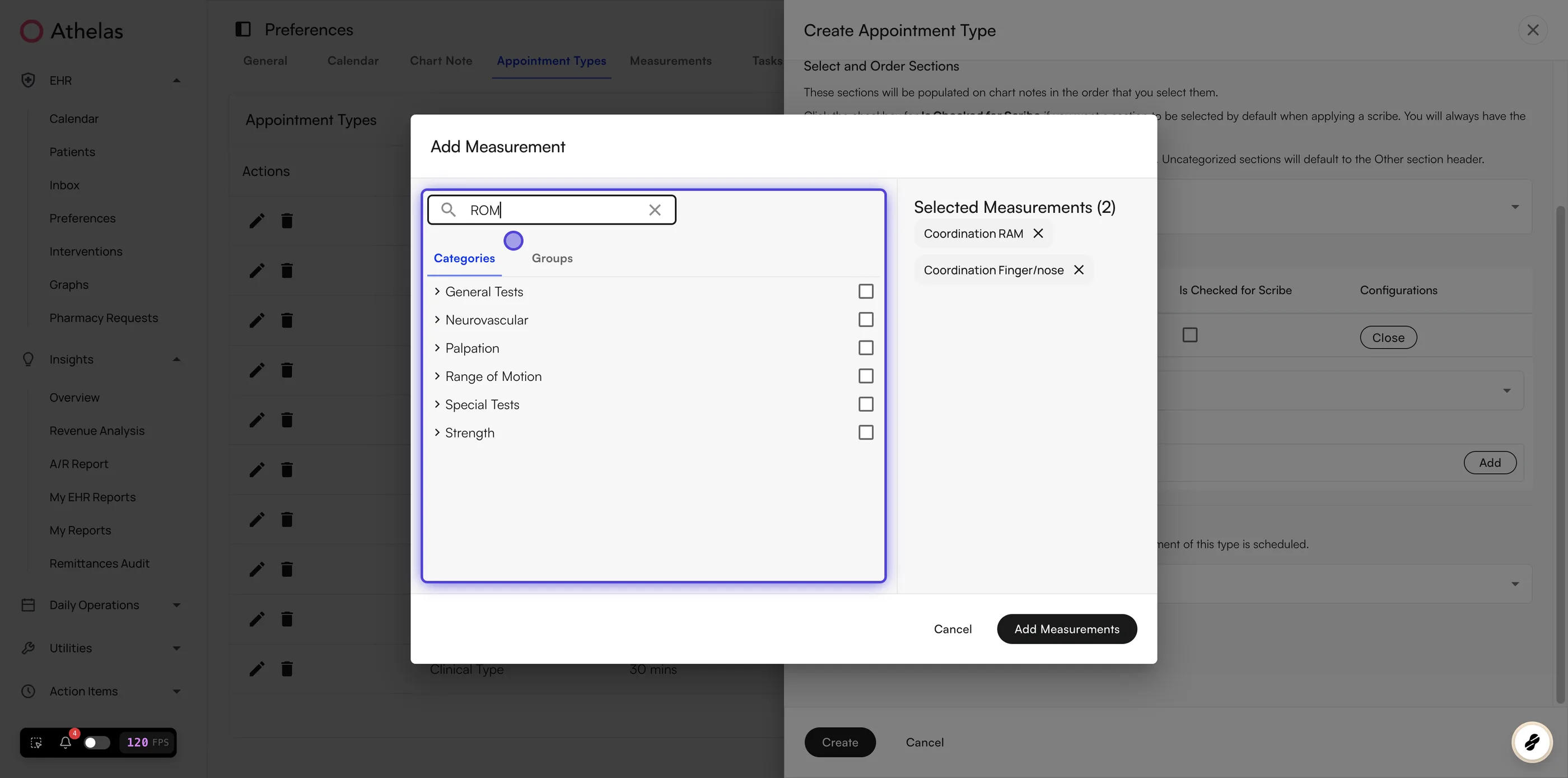 6. **Click** **Add Measurements**, then save the appointment type.
✨**Smart Tip:** Select a whole group or subgroup instead of checking measurements one at a time. Picking *Knee ROM* pulls in every measurement inside it, and the chart note keeps them together as a block.
## Creating custom measurements
When the standard library does not cover something your practice tracks, build a custom measurement for it. Custom measurements live alongside the standard ones and behave the same way in the chart note.
**To create a custom measurement:**
1. Open **Preferences** from the left navigation and go to the **Measurements** tab.
2. **Click** **+ Add Measurement**.
3. Enter a **Name**.
6. **Click** **Add Measurements**, then save the appointment type.
✨**Smart Tip:** Select a whole group or subgroup instead of checking measurements one at a time. Picking *Knee ROM* pulls in every measurement inside it, and the chart note keeps them together as a block.
## Creating custom measurements
When the standard library does not cover something your practice tracks, build a custom measurement for it. Custom measurements live alongside the standard ones and behave the same way in the chart note.
**To create a custom measurement:**
1. Open **Preferences** from the left navigation and go to the **Measurements** tab.
2. **Click** **+ Add Measurement**.
3. Enter a **Name**.
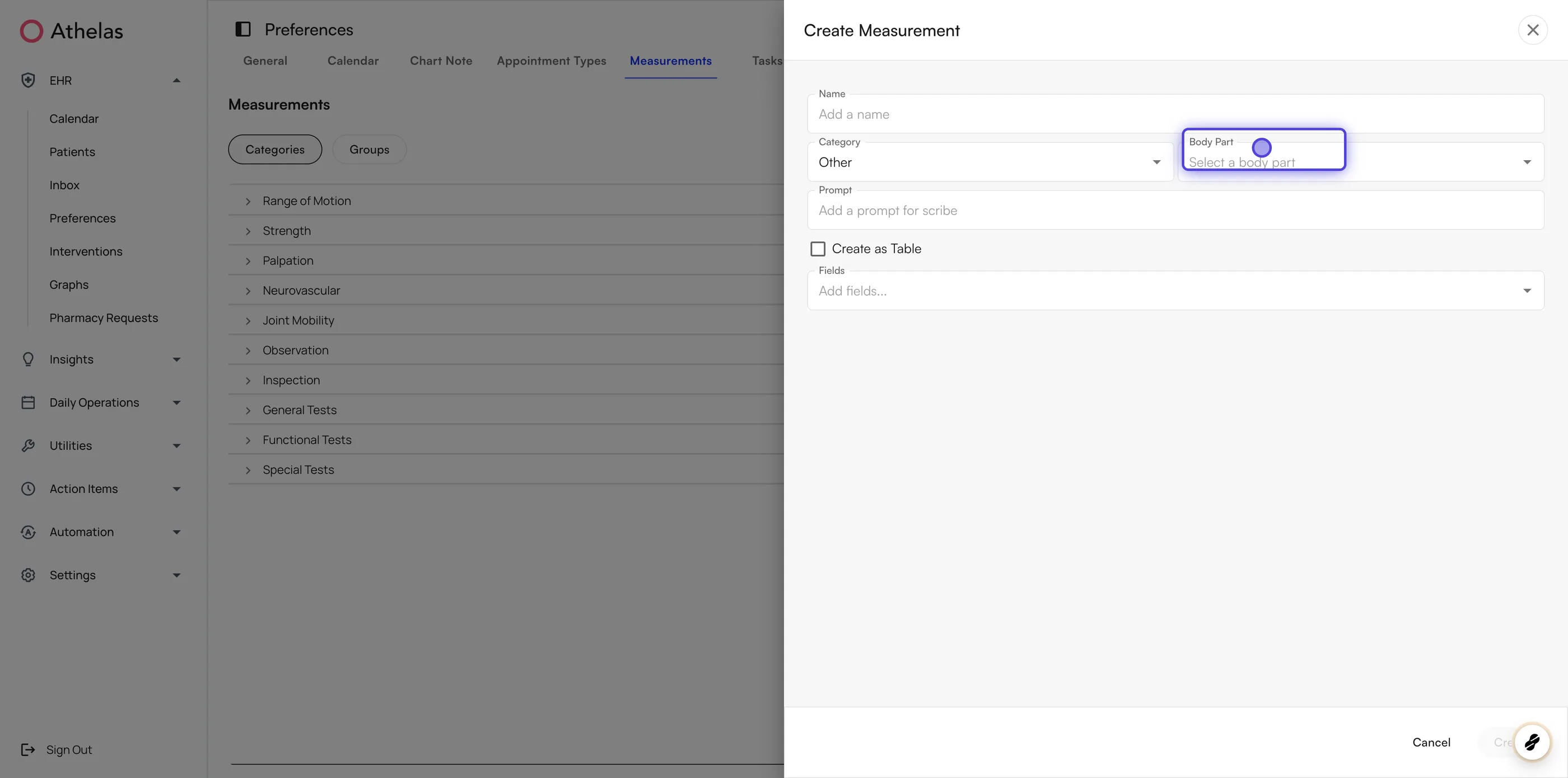 4. Choose a **Category** — Observation, Inspection, Range of Motion, Palpation, Special Tests, Neurovascular, Functional Tests, Joint Mobility, Strength, General Tests, or Other.
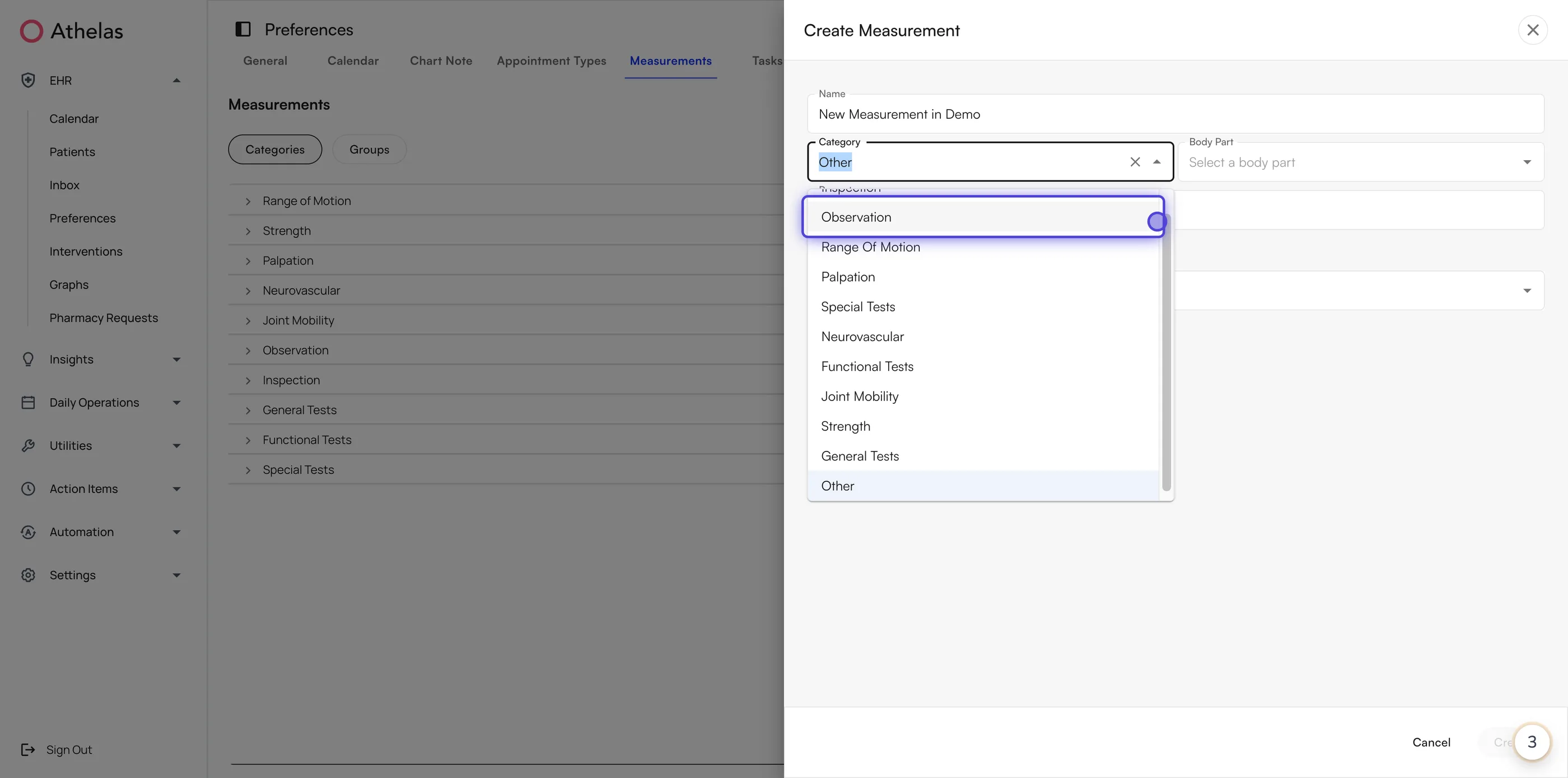 5. Optionally choose a **Body Part** so the measurement turns up when someone filters by that body part.
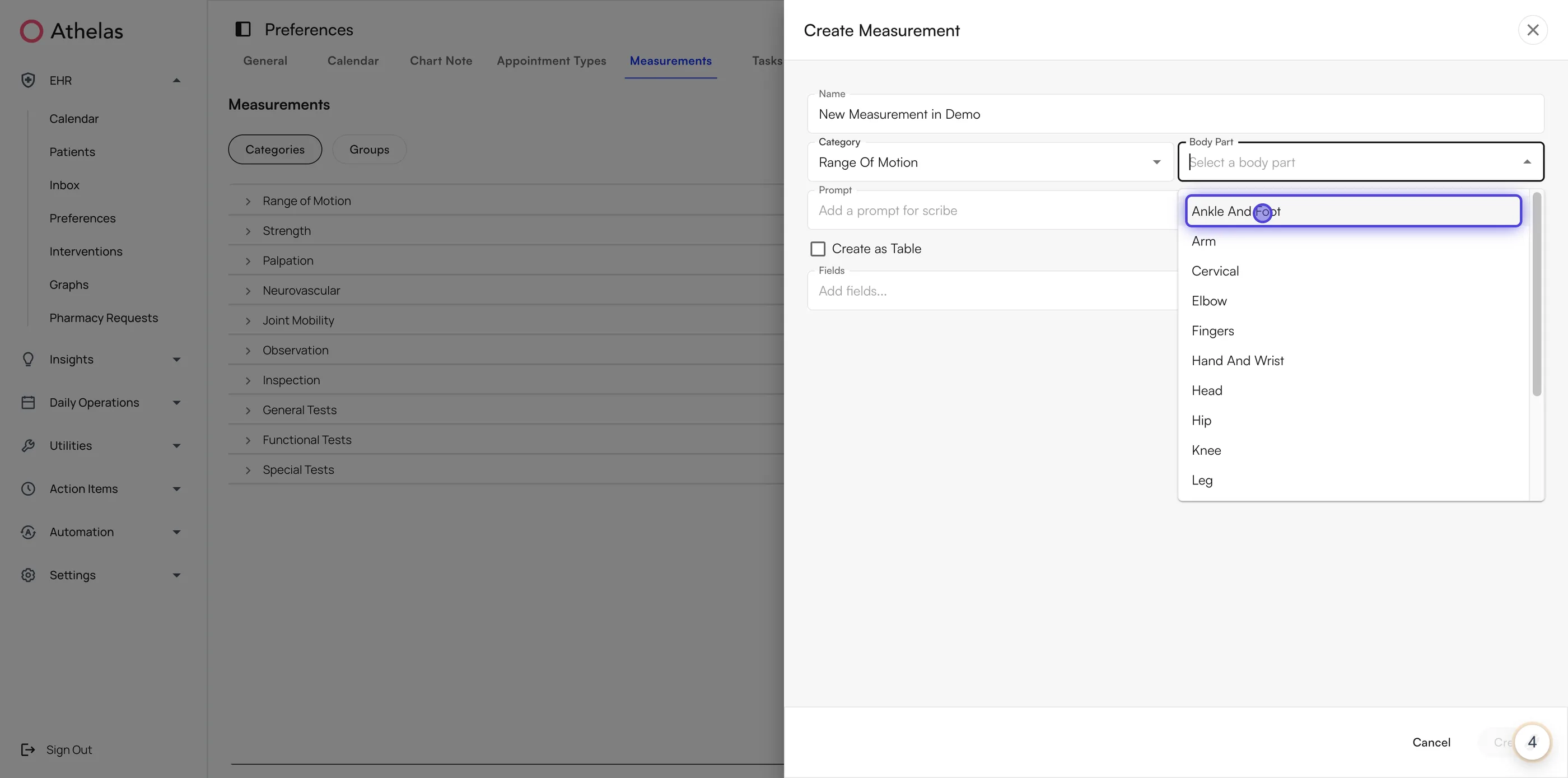 6. Optionally add a **Prompt** — the instruction Air Scribe follows when filling this measurement from a visit recording. A specific prompt produces better documentation.
7. Add the response **Fields** the provider fills in.
8. Optionally check **Create as Table**, then set **Row Headers** and **Column Headers**. The **Preview** below shows the grid as the provider will see it.
6. Optionally add a **Prompt** — the instruction Air Scribe follows when filling this measurement from a visit recording. A specific prompt produces better documentation.
7. Add the response **Fields** the provider fills in.
8. Optionally check **Create as Table**, then set **Row Headers** and **Column Headers**. The **Preview** below shows the grid as the provider will see it.
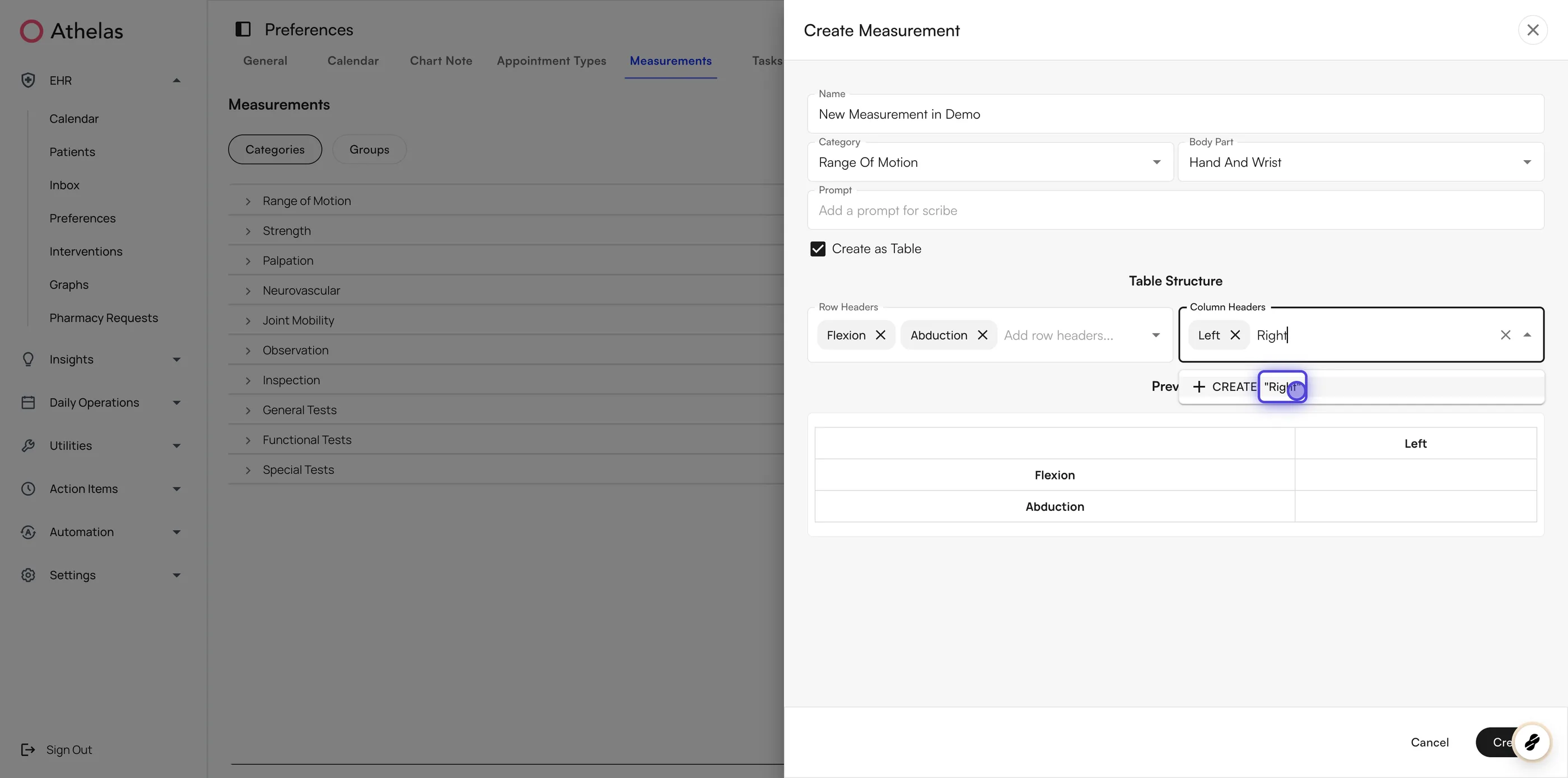 9. **Click** **Create**.
Measurements display in one of two formats:
* **Text** — fields appear as single-line entries. Best for a handful of simple values.
* **Table** — fields appear as a grid. Best for comparing bilateral values, such as left versus right knee.
**Note:** You can also reach this screen from [Chart Note Templates](/air_admin/manage_your_practice/chart_note_templates#create-custom-preferences), where measurement preferences sit next to your other template settings.
## Managing measurement groups
Groups are what keep a chart note readable: instead of dozens of loose fields, a provider sees *Shoulder Strength* and works through it as a unit.
**To create a measurement group:**
1. In **Preferences → Measurements**, open the **Groups** tab and **click** the **Create Measurement Group** icon next to **+ Add Measurement**.
9. **Click** **Create**.
Measurements display in one of two formats:
* **Text** — fields appear as single-line entries. Best for a handful of simple values.
* **Table** — fields appear as a grid. Best for comparing bilateral values, such as left versus right knee.
**Note:** You can also reach this screen from [Chart Note Templates](/air_admin/manage_your_practice/chart_note_templates#create-custom-preferences), where measurement preferences sit next to your other template settings.
## Managing measurement groups
Groups are what keep a chart note readable: instead of dozens of loose fields, a provider sees *Shoulder Strength* and works through it as a unit.
**To create a measurement group:**
1. In **Preferences → Measurements**, open the **Groups** tab and **click** the **Create Measurement Group** icon next to **+ Add Measurement**.
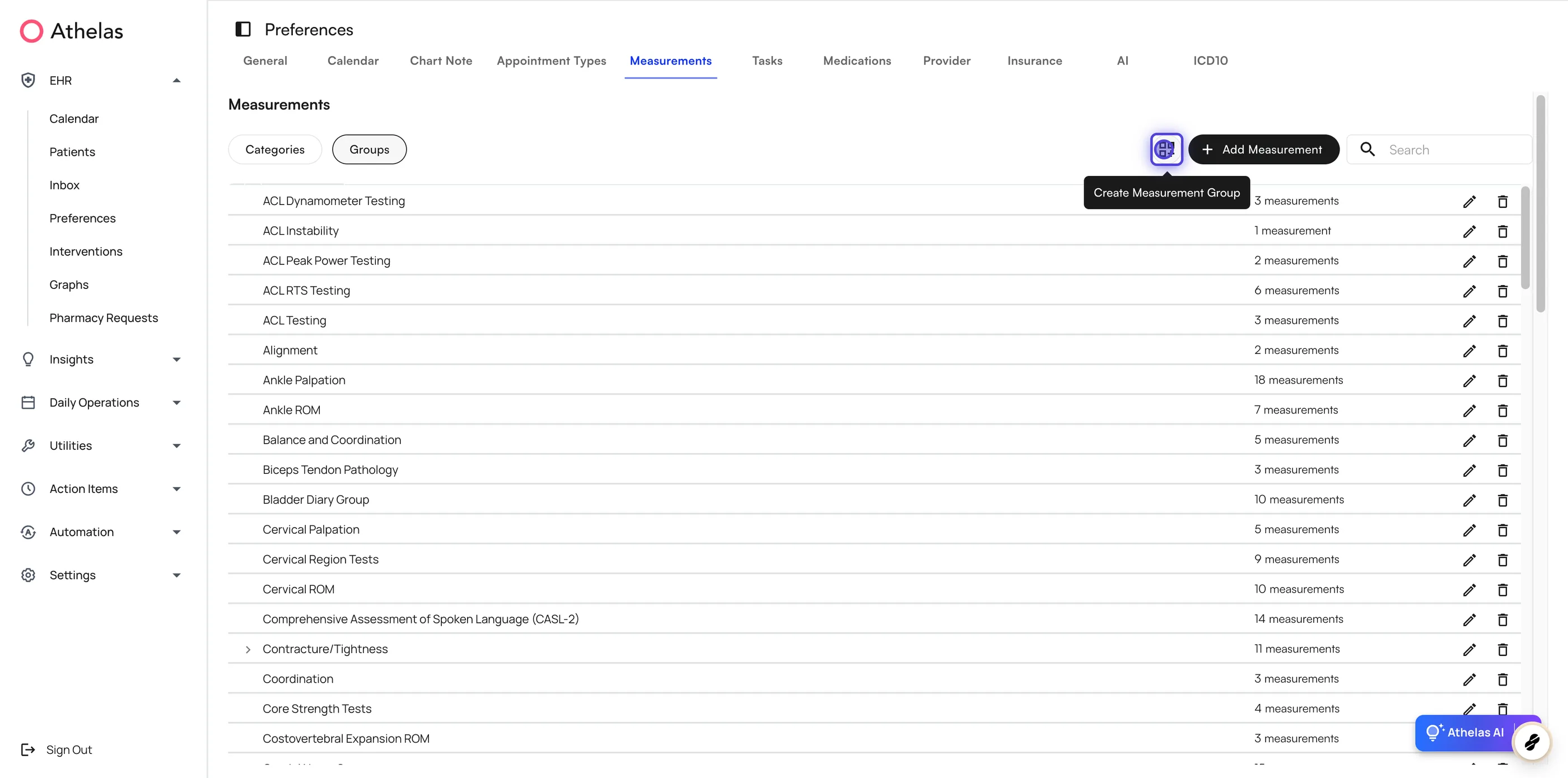 2. Enter a **Group Name** and choose a **Category**. A **Body Part** is optional.
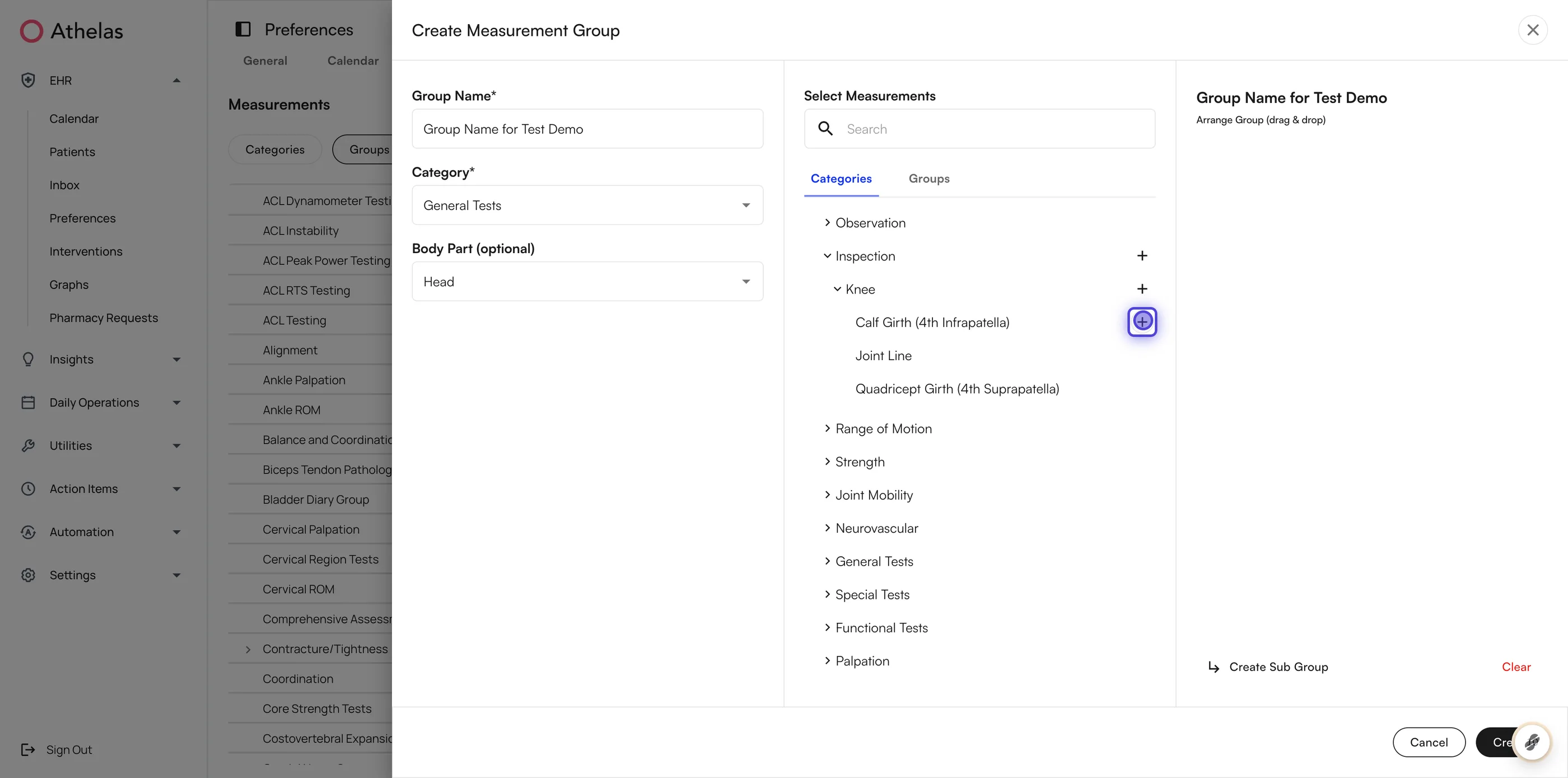
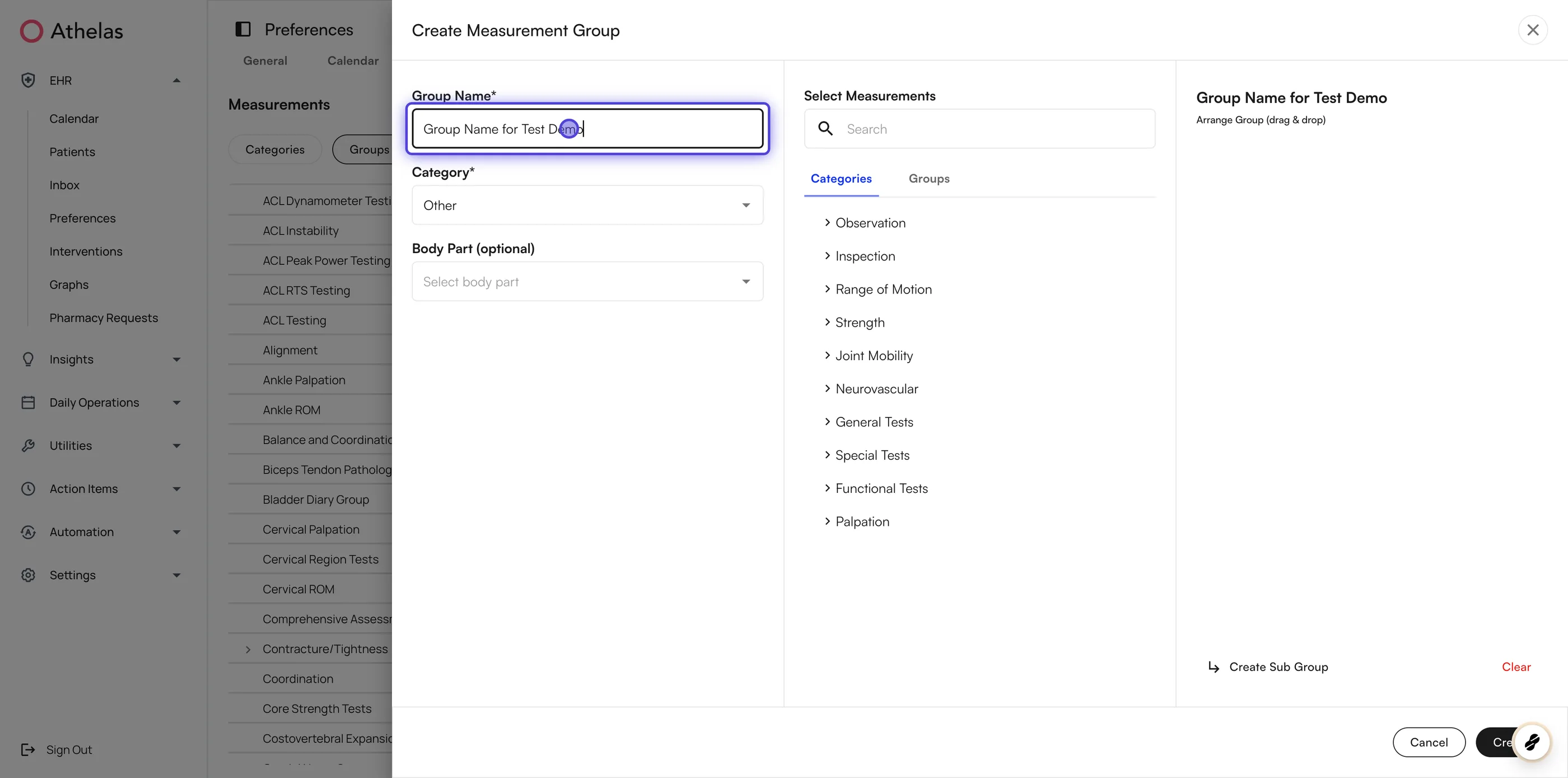 3. Under **Select Measurements**, browse the **Categories** or **Groups** tab and **click** **+** to add an individual measurement, a category, or an entire existing group.
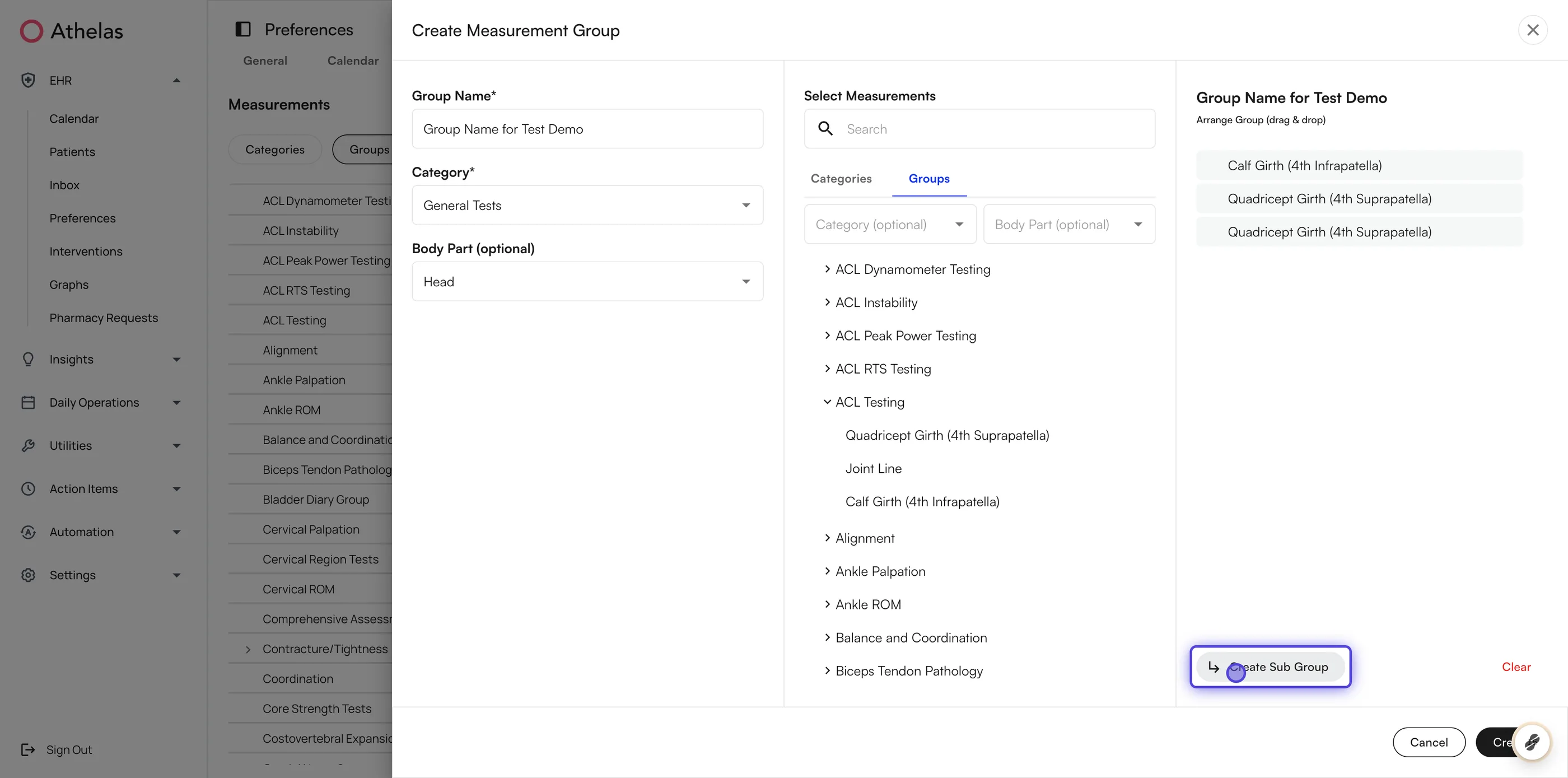
 4. Optionally **click** **Create Sub Group** to nest a second level, then give the subgroup a name.
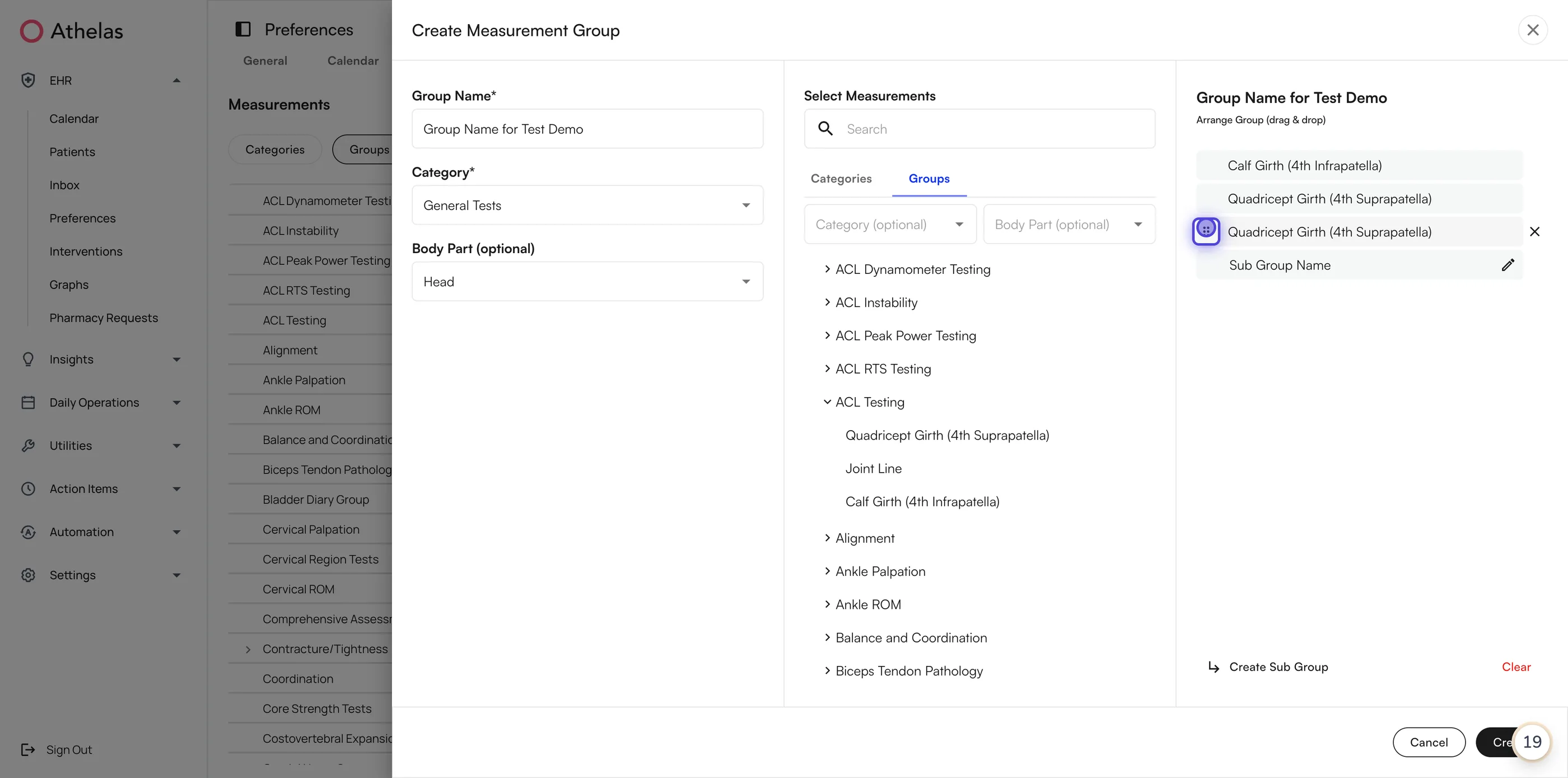
 5. Drag measurements into the subgroup to move them there. The right panel is arranged by drag and drop, so the order you set is the order providers see.
 6. **Click** **Create**.
Your practice can add, edit, and delete its own groups, assign measurements to a group, and nest groups up to two levels deep. Default groups stay as they are for every site.
## Things to know
* **Standard measurements are read-only.** Build a custom measurement when you need different fields.
* **Chart notes store a snapshot** of the measurements and templates selected at the time, so an existing note keeps the values and layout it was documented with.
* **Edits to a custom measurement are version-controlled.** Older notes keep the version they were documented with, and new notes pick up the latest one.
* **New appointment cases use the current Measurements section.** Cases that were already open keep the section they started with, so progress notes in flight are not disrupted. Super users at your site control which appointment types use the current measurement templates.
### FAQ
No. Standard measurements are read-only so that a measurement means the same thing across every site on Air.
If you need different fields, a different category, or a table layout, create a **custom measurement** in **Preferences → Measurements** instead.
Nothing. Each chart note stores a **snapshot** of the measurements and templates selected at the time of documentation, and edits are **version-controlled**.
Notes documented before the change keep the earlier version. New notes use the latest one.
Air Scribe fills values into the measurements that are **already on the note**, and does not add measurement groups for you.
Add the groups you plan to document with **Add V2 Measurements** first, then start the recording.
Two levels: a group and its subgroups. Use the **Create Sub Group** button in the group builder, then drag measurements into the subgroup to arrange them.
Check the appointment type first. Default measurements are attached per appointment type, and each clinical note type can be configured to carry a section over or leave it out — measurements are sometimes excluded from follow-up visits on purpose.
You can always add what you need to an individual note with **Add V2 Measurements**.
Questions or issues? Reach out to your clinic administrator or [support@getathelas.com](mailto:support@getathelas.com). The latest version of this guide is maintained at the [Measurements User Guide](https://athelas-public.notion.site/Measurements-V2-User-Guide-1e5f92a633f2804488c9e44fda548ab2).
6. **Click** **Create**.
Your practice can add, edit, and delete its own groups, assign measurements to a group, and nest groups up to two levels deep. Default groups stay as they are for every site.
## Things to know
* **Standard measurements are read-only.** Build a custom measurement when you need different fields.
* **Chart notes store a snapshot** of the measurements and templates selected at the time, so an existing note keeps the values and layout it was documented with.
* **Edits to a custom measurement are version-controlled.** Older notes keep the version they were documented with, and new notes pick up the latest one.
* **New appointment cases use the current Measurements section.** Cases that were already open keep the section they started with, so progress notes in flight are not disrupted. Super users at your site control which appointment types use the current measurement templates.
### FAQ
No. Standard measurements are read-only so that a measurement means the same thing across every site on Air.
If you need different fields, a different category, or a table layout, create a **custom measurement** in **Preferences → Measurements** instead.
Nothing. Each chart note stores a **snapshot** of the measurements and templates selected at the time of documentation, and edits are **version-controlled**.
Notes documented before the change keep the earlier version. New notes use the latest one.
Air Scribe fills values into the measurements that are **already on the note**, and does not add measurement groups for you.
Add the groups you plan to document with **Add V2 Measurements** first, then start the recording.
Two levels: a group and its subgroups. Use the **Create Sub Group** button in the group builder, then drag measurements into the subgroup to arrange them.
Check the appointment type first. Default measurements are attached per appointment type, and each clinical note type can be configured to carry a section over or leave it out — measurements are sometimes excluded from follow-up visits on purpose.
You can always add what you need to an individual note with **Add V2 Measurements**.
Questions or issues? Reach out to your clinic administrator or [support@getathelas.com](mailto:support@getathelas.com). The latest version of this guide is maintained at the [Measurements User Guide](https://athelas-public.notion.site/Measurements-V2-User-Guide-1e5f92a633f2804488c9e44fda548ab2).