> ## Documentation Index
> Fetch the complete documentation index at: https://docs.athelas.com/llms.txt
> Use this file to discover all available pages before exploring further.
# AI Scribe for Chart Notes
As you begin a patient consult, set up, complete, and submit a Chart Note.
## Smart fill your Chart Note using AI Scribe
### **Patient Consent for Scribe**
Re-confirm patient consent before recording. Patient consent will be taken as part of the Patient Intake Form
### **Record using Scribe**
* Click the blue button in the bottom-right corner to open the AI Widget
* Select **Scribe**
* Click **Start Recording**. You can minimize the widget and continue working within the EHR
\*\*Note: \*\*The scribe can translate conversations from other languages as well, such as Spanish.
* End or cancel the recording when finished
✨ **Smart Tip:** While uploading, you can start a new chat on the script to ask questions about the current consultation recording.
### **Apply scribe**
* Review the generated content in the Scribe Application Page. Scroll through the Tabs to review all sections
* Each section includes a checkbox to apply or exclude the scribe output into the Chart Note.
* Click **Apply Scribe**
* \*\*Note: \*\*Scribe can auto-populate all sections, however, we recommend filling the flowsheet interventions manually.
 Note: You can also [lock a section to disable the scribe](/air_provider/fill_a_chart_note/scribe_faq#how-do-i-lock-sections-from-ai-scribe) for that section.
✨ **Smart Tip**: Use **Reapply Scribe** to restore the most recent recording if you need to revert back. This is helpful if you've edited fields after scribing.
Alternate Option: [**Air scribe (mobile app)**](https://athelas-public.notion.site/Air-Scribe-User-Guide-1dcf92a633f28089ad12c6783d5b8ec0)
### **Quickly access scribes**
The **Visits** tab provides a quick view of today’s appointments. It displays only the appointments assigned to your provider.
* **If a scribe already exists** for an appointment, clicking the appointment opens the **Scribe Application Page**, where you can review and apply the scribe to the patient’s Chart Note.
* **If no scribe exists,** clicking the appointment opens the **New Recording Page**, where you can start a new audio recording for the visit.
You can also view past or upcoming appointments by selecting a date in the **date picker** at the top or by using the **left and right arrows** to move one day forward or backward.
### **Update your text using Athelas AI**
Select the text and click on **Cmd / Ctrl + K**. Select the update type to the text.
You can choose to select or reject the change which will automatically update in the Chart Note.
### **Review Section Updates**
Click the “Last updated” button in the heading of a section to view updates made.
Click on a change log to view the detailed changes.
## Other ways to fill your Chart Note
### **Dictate into a section**
More details: [EHR Dictation v1 User Guide](https://www.notion.so/EHR-Dictation-v1-User-Guide-1c9f92a633f28000a6e7e0517ece550a?pvs=21)
Once a note is generated, you have the option to add more content through a direct dictation. Dictation allows you to use your voice to enter text directly into a Chart Note.
* Open Athelas AI and click **Dictate**.
* Speak normally and watch text appear in real time.
* Smart punctuation automatically inserts commas, periods, and question marks based on sentence structure.
* Click **Stop** to end dictation.
Note: Punctuations cannot be dictated (e.g. there is no need to say "comma"), the AI will auto infer the required punctuations based on the sentence.
### **Pull from a previous Chart Note**
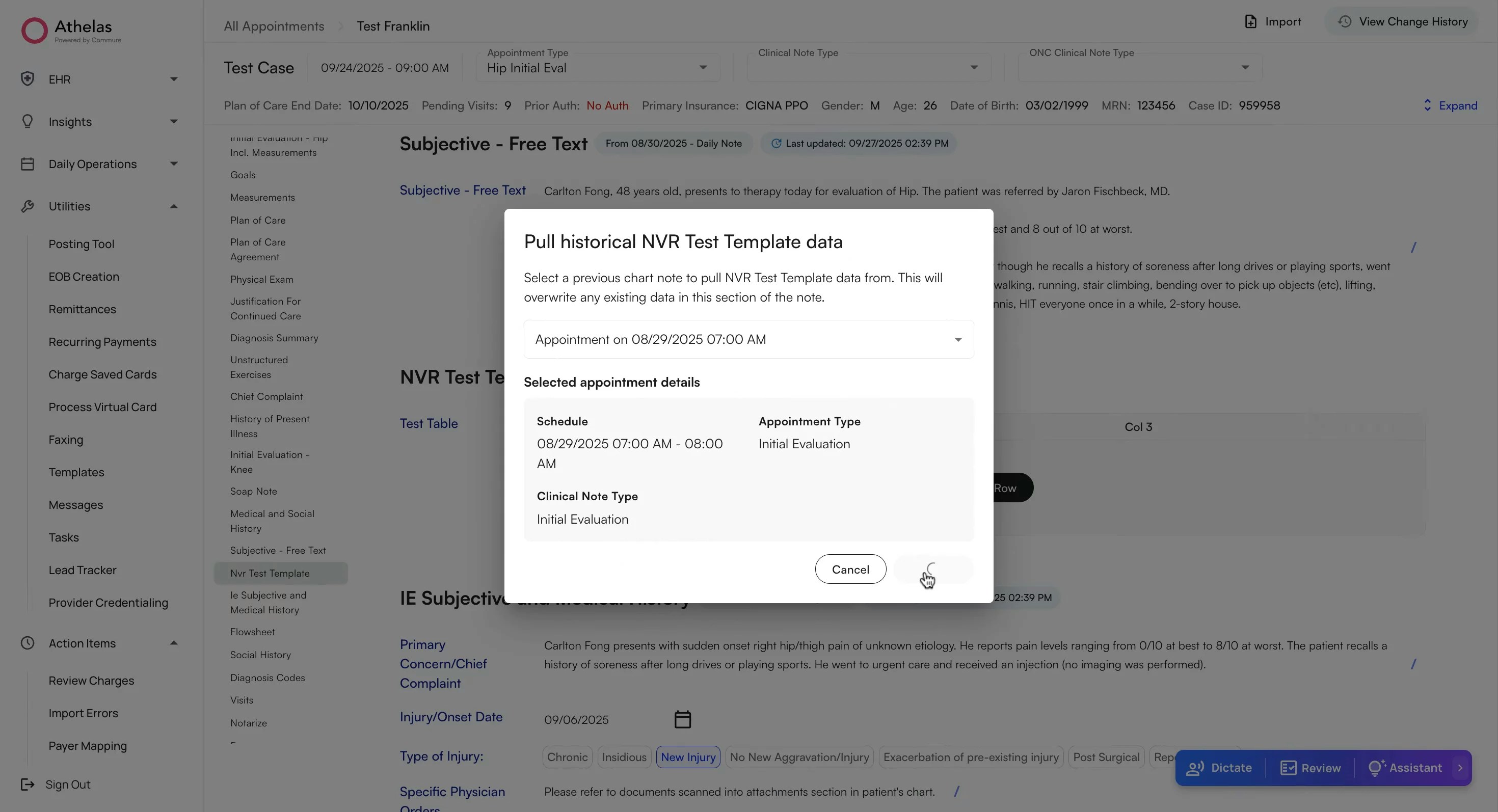
Click the curled arrow icon in any section to import data from a patient’s prior Chart Note.
**Note**: Historical data can only be pulled forward between appointments of the same Case.
### **Use pre-defined Text Snippets**
Type "/**"** in a text field to quickly insert pre-made text snippets.
**Note**: You can customize your text snippets from the **Preferences tab.**
To set up snippets that guide **AI Scribe** note generation, see [**Scribe Text Snippets & Macros**](/air_provider/fill_a_chart_note/scribe_text_snippets).
Note: You can also [lock a section to disable the scribe](/air_provider/fill_a_chart_note/scribe_faq#how-do-i-lock-sections-from-ai-scribe) for that section.
✨ **Smart Tip**: Use **Reapply Scribe** to restore the most recent recording if you need to revert back. This is helpful if you've edited fields after scribing.
Alternate Option: [**Air scribe (mobile app)**](https://athelas-public.notion.site/Air-Scribe-User-Guide-1dcf92a633f28089ad12c6783d5b8ec0)
### **Quickly access scribes**
The **Visits** tab provides a quick view of today’s appointments. It displays only the appointments assigned to your provider.
* **If a scribe already exists** for an appointment, clicking the appointment opens the **Scribe Application Page**, where you can review and apply the scribe to the patient’s Chart Note.
* **If no scribe exists,** clicking the appointment opens the **New Recording Page**, where you can start a new audio recording for the visit.
You can also view past or upcoming appointments by selecting a date in the **date picker** at the top or by using the **left and right arrows** to move one day forward or backward.
### **Update your text using Athelas AI**
Select the text and click on **Cmd / Ctrl + K**. Select the update type to the text.
You can choose to select or reject the change which will automatically update in the Chart Note.
### **Review Section Updates**
Click the “Last updated” button in the heading of a section to view updates made.
Click on a change log to view the detailed changes.
## Other ways to fill your Chart Note
### **Dictate into a section**
More details: [EHR Dictation v1 User Guide](https://www.notion.so/EHR-Dictation-v1-User-Guide-1c9f92a633f28000a6e7e0517ece550a?pvs=21)
Once a note is generated, you have the option to add more content through a direct dictation. Dictation allows you to use your voice to enter text directly into a Chart Note.
* Open Athelas AI and click **Dictate**.
* Speak normally and watch text appear in real time.
* Smart punctuation automatically inserts commas, periods, and question marks based on sentence structure.
* Click **Stop** to end dictation.
Note: Punctuations cannot be dictated (e.g. there is no need to say "comma"), the AI will auto infer the required punctuations based on the sentence.
### **Pull from a previous Chart Note**
Click the curled arrow icon in any section to import data from a patient’s prior Chart Note.
**Note**: Historical data can only be pulled forward between appointments of the same Case.
### **Use pre-defined Text Snippets**
Type "/**"** in a text field to quickly insert pre-made text snippets.
**Note**: You can customize your text snippets from the **Preferences tab.**
To set up snippets that guide **AI Scribe** note generation, see [**Scribe Text Snippets & Macros**](/air_provider/fill_a_chart_note/scribe_text_snippets).
## FAQs
### I can't see my patient's past chart notes from my old EHR
**Import Records for Past Appointments**
**Context:**
* Plan of Care details may not be migrated from the old EHR into Athelas Air.
* For returning patients seen in Air for the first time, providers will need to reference their previous documentation and set up the Plan of Care in Air.
* **This is a one-time step: once entered, the Plan of Care will automatically carry forward from note to note.**
**Open the recent-most Progress note / Initial Eval for the patient:**
* Go to the Patient's Profile → \*\*Appointments \*\*and locate the \*\*date of service \*\*of the latest Progress note / Initial Eval appointment for the case.
* Go to **Attachments**, search for the **date of service** corresponding to the note from which you want to carry forward the measurements.
* Click the **eye icon** to **view the PDF**, then **download** the PDF to your device.
**Add the note to the relevant appointment:**
* Go back to the \*\*Appointments \*\*Tab
* Click the **+ icon** to the right of the appointment → **Set Up Chart Note**.
* Select the right **Case, Appointment Type,** and **Clinical Note Type** \[Progress Note, Initial Evaluation, etc.]
* Select **For Documentation Only**. This option ensures the imported chart note is **not billable**.
* Select **Set-up.** This will open the chart note on a new screen
* Click on \*\*Import \*\*at the top right → Upload the attachment → Scribe processes the PDF.
* Track progress by clicking into \*\*Athelas AI → \*\*Select the sections you would like to pull and \*\*Apply Scribe \*\*to desired sections once complete.
* Review, edit if needed, and exit (***auto-saves, no signature required***). This information should then start pulling into all future notes made on Air.