> ## Documentation Index
> Fetch the complete documentation index at: https://docs.athelas.com/llms.txt
> Use this file to discover all available pages before exploring further.
# Reconciling Incoming C-CDAs
When another clinic sends a patient's records to your practice, Air receives them as a **C-CDA** (Consolidated Clinical Document Architecture) document. From the **CCDA** inbox you can **reconcile** the incoming clinical data—**problems**, **medications**, and **allergies**—into the patient's chart in Air.
This page walks through the full reconciliation flow, from matching the document to a patient to confirming the merge. To learn how to read a received document and what each clinical section means, see [Viewing a C-CDA Document](/air_developer/onc_feature_guides/view_ccda).
## What is reconciliation?
In the context of ONC Health IT certification, **clinical information reconciliation** is the process of comparing the data in a document received from an outside source against the data already in the patient's record, then deciding what to incorporate. Air's C-CDA reconciliation supports ONC criterion **§170.315(b)(2) Clinical Information Reconciliation and Incorporation**, which covers reconciling and incorporating **medications, medication allergies, and problems** (along with other USCDI data) from a received C-CDA into the patient record.
## Open the CCDA inbox
1. From the left navigation, open the **Inbox**.
2. At the top of the inbox, select the **CCDA** tab. This shows the C-CDA documents for your whole site.
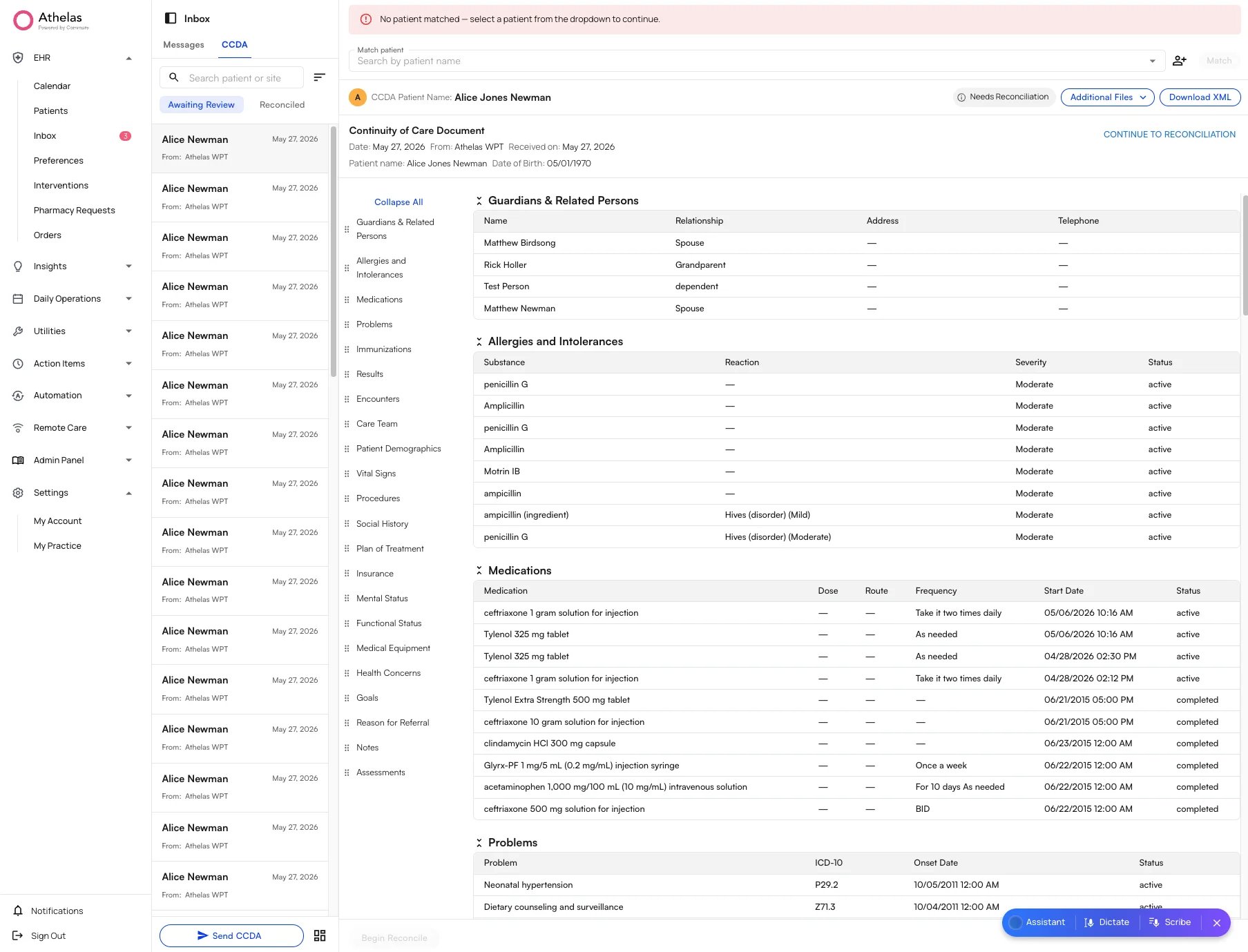 Unlike the Claims page, the CCDA view is **site-wide**—every clinician at your site sees the same list of documents.
## Find and sort C-CDAs
The list of documents appears on the left. Each entry shows the patient, the date, and a **From** field—the clinic or provider name the document was sent from.
* Use the **search** box at the top to find a document by patient or site.
* Use the **sort** button below the search box to change the order. By default, documents are sorted by date sent, so the most recently received document appears at the top.
Unlike the Claims page, the CCDA view is **site-wide**—every clinician at your site sees the same list of documents.
## Find and sort C-CDAs
The list of documents appears on the left. Each entry shows the patient, the date, and a **From** field—the clinic or provider name the document was sent from.
* Use the **search** box at the top to find a document by patient or site.
* Use the **sort** button below the search box to change the order. By default, documents are sorted by date sent, so the most recently received document appears at the top.
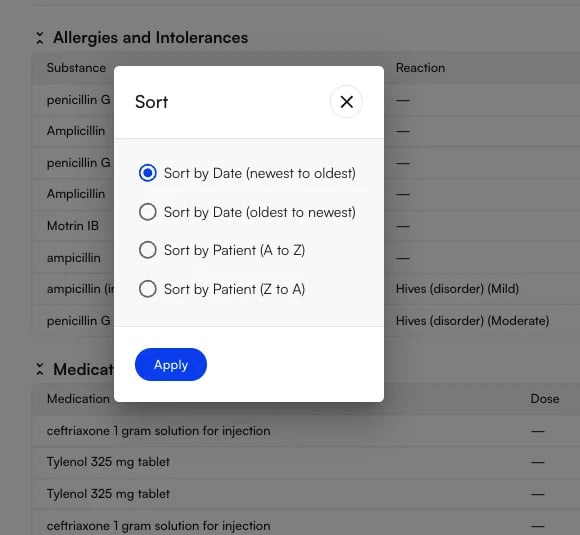 The list is also split into tabs:
| **Tab** | **What it shows** |
| :------------------ | :------------------------------------------------------------------------------------------------------------ |
| **Awaiting Review** | Documents you still need to reconcile. This is where you'll spend most of your time. |
| **Reconciled** | Documents that have already been reconciled, including the name of the clinician who reconciled each one. |
| **Sent** | C-CDAs your site has sent out to other clinics, with the recipient, author, sent time, and last updated time. |
## Reconcile a C-CDA
Reconciliation brings the incoming clinical data into the patient's chart in five steps: match the document to a patient, begin reconciliation, map the incoming problems to ICD-10, reconcile each item, and confirm the merge. Select a document from the **CCDA** inbox to begin.
### 1. Match the document to a patient
A new document opens with a **No patient matched** banner. Use the **Match patient** bar at the top to link the C-CDA to the correct patient in Air. Air automatically searches your database and surfaces the most likely matches first, in this order:
1. Same name **and** same date of birth
2. Same first and last name, different date of birth
3. Same last name, different first name, same date of birth
4. Same first name, different last name, same date of birth
Each suggestion shows the patient's **date of birth** and **MRN** so you can confirm you have the right person. You can also type any name into the bar to search manually. Select the patient, then click **Match**.
The list is also split into tabs:
| **Tab** | **What it shows** |
| :------------------ | :------------------------------------------------------------------------------------------------------------ |
| **Awaiting Review** | Documents you still need to reconcile. This is where you'll spend most of your time. |
| **Reconciled** | Documents that have already been reconciled, including the name of the clinician who reconciled each one. |
| **Sent** | C-CDAs your site has sent out to other clinics, with the recipient, author, sent time, and last updated time. |
## Reconcile a C-CDA
Reconciliation brings the incoming clinical data into the patient's chart in five steps: match the document to a patient, begin reconciliation, map the incoming problems to ICD-10, reconcile each item, and confirm the merge. Select a document from the **CCDA** inbox to begin.
### 1. Match the document to a patient
A new document opens with a **No patient matched** banner. Use the **Match patient** bar at the top to link the C-CDA to the correct patient in Air. Air automatically searches your database and surfaces the most likely matches first, in this order:
1. Same name **and** same date of birth
2. Same first and last name, different date of birth
3. Same last name, different first name, same date of birth
4. Same first name, different last name, same date of birth
Each suggestion shows the patient's **date of birth** and **MRN** so you can confirm you have the right person. You can also type any name into the bar to search manually. Select the patient, then click **Match**.
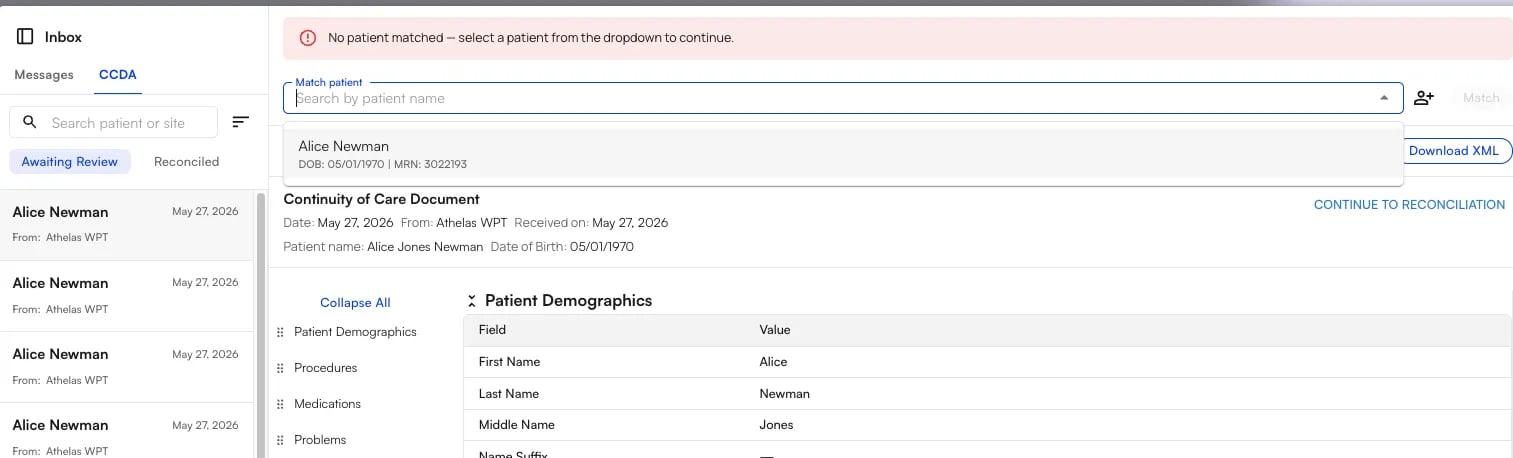 **Note:** If the patient doesn't exist in Air yet, click the **add patient** (**+**) button to the right of the match bar to create them, then match the document to the new record.
### 2. Begin reconciliation
Once a patient is matched, the document shows **Matched Patient** and a **Needs Reconciliation** badge. Before incorporating anything, you can review the document's clinical sections, attachments, and original XML—see [Viewing a C-CDA Document](/air_developer/onc_feature_guides/view_ccda) for the full walkthrough.
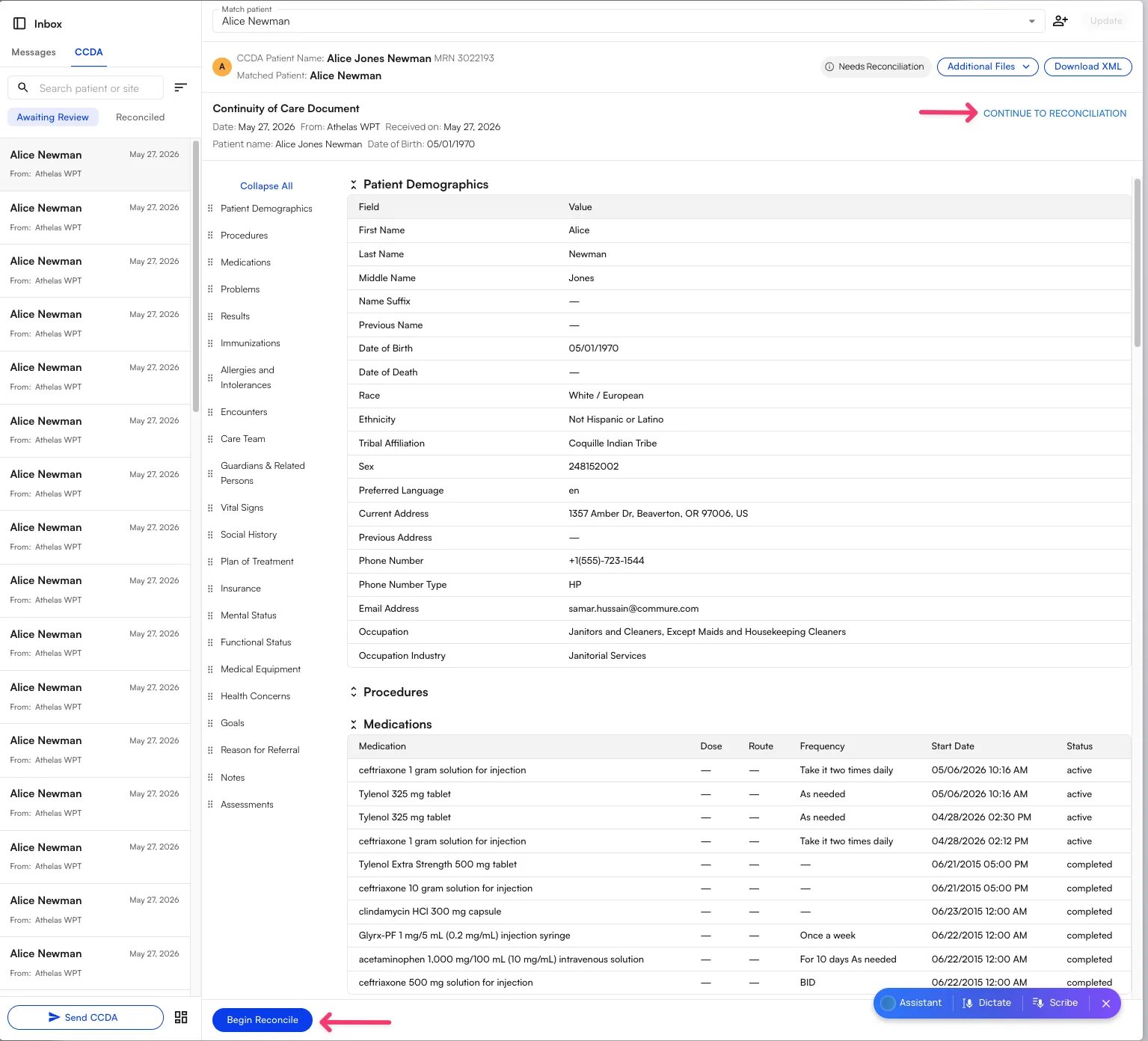
When you're ready, start reconciliation by clicking either **Begin Reconcile** at the bottom-left or **Continue to Reconciliation** at the top-right.
**Note:** If the patient doesn't exist in Air yet, click the **add patient** (**+**) button to the right of the match bar to create them, then match the document to the new record.
### 2. Begin reconciliation
Once a patient is matched, the document shows **Matched Patient** and a **Needs Reconciliation** badge. Before incorporating anything, you can review the document's clinical sections, attachments, and original XML—see [Viewing a C-CDA Document](/air_developer/onc_feature_guides/view_ccda) for the full walkthrough.
When you're ready, start reconciliation by clicking either **Begin Reconcile** at the bottom-left or **Continue to Reconciliation** at the top-right.
 ### 3. Map the incoming problems to ICD-10
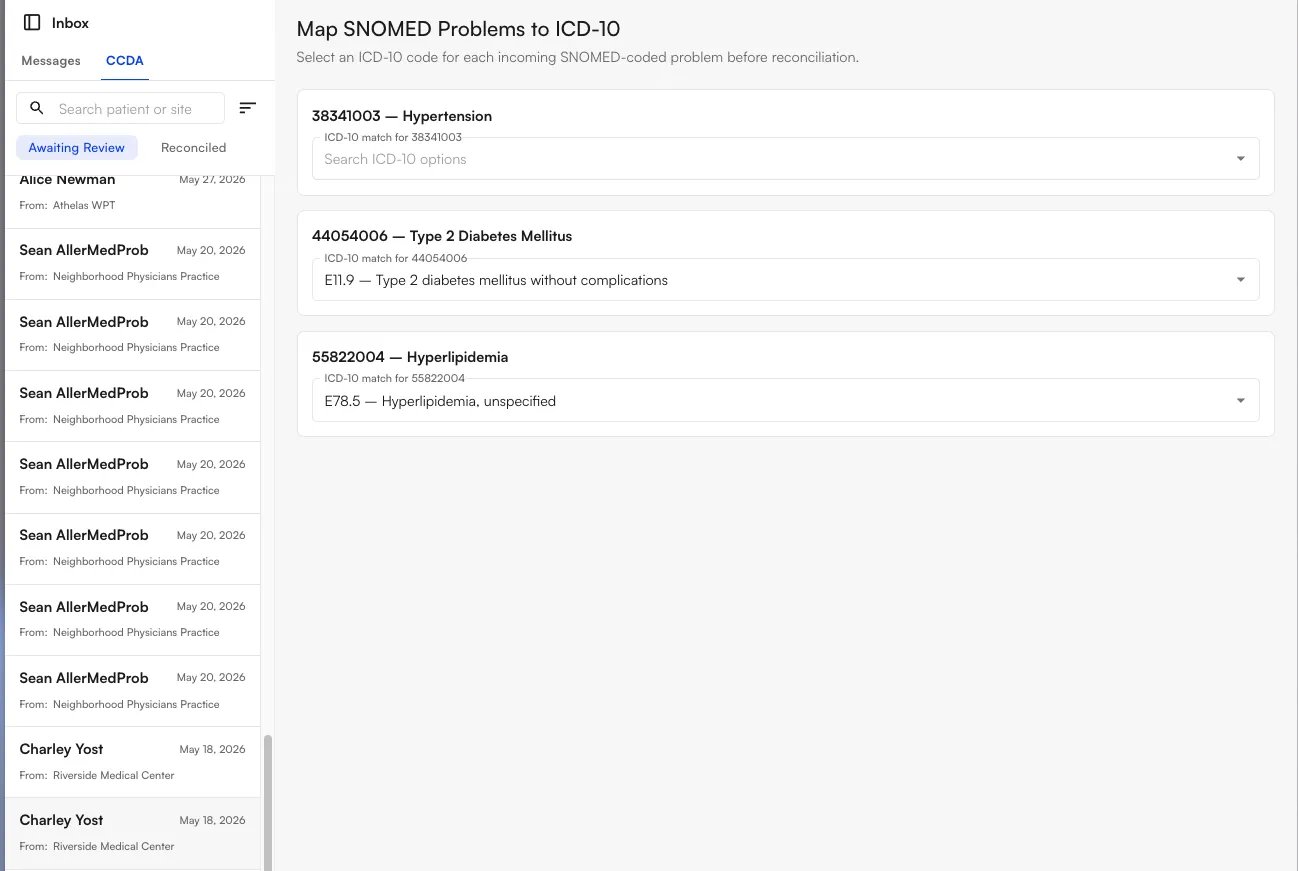
Air codes problems using **ICD-10**, but most incoming C-CDAs code their problems in **SNOMED**. So before you can reconcile, the **Map SNOMED Problems to ICD-10** screen asks you to confirm an ICD-10 code for each incoming problem.
* When there's a single clear match, Air **pre-selects** the ICD-10 code for you.
* When a problem has more than one possible match (or none is pre-filled), the dropdown reads **Search ICD-10 options**—open it and select the correct code yourself.
### 3. Map the incoming problems to ICD-10
Air codes problems using **ICD-10**, but most incoming C-CDAs code their problems in **SNOMED**. So before you can reconcile, the **Map SNOMED Problems to ICD-10** screen asks you to confirm an ICD-10 code for each incoming problem.
* When there's a single clear match, Air **pre-selects** the ICD-10 code for you.
* When a problem has more than one possible match (or none is pre-filled), the dropdown reads **Search ICD-10 options**—open it and select the correct code yourself.
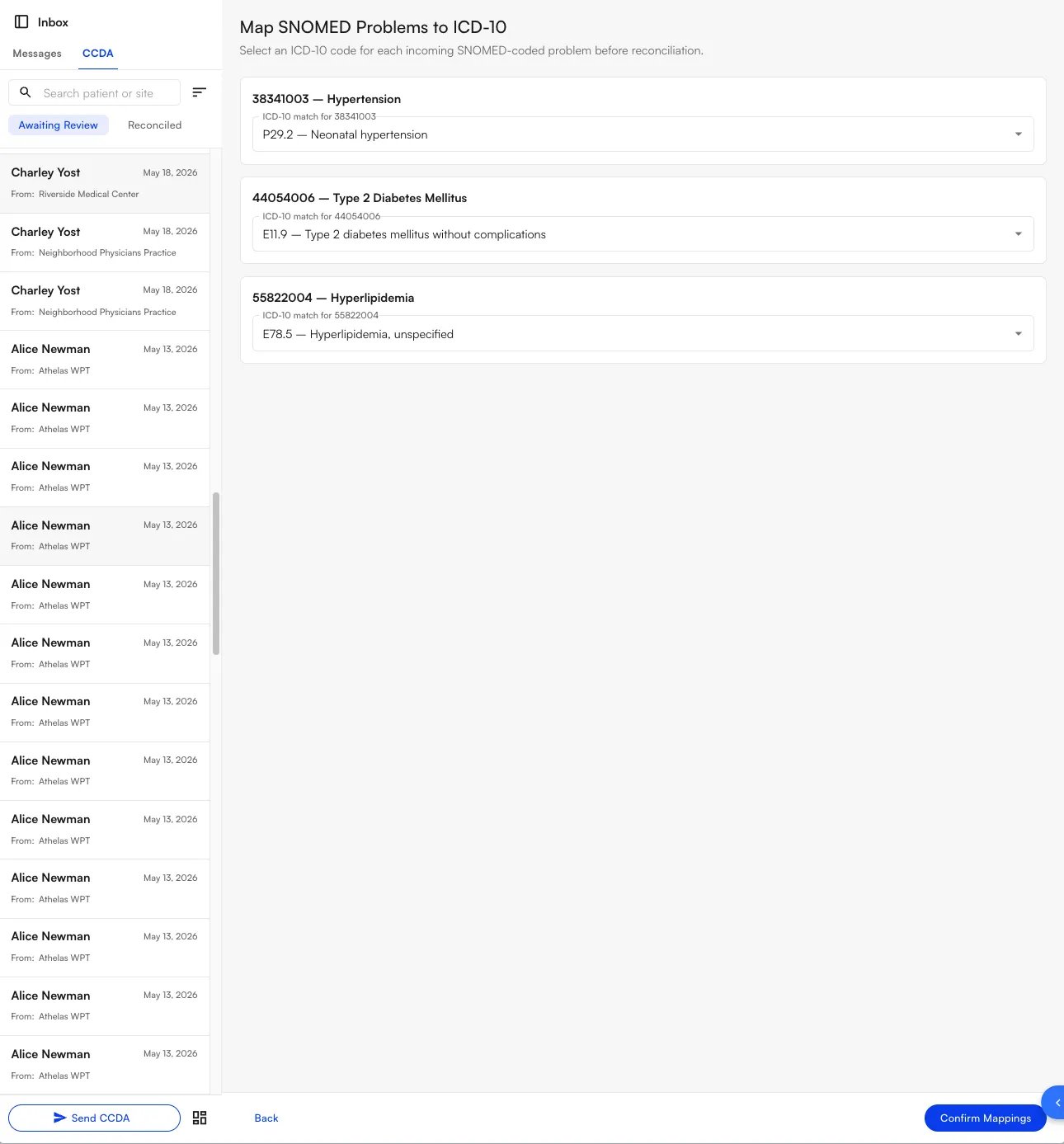
 Once every problem has an ICD-10 code, click **Confirm Mappings** at the bottom-right to continue. (Use **Back** at the bottom-left if you need to return to the document.)
 ### 4. Reconcile problems, medications, and allergies
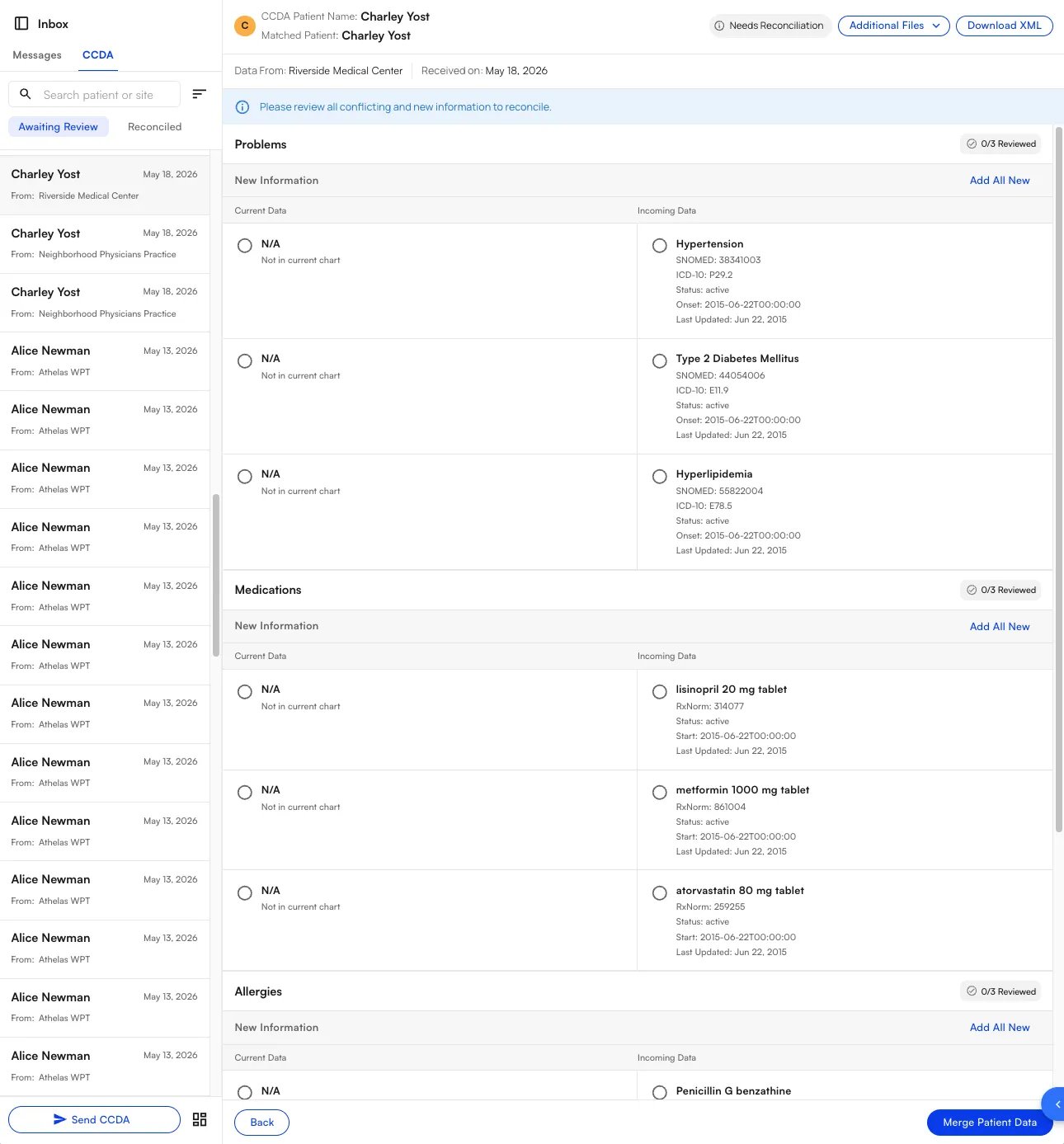
The reconciliation screen places the patient's **current chart data on the left** and the **incoming C-CDA data on the right**, grouped into the three categories required by ONC criterion **§170.315(b)(2)**: **Problems**, **Medications**, and **Allergies**. Each category tracks your progress with a **Reviewed** counter (for example, **0/3 Reviewed**).
For each item:
* **Add new data.** When the current chart shows **N/A — Not in current chart**, select the **Incoming Data** entry to add it. Use **Add All New** to accept every new item in a category at once.
* **Resolve conflicts.** When both sides have a value, choose whether to keep the **current** entry or accept the **incoming** one.
Incoming entries display their source codes—**SNOMED** and mapped **ICD-10** for problems, **RxNorm** for medications—so you can verify exactly what you're incorporating.
### 4. Reconcile problems, medications, and allergies
The reconciliation screen places the patient's **current chart data on the left** and the **incoming C-CDA data on the right**, grouped into the three categories required by ONC criterion **§170.315(b)(2)**: **Problems**, **Medications**, and **Allergies**. Each category tracks your progress with a **Reviewed** counter (for example, **0/3 Reviewed**).
For each item:
* **Add new data.** When the current chart shows **N/A — Not in current chart**, select the **Incoming Data** entry to add it. Use **Add All New** to accept every new item in a category at once.
* **Resolve conflicts.** When both sides have a value, choose whether to keep the **current** entry or accept the **incoming** one.
Incoming entries display their source codes—**SNOMED** and mapped **ICD-10** for problems, **RxNorm** for medications—so you can verify exactly what you're incorporating.
 Allergies are kept **evergreen** for patient safety: you can add new allergies during reconciliation, but Air never lets you remove an existing allergy. This prevents a known allergy from being dropped from the chart by accident.
### 5. Review and confirm the merge
When you've reviewed every item, click **Merge Patient Data** at the bottom-right. The **Reconciliation Review** window opens with a final summary of every problem, medication, and allergy that will be written to the chart—review it carefully, then click **Confirm Merge** to incorporate the data. (Click **Cancel** to go back without merging.)
Allergies are kept **evergreen** for patient safety: you can add new allergies during reconciliation, but Air never lets you remove an existing allergy. This prevents a known allergy from being dropped from the chart by accident.
### 5. Review and confirm the merge
When you've reviewed every item, click **Merge Patient Data** at the bottom-right. The **Reconciliation Review** window opens with a final summary of every problem, medication, and allergy that will be written to the chart—review it carefully, then click **Confirm Merge** to incorporate the data. (Click **Cancel** to go back without merging.)
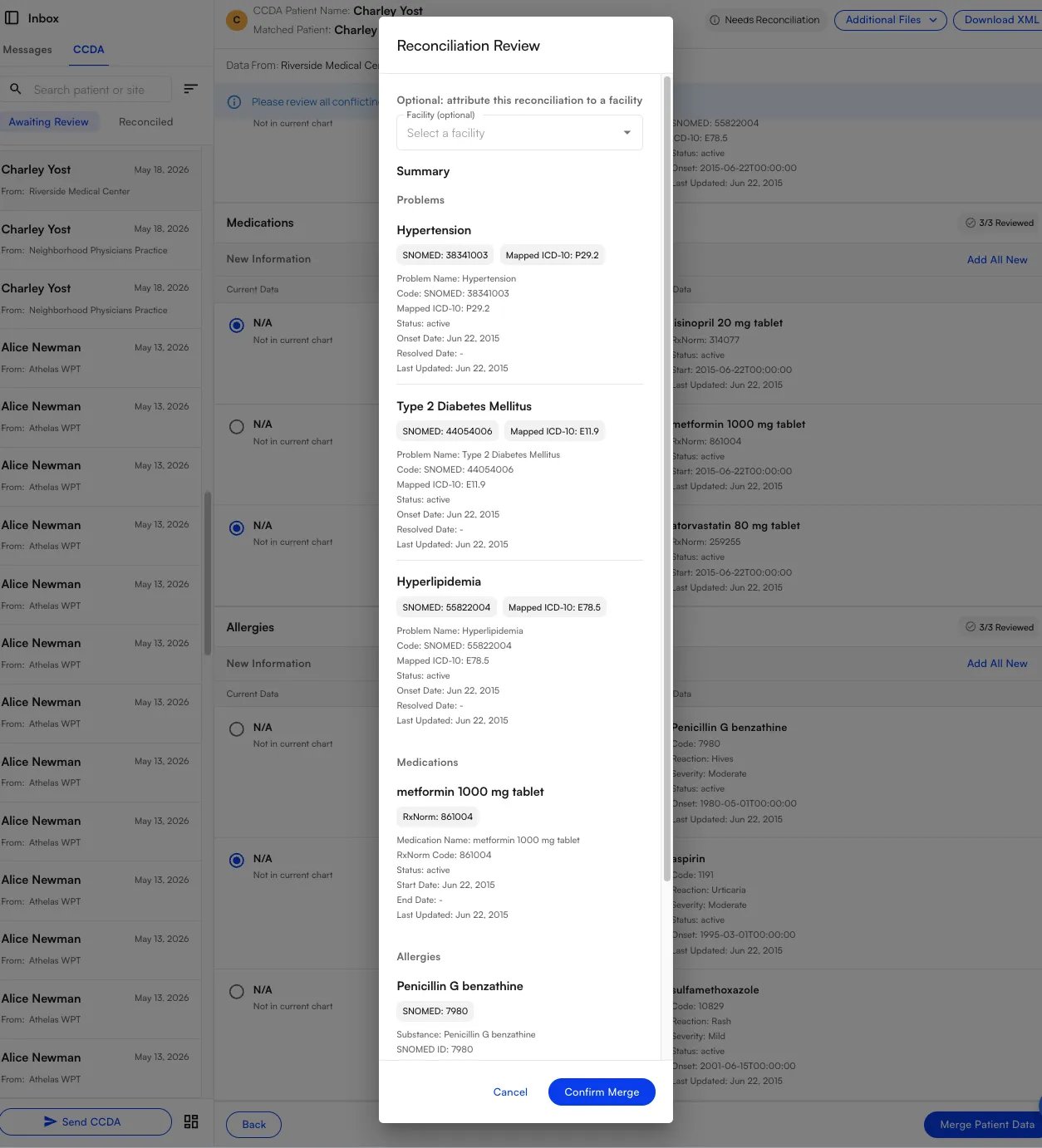 At the top of the review window you can **optionally attribute this reconciliation to a facility** using the **Select a facility** dropdown. This is used for **MIPS** reporting. If you leave it blank, the reconciliation is attributed to the default **TIN** of the parent facility you belong to.
After you confirm, the document moves to the **Reconciled** tab, tagged with your name as the clinician who reconciled it.
### FAQ
The CCDA view is **site-wide**, so all clinicians at your site see the same list of incoming and reconciled documents. This is different from the Claims page, which is more narrowly scoped.
Click the **add patient** (**+**) button to the right of the **Match patient** bar to add the patient, then match the document to the new record.
Air stores problems using **ICD-10** codes, while most incoming C-CDAs code their problems in **SNOMED**. The mapping step translates each incoming SNOMED problem to the right ICD-10 code so it lands correctly in the chart. Air pre-selects the code when there's a single clear match; otherwise you choose it from the **Search ICD-10 options** dropdown.
Per ONC criterion **§170.315(b)(2)**, reconciliation covers three categories: **Problems**, **Medications**, and **Allergies**. The other C-CDA sections are read-only clinical context—see [Viewing a C-CDA Document](/air_developer/onc_feature_guides/view_ccda).
No. Allergies are kept **evergreen** for patient safety—you can add new allergies, but existing ones can't be removed during reconciliation, so a known allergy is never dropped by accident.
Selecting a facility attributes the reconciliation to that location for **MIPS** reporting. It's optional; if you don't choose one, the reconciliation defaults to the parent facility's **TIN**.
At the top of the review window you can **optionally attribute this reconciliation to a facility** using the **Select a facility** dropdown. This is used for **MIPS** reporting. If you leave it blank, the reconciliation is attributed to the default **TIN** of the parent facility you belong to.
After you confirm, the document moves to the **Reconciled** tab, tagged with your name as the clinician who reconciled it.
### FAQ
The CCDA view is **site-wide**, so all clinicians at your site see the same list of incoming and reconciled documents. This is different from the Claims page, which is more narrowly scoped.
Click the **add patient** (**+**) button to the right of the **Match patient** bar to add the patient, then match the document to the new record.
Air stores problems using **ICD-10** codes, while most incoming C-CDAs code their problems in **SNOMED**. The mapping step translates each incoming SNOMED problem to the right ICD-10 code so it lands correctly in the chart. Air pre-selects the code when there's a single clear match; otherwise you choose it from the **Search ICD-10 options** dropdown.
Per ONC criterion **§170.315(b)(2)**, reconciliation covers three categories: **Problems**, **Medications**, and **Allergies**. The other C-CDA sections are read-only clinical context—see [Viewing a C-CDA Document](/air_developer/onc_feature_guides/view_ccda).
No. Allergies are kept **evergreen** for patient safety—you can add new allergies, but existing ones can't be removed during reconciliation, so a known allergy is never dropped by accident.
Selecting a facility attributes the reconciliation to that location for **MIPS** reporting. It's optional; if you don't choose one, the reconciliation defaults to the parent facility's **TIN**.