> ## Documentation Index
> Fetch the complete documentation index at: https://docs.athelas.com/llms.txt
> Use this file to discover all available pages before exploring further.
# Adding a Patient's Family Health History
Air lets you record, change, and access a patient's **family health history** directly on their related-person records. This supports ONC Health IT certification criterion **§170.315(a)(12) Family Health History**, which requires that a user be able to capture a patient's family health history as coded data.
In Air, family health history is stored on a patient's **Related Persons** (for example, a parent, sibling, or grandparent). For each related person you can record one or more conditions, each tagged with an **ICD-10** code and a **clinical status**.
## Navigate to Family Health History
### Open the patient's demographics
1. From the left navigation, open the **Patients** tab and search for the patient by name or MRN.
2. On the patient's profile, open the **Demographics** tab.
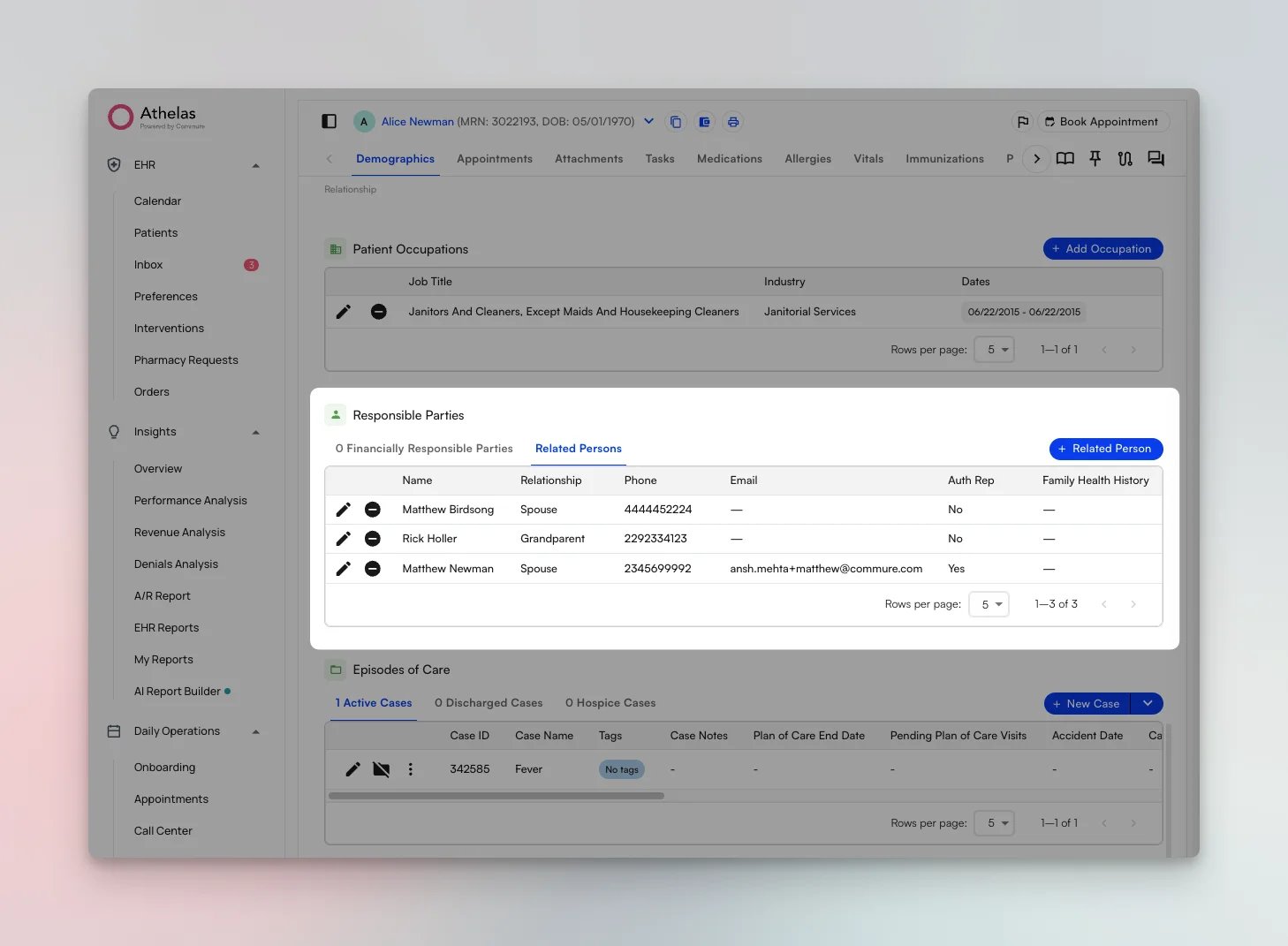
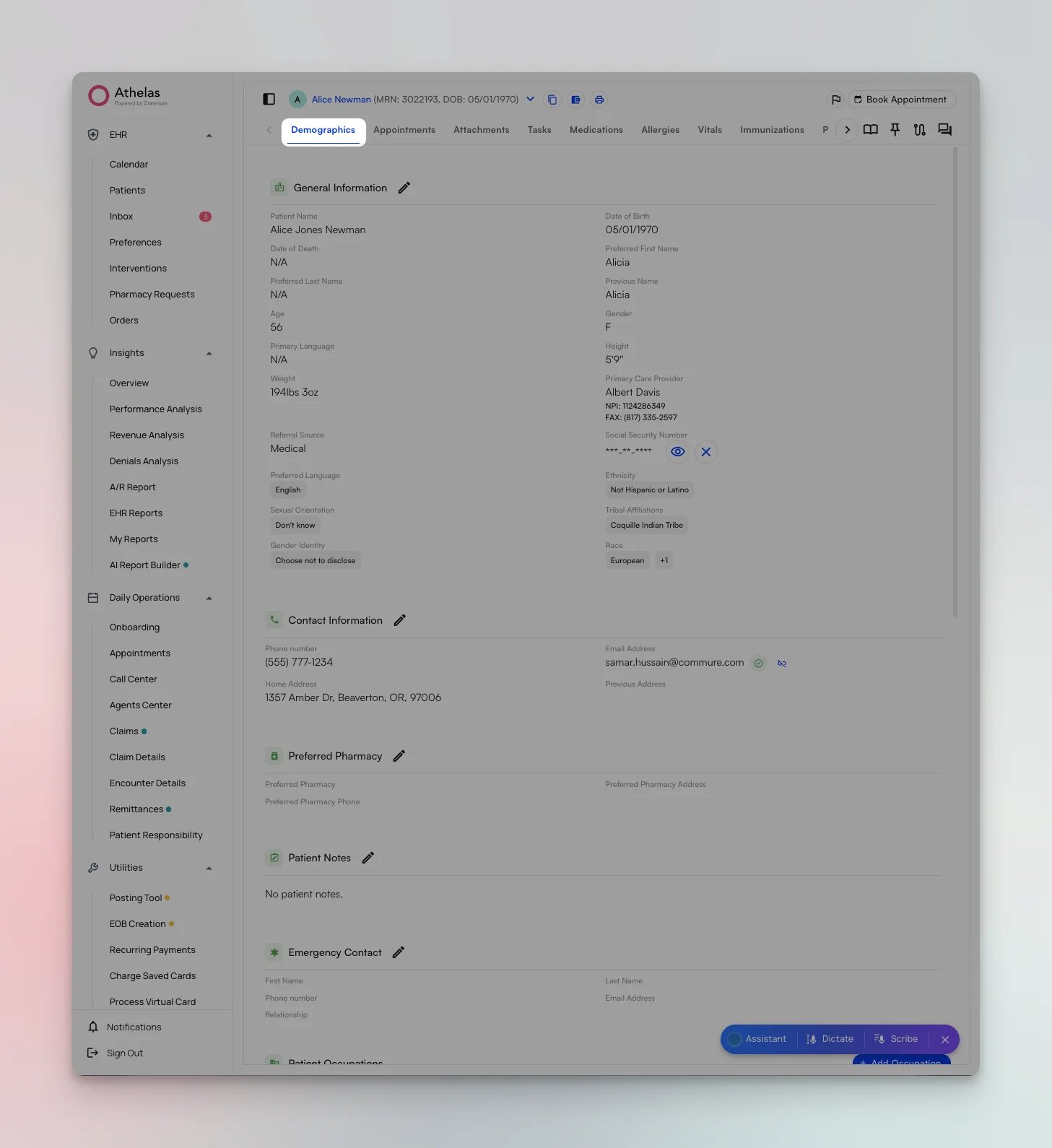 3. Scroll down to the **Responsible Parties** section. This section has two tabs: **Financially Responsible Parties** and **Related Persons**.
4. Select the **Related Persons** tab. Family health history is recorded against related persons, and the table includes a dedicated **Family Health History** column.
3. Scroll down to the **Responsible Parties** section. This section has two tabs: **Financially Responsible Parties** and **Related Persons**.
4. Select the **Related Persons** tab. Family health history is recorded against related persons, and the table includes a dedicated **Family Health History** column.
 ## Create a Family Health History
### Add a related person with health history
To record family health history, you first add the family member as a related person.
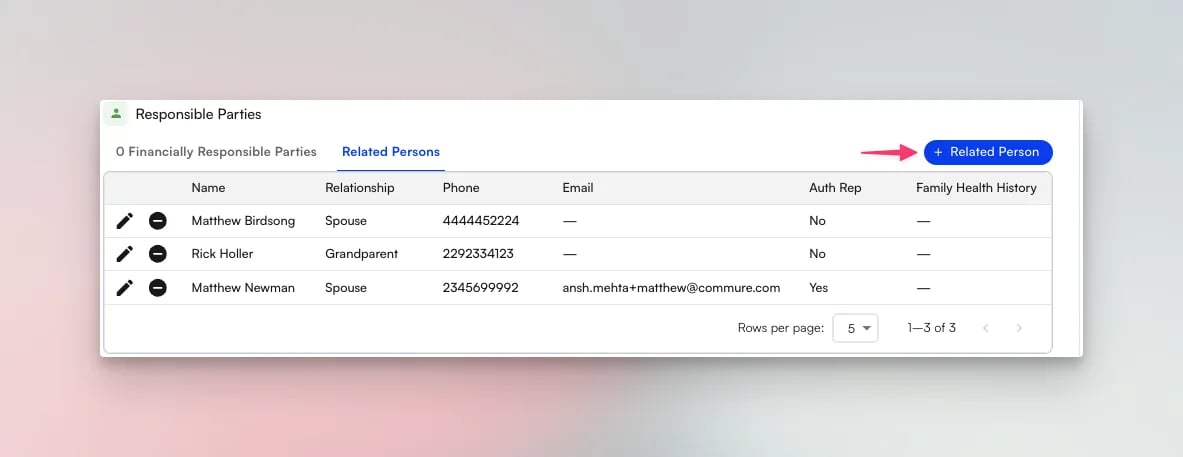
1. On the **Related Persons** tab, click the **+ Related Person** button.
## Create a Family Health History
### Add a related person with health history
To record family health history, you first add the family member as a related person.
1. On the **Related Persons** tab, click the **+ Related Person** button.
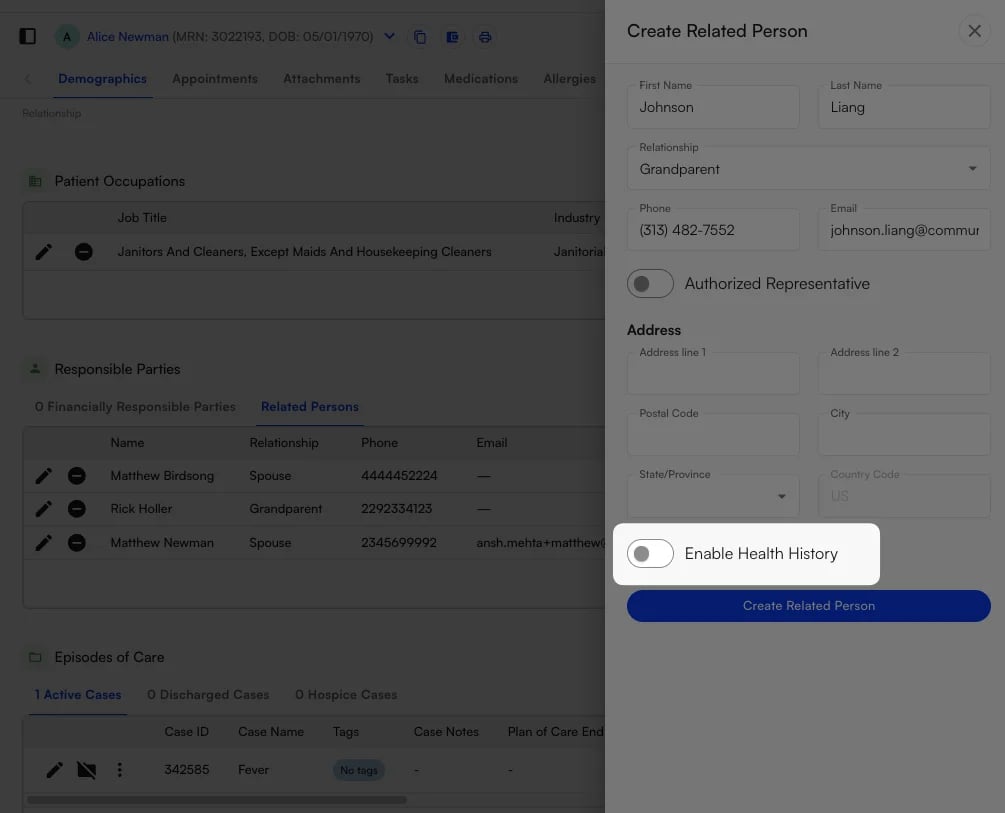
 2. In the **Create Related Person** panel, enter the person's **First Name** and **Last Name**, choose their **Relationship** to the patient, and add their **Phone**, **Email**, and **Address** as needed.
3. Toggle on **Enable Health History**. This opens the **Family History Conditions** widget, where you record the related person's conditions.
2. In the **Create Related Person** panel, enter the person's **First Name** and **Last Name**, choose their **Relationship** to the patient, and add their **Phone**, **Email**, and **Address** as needed.
3. Toggle on **Enable Health History**. This opens the **Family History Conditions** widget, where you record the related person's conditions.
 4. In the **Family History Conditions** widget, select the condition in the **Family Health History (ICD-10)** field, then choose a **Clinical Status** for that condition. Click the **+** icon to add additional conditions for the same person.
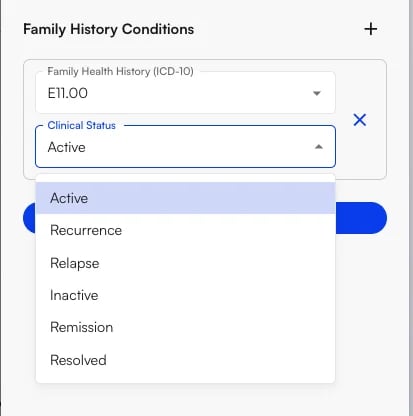 Each condition is assigned one of **6 clinical statuses**. Use the status that best describes the family member's current state for that condition:
| **Clinical Status** | **What it means** |
| :------------------ | :-------------------------------------------------------------------------------------------------------- |
| **Active** | The condition is currently present and active for the family member. |
| **Recurrence** | The condition has returned after a prior period of remission or resolution. |
| **Relapse** | The condition has returned after a period during which it was inactive. |
| **Inactive** | The condition is not currently active, but is being recorded as part of the history. |
| **Remission** | The signs and symptoms are largely or fully absent, though the underlying condition may still be present. |
| **Resolved** | The condition has fully resolved and is no longer present. |
5. Click **Create Related Person** to save. The family health history is stored on the related person under **Responsible Parties**.
✨**Smart Tip:** Record each diagnosis as its own condition row so every entry carries its own ICD-10 code and clinical status. This keeps the patient's family history accurate and exportable as coded data.
## Edit a Family Health History
### Update an existing related person
To add or modify conditions for a family member you have already created:
1. On the **Related Persons** tab, click the **pencil** (edit) icon next to the person.
Each condition is assigned one of **6 clinical statuses**. Use the status that best describes the family member's current state for that condition:
| **Clinical Status** | **What it means** |
| :------------------ | :-------------------------------------------------------------------------------------------------------- |
| **Active** | The condition is currently present and active for the family member. |
| **Recurrence** | The condition has returned after a prior period of remission or resolution. |
| **Relapse** | The condition has returned after a period during which it was inactive. |
| **Inactive** | The condition is not currently active, but is being recorded as part of the history. |
| **Remission** | The signs and symptoms are largely or fully absent, though the underlying condition may still be present. |
| **Resolved** | The condition has fully resolved and is no longer present. |
5. Click **Create Related Person** to save. The family health history is stored on the related person under **Responsible Parties**.
✨**Smart Tip:** Record each diagnosis as its own condition row so every entry carries its own ICD-10 code and clinical status. This keeps the patient's family history accurate and exportable as coded data.
## Edit a Family Health History
### Update an existing related person
To add or modify conditions for a family member you have already created:
1. On the **Related Persons** tab, click the **pencil** (edit) icon next to the person.
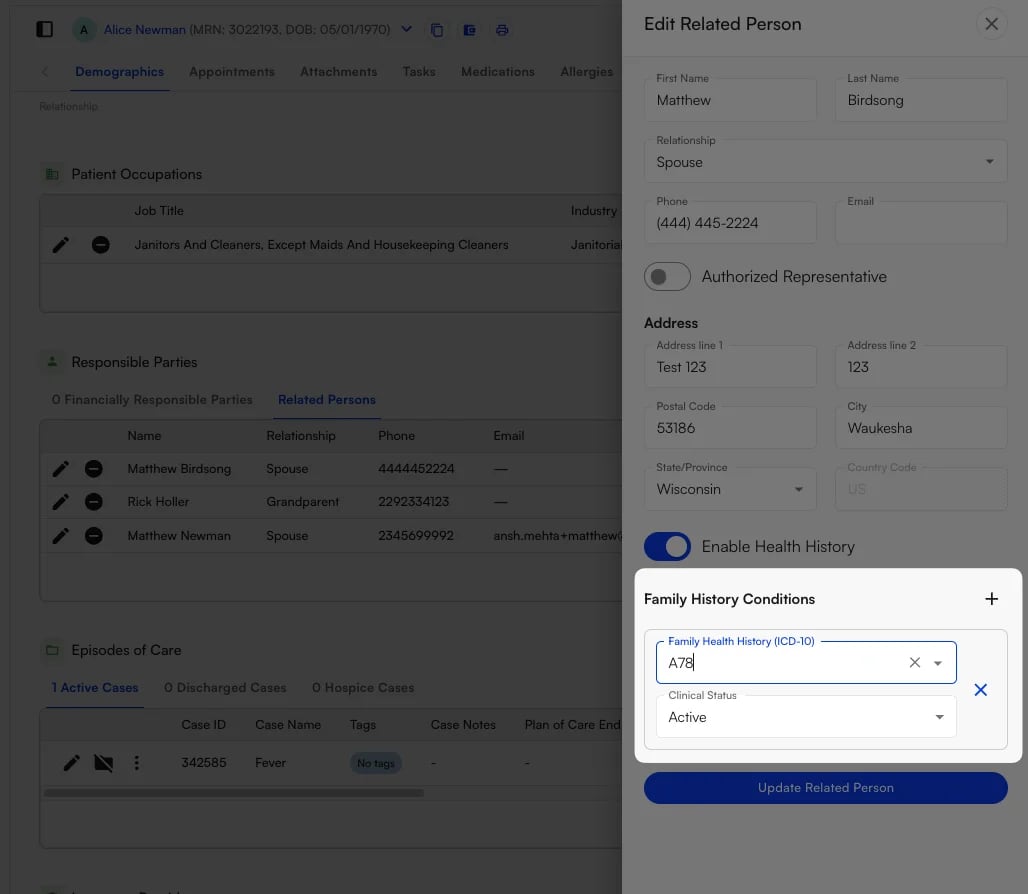
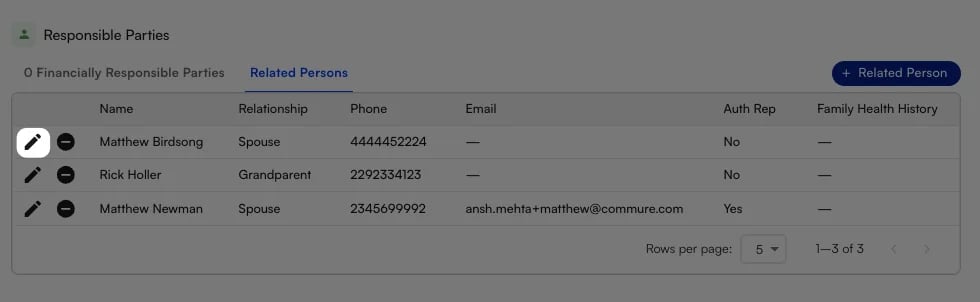 2. In the **Edit Related Person** panel, make sure **Enable Health History** is toggled on, then use the **Family History Conditions** widget to add, change, or remove conditions—just as you did when creating the person.
3. To delete a condition, click the **X** to the right of that condition row.
4. Click **Update Related Person** to save your changes.
2. In the **Edit Related Person** panel, make sure **Enable Health History** is toggled on, then use the **Family History Conditions** widget to add, change, or remove conditions—just as you did when creating the person.
3. To delete a condition, click the **X** to the right of that condition row.
4. Click **Update Related Person** to save your changes.
 ### FAQ
Family health history lives on the patient's **Related Persons**, found under **Demographics → Responsible Parties → Related Persons**. The table includes a **Family Health History** column so you can see at a glance which related persons have conditions recorded.
Yes. In the **Family History Conditions** widget, click the **+** icon to add another condition row. Each row has its own **Family Health History (ICD-10)** code and **Clinical Status**, so you can record as many conditions as needed for one person.
Click the **pencil** icon next to the related person to open the **Edit Related Person** panel, then click the **X** to the right of the condition you want to remove. Click **Update Related Person** to save.
**Note:** Deleting a condition removes it from that related person's family history.
### FAQ
Family health history lives on the patient's **Related Persons**, found under **Demographics → Responsible Parties → Related Persons**. The table includes a **Family Health History** column so you can see at a glance which related persons have conditions recorded.
Yes. In the **Family History Conditions** widget, click the **+** icon to add another condition row. Each row has its own **Family Health History (ICD-10)** code and **Clinical Status**, so you can record as many conditions as needed for one person.
Click the **pencil** icon next to the related person to open the **Edit Related Person** panel, then click the **X** to the right of the condition you want to remove. Click **Update Related Person** to save.
**Note:** Deleting a condition removes it from that related person's family history.