> ## Documentation Index
> Fetch the complete documentation index at: https://docs.athelas.com/llms.txt
> Use this file to discover all available pages before exploring further.

# Provider Credentials

## Overview

The Self-Serve Credentialing Matrix is a centralized tool designed to simplify and standardize how providers and insurance companies manage credentialing requirements. It provides an at-a-glance reference for the credentialing status of each provider–payer relationship, ensuring clarity, compliance, and faster decision-making.

Credentialing is a critical process that validates whether providers meet the requirements of insurance companies to deliver care under their plans. Traditionally, this information is fragmented, requiring manual lookups and repeated back-and-forth. The self-serve credentialing matrix eliminates that friction by giving all stakeholders immediate visibility into credentialing statuses.

<iframe src="https://www.loom.com/embed/27027090dbf44e4d9028222de4f833c2" title="Loom video player" frameborder="0" className="w-full aspect-video rounded-xl" allow="accelerometer; autoplay; clipboard-write; encrypted-media; gyroscope; picture-in-picture; web-share" allowfullscreen />

## How would it help?

* **Efficiency** – Cuts down on time spent searching for or verifying credentialing requirements.
* **Transparency** – Provides providers and payers with a shared source of truth.
* **Scalability** – Supports onboarding, cross-coverage, and expanding provider networks with minimal administrative overhead.

## Key concepts

| **Term**             | **Meaning**                                                                                                                                                             |
| -------------------- | ----------------------------------------------------------------------------------------------------------------------------------------------------------------------- |
| Provider             | A healthcare professional or organization (e.g., physician, nurse practitioner, clinic) delivering care to patients.                                                    |
| Insurance company    | A payer organization that contracts with providers to cover healthcare services for its members.                                                                        |
| Provider credentials | The qualifications, licenses, certifications, and verifications required for a provider to be approved by an insurance company.                                         |
| Credentialing group  | A set of providers managed together for credentialing purposes, often by specialty, practice, or organizational affiliation.                                            |
| Credentialed         | Indicates whether a provider is fully approved and recognized by the insurance company to deliver covered services.                                                     |
| Cosigner required    | Shows whether the provider can deliver services only under supervision, requiring a credentialed provider's cosignature (e.g., trainees, newly licensed practitioners). |
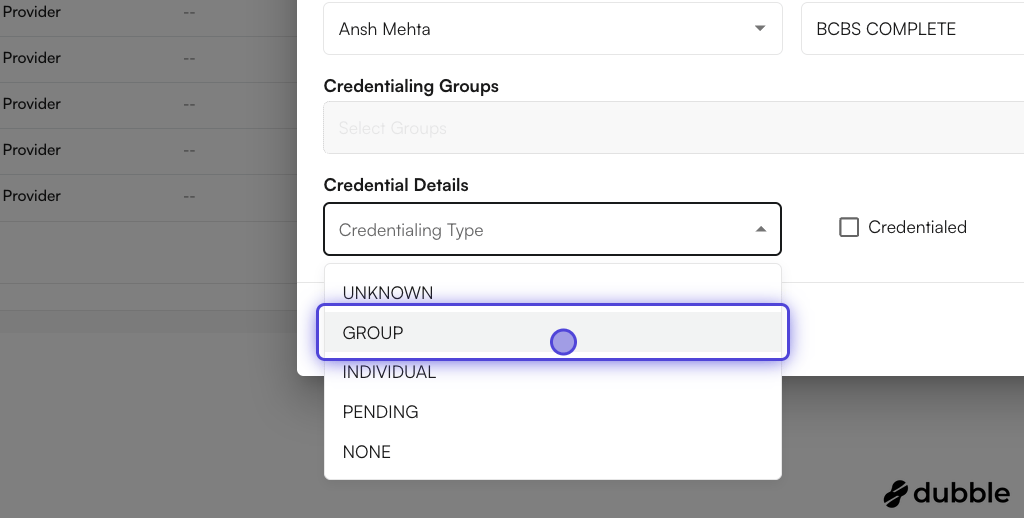
| Credentialing type   | Type of credentialing. Includes `GROUP`, `INDIVIDUAL`, `UNKNOWN`, `PENDING`, `NONE`.                                                                                    |

## Selecting credentialing type values

You can select any of the 3 allowed combinations (the 4th, shown below, is not allowed):

| **Is credentialed?** | **Cosigner required?** | **Allowed?** |
| -------------------- | ---------------------- | ------------ |
| ✅                    | ❌                      | ✅            |
| ❌                    | ✅                      | ✅            |
| ❌                    | ❌                      | ✅            |
| ✅                    | ✅                      | ❌            |

The credentialing type determines which values you can set:

| Credentialing type | Can select `Is Credentialed?` | Can select `Cosigner required` |
| ------------------ | ----------------------------- | ------------------------------ |
| Group              | ✅                             | ❌                              |
| Individual         | ✅                             | ❌                              |
| Unknown            | ✅                             | ✅                              |
| Pending            | ✅                             | ✅                              |
| None               | ✅                             | ✅                              |

## Facility Specificity

If facilities are not specified for the Insurance Company or Credentialing Group, then the credentials will be applied site-wide. You are allowed to have different types of credential for different facilities, and it will impact the overall outcomes for Appointment Scheduling and Chart Note Signing.

<AccordionGroup>
  <Accordion title="Choosing Facilities">
    For Insurance `Mercy Care`, we set `MAIN OFFICE` to a `Pending` state, and for the rest of the facilities this insurance was credentialed.

    *📹 Video demonstration — a screen recording for this scenario is available in the source guide and needs to be uploaded (Loom/YouTube) and embedded here.*
  </Accordion>

  <Accordion title="Creating Appointments for different facilities (with blocks)">
    You can still bypass a block and create the appointment by checking `Override Credentialing Matrix`.

    *📹 Video demonstration — a screen recording for this scenario is available in the source guide and needs to be uploaded (Loom/YouTube) and embedded here.*
  </Accordion>

  <Accordion title="Example: a provider with entries across facilities">
    If an appointment is being set up for provider `Abhi Provider` and the patient insurance is `Mercy Care`:

    <img src="https://mintcdn.com/air_athelas/qzFK1LD2DMYR7wIh/images/air_admin/manage_your_practice/provider_credentials/facility_example.png?fit=max&auto=format&n=qzFK1LD2DMYR7wIh&q=85&s=a3b8ce67445c9653fa56856dcdd1b0c6" alt="Credentialing matrix entries for a provider across multiple facilities" width="1700" height="332" data-path="images/air_admin/manage_your_practice/provider_credentials/facility_example.png" />

    1. If the appointment is being scheduled at `Main Office`, the facility-level credentialing entry would cause the appointment to be blocked on creation.
    2. If the appointment is being scheduled at a facility not named `Main Office` or `Gary J Smith`, then the appointment would be created since the provider is credentialed under the group.
  </Accordion>
</AccordionGroup>

## Provider Licensing

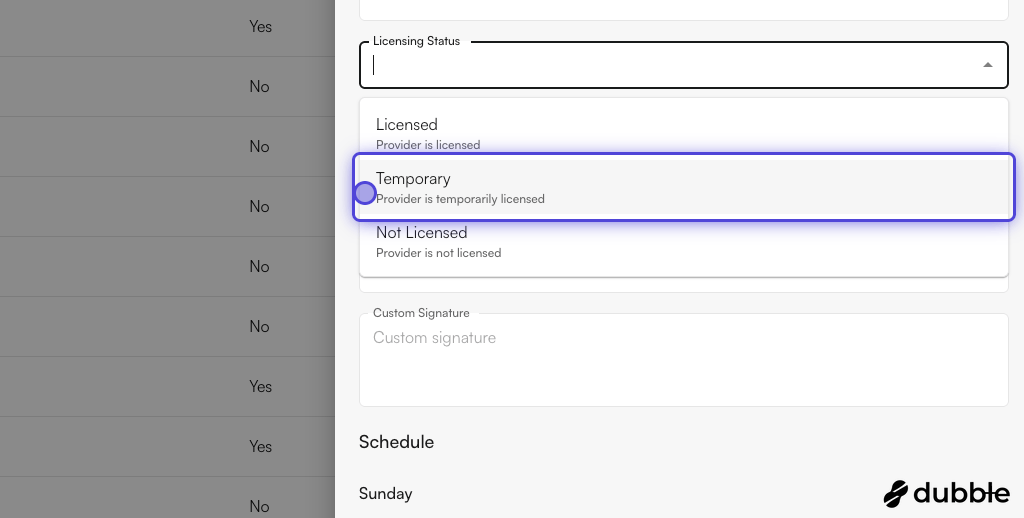
Provider Licensing holds the licensing status of a provider. The three different types of provider licensing are:

| **Licensing type** | **Details**                                                                                                                                               |
| ------------------ | --------------------------------------------------------------------------------------------------------------------------------------------------------- |
| Licensed           | Holds a valid NPI.                                                                                                                                        |
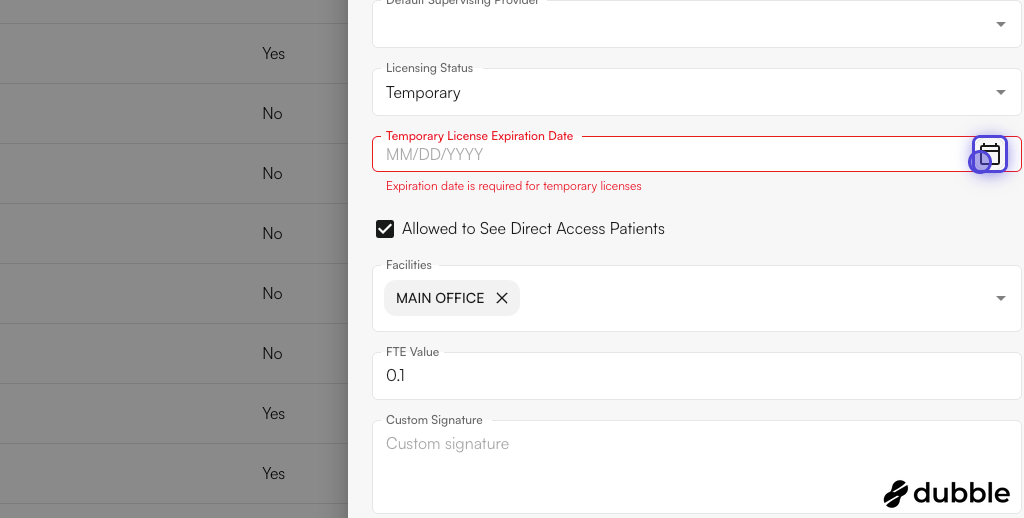
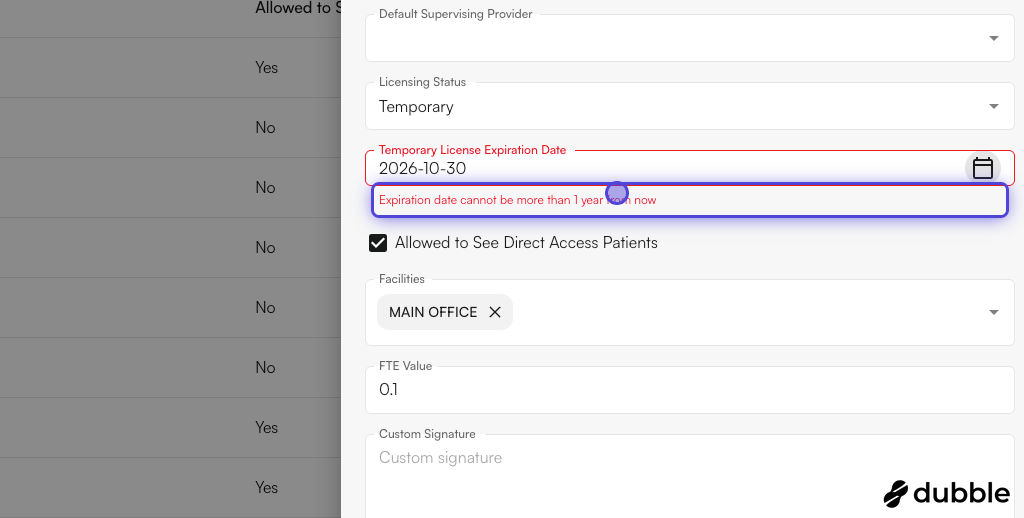
| Temporary          | Typically meant for students who would not have an NPI number. For a temporary number, you would need to enter an expiration date (not more than 1 year). |
| Not Licensed       | Does not have a temporary or a permanent number. Cannot schedule appointments at all.                                                                     |

<Accordion title="Licensing setup">
  <Steps>
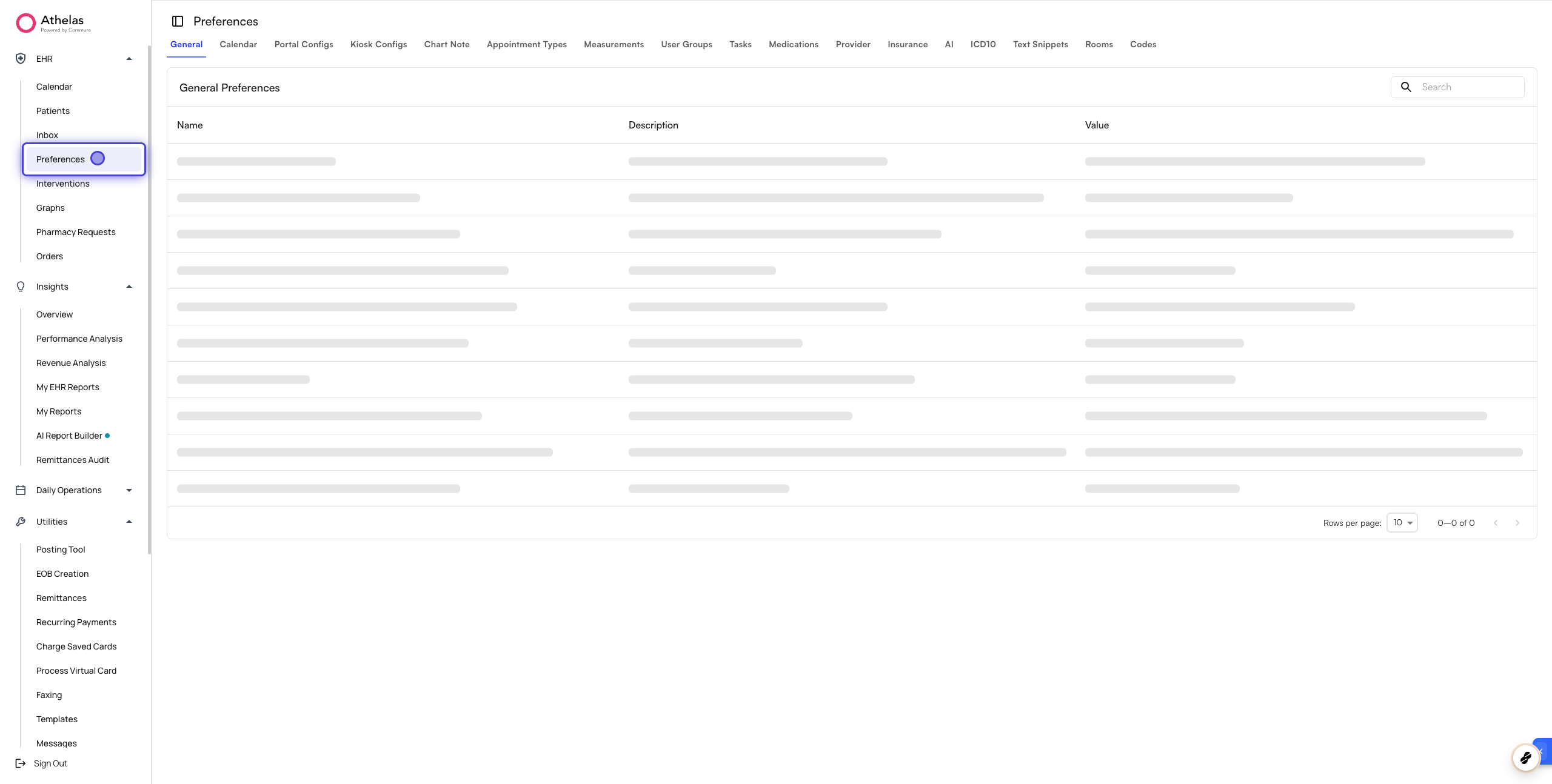
    <Step title="Go to EHR > Preferences">
      <img src="https://mintcdn.com/air_athelas/qzFK1LD2DMYR7wIh/images/air_admin/manage_your_practice/provider_credentials/licensing_1.png?fit=max&auto=format&n=qzFK1LD2DMYR7wIh&q=85&s=c7e32dab0660528dcc2f60a1948a1371" alt="EHR Preferences" width="2560" height="1294" data-path="images/air_admin/manage_your_practice/provider_credentials/licensing_1.png" />
    </Step>

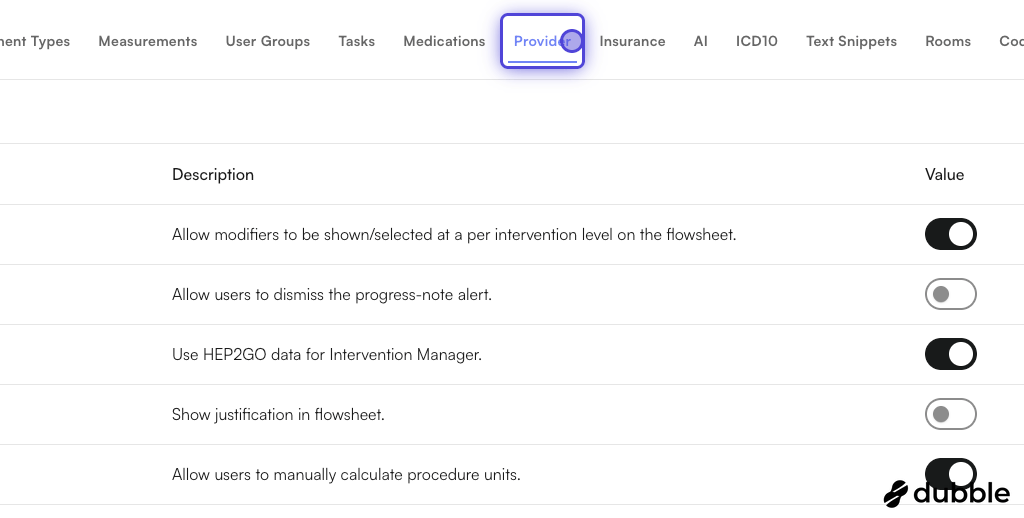
    <Step title="Click on the Provider tab">
      <img src="https://mintcdn.com/air_athelas/qzFK1LD2DMYR7wIh/images/air_admin/manage_your_practice/provider_credentials/licensing_2.png?fit=max&auto=format&n=qzFK1LD2DMYR7wIh&q=85&s=d6d5e54c75b2f07391cdb8c593fd8fe5" alt="Provider tab in Preferences" width="1024" height="518" data-path="images/air_admin/manage_your_practice/provider_credentials/licensing_2.png" />
    </Step>

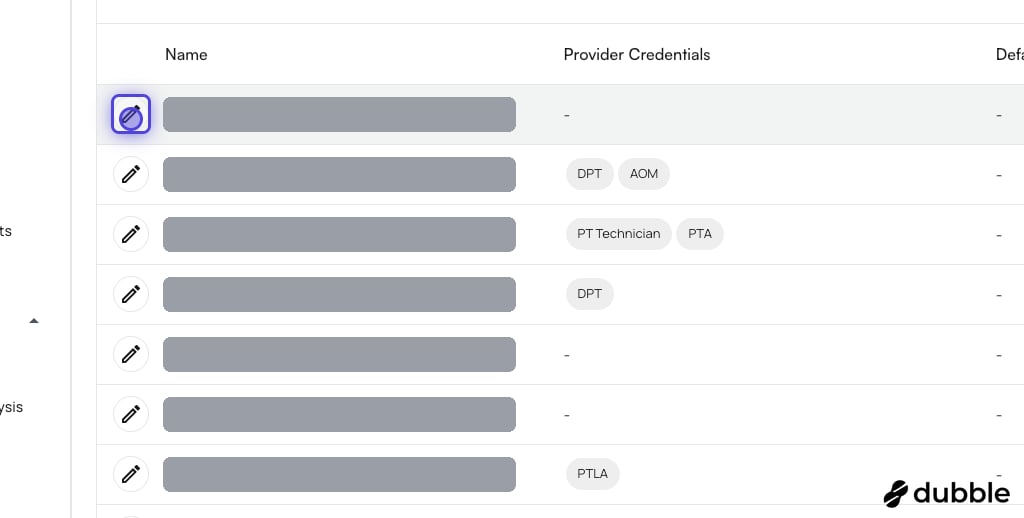
    <Step title="Click on the pencil icon to edit a provider's information">
      <img src="https://mintcdn.com/air_athelas/qzFK1LD2DMYR7wIh/images/air_admin/manage_your_practice/provider_credentials/licensing_3.png?fit=max&auto=format&n=qzFK1LD2DMYR7wIh&q=85&s=086fccc61648f45828ce664dbfcf6263" alt="Edit a provider from the provider list" width="1024" height="518" data-path="images/air_admin/manage_your_practice/provider_credentials/licensing_3.png" />
    </Step>

    <Step title="Expand the licensing status option">
      You will have 3 options: **Licensed**, **Temporary**, and **Not licensed**. In this example, we click on **Temporary**.

      <img src="https://mintcdn.com/air_athelas/qzFK1LD2DMYR7wIh/images/air_admin/manage_your_practice/provider_credentials/licensing_4.png?fit=max&auto=format&n=qzFK1LD2DMYR7wIh&q=85&s=e3a7fe00f09f4eb310351265ce6e5fdf" alt="Licensing status options" width="1024" height="518" data-path="images/air_admin/manage_your_practice/provider_credentials/licensing_4.png" />
    </Step>

    <Step title="Fill the temporary license expiration date">
      If the licensing status is temporary, you must add an expiration date.

      <img src="https://mintcdn.com/air_athelas/qzFK1LD2DMYR7wIh/images/air_admin/manage_your_practice/provider_credentials/licensing_5.png?fit=max&auto=format&n=qzFK1LD2DMYR7wIh&q=85&s=ce7f96a0ce38a3bbde64cacca1b06155" alt="Temporary license expiration date field" width="1024" height="518" data-path="images/air_admin/manage_your_practice/provider_credentials/licensing_5.png" />
    </Step>

    <Step title="Expiration date cannot be more than 1 year from now">
      <img src="https://mintcdn.com/air_athelas/qzFK1LD2DMYR7wIh/images/air_admin/manage_your_practice/provider_credentials/licensing_6.png?fit=max&auto=format&n=qzFK1LD2DMYR7wIh&q=85&s=474a36d8af5fda7e25db7bcfd8c4771e" alt="Expiration date validation" width="1024" height="518" data-path="images/air_admin/manage_your_practice/provider_credentials/licensing_6.png" />
    </Step>

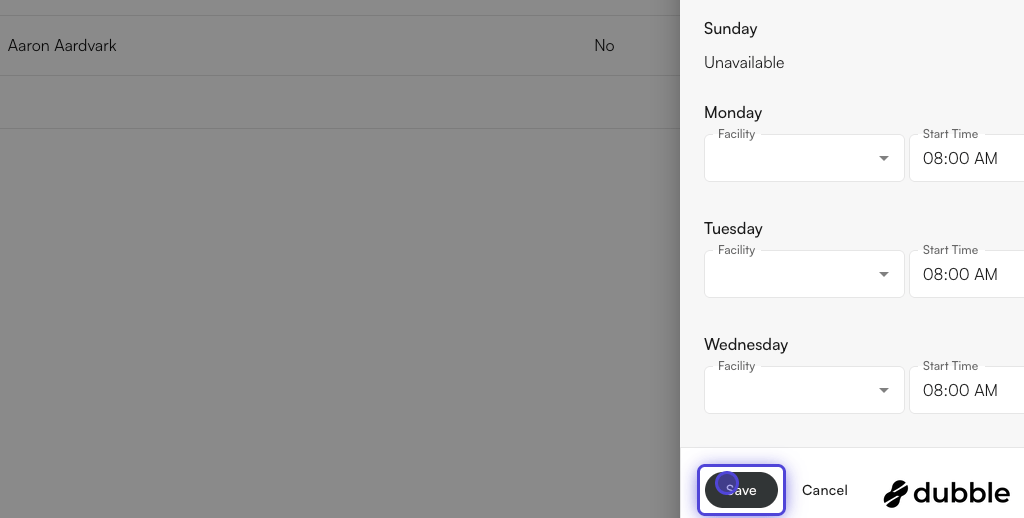
    <Step title="Click on Save to reflect these changes">
      <img src="https://mintcdn.com/air_athelas/qzFK1LD2DMYR7wIh/images/air_admin/manage_your_practice/provider_credentials/licensing_7.png?fit=max&auto=format&n=qzFK1LD2DMYR7wIh&q=85&s=3d50fce9f6608d12c4098efbc57882b5" alt="Save the provider's licensing changes" width="1024" height="518" data-path="images/air_admin/manage_your_practice/provider_credentials/licensing_7.png" />
    </Step>
  </Steps>
</Accordion>

## Provider credentials

<AccordionGroup>
  <Accordion title="Adding a provider credential">
    <Steps>
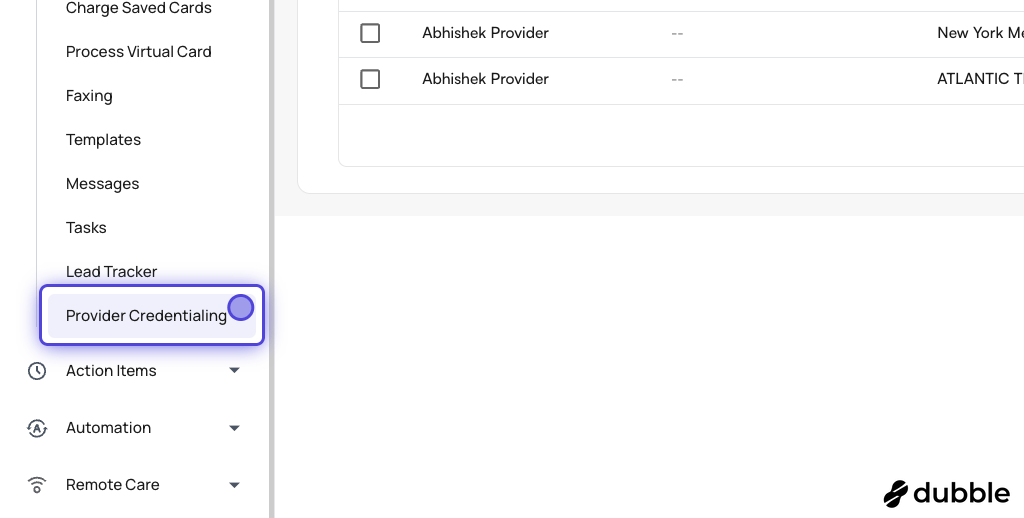
      <Step title="Navigate to Provider Credentialing">
        This would be under the Utilities section.

        <img src="https://mintcdn.com/air_athelas/I03DU4h9oMMfY6uW/images/air_admin/manage_your_practice/provider_credentials/adding_1.png?fit=max&auto=format&n=I03DU4h9oMMfY6uW&q=85&s=b25ab078eff47894117a5ea7f6967164" alt="Provider Credentialing in the Utilities section" width="1024" height="518" data-path="images/air_admin/manage_your_practice/provider_credentials/adding_1.png" />
      </Step>

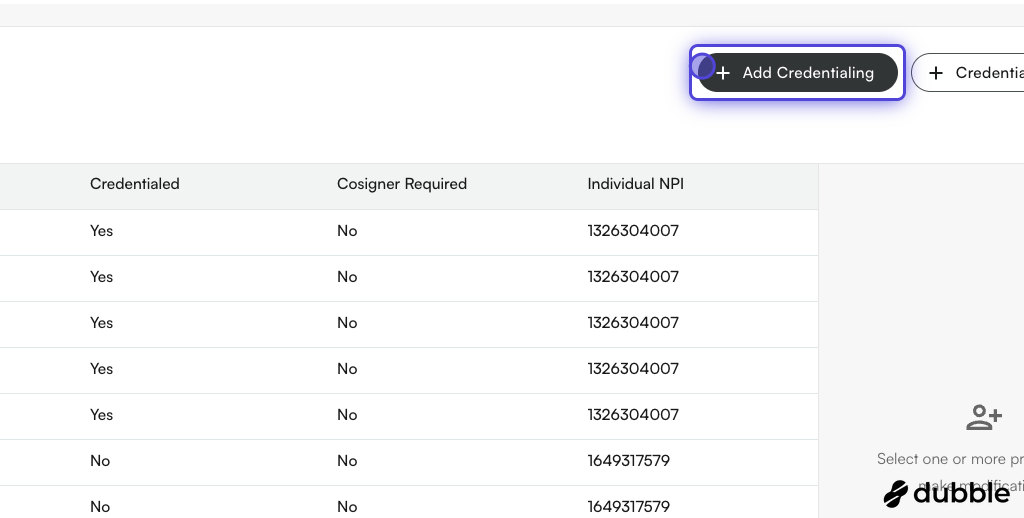
      <Step title="Click on Add Credentialing">
        <img src="https://mintcdn.com/air_athelas/I03DU4h9oMMfY6uW/images/air_admin/manage_your_practice/provider_credentials/adding_2.png?fit=max&auto=format&n=I03DU4h9oMMfY6uW&q=85&s=fb585ecfe8332ec84636607f0f57534c" alt="Add Credentialing button" width="1024" height="518" data-path="images/air_admin/manage_your_practice/provider_credentials/adding_2.png" />
      </Step>

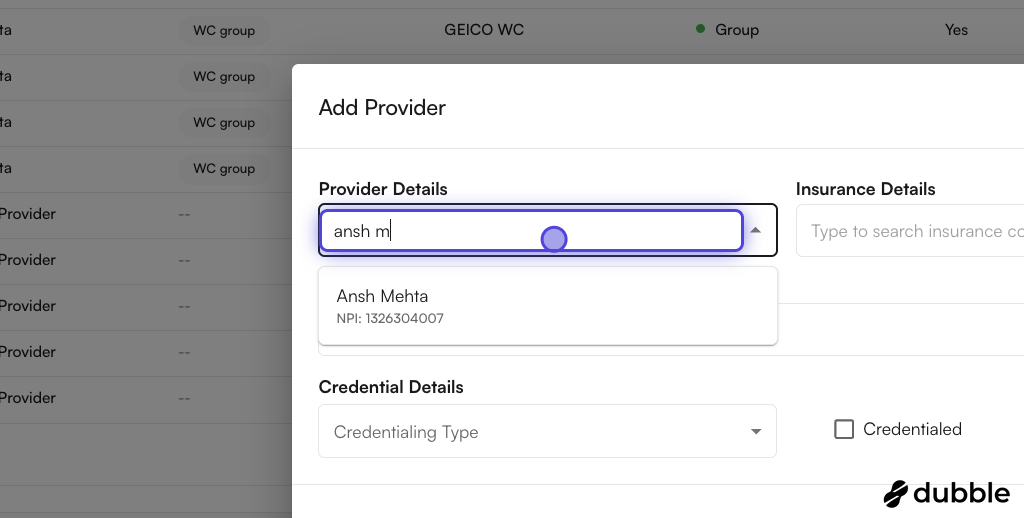
      <Step title="Search for provider names">
        We also show the individual NPIs. Select one provider.

        <img src="https://mintcdn.com/air_athelas/I03DU4h9oMMfY6uW/images/air_admin/manage_your_practice/provider_credentials/adding_3.png?fit=max&auto=format&n=I03DU4h9oMMfY6uW&q=85&s=a89b839d1caf35569e937ebea4c7603a" alt="Search for a provider by name" width="1024" height="518" data-path="images/air_admin/manage_your_practice/provider_credentials/adding_3.png" />
      </Step>

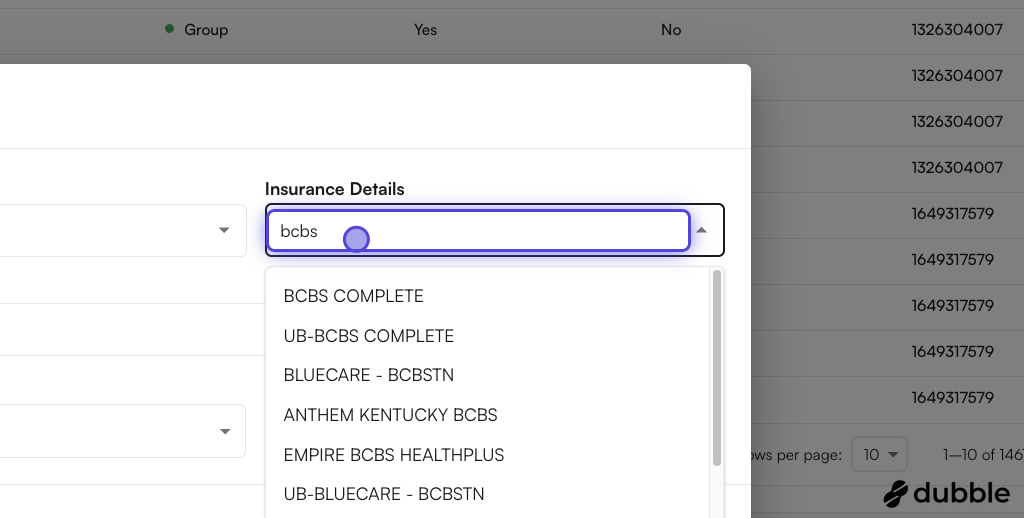
      <Step title="Search for insurance companies">
        Select one of the insurance companies. You can search by the insurance company's name as well.

        <img src="https://mintcdn.com/air_athelas/I03DU4h9oMMfY6uW/images/air_admin/manage_your_practice/provider_credentials/adding_4.png?fit=max&auto=format&n=I03DU4h9oMMfY6uW&q=85&s=6362504c6f9846a1f8ea4d332aabfd70" alt="Search for an insurance company" width="1024" height="518" data-path="images/air_admin/manage_your_practice/provider_credentials/adding_4.png" />
      </Step>

      <Step title="Select credentialing type">
        You can select a credentialing type per entry. Supported entries include: Unknown, Group, Individual, Pending, and None.

        <img src="https://mintcdn.com/air_athelas/I03DU4h9oMMfY6uW/images/air_admin/manage_your_practice/provider_credentials/adding_5.png?fit=max&auto=format&n=I03DU4h9oMMfY6uW&q=85&s=6da5c5300c57d470aed423871a490173" alt="Select a credentialing type" width="1024" height="518" data-path="images/air_admin/manage_your_practice/provider_credentials/adding_5.png" />
      </Step>

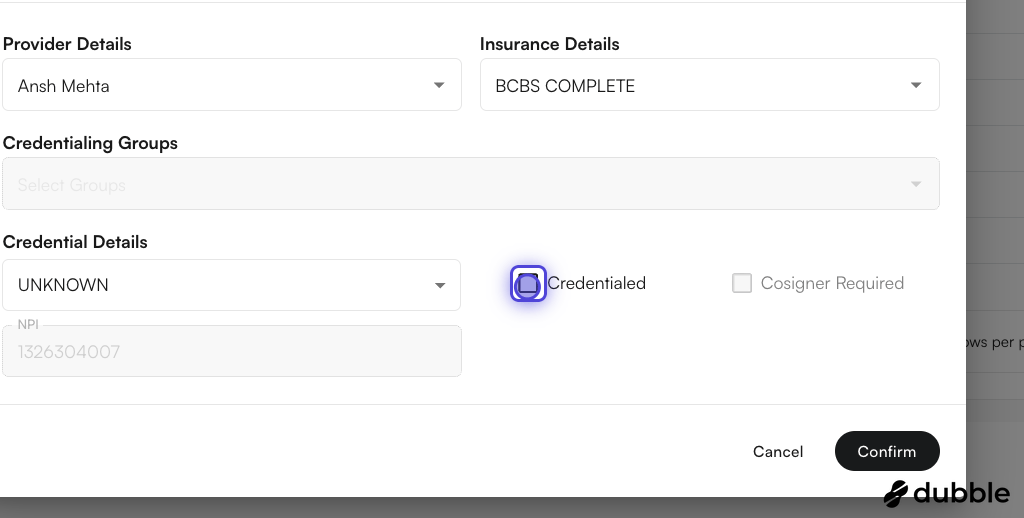
      <Step title="Check the relevant values for the credentialing type selected">
        For example, if the provider is already credentialed:

        <img src="https://mintcdn.com/air_athelas/I03DU4h9oMMfY6uW/images/air_admin/manage_your_practice/provider_credentials/adding_6.png?fit=max&auto=format&n=I03DU4h9oMMfY6uW&q=85&s=e7d3896a069d18ffac799697fdfaacc3" alt="Set the credentialed and cosigner values" width="1024" height="518" data-path="images/air_admin/manage_your_practice/provider_credentials/adding_6.png" />
      </Step>

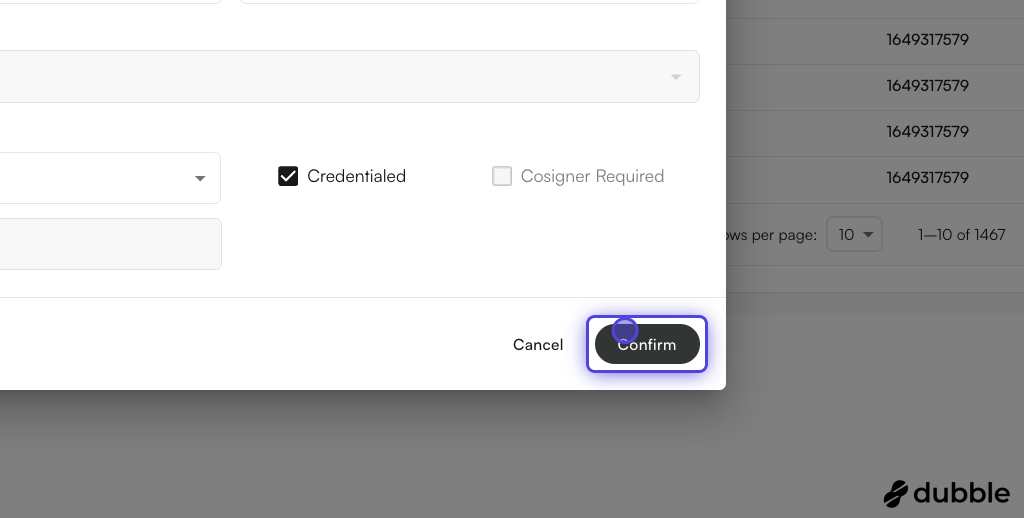
      <Step title="Click on Confirm to save your changes">
        <img src="https://mintcdn.com/air_athelas/I03DU4h9oMMfY6uW/images/air_admin/manage_your_practice/provider_credentials/adding_7.png?fit=max&auto=format&n=I03DU4h9oMMfY6uW&q=85&s=aa46614d6526b8bd8b791ef4aa1bf90f" alt="Confirm the new credential" width="1024" height="518" data-path="images/air_admin/manage_your_practice/provider_credentials/adding_7.png" />
      </Step>

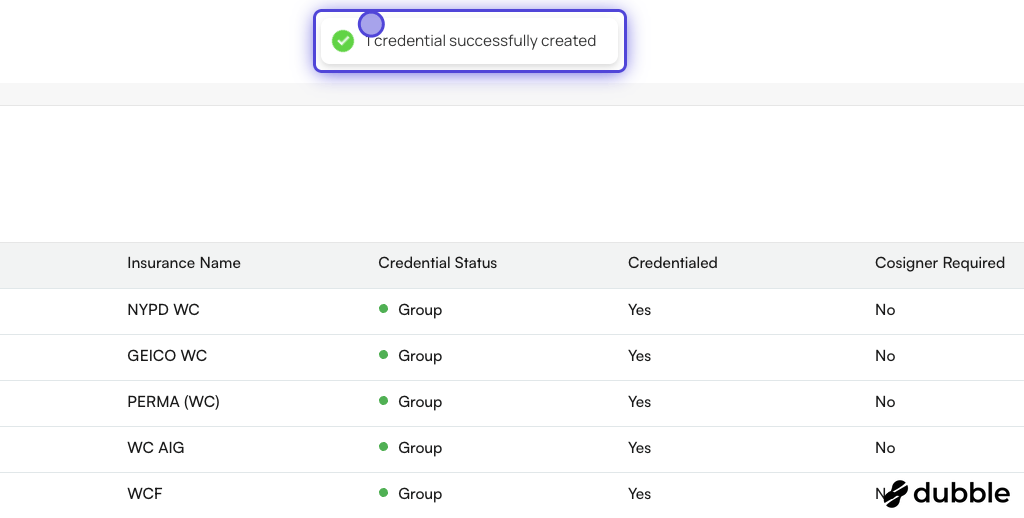
      <Step title="You can see the success message">
        <img src="https://mintcdn.com/air_athelas/I03DU4h9oMMfY6uW/images/air_admin/manage_your_practice/provider_credentials/adding_8.png?fit=max&auto=format&n=I03DU4h9oMMfY6uW&q=85&s=6f12e27032c48fa2c4423e33c9c0147f" alt="Credential successfully created" width="1024" height="518" data-path="images/air_admin/manage_your_practice/provider_credentials/adding_8.png" />
      </Step>
    </Steps>

    **Example video:**

    <iframe className="w-full aspect-video rounded-xl" src="https://www.youtube.com/embed/b3Y6HMSpmtE?iv_load_policy=3&rel=0&modestbranding=1&playsinline=1&autoplay=0&mute=1" title="YouTube video player" frameBorder="0" allow="accelerometer; autoplay; clipboard-write; encrypted-media; gyroscope; picture-in-picture" allowFullScreen />
  </Accordion>

  <Accordion title="Bulk edit provider credentials">
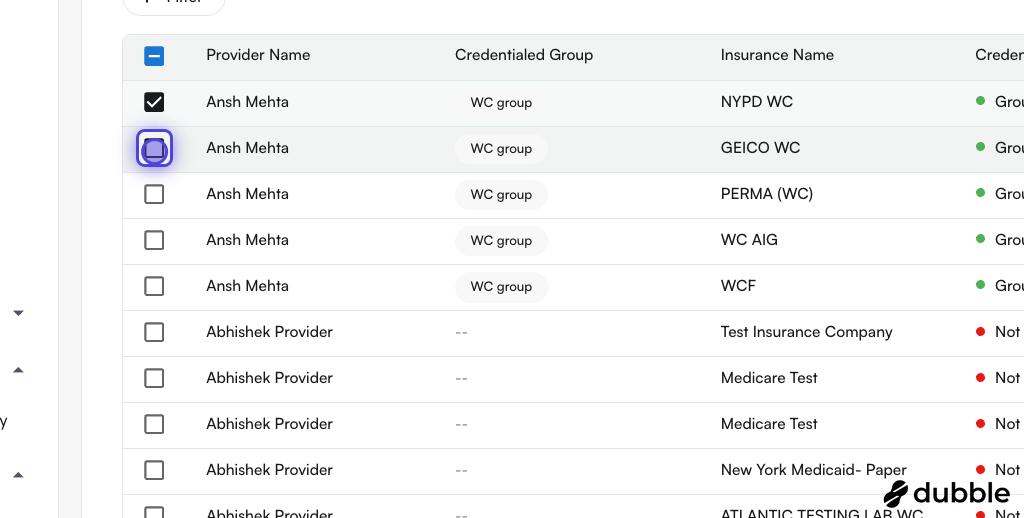
    You can select multiple rows across different providers, insurance companies, and credentialing groups.

    <Steps>
      <Step title="Select multiple rows on the table">
        <img src="https://mintcdn.com/air_athelas/I03DU4h9oMMfY6uW/images/air_admin/manage_your_practice/provider_credentials/bulk_edit_1.png?fit=max&auto=format&n=I03DU4h9oMMfY6uW&q=85&s=258715d5e6077e711a17dad1e20ba224" alt="Select multiple rows" width="1024" height="518" data-path="images/air_admin/manage_your_practice/provider_credentials/bulk_edit_1.png" />
      </Step>

      <Step title="Use the edit section on the right of the table">
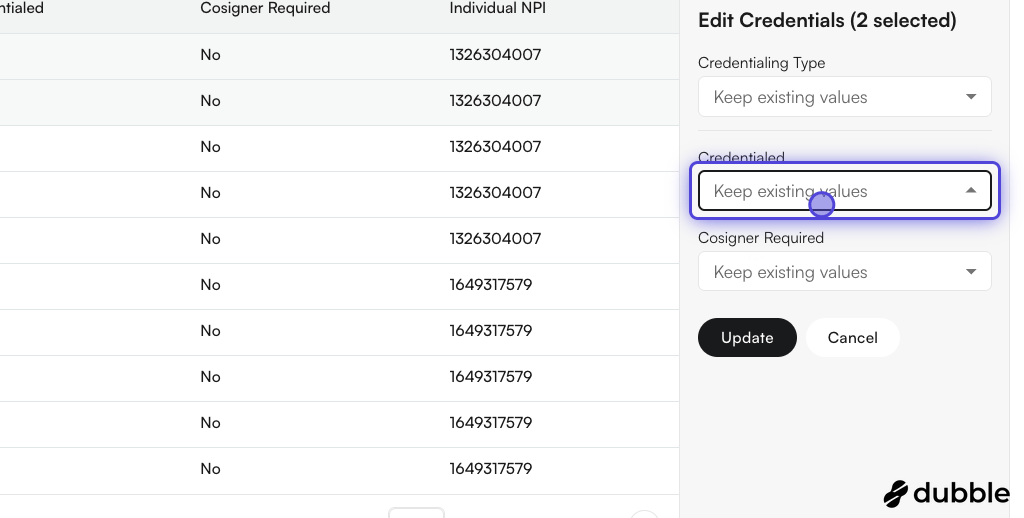
        You have the ability to change the `Credentialing type`, `Credentialed`, and `Cosigner Required` values.

        <img src="https://mintcdn.com/air_athelas/qzFK1LD2DMYR7wIh/images/air_admin/manage_your_practice/provider_credentials/bulk_edit_2.png?fit=max&auto=format&n=qzFK1LD2DMYR7wIh&q=85&s=c24d00ffe795991d64c665b5cbbde9a6" alt="Bulk edit section" width="1024" height="518" data-path="images/air_admin/manage_your_practice/provider_credentials/bulk_edit_2.png" />
      </Step>

      <Step title="Change values for the selected rows">
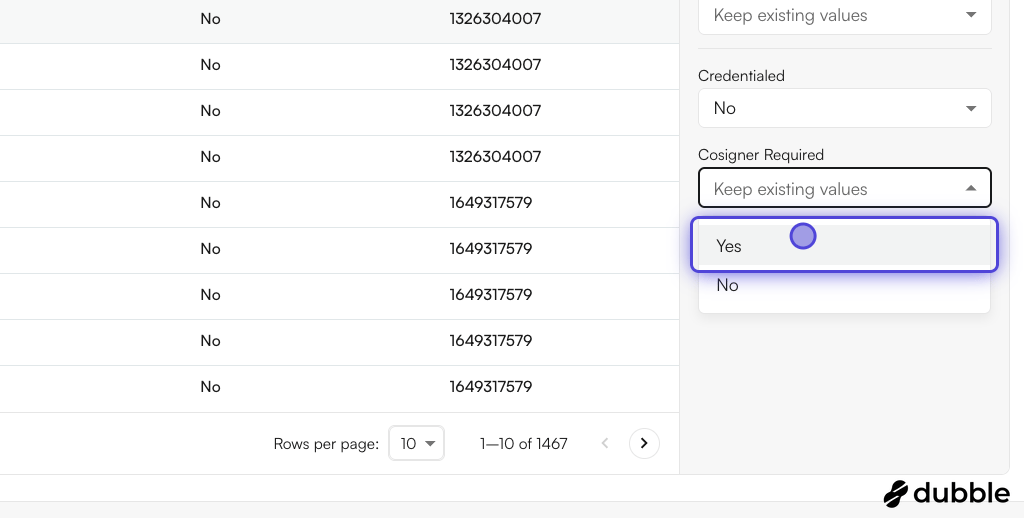
        You can either **keep the existing values** for these rows, or **apply the same selected settings** to all rows. In this case, we are setting all selected rows to `Yes` for Cosigner required.

        <img src="https://mintcdn.com/air_athelas/qzFK1LD2DMYR7wIh/images/air_admin/manage_your_practice/provider_credentials/bulk_edit_3.png?fit=max&auto=format&n=qzFK1LD2DMYR7wIh&q=85&s=e387657ad7d1363f0ac4ea6837caa1b1" alt="Apply values to selected rows" width="1024" height="518" data-path="images/air_admin/manage_your_practice/provider_credentials/bulk_edit_3.png" />
      </Step>

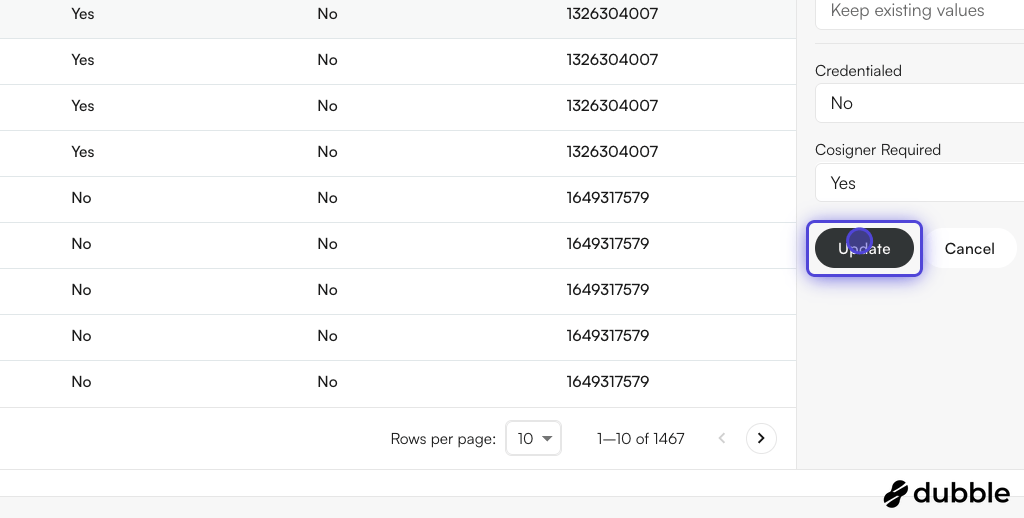
      <Step title="Click on Update to save your changes">
        <img src="https://mintcdn.com/air_athelas/qzFK1LD2DMYR7wIh/images/air_admin/manage_your_practice/provider_credentials/bulk_edit_4.png?fit=max&auto=format&n=qzFK1LD2DMYR7wIh&q=85&s=58881a97abe977c610b449956008dfc6" alt="Update the selected rows" width="1024" height="518" data-path="images/air_admin/manage_your_practice/provider_credentials/bulk_edit_4.png" />
      </Step>

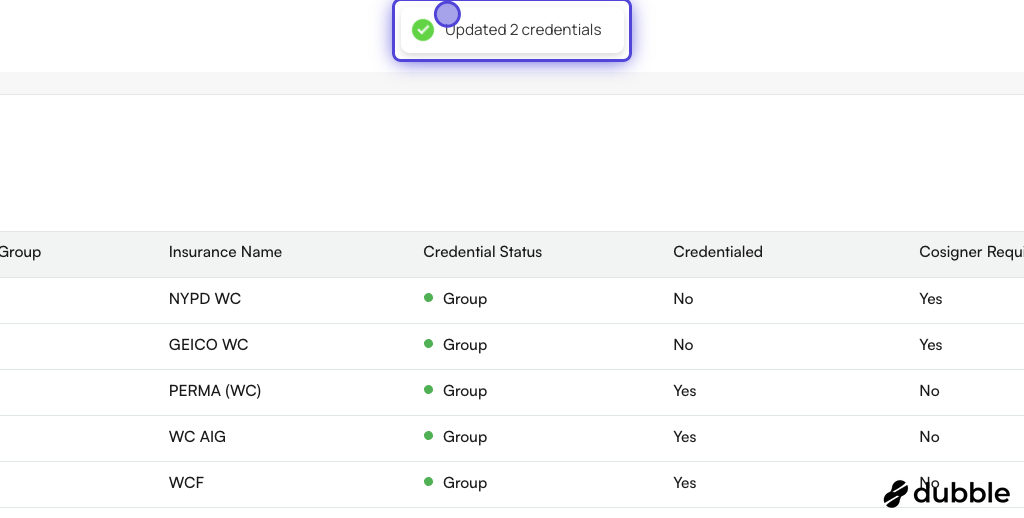
      <Step title="You can see the success message">
        <img src="https://mintcdn.com/air_athelas/qzFK1LD2DMYR7wIh/images/air_admin/manage_your_practice/provider_credentials/bulk_edit_5.png?fit=max&auto=format&n=qzFK1LD2DMYR7wIh&q=85&s=2faced5fecd5c7517e3a3a61a78de926" alt="Credentials updated successfully" width="1024" height="518" data-path="images/air_admin/manage_your_practice/provider_credentials/bulk_edit_5.png" />
      </Step>
    </Steps>

    **Example video:**

    <iframe className="w-full aspect-video rounded-xl" src="https://www.youtube.com/embed/JI-6-N2mhdw?iv_load_policy=3&rel=0&modestbranding=1&playsinline=1&autoplay=0&mute=1" title="YouTube video player" frameBorder="0" allow="accelerometer; autoplay; clipboard-write; encrypted-media; gyroscope; picture-in-picture" allowFullScreen />
  </Accordion>

  <Accordion title="Select all results in a filter for bulk editing">
    <Steps>
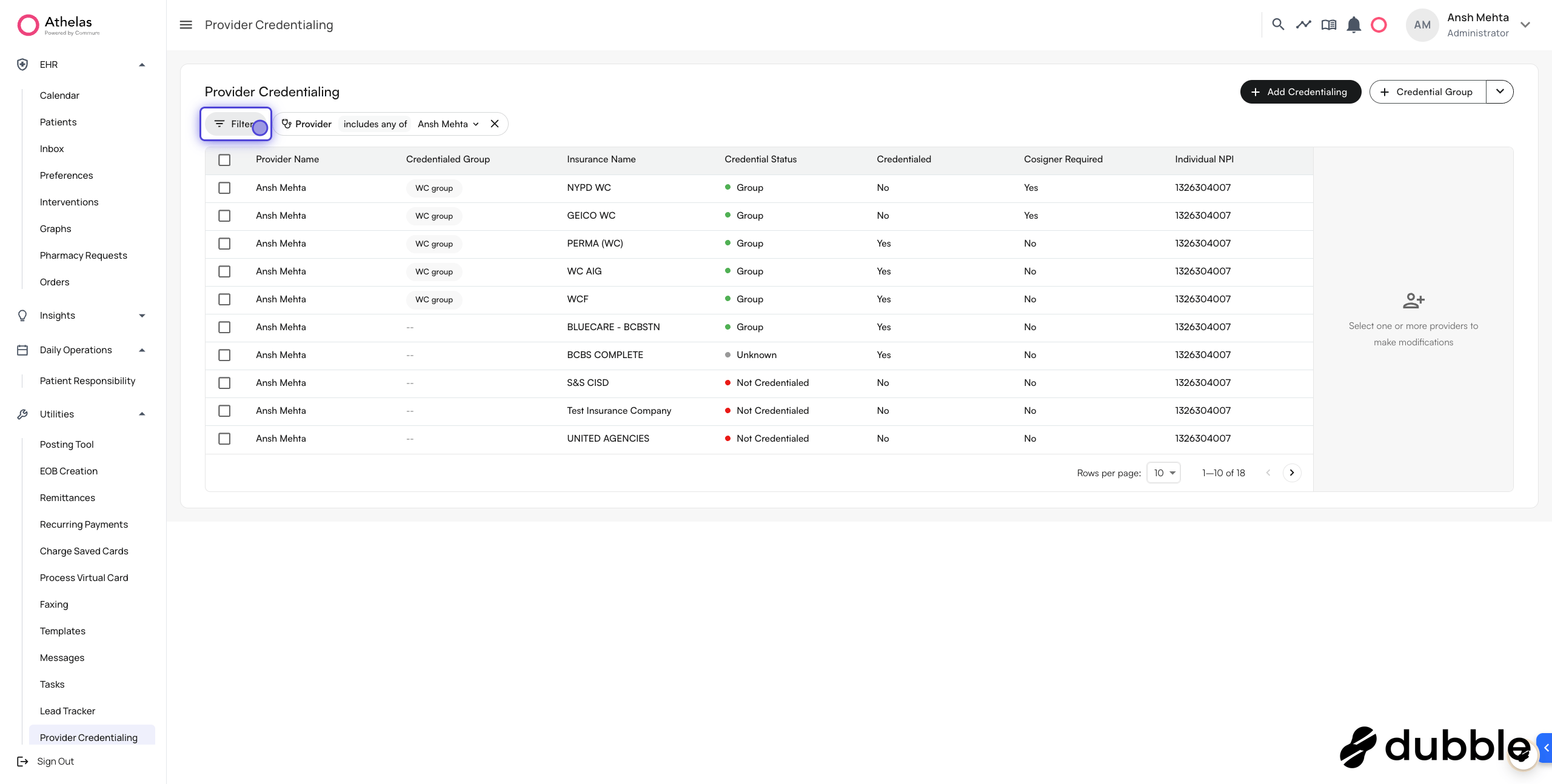
      <Step title="Select the adequate filters">
        <img src="https://mintcdn.com/air_athelas/qzFK1LD2DMYR7wIh/images/air_admin/manage_your_practice/provider_credentials/select_all_1.png?fit=max&auto=format&n=qzFK1LD2DMYR7wIh&q=85&s=f092efe97a18ee5a26299ab506737d86" alt="Apply filters to the table" width="2560" height="1294" data-path="images/air_admin/manage_your_practice/provider_credentials/select_all_1.png" />
      </Step>

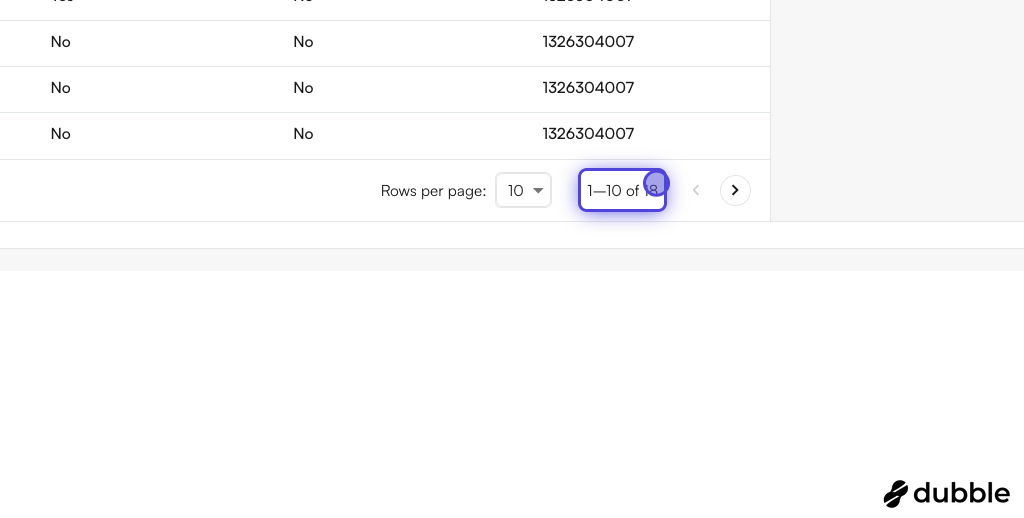
      <Step title="Review the result count">
        You can see we are showing 1–10 rows out of 18 total.

        <img src="https://mintcdn.com/air_athelas/qzFK1LD2DMYR7wIh/images/air_admin/manage_your_practice/provider_credentials/select_all_2.png?fit=max&auto=format&n=qzFK1LD2DMYR7wIh&q=85&s=d8d6133b04c51075560620837a859a2f" alt="Result count of 1-10 of 18" width="1024" height="518" data-path="images/air_admin/manage_your_practice/provider_credentials/select_all_2.png" />
      </Step>

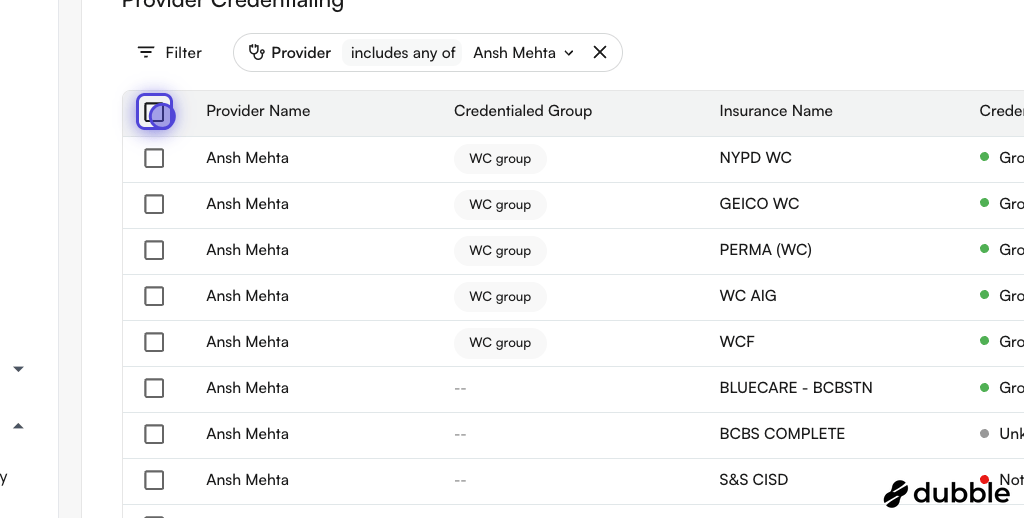
      <Step title="Check the box on the table header">
        <img src="https://mintcdn.com/air_athelas/qzFK1LD2DMYR7wIh/images/air_admin/manage_your_practice/provider_credentials/select_all_3.png?fit=max&auto=format&n=qzFK1LD2DMYR7wIh&q=85&s=41e8c19e7cc2e22c0524a6918644af38" alt="Header checkbox" width="1024" height="518" data-path="images/air_admin/manage_your_practice/provider_credentials/select_all_3.png" />
      </Step>

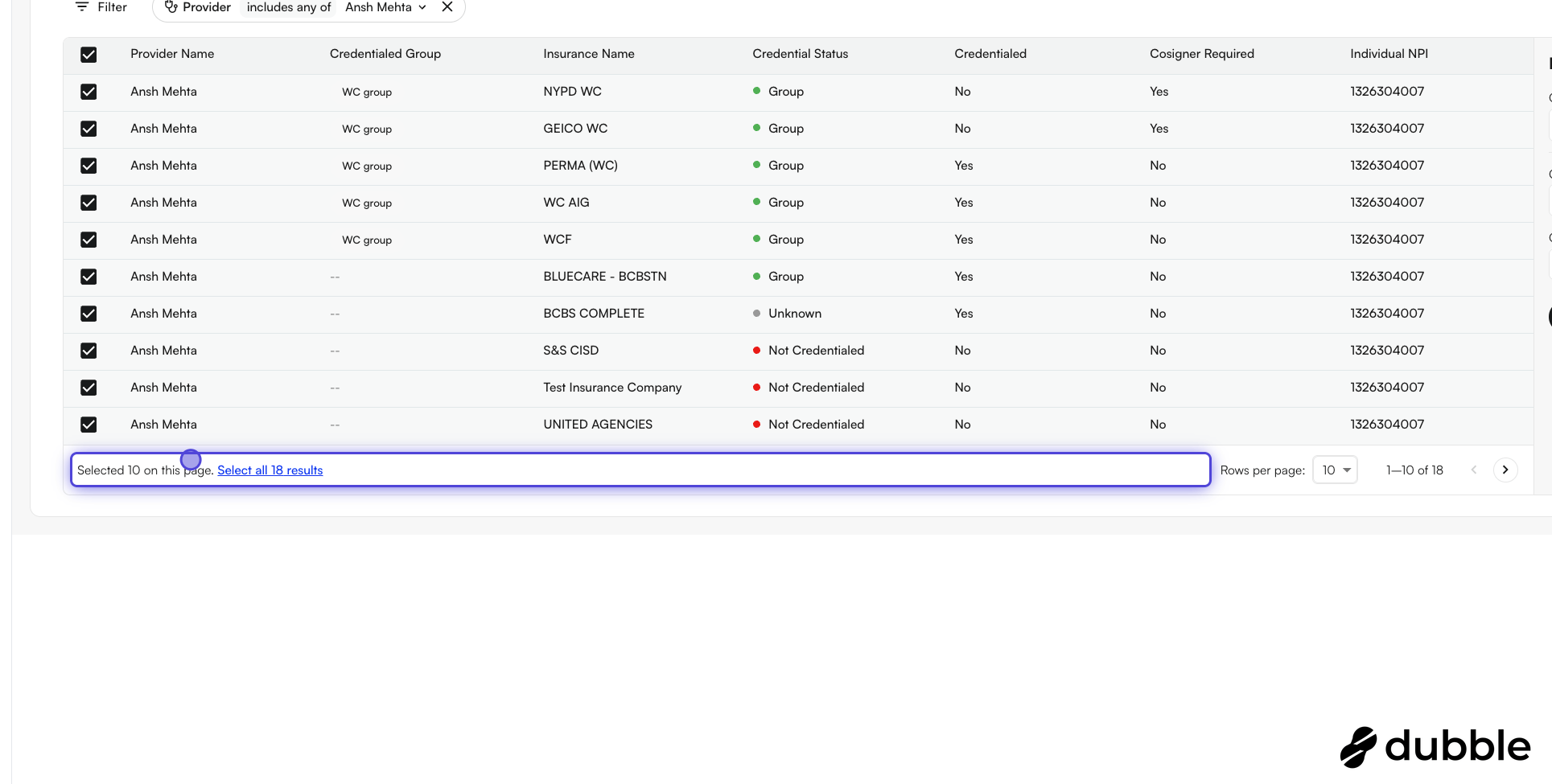
      <Step title="Select all rows on the page">
        You can see the message **Selected 10 on this page**. This will only make edits to the 10 selected rows.

        <img src="https://mintcdn.com/air_athelas/qzFK1LD2DMYR7wIh/images/air_admin/manage_your_practice/provider_credentials/select_all_4.png?fit=max&auto=format&n=qzFK1LD2DMYR7wIh&q=85&s=6944684d8129faf091d346c4842e9bbe" alt="Selected 10 on this page" width="1929" height="975" data-path="images/air_admin/manage_your_practice/provider_credentials/select_all_4.png" />
      </Step>

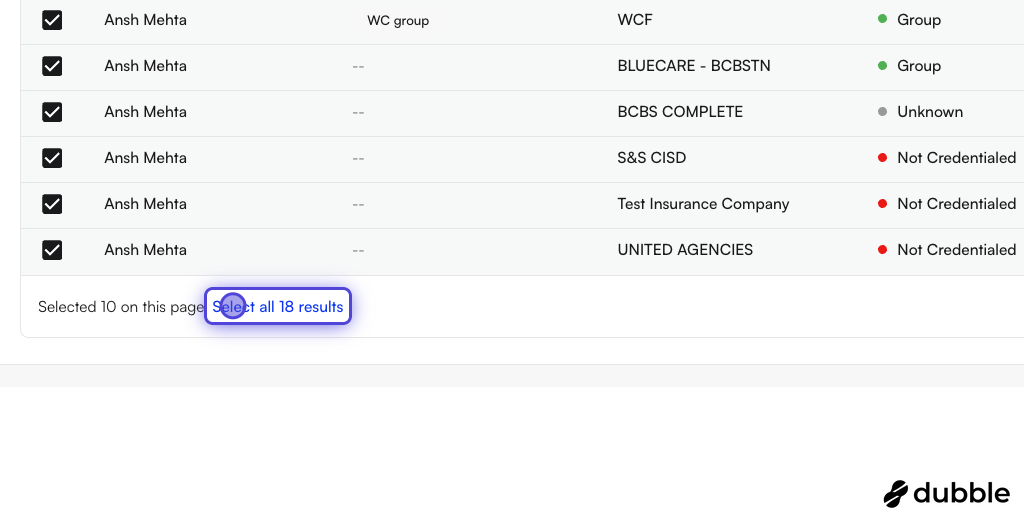
      <Step title="Click on Select all 18 results to select every row in the filter">
        <img src="https://mintcdn.com/air_athelas/qzFK1LD2DMYR7wIh/images/air_admin/manage_your_practice/provider_credentials/select_all_5.png?fit=max&auto=format&n=qzFK1LD2DMYR7wIh&q=85&s=cd0fcaabe12c45e35660b068d51fae66" alt="Select all 18 results" width="1024" height="518" data-path="images/air_admin/manage_your_practice/provider_credentials/select_all_5.png" />
      </Step>

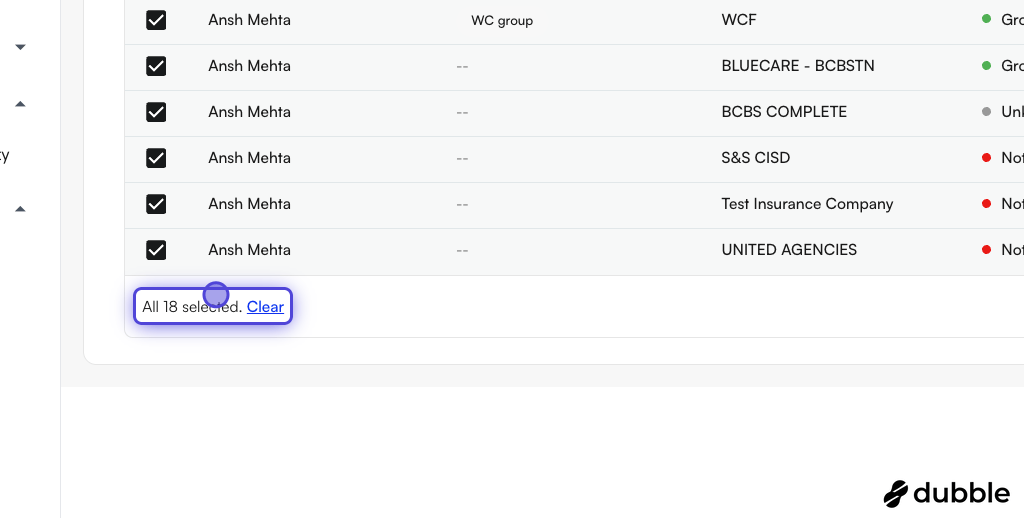
      <Step title="All 18 rows are now selected">
        <img src="https://mintcdn.com/air_athelas/qzFK1LD2DMYR7wIh/images/air_admin/manage_your_practice/provider_credentials/select_all_6.png?fit=max&auto=format&n=qzFK1LD2DMYR7wIh&q=85&s=4120ee0ffb9d8573164d457183d84c35" alt="All 18 rows selected" width="1024" height="518" data-path="images/air_admin/manage_your_practice/provider_credentials/select_all_6.png" />
      </Step>

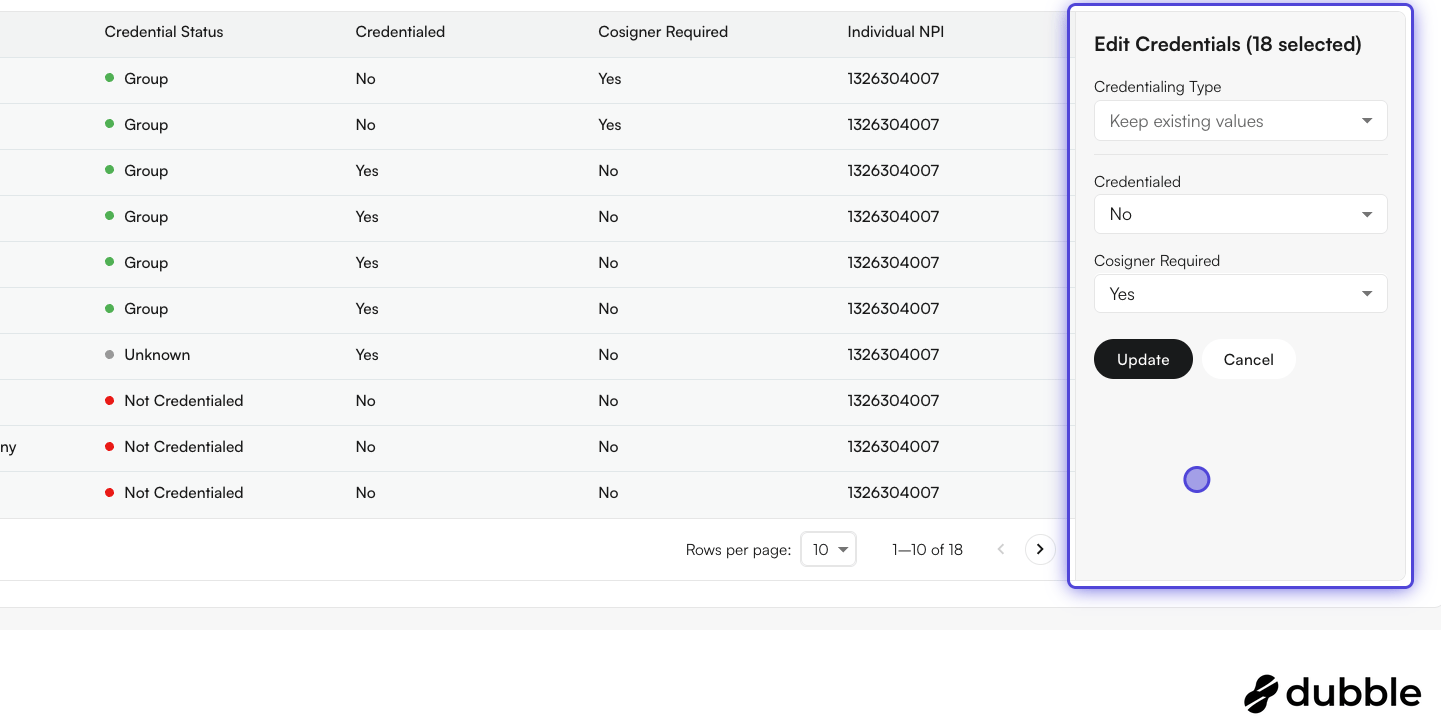
      <Step title="Make the edits accordingly">
        <img src="https://mintcdn.com/air_athelas/qzFK1LD2DMYR7wIh/images/air_admin/manage_your_practice/provider_credentials/select_all_7.png?fit=max&auto=format&n=qzFK1LD2DMYR7wIh&q=85&s=0ab0fb51dc642bd47f8c095f4eb1f702" alt="Edit all selected rows" width="1441" height="728" data-path="images/air_admin/manage_your_practice/provider_credentials/select_all_7.png" />
      </Step>

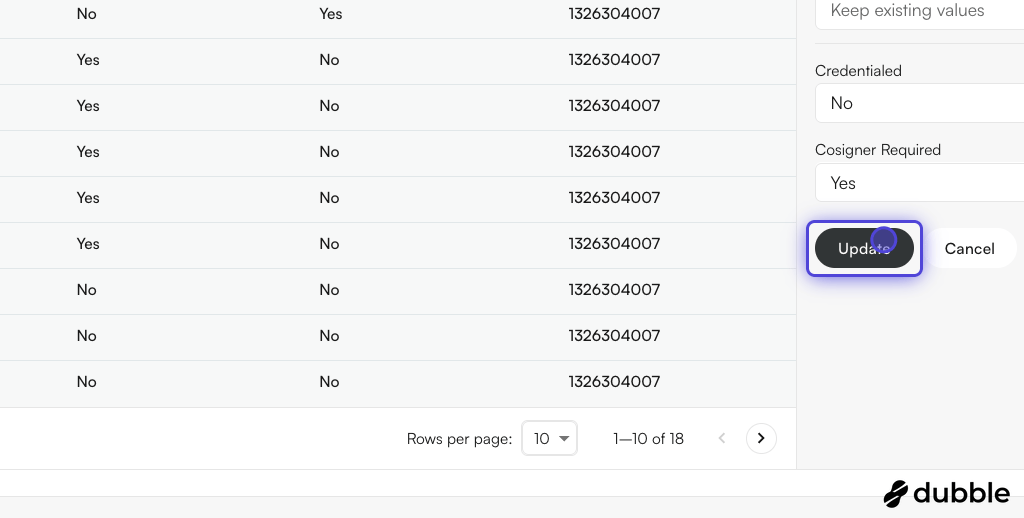
      <Step title="Click on Update to reflect your changes">
        <img src="https://mintcdn.com/air_athelas/qzFK1LD2DMYR7wIh/images/air_admin/manage_your_practice/provider_credentials/select_all_8.png?fit=max&auto=format&n=qzFK1LD2DMYR7wIh&q=85&s=8150e16cb9f33ce36314ac908bc82003" alt="Update all selected rows" width="1024" height="518" data-path="images/air_admin/manage_your_practice/provider_credentials/select_all_8.png" />
      </Step>
    </Steps>

    **Example video:**

    <iframe className="w-full aspect-video rounded-xl" src="https://www.youtube.com/embed/X3K9vj0ocjY?iv_load_policy=3&rel=0&modestbranding=1&playsinline=1&autoplay=0&mute=1" title="YouTube video player" frameBorder="0" allow="accelerometer; autoplay; clipboard-write; encrypted-media; gyroscope; picture-in-picture" allowFullScreen />
  </Accordion>
</AccordionGroup>

## Credentialing Group

Credentialing group allows you to bundle multiple insurance companies under one group, so when you get credentialed for a group, you can apply the same configuration.

<Info>
  **Important Notes:**

  * An insurance company can be part of multiple credentialing groups.
  * Groups are mutually exclusive with individual insurance selection in the Add Credential modal.
  * You can select multiple groups when adding credentials to credential a provider with all insurances across those groups.
</Info>

### Creating Credentialing Groups

<Steps>
  <Step title="Navigate to the Provider Credentialing page">
    Go to [https://insights.athelas.com/provider-credentialing](https://insights.athelas.com/provider-credentialing).
  </Step>

  <Step title="Click the + Credential Group split button in the top right">
    <img src="https://mintcdn.com/air_athelas/qzFK1LD2DMYR7wIh/images/air_admin/manage_your_practice/provider_credentials/group_create_1.png?fit=max&auto=format&n=qzFK1LD2DMYR7wIh&q=85&s=606d9d86b96652ad8a63417432ca94ce" alt="The + Credential Group split button" width="1000" height="136" data-path="images/air_admin/manage_your_practice/provider_credentials/group_create_1.png" />
  </Step>

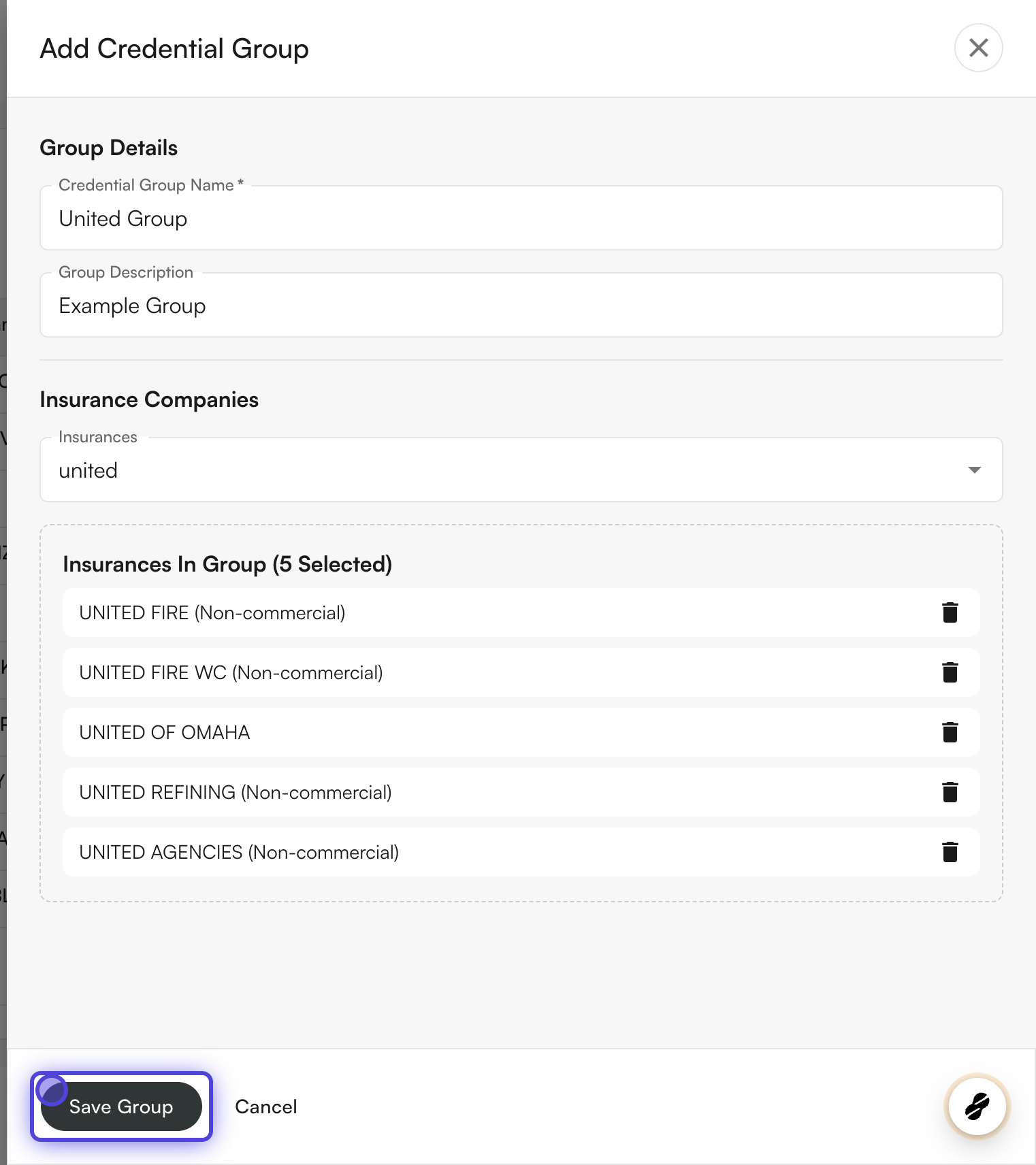
  <Step title="Fill out the group details">
    * Enter a group name (e.g., "Optum Group", "Medicaid Plans").
    * Add an optional description.
    * Select insurance companies to include in the group.
  </Step>

  <Step title="Click Save Group to create the group">
    <img src="https://mintcdn.com/air_athelas/qzFK1LD2DMYR7wIh/images/air_admin/manage_your_practice/provider_credentials/group_create_2.png?fit=max&auto=format&n=qzFK1LD2DMYR7wIh&q=85&s=85edcb81336448b96b990abb84bbb891" alt="Fill out group details and save" width="1522" height="1712" data-path="images/air_admin/manage_your_practice/provider_credentials/group_create_2.png" />
  </Step>
</Steps>

### Editing Credentialing Groups

<Steps>
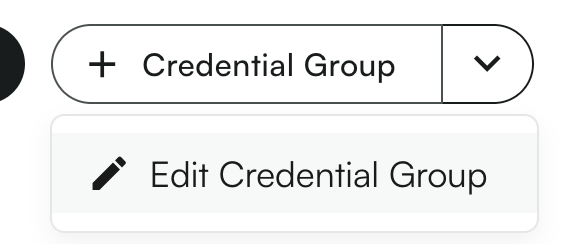
  <Step title="Click the dropdown arrow on the Credential Group button, then select Edit Credential Group">
    <img src="https://mintcdn.com/air_athelas/qzFK1LD2DMYR7wIh/images/air_admin/manage_your_practice/provider_credentials/group_edit_1.png?fit=max&auto=format&n=qzFK1LD2DMYR7wIh&q=85&s=6a28dfa2ae53f695092b334e3d1c34b8" alt="Edit Credential Group option" width="572" height="244" data-path="images/air_admin/manage_your_practice/provider_credentials/group_edit_1.png" />
  </Step>

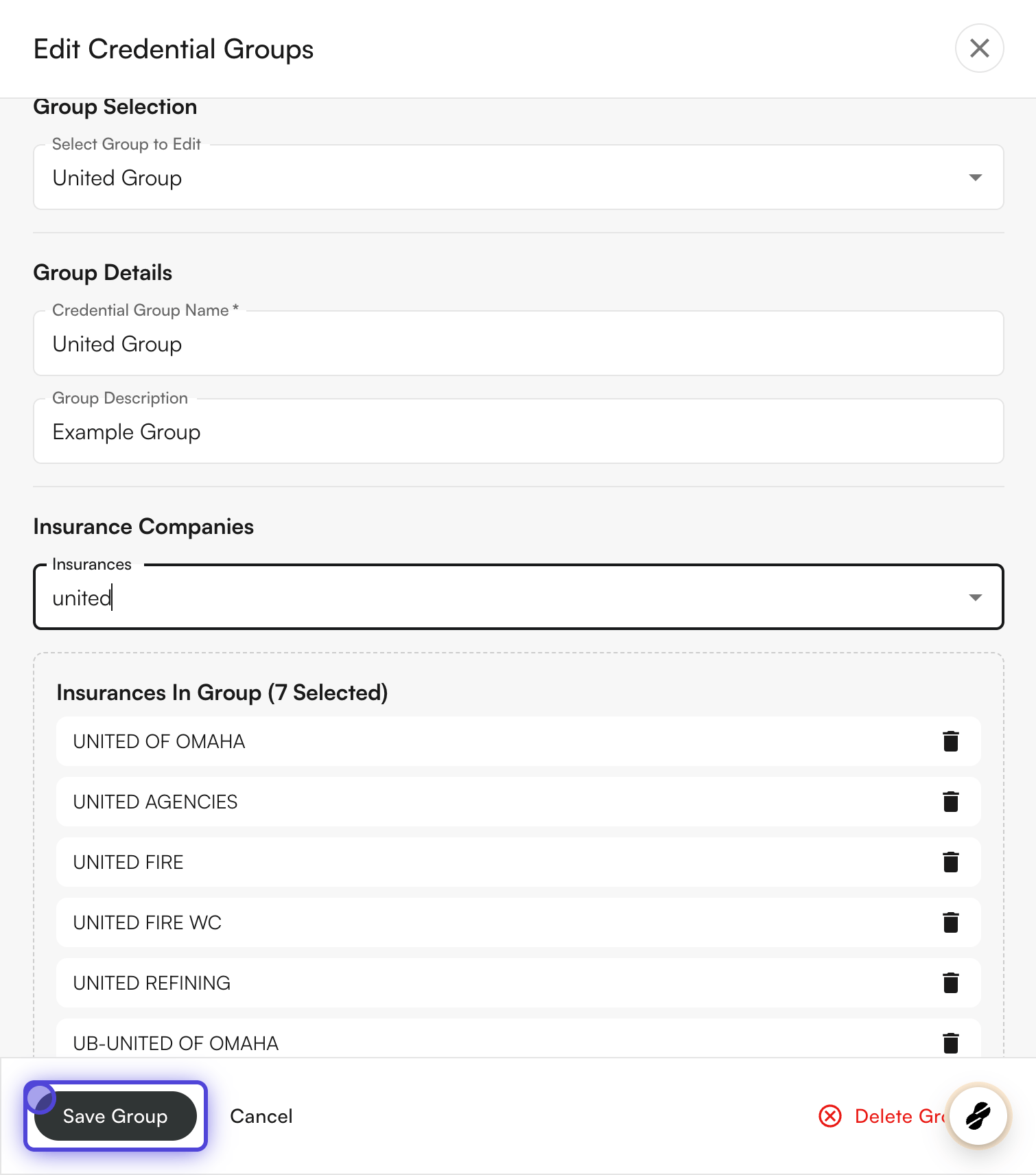
  <Step title="Choose the group you want to edit from the dropdown">
    Modify the details as needed (name, description, insurance companies).
  </Step>

  <Step title="Click Save Group to update, or Delete Group to remove it">
    <img src="https://mintcdn.com/air_athelas/qzFK1LD2DMYR7wIh/images/air_admin/manage_your_practice/provider_credentials/group_edit_2.png?fit=max&auto=format&n=qzFK1LD2DMYR7wIh&q=85&s=8cf21b675f8d7f07616de819fc6a64f2" alt="Edit or delete a credential group" width="1510" height="1712" data-path="images/air_admin/manage_your_practice/provider_credentials/group_edit_2.png" />
  </Step>
</Steps>

### Adding Credentials Using Groups

<Steps>
  <Step title="Click Add Credentialing to open the credential modal" />

  <Step title="Select a provider" />

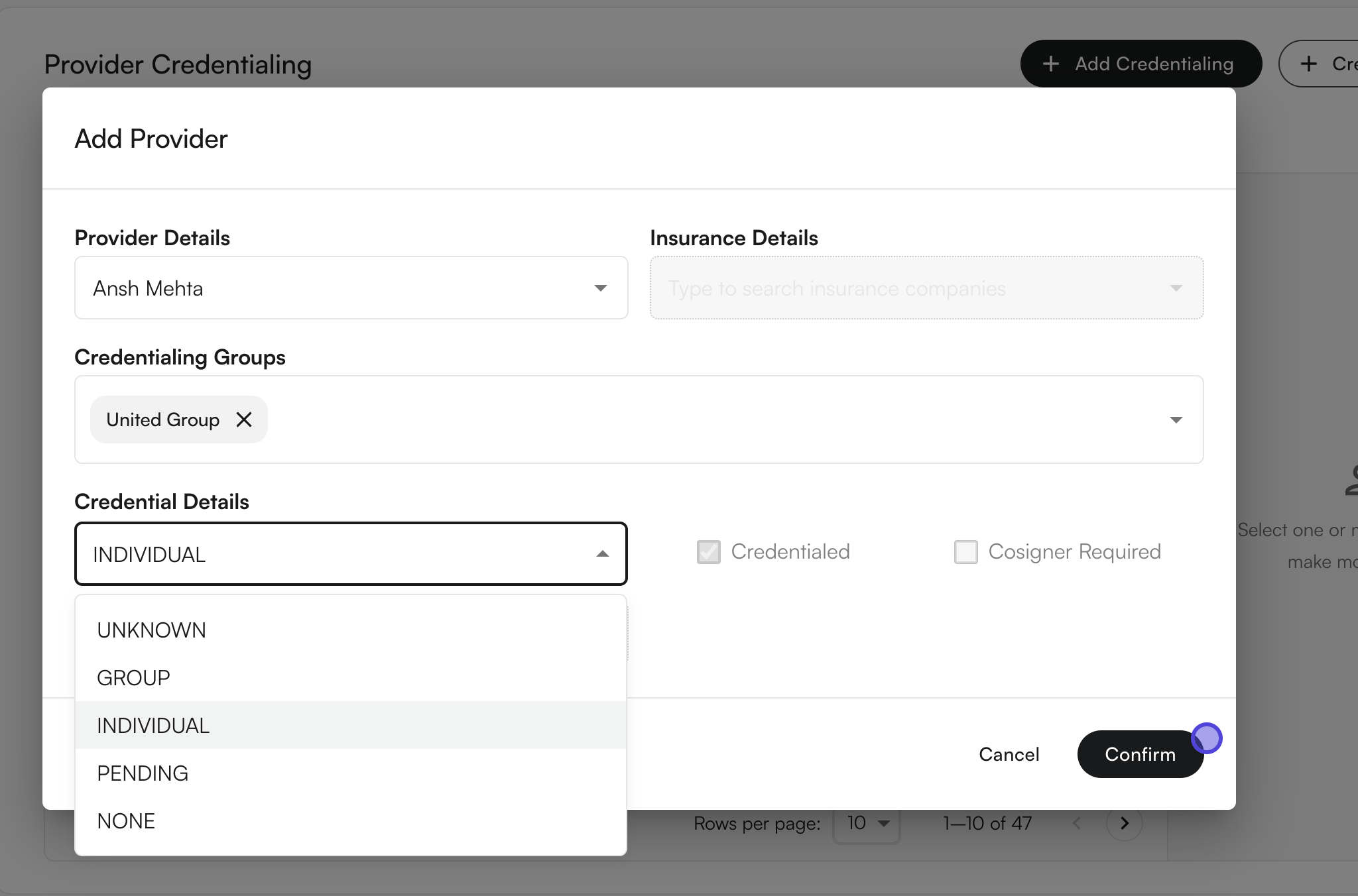
  <Step title="Choose your credentialing approach">
    * **Individual**: Select a specific insurance company, **OR**
    * **Group**: Select one or more credentialing groups.

          <img src="https://mintcdn.com/air_athelas/qzFK1LD2DMYR7wIh/images/air_admin/manage_your_practice/provider_credentials/group_add_1.png?fit=max&auto=format&n=qzFK1LD2DMYR7wIh&q=85&s=ea1b4957a03cc1e65576170de0aaeef0" alt="Choose a group when adding credentials" width="2048" height="1352" data-path="images/air_admin/manage_your_practice/provider_credentials/group_add_1.png" />
  </Step>

  <Step title="Set credential details">
    Set the type, status, and cosigner requirements.
  </Step>

  <Step title="Click Confirm">
    The system will automatically create individual credentials for each insurance in the selected groups.
  </Step>
</Steps>

### Viewing Group Information

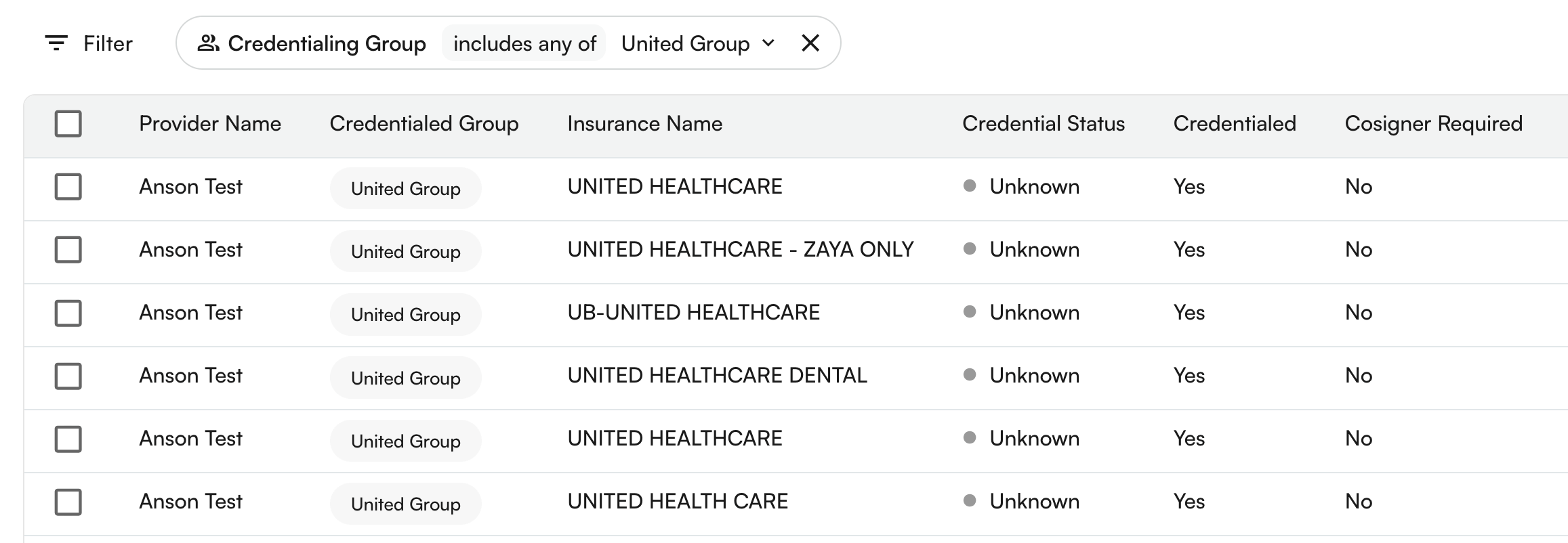
* **Table column**: The "Credentialed Group" column shows which groups each provider belongs to.
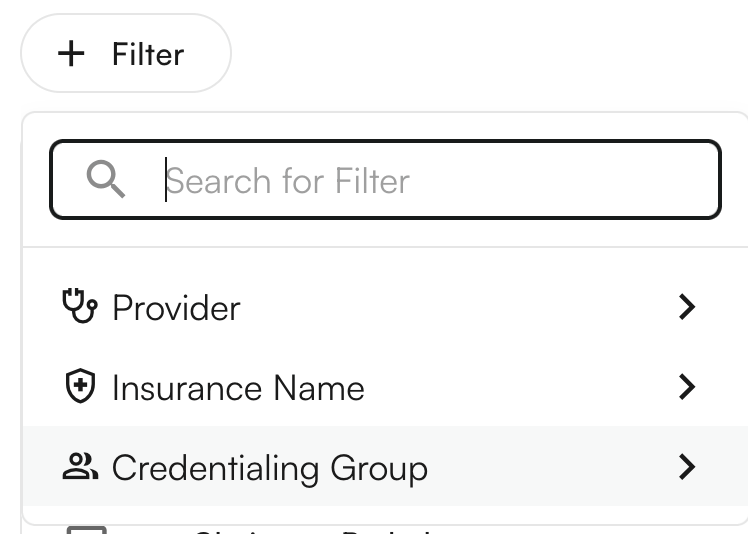
* **Filtering**: Use the "Credentialing Group" filter to view only providers who qualify for specific groups.

<img src="https://mintcdn.com/air_athelas/qzFK1LD2DMYR7wIh/images/air_admin/manage_your_practice/provider_credentials/group_view_1.png?fit=max&auto=format&n=qzFK1LD2DMYR7wIh&q=85&s=8a4b0d2bdde130c0c048e5d31fe3d453" alt="Credentialed Group column and filter" width="748" height="534" data-path="images/air_admin/manage_your_practice/provider_credentials/group_view_1.png" />

* **Group qualification**: Providers only appear in a group if they have credentials for ALL insurance companies in that group.

<img src="https://mintcdn.com/air_athelas/qzFK1LD2DMYR7wIh/images/air_admin/manage_your_practice/provider_credentials/group_view_2.png?fit=max&auto=format&n=qzFK1LD2DMYR7wIh&q=85&s=4480a9d3fdcb0b7b70e7e7c7d4e23078" alt="Group qualification in the table" width="2314" height="802" data-path="images/air_admin/manage_your_practice/provider_credentials/group_view_2.png" />

### Deleting a credentialing group

You can also delete a credentialing group.

<Steps>
  <Step title="Open the credentialing group editor">
    Click on the credentialing group → down arrow icon → `Edit Credentialing group`.
  </Step>

  <Step title="Select the group to be edited" />

  <Step title="Find the delete option">
    On the bottom of the drawer, you can see `Delete credentialing group`.
  </Step>

  <Step title="Confirm the deletion">
    A confirmation modal appears. On click of `Delete Group`, the credentialing group would be permanently deleted.
  </Step>
</Steps>

**Example video:**

<iframe className="w-full aspect-video rounded-xl" src="https://www.youtube.com/embed/xIu1JDBbbYI?iv_load_policy=3&rel=0&modestbranding=1&playsinline=1&autoplay=0&mute=1" title="YouTube video player" frameBorder="0" allow="accelerometer; autoplay; clipboard-write; encrypted-media; gyroscope; picture-in-picture" allowFullScreen />

### Using credentialing group as filters

<Steps>
  <Step title="Open the filters">
    Click the `+ Filter` button above the table. This will show various filters. Select `Credentialing Group`.
  </Step>

  <Step title="Search for various groups" />

  <Step title="Click on each row to select/deselect the credentialing group" />

  <Step title="Load the filtered rows">
    On click, the table would load the filtered rows.
  </Step>
</Steps>

**Example video:**

<iframe className="w-full aspect-video rounded-xl" src="https://www.youtube.com/embed/yLTHUorfTHU?iv_load_policy=3&rel=0&modestbranding=1&playsinline=1&autoplay=0&mute=1" title="YouTube video player" frameBorder="0" allow="accelerometer; autoplay; clipboard-write; encrypted-media; gyroscope; picture-in-picture" allowFullScreen />

### Using credentialing groups to add credentials

<Steps>
  <Step title="Click on the + Add Credentialing button" />

  <Step title="Select the provider name from the list of providers from the site" />

  <Step title="Select the credentialing group from the existing list of credentialing groups" />

  <Step title="Select the credentialing type">
    Based on the credentialing type, you would get the options to modify `Credentialed` and `Cosigner required`.
  </Step>

  <Step title="Click on Submit">
    The provider credentialing entries for provider + insurance companies under the credentialing group would be created.
  </Step>
</Steps>

**Example video:**

<iframe className="w-full aspect-video rounded-xl" src="https://www.youtube.com/embed/2hyXtHlaXKg?iv_load_policy=3&rel=0&modestbranding=1&playsinline=1&autoplay=0&mute=1" title="YouTube video player" frameBorder="0" allow="accelerometer; autoplay; clipboard-write; encrypted-media; gyroscope; picture-in-picture" allowFullScreen />

## Scheduling and Signing logic blocks

<Info>
  Both the provider licensing and credentialing setup should be completed for a provider in order to have access.
</Info>

<Note>
  Each scenario below is demonstrated by a screen recording in the source guide. Those recordings need to be uploaded (Loom/YouTube) and embedded under their respective headings.
</Note>

### Enforce Direct Access

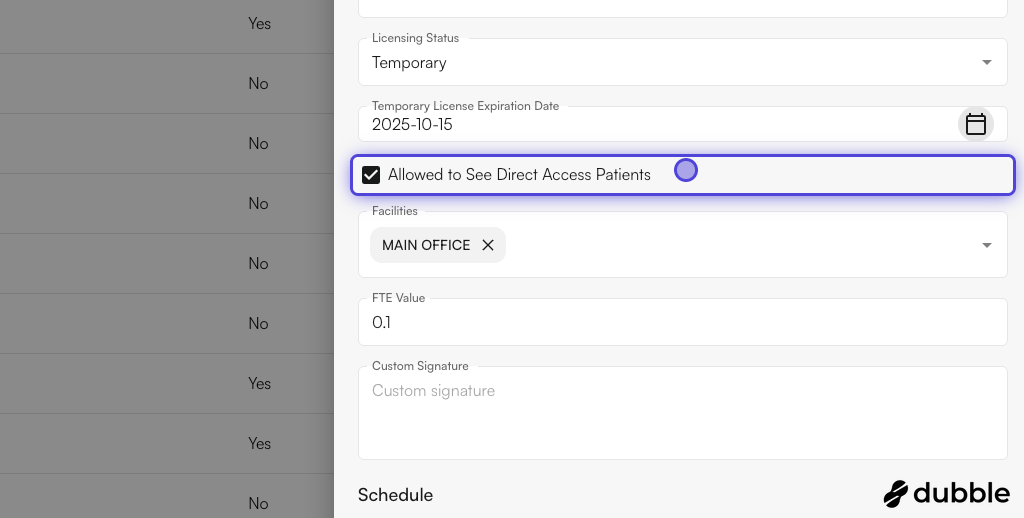
Here is the setup to allow/disallow direct access patients. This is on EHR > Preferences > Providers.

<img src="https://mintcdn.com/air_athelas/qzFK1LD2DMYR7wIh/images/air_admin/manage_your_practice/provider_credentials/direct_access.png?fit=max&auto=format&n=qzFK1LD2DMYR7wIh&q=85&s=cec3f2e6536a411c5d981aa162c94c76" alt="Allowed to See Direct Access Patients setting" width="1024" height="518" data-path="images/air_admin/manage_your_practice/provider_credentials/direct_access.png" />

> Schedule a Direct Access visit with a provider who is not credentialed for Direct Access cases — the system should flag or restrict the action.

*📹 Video demonstration to be embedded.*

### Block Scheduling for Non-Credentialed, Non-Co-Signing Provider

> Try scheduling a visit with a provider who lacks payer credentialing and co-signing privileges — expect the system to block or warn accordingly.

*📹 Video demonstration to be embedded.*

### Enforce Co-Sign Requirements for Non-Credentialed Providers

**A) Attempt to schedule an appointment with a provider marked as *"Co-sign Required"* for the selected payer.**

> Expected behavior: the system should flag the need for a credentialed supervising provider before proceeding.

**B) Assign a supervising provider who is credentialed with the payer and complete scheduling successfully.**

> Expected behavior: the system validates the supervising provider and allows the appointment to be scheduled without error.

*📹 Video demonstration to be embedded.*

### Attempt to Schedule with Expired License

A provider previously held a temporary license, but it has since expired.

> Expected behavior: the system should prevent appointment scheduling and surface a clear message indicating the provider's license is no longer valid.

*📹 Video demonstration to be embedded.*

### When submitting a note

**Scenario 1:** A provider whose license is expired is trying to submit a chart note — they cannot submit it.

*📹 Video demonstration to be embedded.*