> ## Documentation Index
> Fetch the complete documentation index at: https://docs.athelas.com/llms.txt
> Use this file to discover all available pages before exploring further.
# Inbound Lead and Referral Tracker
## Overview
The Lead Tracker gives you a structured way to handle inbound leads by breaking the process into stages and sub-stages. You can see where every lead sits in the pipeline and what has to happen to move it forward. Stages, sub-stages, and lead types are all configurable, so the tracker can follow the workflow your practice already runs.
## How the Lead Tracker helps
1. **Improved organization**: Sorting leads into stages and sub-stages keeps lead management systematic. Fewer leads fall through the cracks, and each one has an obvious next action.
2. **Full customization**: You configure your own stages, sub-stages, and lead types, so the tracker matches how your practice actually takes referrals.
3. **Increased efficiency**: Because you can move leads between stages and edit their details as you go, the pipeline stays current instead of drifting out of date.
4. **Data-driven insights**: Tracking leads and their outcomes produces conversion data you can act on — which sources convert, and where leads stall.
## Key concepts
| **Term** | **Meaning** |
| ------------------ | -------------------------------------------------------------------------------------------------------------------------------------------------------------------------- |
| Stage | A phase a lead moves through in your pipeline. Stages appear as the tabs across the top of the tracker. |
| Sub-stage | A step within a stage, for finer-grained tracking. Each stage defines its own sub-stages, each with a name and a color. On a lead itself this field is labeled **Status**. |
| Lead Type | Where a lead came from — the source or reason it entered the system. Configured per site (for example Friend / Family, Website, Fax, Online Scheduling). |
| Lead | One potential patient's record: their details, plus the metadata that tracks the lead — Lead Type, current stage, and status. |
| Reporting Category | Groups stages for KPI reporting. Each stage is tagged `Converted`, `In Progress`, or `No Category`. |
| Treatment Declined | Marks a lead that has declined treatment and moves it out of the active pipeline into its own bucket. |
## Configuring the Lead Tracker
### Lead stages
Open **Tracker Settings** to manage stages and sub-stages. Add a stage with the `+` button; drag to reorder, rename inline, or delete.
Click a stage to configure:
* **Columns** — show, hide, and reorder the table columns for that stage. The panel is titled after the stage you selected, for example **Outreach Columns**.
* **Sub-stages** — add as many as you need per stage, each with its own name and color; reorder as needed.
* **Reporting Category** — defaults to `No Category`; set it to feed the KPI metrics (see [Lead Tracker reporting](#lead-tracker-reporting)).
Click **Save Changes** to apply. Edits are not saved until you do.
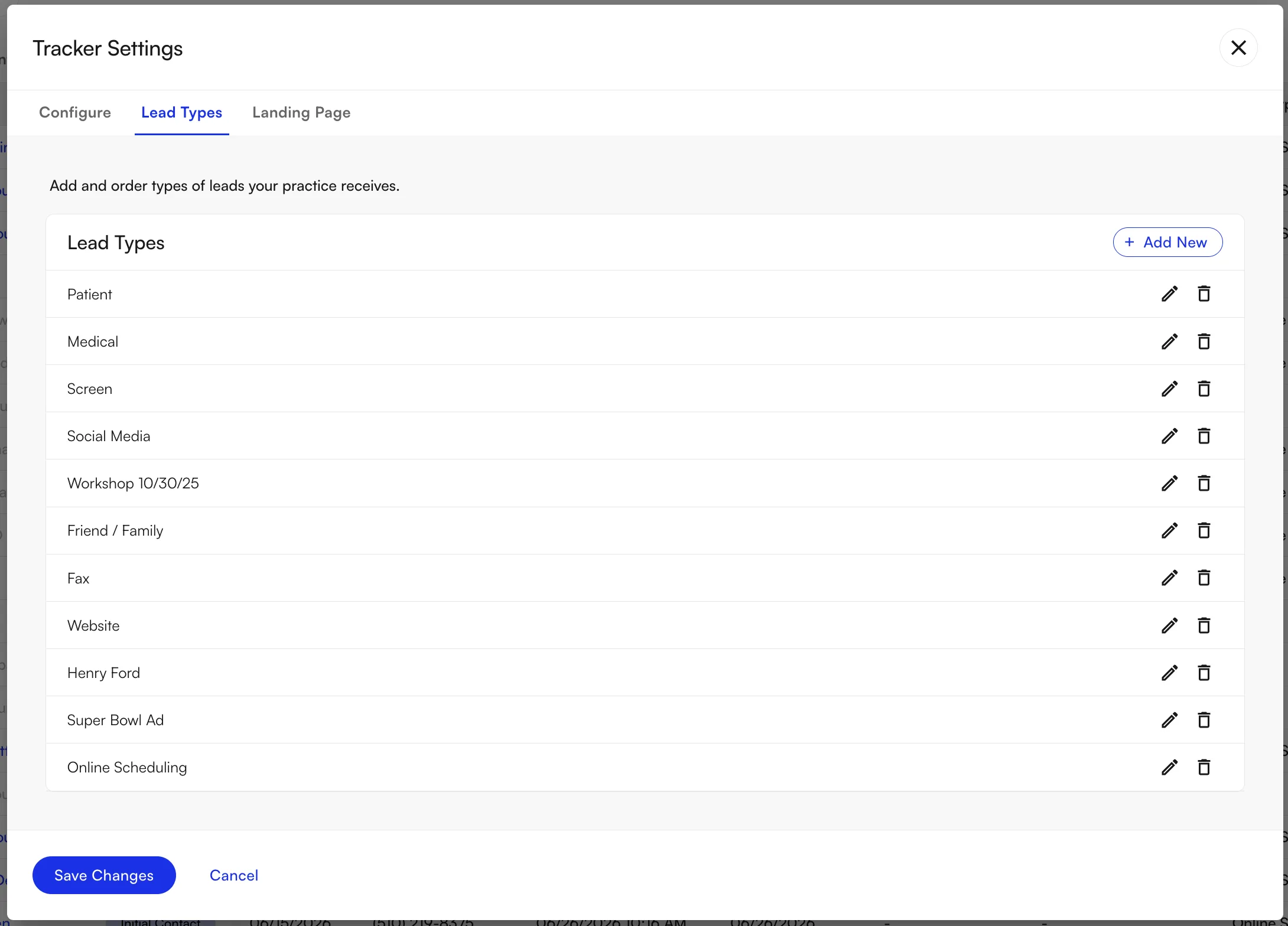
### Lead Types
In **Tracker Settings → Lead Types**, use **+ Add New** to create a type, the pencil icon to rename one, and the delete icon to remove one. Click **Save Changes** to apply.
## Leads
**Beyond the basics:** leads also capture patient address and insurance. When a patient or appointment is created during an outbound call tied to a lead, the result is written back automatically, and patient linking works across every appointment-creation flow.
### Creating a lead
Click **+ New** to open the lead drawer, fill in the fields below, then click **Save**. The new lead appears in the table.
* **Patient info** — name, phone, date of birth, plus address and insurance.
* **Lead Type and facility** — pick from your configured lead types and the site's facilities.
* **Lead Stage and Status** — the status options depend on the stage you select.
* **Optional** — Referring Medical Provider, Initial Contact Date, Last Contact Date, and Staff Contact.
### Modifying a lead
Click the **pencil** icon on a row to edit that lead's referral details and progress, then click **Save**.
Changing the **Lead Stage** clears the **Status**, because each stage defines its own sub-stages. Reselect a status before saving.
### Linking a lead to a new patient
Edit the lead with the **pencil** icon, click **Create Patient**, confirm, then click **Save**. A linked-patient link appears on the row and opens that patient's demographics in a new tab.
### Linking a lead to an existing patient
As you fill in a lead's name and date of birth, the drawer checks your records. If it finds a likely match, it shows a **This patient might already be in your system** panel with the matching profile — select that profile to link the lead to that patient, then click **Save**.
You can also start from the lead itself: edit it, click **Link Patient**, search by name, select the patient, then click **Save**.
### Marking a lead as Treatment Declined
Edit the lead, click **Treatment Declined** at the bottom-right of the drawer, choose a reason (with optional details), and click **Submit**. Declined leads move to the **Declined Treatment** bucket. You can undo this.
### Filtering and searching leads
Use the filter and search controls at the top of the tracker to narrow the list. You can filter by:
* **Stage** — show only the leads currently in a selected stage.
* **Sub-stage** — drill into a specific sub-stage for finer granularity, for example to see how many leads sit at each step within a stage.
* **Responsible Staff Member** — show the leads assigned to a particular team member.
* **Referring Provider** — filter by the provider who referred the lead.
* **Patient name search** — type a name to locate one lead quickly.
## Lead Tracker reporting
Assigning Reporting Categories to your stages turns the tracker into a source of KPI metrics.
### Configuring a Reporting Category for a stage
In **Tracker Settings**, open a stage and set its **Reporting Category** to `Converted`, `In Progress`, or `No Category` (the default). Click **Save Changes**.
### KPI metrics and downloading the report
Go to **Performance Analysis → Lead Tracker**, set the date range (it defaults to the past week), and click the **Overall Conversion** card for the detailed breakdown. You can export the metrics as **CSV**.
The metrics shown, overall and per facility:
* Total leads created and total converted (leads in stages tagged `Converted`), with a conversion percentage.
* Therapy Refused count and percentage (leads marked Treatment Declined).
* In Progress count and percentage (leads in stages tagged `In Progress` or `No Category`).
For more on lead and referral reporting, see [EHR Reports](/air_admin/analyze_your_reports/ehr_reports).
## Custom landing page
You can also build a custom landing page to host on your website. Forms that potential patients submit there feed straight into the Lead Tracker.
### Configuration
Open **Lead Tracker → Tracker Settings → Landing Page**. Toggle **Landing Page Active Status** on, configure the required fields (default stage, lead type, logo, heading, and sub-heading), then click **Save Changes**.
### External website
The public form, hosted on the Athelas Leads site, shows the logo, header, and sub-header you configured. Patients fill in name, phone, email, and date of birth, pick a preferred facility, add an optional message, then **Submit**.
### Submission success page
After submitting, patients see a full thank-you page rather than a toast with the form still on screen, which also improves conversion tracking on the "Request an Appointment" flow.
## Automatic lead creation from faxes
Air Clinical can classify inbound faxes and, when one is a referral, create a lead automatically and link it back to the originating fax. You enable this per site.
For setup, the extraction logic, and the manual fallback, see [Automatic Lead Creation from Faxes](/air_admin/manage_your_practice/automatic_lead_creation_from_faxes).
### FAQ
It decides which KPI bucket a stage's leads land in on **Performance Analysis → Lead Tracker**. Leads in stages tagged `Converted` count toward the conversion percentage; leads in stages tagged `In Progress` or left at `No Category` both count as in progress.
Each stage defines its own sub-stages, so a status from the previous stage would not be a valid option on the new one. Reselect a status before you save.
Yes. Marking a lead Treatment Declined moves it into the **Declined Treatment** bucket, and the action can be undone.
No. A submitted form creates a lead directly, using the default stage and lead type you set on the **Landing Page** tab.
 ## Leads