> ## Documentation Index
> Fetch the complete documentation index at: https://docs.athelas.com/llms.txt
> Use this file to discover all available pages before exploring further.
# EHR Alert Rules User Guide
EHR Alert Rules help you show site-specific guidance directly in chart note sections when an appointment matches conditions that you define. You can use these rules for payer reminders, documentation prompts, and compliance notes without blocking provider workflows.
## Before You Start
* Alert Rules are **informational only** and do not block **Sign & Submit**.
* Each site can have up to **50 active** rules.
* Rules apply at the site level and can appear for any matching appointment.
## Access Alert Rules
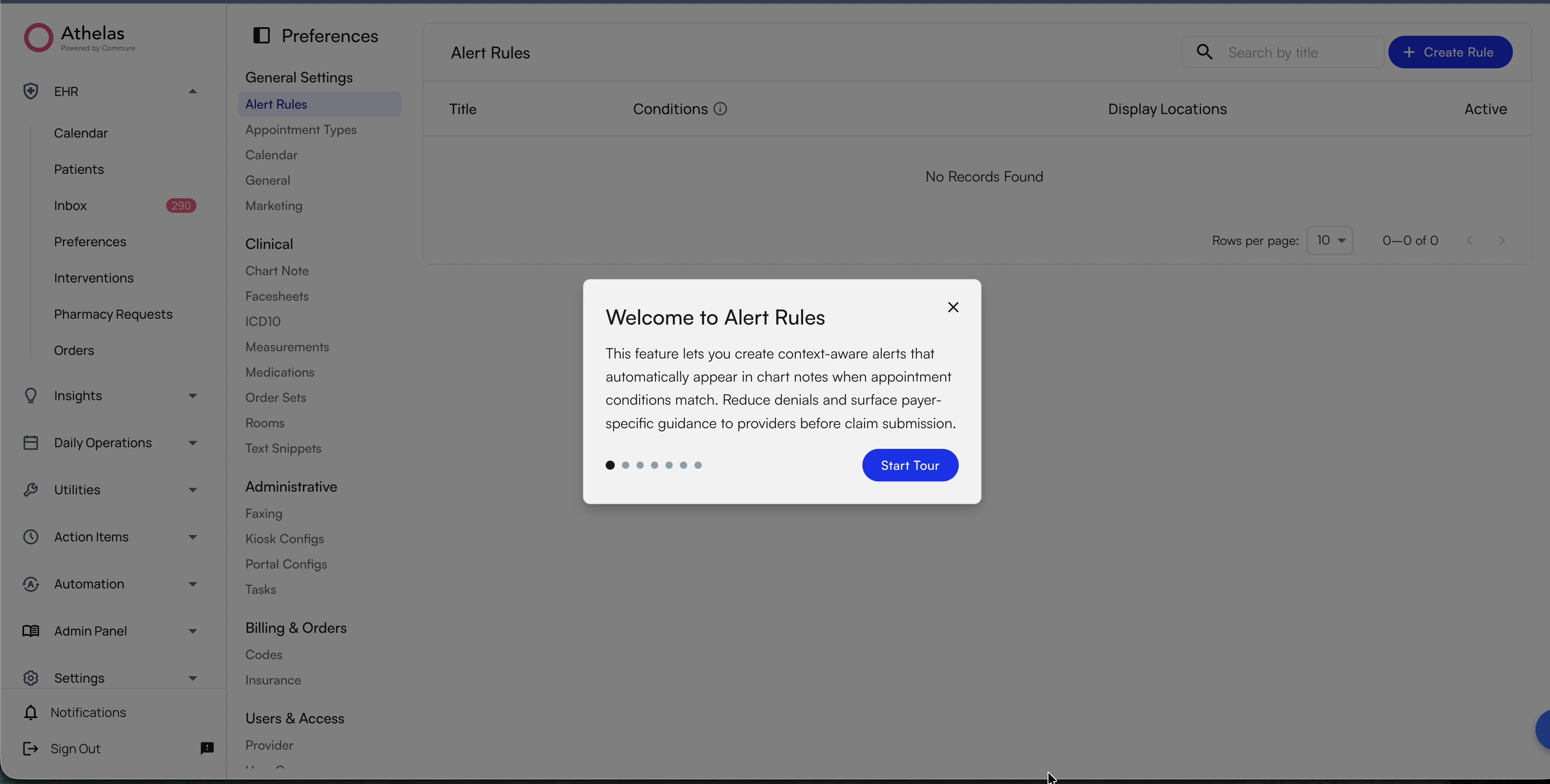
To open Alert Rules:
1. Go to **EHR Preferences**.
2. Open the **Alert Rules** tab in **General Settings**.
 ## Understand the Alert Rules Table
The table shows all configured rules for your site. For each rule, you can review:
* **Title**: Rule name.
* **Conditions**: A **See Conditions** control to inspect matching filters.
* **Display Locations**: Chart note sections where the alert can appear.
* **Active Toggle**: Whether the rule is currently evaluated.
You can also use pagination and count indicators to track total rules.
## Create a New Alert Rule
To create a rule:
1. Click **Create Alert Rule**.
2. Enter a **Title** (required).
3. Enter **Content** (required). Multi-line text is supported.
4. Configure at least one **Condition** (required).
5. Choose one or more **Display Locations**.
6. Click **Create**.
### Available Condition Types
| **Condition** | **How It Filters** |
| :----------------------- | :-------------------------------------------------------------------------------------- |
| **Insurance Companies** | Matches appointments where the patient primary insurance is one of the selected payers. |
| **Clinical Note Types** | Matches only selected note types (for example, Initial Evaluation or Progress Note). |
| **Appointment Types** | Matches only selected appointment types. |
| **Facilities** | Matches appointments scheduled at selected facilities. |
| **Provider Credentials** | Matches appointments where the rendering provider credential is selected. |
### How Matching Logic Works
* **Within one condition type (OR):** Multiple selected values match if any one value matches.
* **Across condition types (AND):** Every populated condition type must match.
* **Empty condition type:** Treated as no filter for that dimension.
✨**Smart Tip:** Start with one high-impact payer or note-type rule first, then expand conditions after you confirm the behavior in live chart notes.
## Edit, Activate, or Delete Rules
### Edit a Rule
1. Click the **Edit** icon on a row.
2. Update title, content, conditions, or display locations.
3. Click **Save**.
Updates apply on the next chart note load for matching appointments.
### Activate or Deactivate a Rule
* **Active:** Rule is evaluated and can display alerts.
* **Inactive:** Rule is preserved but not evaluated.
The 50-rule cap applies to **active** rules only. If you already have 50 active rules, you must deactivate one before activating another.
### Delete a Rule
1. Click the **Delete** icon on the rule row.
2. Confirm deletion.
Deletion is permanent from the UI.
## How Alerts Appear in Chart Notes
When a provider opens a chart note, the system evaluates active rules against appointment context, including insurance, note type, appointment type, facility, and provider credential.
Matching alerts appear as banner callouts in configured chart note sections.
## Understand the Alert Rules Table
The table shows all configured rules for your site. For each rule, you can review:
* **Title**: Rule name.
* **Conditions**: A **See Conditions** control to inspect matching filters.
* **Display Locations**: Chart note sections where the alert can appear.
* **Active Toggle**: Whether the rule is currently evaluated.
You can also use pagination and count indicators to track total rules.
## Create a New Alert Rule
To create a rule:
1. Click **Create Alert Rule**.
2. Enter a **Title** (required).
3. Enter **Content** (required). Multi-line text is supported.
4. Configure at least one **Condition** (required).
5. Choose one or more **Display Locations**.
6. Click **Create**.
### Available Condition Types
| **Condition** | **How It Filters** |
| :----------------------- | :-------------------------------------------------------------------------------------- |
| **Insurance Companies** | Matches appointments where the patient primary insurance is one of the selected payers. |
| **Clinical Note Types** | Matches only selected note types (for example, Initial Evaluation or Progress Note). |
| **Appointment Types** | Matches only selected appointment types. |
| **Facilities** | Matches appointments scheduled at selected facilities. |
| **Provider Credentials** | Matches appointments where the rendering provider credential is selected. |
### How Matching Logic Works
* **Within one condition type (OR):** Multiple selected values match if any one value matches.
* **Across condition types (AND):** Every populated condition type must match.
* **Empty condition type:** Treated as no filter for that dimension.
✨**Smart Tip:** Start with one high-impact payer or note-type rule first, then expand conditions after you confirm the behavior in live chart notes.
## Edit, Activate, or Delete Rules
### Edit a Rule
1. Click the **Edit** icon on a row.
2. Update title, content, conditions, or display locations.
3. Click **Save**.
Updates apply on the next chart note load for matching appointments.
### Activate or Deactivate a Rule
* **Active:** Rule is evaluated and can display alerts.
* **Inactive:** Rule is preserved but not evaluated.
The 50-rule cap applies to **active** rules only. If you already have 50 active rules, you must deactivate one before activating another.
### Delete a Rule
1. Click the **Delete** icon on the rule row.
2. Confirm deletion.
Deletion is permanent from the UI.
## How Alerts Appear in Chart Notes
When a provider opens a chart note, the system evaluates active rules against appointment context, including insurance, note type, appointment type, facility, and provider credential.
Matching alerts appear as banner callouts in configured chart note sections.
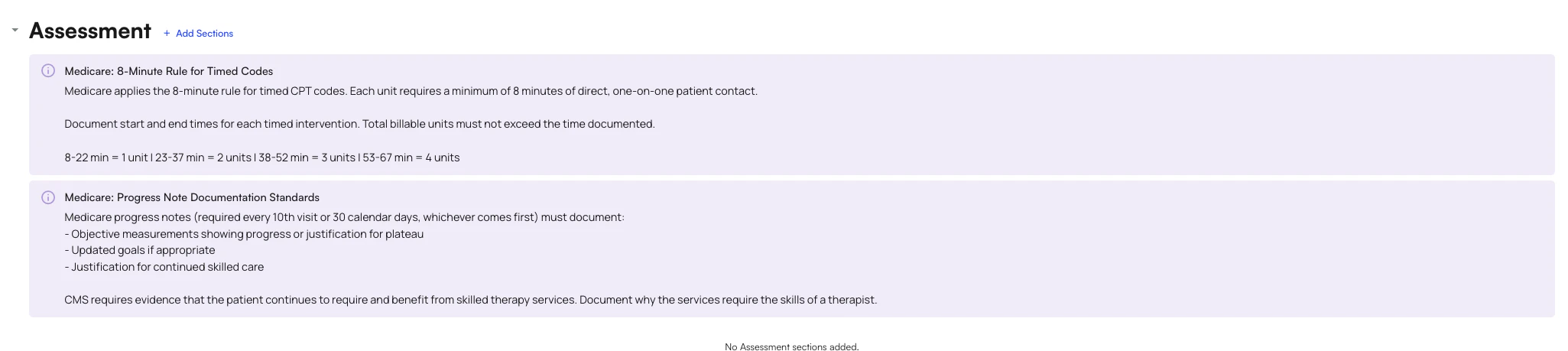 Each banner includes:
* An info icon
* Rule title
* Rule content
* A dismiss (**X**) action
### Alert Behavior
* Alerts are non-blocking and do not prevent **Sign & Submit**.
* Dismissing an alert hides it for the current session only.
* Dismissed alerts reappear on the next chart note load if conditions still match.
* If the alert service fails, chart note loading still succeeds.
## Display Locations and Feature Availability
Core locations are always available:
* **Subjective**
* **Objective**
* **Assessment**
* **Plan**
* **Other**
* **Notarize**
Additional locations depend on enabled features (for example **Vitals**, **Medications**, or **Clinical Results**).
## Common Use Cases
* **Payer-specific billing guidance:** Surface reminders for selected insurance companies in **Billing Details**.
* **Initial evaluation prompts:** Show required coding reminders only on **Initial Evaluation** notes.
* **Credential-specific compliance alerts:** Display supervision reminders based on provider credential.
* **Facility-specific workflows:** Add site-specific instructions for selected facilities.
### FAQ
Your site can have up to **50 active** rules. Inactive rules do not count toward the active limit.
No. Alert Rules are informational and do not block **Sign & Submit**.
Not currently. Rules are site-level and appear for any appointment that matches your configured conditions.
Dismissing an alert hides it for the current session. It can appear again the next time the chart note is opened if conditions still match.
Some locations are feature-dependent and only appear when the corresponding feature is enabled for your site configuration.
Each banner includes:
* An info icon
* Rule title
* Rule content
* A dismiss (**X**) action
### Alert Behavior
* Alerts are non-blocking and do not prevent **Sign & Submit**.
* Dismissing an alert hides it for the current session only.
* Dismissed alerts reappear on the next chart note load if conditions still match.
* If the alert service fails, chart note loading still succeeds.
## Display Locations and Feature Availability
Core locations are always available:
* **Subjective**
* **Objective**
* **Assessment**
* **Plan**
* **Other**
* **Notarize**
Additional locations depend on enabled features (for example **Vitals**, **Medications**, or **Clinical Results**).
## Common Use Cases
* **Payer-specific billing guidance:** Surface reminders for selected insurance companies in **Billing Details**.
* **Initial evaluation prompts:** Show required coding reminders only on **Initial Evaluation** notes.
* **Credential-specific compliance alerts:** Display supervision reminders based on provider credential.
* **Facility-specific workflows:** Add site-specific instructions for selected facilities.
### FAQ
Your site can have up to **50 active** rules. Inactive rules do not count toward the active limit.
No. Alert Rules are informational and do not block **Sign & Submit**.
Not currently. Rules are site-level and appear for any appointment that matches your configured conditions.
Dismissing an alert hides it for the current session. It can appear again the next time the chart note is opened if conditions still match.
Some locations are feature-dependent and only appear when the corresponding feature is enabled for your site configuration.